The best mice for programmers in 2027 are not the flashiest on the shelf. They stay comfortable through an eight-hour coding session, track precisely across two or three monitors, and put the buttons you actually use — back, forward, copy, paste, switch window — where your thumb already rests. The wrong one shows up as wrist ache, missed clicks, and constant fiddling with settings.
What matters most is shape first, sensor second, and software third. A mouse that fits your hand will beat a higher-DPI model that cramps your fingers by lunchtime. After that, look for a sensor that tracks cleanly on your desk, quiet clicks for shared spaces and calls, and software that remaps buttons per application.
We tested the shortlist below over full workdays in editors and IDEs, not five-minute demos. The Logitech MX Master 3S leads for most programmers, the Logitech Lift is the pick for wrist comfort, and the Razer Pro Click Mini is the one to pack. Prices below are approximate starting prices, so check current pricing before you buy.
Key takeaways
- The Logitech MX Master 3S is the best mouse for most programmers, thanks to its comfortable shape, quiet clicks, and app-specific button profiles.
- If your wrist hurts, switch shape before you switch brand: the Logitech Lift and the Kensington trackball change the angle that causes the strain.
- Wireless is now the default for coding — modern 2.4 GHz and Bluetooth connections are lag-free for everything except competitive gaming.
- Side buttons you can remap per application are worth more than extra DPI; most programmers never need more than 4,000 DPI.
- Budget buyers should start with the Keychron M6 or the Microsoft Sculpt Ergonomic Mouse, both of which cover the essentials for well under $60.
At a glance: the shortlist
| Mouse | Best for | Starting price | Standout limit |
|---|---|---|---|
| Logitech MX Master 3S | Most programmers | around $99 | Heavy at 141 g |
| Logitech Lift Vertical | Wrist comfort | around $69 | Right hand only |
| Razer Pro Click Mini | Portable setups | around $79 | Small for large hands |
| Logitech G Pro X Superlight 2 | Precision and speed | around $159 | Few extra buttons |
| Kensington Expert Mouse | Trackball fans | around $99 | Takes a week to learn |
| Microsoft Sculpt Ergonomic | Budget comfort | around $49 | Uses AA batteries |
| Keychron M6 | Best value wireless | around $39 | Basic software |
Logitech MX Master 3S — Best overall
The MX Master 3S is the mouse most programmers should buy first. Its sculpted shape fills a palm grip naturally, the thumb wheel scrolls horizontally through wide code files, and the main wheel switches between free-spinning and ratcheted modes. The sensor tracks on glass and rough wood alike, which matters when your workspace changes daily.
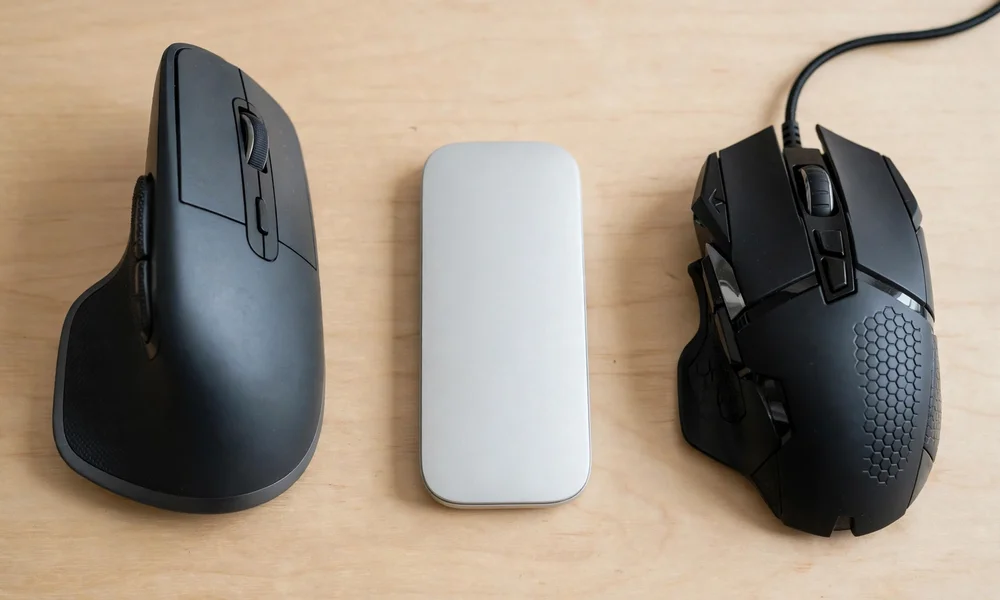
Where it earns its place is software. Logitech Options+ lets you assign different actions to each button in each application, so the same thumb button can switch browser tabs, jump between editor files, and mute your microphone on calls. The clicks are nearly silent, battery life runs for weeks, and it pairs with up to three devices over Bluetooth or the included Bolt receiver. For a complete setup, pair it with one of the best keyboards for programmers and your desk will feel built for long sessions.
Pros: Excellent comfort for long days; quiet clicks; per-app button profiles; horizontal scroll wheel; multi-device pairing.
Cons: Heavy for small hands; premium price; no wired mode while charging over USB-C is limited to charging only.
Logitech Lift Vertical — Best for wrist comfort
The Lift holds your hand at a 57-degree angle, closer to a natural handshake than the flat palm-down posture of a standard mouse. That angle reduces the forearm twist that causes wrist pain, and most people who switch for comfort feel the difference within a week. It suits small to medium hands, and Logitech makes a left-handed version too.
Performance is solid: a 4,000 DPI sensor, quiet clicks, and the same Options+ software as the MX Master, so you still get per-app button assignments and multi-device pairing. The shape is the point here, not the spec sheet. If your wrist aches by evening, change the angle first — it is a cheaper fix than a new chair.
Pros: Genuinely reduces wrist strain; quiet clicks; left-handed version available; good software.
Cons: Right-handed model is the default; too small for very large hands; no horizontal scroll wheel.
Razer Pro Click Mini — Best portable mouse
The Pro Click Mini is the mouse for programmers who work from different places. It is small and light, slips into a laptop sleeve, and still feels like a proper productivity mouse. Silent switches keep clicks quiet on calls, and it connects over Bluetooth to up to four devices or over the included 2.4 GHz dongle, which stores inside the mouse itself.
Its compact size is also its limit: large hands will find it cramped after a few hours. For a desk-bound setup there are better picks, but for a laptop-first programmer who codes in cafes and coworking spaces it is the most capable small mouse available, and the battery lasts for months on AA cells.
Pros: Very portable; silent switches; four-device Bluetooth; dongle stores inside the body.
Cons: Small for large hands; no horizontal scroll; uses disposable batteries.
Logitech G Pro X Superlight 2 — Best for precision
The Superlight 2 is a gaming mouse that happens to be excellent for programming. At under 60 grams it moves with almost no effort, which reduces fatigue during precise work — selecting text, dragging panels, navigating dense interfaces. The HERO 2 sensor tracks flawlessly at any speed.
The trade-off is simplicity: only five buttons, so no rich per-app macro setup, and the symmetrical shape is comfortable but unremarkable. It is also the most expensive mouse here. Buy it if you value lightness and tracking above all else, or if you also game; otherwise the cheaper options above give you more for less.
Pros: Extremely light; flawless sensor; excellent build quality; long battery life.
Cons: Expensive; only five buttons; no Bluetooth; plain shape.
Kensington Expert Mouse Wireless Trackball — Best trackball
A trackball is the most different option here, and for some programmers it is the answer to every wrist problem. Your hand stays still while your fingers roll the ball, so there is no arm movement at all. The Expert Mouse uses a large 55 mm ball for fine control, and the scroll ring around it is genuinely useful for long files.
Expect a learning curve of about a week — the first two days feel slow, and that is normal. It connects over Bluetooth or 2.4 GHz, runs for months on a charge, and the four buttons are fully remappable. If standard mice hurt you and a vertical mouse did not help, a trackball is the next thing to try.
Pros: No wrist movement at all; precise large ball; excellent for small desks; long battery life.
Cons: Steep learning curve; large footprint on the desk; ball needs regular cleaning.
Microsoft Sculpt Ergonomic Mouse — Best budget ergonomic mouse
The Sculpt Ergonomic Mouse is the cheapest way to get a genuinely comfortable shape. Its angled thumb scoop and raised body support a relaxed hand position, and the dedicated Windows button opens the Start menu. Its 1,000 DPI sensor is enough for code editing across one or two monitors.
It is not a premium product: basic plastic, minimal software, and two AA batteries rather than a rechargeable cell, and the sensor struggles on very glossy surfaces. None of that matters much at the price. Pair it with an eye-friendly display — see our guide to the best monitors for eye strain — and long sessions get noticeably easier.
Pros: Comfortable ergonomic shape; very affordable; dedicated Windows button; reliable wireless.
Cons: Basic build; low DPI sensor; AA batteries; minimal software.
Keychron M6 — Best value wireless mouse
The Keychron M6 is the value pick. For around $39 it offers a 4,000 DPI sensor, Bluetooth and 2.4 GHz connectivity, a rechargeable battery, and a quiet shape that works for palm and claw grips — modern wireless performance without a premium price.
The software is the weak point: it covers DPI steps, polling rate, and button remapping, but it is not as polished as Logitech Options+. The build is light plastic and there is no horizontal scroll wheel. If your budget is tight, start here and spend the money you save on a better chair or monitor.
Pros: Excellent price; dual wireless modes; rechargeable; quiet clicks.
Cons: Basic software; light plastic build; no horizontal scroll.
How to choose
Start with your hand, not the spec sheet. Measure from wrist to fingertip: under 17 cm usually suits small mice like the Razer Pro Click Mini, 17 to 19 cm suits medium mice like the MX Master 3S, and over 19 cm suits large mice or the Kensington trackball. Palm grippers want a tall, full mouse; claw grippers want a shorter one; fingertip grippers want something light, like the Superlight 2.
Next, decide wired versus wireless. For programming, wireless has won: modern connections add no perceptible lag, and freedom from a cable matters more than the tiny latency difference only competitive gamers notice. Choose Bluetooth if you switch between a laptop and a desktop, and 2.4 GHz for the most reliable single connection.
Finally, count the buttons you actually use. Most programmers need five or six: left, right, middle, back, forward, and one extra for a custom action. If you work on a laptop most of the day, see our roundup of the best laptops for coders for machines that pair well with these mice.
Checklist: before you buy
- Check your hand size against the mouse dimensions — returns are common when the fit is wrong.
- Confirm it works with your operating system, including macOS if you use a Mac.
- Test the sensor on your actual desk surface, not just a mouse pad.
- Make sure the software supports per-app button profiles if you want them.
- Check battery life and whether it charges over USB-C or uses disposable batteries.
- Buy from a retailer with a 30-day return window so you can test it for a full workweek.
Frequently asked questions
What is the best mouse for programmers in 2027?
The Logitech MX Master 3S is the best choice for most programmers: a comfortable shape, quiet clicks, a horizontal scroll wheel, and per-application button profiles in one reliable wireless mouse.
Do programmers need a high-DPI mouse?
No. Most programming work is comfortable between 800 and 2,000 DPI. Sensor accuracy and shape matter far more than the maximum DPI number on the box.
Is a vertical mouse better for programmers?
A vertical mouse like the Logitech Lift can help if you have wrist pain, because it holds your hand at a more natural angle. It is not automatically better for everyone, though — many programmers are perfectly comfortable with a standard shape.
Should programmers use a wireless mouse?
Yes, for most people. Modern wireless mice have no perceptible lag for coding. Choose 2.4 GHz for the most reliable connection or Bluetooth if you switch between devices.
How many buttons does a programming mouse need?
Five or six is the sweet spot: left, right, middle click, back, forward, and one programmable button. Extra buttons help only if you actually remap them.
Are trackballs good for programming?
Trackballs can be excellent for programmers with wrist pain, because the hand stays still. They take about a week to learn, but many long-term users never go back to a standard mouse.
The bottom line
Buy the Logitech MX Master 3S for the safest all-round choice, the Logitech Lift if your wrist hurts, and the Keychron M6 if your budget is tight. Shape and comfort decide more than any spec on the box, so test your pick for a full workweek inside the return window.
The mouse is the smallest part of your setup, but it is the one your hand touches all day. Get the fit right and the rest of the desk works better too.