
If you want to choose a tablet without wasting money on the wrong one, start with what you will actually do on it. A tablet can be a reading device, a note-taking tool, a portable cinema, a drawing pad, or a light laptop replacement, but no single model does all of those jobs equally well. The right choice depends on your hands, your eyes, and your daily routine more than on any single specification.
Tablets look simple, yet two with the same screen size can differ in weight, brightness, pen support, battery life, and update support. Those details decide whether the tablet becomes a daily habit or ends up forgotten in a drawer.
This beginner’s guide follows the same order a careful shopper would use: define your main use, pick a size and screen, choose an operating system, check performance and storage, test the pen and keyboard, and compare prices. By the end you should have a shortlist of two or three models that genuinely fit your life.
Key takeaways
- Your main use decides the size, operating system, and accessories you need.
- An 11-inch screen suits most people, balancing reading comfort with portability.
- For notes and drawing, pen support and a low-latency stylus matter more than raw speed.
- Buy at least 128GB of storage, and check how many years of software updates are promised.
- Test the weight in one hand before you buy, because a heavy tablet gets put down quickly.
At a glance: tablet types
| Type | Best for | Typical price | What to check |
|---|---|---|---|
| Budget tablet | Reading, video, browsing | $150 to $350 | Screen brightness, updates |
| Mid-range tablet | Study, notes, streaming | $350 to $650 | Pen support, battery, weight |
| Premium tablet | Drawing, editing, work | $650 to $1,200 | Screen quality, chip, accessories |
| Small tablet | Reading, travel, kids | $150 to $450 | One-hand weight, size |
| Large tablet | Art, sheet music, split screen | $800 to $1,400 | Weight, keyboard, price |
| Kids tablet | Children, learning apps | $100 to $250 | Case, controls, durability |
Step 1: Decide what the tablet is for
Write down the three things you will do most on the tablet. Reading, watching shows, and browsing need only a good screen and decent battery life. Handwritten notes and drawing need a responsive stylus, while editing photos or video needs a faster chip, more storage, and a colour-accurate display.
Be specific about where you will use it. A sofa tablet can be larger and heavier, while one for commuting or lectures should be light enough to hold in one hand for half an hour. If it will replace a laptop for travel, keyboard support moves to the top of the list.
Consider who else will use it: a shared family tablet needs separate profiles or a good kids mode. If you already own a phone or laptop, staying in the same ecosystem makes sharing files and notes far simpler. Before comparing models, it helps to know what a tablet is and how it differs from a phone or laptop.
Step 2: Pick the right size and screen
Screen size is the most personal choice here. An 8-inch tablet suits reading and travel but feels cramped for typing. An 11-inch tablet is the best all-rounder: large enough for notes and video, light enough to carry. A 12-inch or 13-inch tablet suits drawing and desk work, but it is heavy in one hand.
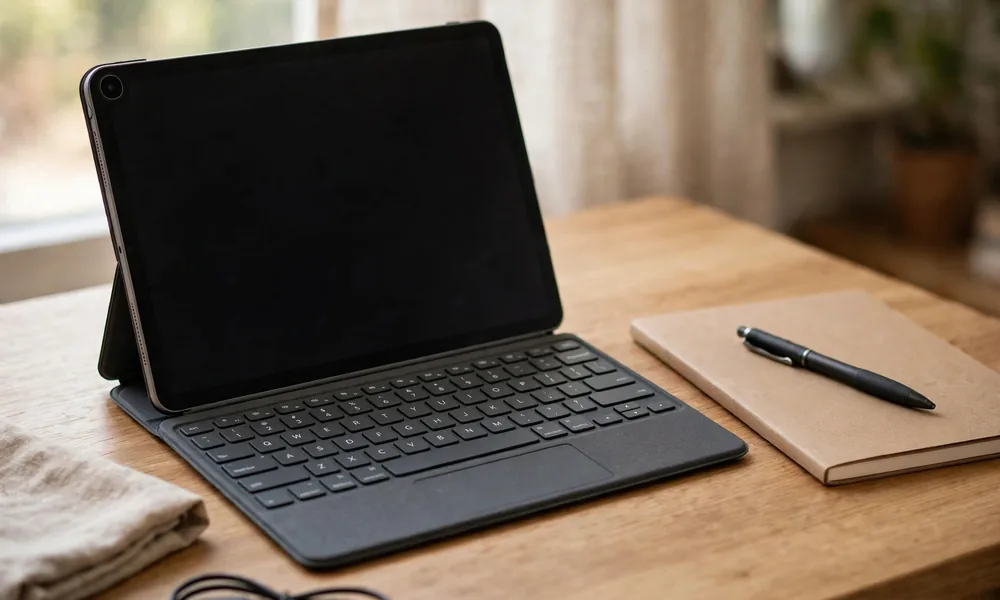
Look for a sharp, bright display: at least 2000 by 1200 pixels keeps text crisp, and 500 nits or more stays readable near a window or outdoors. Cheaper tablets often have dim screens that look fine in a shop but wash out in daylight, so check independent brightness measurements. A 90Hz or 120Hz refresh rate makes scrolling and drawing feel smoother, and it is worth paying for if you write or draw daily.
Screen finish matters too. A glossy screen shows vivid colours but reflects light, while a matte or paper-like protector reduces glare and feels more like paper under a stylus. Colour accuracy matters most for photo work: look for a display that covers most of the sRGB colour range in independent tests.
Step 3: Choose an operating system
The operating system decides which apps you can run and how well the tablet works with your other devices. Apple iPadOS offers the widest choice of polished drawing and note-taking apps, and iPads receive updates for many years. If you already use an iPhone or a Mac, an iPad shares notes and files with almost no setup.
Android tablets from Samsung, Lenovo, and others offer more choice in size and price, plus flexible file handling and split-screen multitasking. Samsung’s tablets are the strongest Android option for pen input, with a stylus included on many models. Check that the apps you need exist on Android first, because a few specialist creative apps are still iPad-only.
Amazon Fire tablets are the cheapest option and work well for reading, video, and kids, but they run a limited app store without Google services by default. That trade-off is fine for a simple media tablet and poor for work or study. The same task-first thinking works for phones as well, and our guide to choosing a smartphone explains how to weigh screen, battery, and ecosystem in the same way.
Step 4: Check performance, storage, and battery
Browsing, reading, and streaming run well on any modern mid-range chip, while drawing, photo editing, and gaming need a faster processor and more memory. As a rule, 4GB is the minimum for smooth everyday use, 6GB to 8GB feels comfortable, and 8GB or more suits heavy multitasking. Avoid models with 3GB or less, because they slow down quickly as apps update.
Storage fills up faster than most buyers expect, and many tablets cannot expand it with a memory card. Choose at least 128GB, or 256GB if you download a lot of video or edit photos. Card storage is slower and cannot hold every kind of app, so do not rely on it.
Battery life should cover a full day of your normal use. Manufacturers quote video playback time, the most generous figure, so look for independent tests that mix browsing, video, and note-taking. Ten hours of mixed use is a good target, and USB-C charging lets one charger serve your tablet, phone, and laptop.
Step 5: Test the pen, keyboard, and accessories
If you will write or draw, the stylus is half the product. A good one has low latency, so the line appears under the tip without delay, plus pressure sensitivity for natural handwriting. Some tablets include the pen, while others charge $80 to $130 for it, so add that cost before comparing models.
Test the pen on the exact model you plan to buy, because feel varies widely. Write a paragraph, draw a quick sketch, and check palm rejection, which stops your resting hand from making stray marks. Bluetooth accessories such as keyboards and headphones pair easily, and you can read how Bluetooth works to understand why some pairings stay stable while others drop out.
Keyboards deserve the same hands-on test: well-spaced keys, a usable trackpad, and a stable angle on your lap, not just on a desk. A good case should protect the screen, hold the pen, and stand the tablet at a comfortable angle for video and typing.
Step 6: Compare prices and buy at the right time
Shortlist two or three tablets, then compare the total price of each with its pen, keyboard, and case included. A cheaper tablet with expensive accessories often costs more than a pricier model that includes the pen. Check the warranty, the return window, and how many years of software updates the manufacturer promises, because a tablet that stops getting updates in two years is a poor buy.
Time the purchase when you can: tablets go on sale often, especially during holiday sales and when a new model launches. The previous generation is often excellent value, since the differences are usually small for reading, notes, and streaming.
Finally, buy from a seller with a fair return policy and test the tablet on your real tasks in the first two weeks: read for an hour, take notes, watch a film, and charge it overnight. If the weight, screen, or pen bothers you, return it and try the next model on your shortlist.
Troubleshooting: common tablet-buying mistakes
The most common mistake is buying the cheapest tablet and expecting it to do everything. A budget tablet is fine for reading and video, but it will frustrate you with slow apps, a dim screen, and short update support. Match the price to the job.
Another frequent problem is choosing the wrong size. A large tablet looks impressive in the shop, then feels heavy after twenty minutes of reading in bed. If you are unsure, hold the tablet in one hand for a few minutes before buying, and check the weight with its case on, since that is how you will actually carry it.
Buyers also forget about software updates. A tablet that stops receiving them loses new features and, more importantly, security fixes. Before you buy, check the manufacturer’s update promise for that exact model, and prefer brands with four or more years of updates.
Checklist: before you buy a tablet
- Your top three uses are written down, with where and how long you will hold the tablet.
- The screen size, brightness, and resolution suit reading, notes, or drawing as needed.
- The operating system has the apps you need and works with your phone and laptop.
- Memory is 4GB or more, storage is 128GB or more, and the update promise is checked.
- The pen and keyboard have been tested on the exact model, with their prices included.
- Total price, warranty, return window, and sale timing are confirmed before you pay.
Frequently asked questions
What size tablet should a beginner buy?
An 11-inch tablet suits most beginners: it is large enough for notes, video, and split-screen work, yet light enough to carry daily. Go smaller for travel and reading, or larger for drawing, sheet music, and desk work.
Is an iPad or an Android tablet better?
An iPad is better for creative apps, long update support, and working with other Apple devices. An Android tablet offers more choice in size and price. Choose the one that has your essential apps and matches the devices you already own.
Do I need a stylus?
Only if you will handwrite notes, mark up documents, or draw. For reading, video, and browsing, a stylus is unnecessary. If you do need one, test it on the exact tablet first, and include its price in your comparison.
How much storage do I need on a tablet?
Choose at least 128GB for comfortable use, or 256GB if you download a lot of video, store many photos, or edit files. Check whether the tablet supports a memory card before relying on expansion.
Can a tablet replace a laptop?
It can replace a laptop for browsing, email, notes, and light document work, especially with a keyboard. It cannot fully replace one for heavy software, large spreadsheets, coding, or professional video editing.
How long should a tablet last?
A good tablet should last four to five years for everyday use, as long as it keeps receiving software updates. Buying enough storage and a model with a long update promise is the simplest way to extend that life.
The bottom line
The best tablet is the one that fits your hands, your main tasks, and your other devices. Define the job first, then choose size, screen, operating system, and accessories in that order, and compare the total price of two or three finalists with everything included.
When those pieces line up, the decision is simple: pick the model with the best screen and pen feel in your price range, confirm the update promise and return window, and test it on your real work in the first two weeks. A tablet chosen this way becomes a daily tool instead of a drawer decoration.