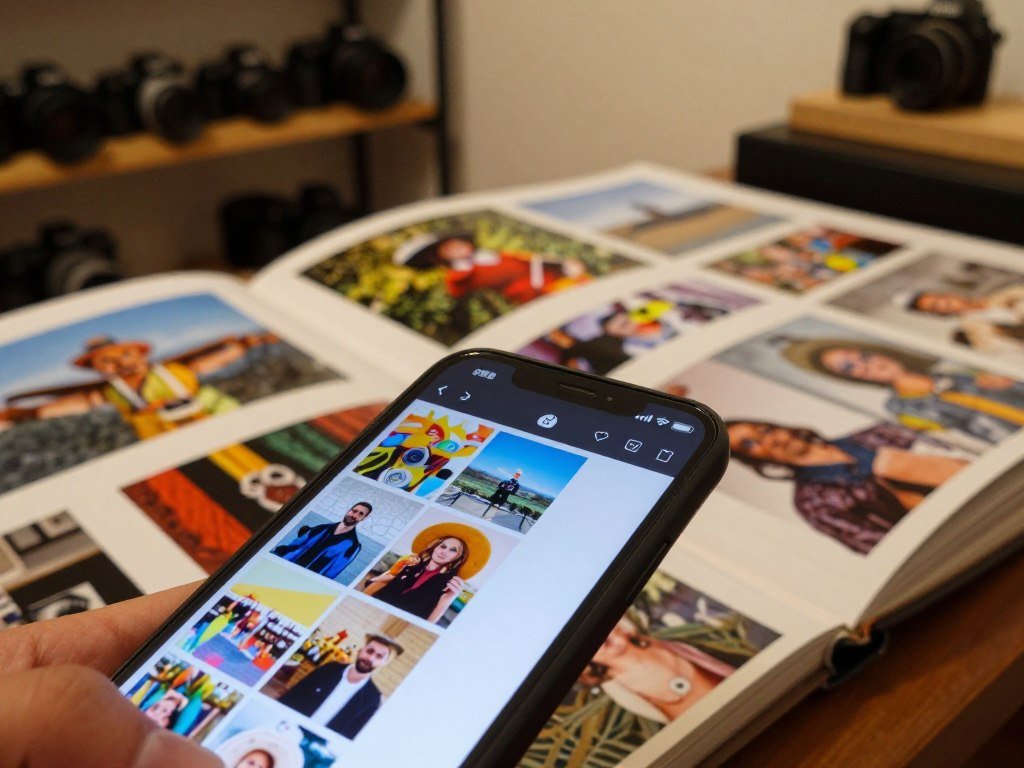
A phone camera roll is easy to protect with automatic uploads, but a large photography archive needs more than one copy. The best photo backup solutions fit the devices and files you already use. Phone-first users can begin with automatic uploads. Photographers with large libraries need local and off-site copies, too. You can choose a setup by device, capacity, and recovery needs without adopting every tool. Start with where your originals live, then add a separate copy you can reach if a phone, computer, or drive fails. A backup should be easy enough to keep running and clear enough to restore from when you need a file. The right setup is the one that keeps another usable copy away from the device that holds the originals.
Key Takeaways
- Automatic uploads are a simple starting point for phone pictures.
- Large camera libraries need local and off-site copies.
- Sync keeps files matched across devices, but is not an independent backup.
- Storage needs depend on file type, resolution, and video.
- Test a restore before relying on a backup.
- Choose tools you can keep running after setup.
What Does a Safe Photo Backup Need?
A safe setup keeps three copies of each important file, uses two types of storage, and puts one copy off-site. The 3-2-1 backup rule is a backup approach that keeps three copies of important files on two types of storage, with one copy stored off-site. This gives you a way back if your computer or home storage fails.
An off-site copy is essential, but it does not have to be in the cloud. Cloud backup services can store a copy online, while a drive kept safely away from home can fill the same role. For example, keep originals on a computer, make a local backup on an external drive, and store another copy at a trusted location.
Keep three copies of important files on two types of storage, with one copy away from home.
Cloud backup and sync are different. A backup service makes a separate copy and may keep deleted files for about 30 days, sometimes longer. Sync services such as Dropbox, Google Drive, iCloud, and OneDrive keep files matched across devices, so deleting one may remove it everywhere.
Use these three checks to see whether your setup has the needed separation:
- Count the original and every separate copy.
- Confirm that the copies use two storage types.
- Check that one copy is physically stored elsewhere.
A cloud backup is not mandatory if you can safely store an off-site drive and maintain it. For many households, cloud backup services are easier to keep current than a drive that must travel between locations. The right choice depends on your internet access and how often you can update a remote drive.
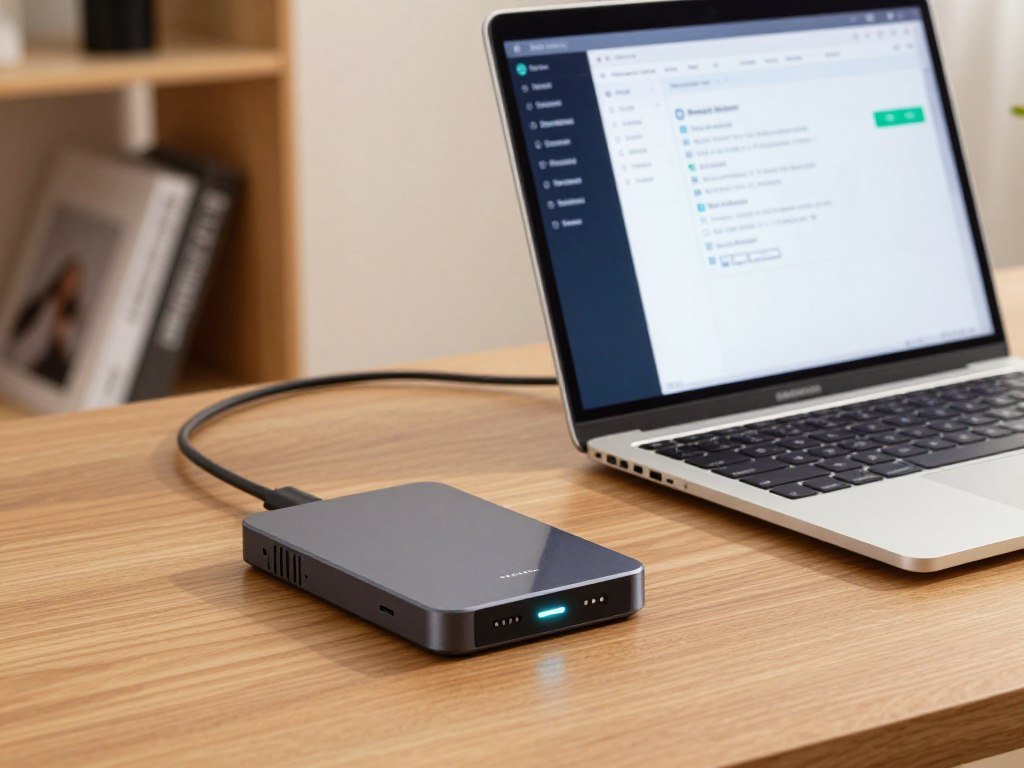
Deletion protection also depends on the service’s retention period. A backup may keep an older copy after you remove a file, while sync can spread that removal quickly. Test a restore from one backup before you trust it as your only recovery route.
How Much Storage Do Your Photos Need?
A rough starting point is 1 TB for about 150,000-250,000 phone JPGs or 20,000-50,000 RAW images. These are planning ranges, not promises, because each camera and file type uses space differently. RAW files store more image data than JPGs, and their exact formats vary by camera.
Check that a service supports your camera’s exact RAW format before you send a full library. Resolution, file size, and video also change how many photos fit. A phone that records lots of video can use storage much faster than a photo-only estimate suggests.
Free cloud storage can hold a modest start, but thousands of high-resolution photos can outgrow a free tier. Searching for a place to store thousands of photos for free often leads to a limit, a reduced feature set, or a paid membership. Unlimited photo storage tied to a paid membership is not free service.

For a wider look at free limits and file-sharing features, compare cloud storage services and free plans before choosing an account. The number shown as available space may also cover email, documents, and other files. That shared pool can shrink before your photo library is complete.
A first cloud upload can take weeks or months when a library is large or internet speed is limited. You can start with the most important folders, then let the rest upload in the background. Keep the computer awake and connected as needed by the service.
Estimate the library’s current size, then leave room for new shoots and video. Add room for video and future shoots instead of choosing a plan that only fits today’s library.
Best Photo Backup Solutions for Different Needs
For most people backing up phone pictures, Google Photos is the simplest starting pick; iCloud is the better fit for an all-Apple setup. Amazon Photos suits Prime members, while Backblaze protects a whole computer and pCloud offers a lifetime payment option. Each serves a different job, so compare the storage model as well as the cost.
“Free unlimited” photo storage still requires an eligible paid membership when the offer comes with Prime. In the United States in 2026, a Google Account includes 15 GB shared across Google Photos, Google Drive, and Gmail. Google One offers 100 GB for $1.99 per month.
| Service | Capacity or storage model | Price or payment model | Best fit |
|---|---|---|---|
| Google Photos | 15 GB shared; 100 GB plan | 100 GB at $1.99/month | Simple phone backup and search |
| Amazon Photos | Unlimited high-resolution photos and 5 GB video with Prime | Prime $14.99/month or $139/year; video plans: 50 GB $0.99/month, 100 GB $1.99/month, 1 TB $6.99/month, 2 TB $11.99/month | Existing Prime members |
| Apple iCloud Photos | High-resolution originals in iCloud; space-saving device versions | Paid iCloud storage tier | iPhone users |
| Backblaze Computer Backup | Unlimited backup for one computer | Subscription | Full-computer protection |
| pCloud | 500 GB lifetime storage | $219 one time | One-off payment preference |
For 2026 U.S. prices, Amazon Prime costs $14.99 per month or $139 per year. Prime includes unlimited high-resolution photo storage and 5 GB of video storage. Separate video plans add space when your clips exceed that limit.
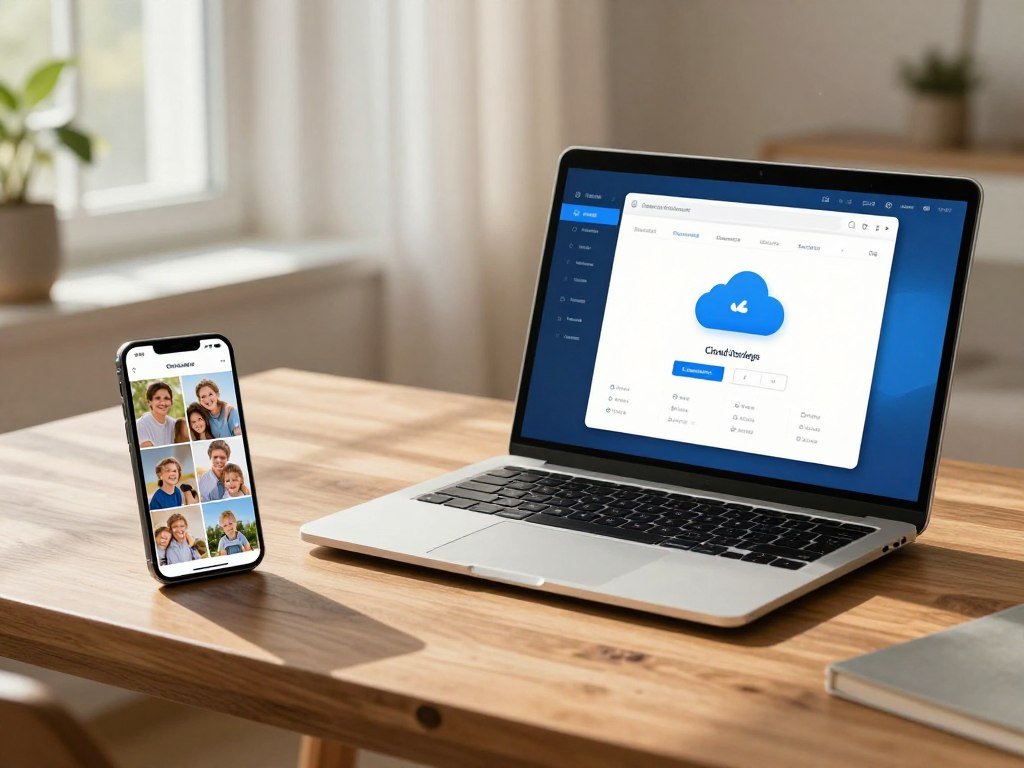
In PCMag’s 2026 online photo storage tests, Google Photos, Adobe Lightroom, and Microsoft OneDrive each earned a 4.5 Outstanding rating. Google Photos was recognized for AI search and automatic effects. Lightroom was selected for serious amateur photographers, and OneDrive for Windows and Office users.
Apple iCloud Photos is a natural choice if your devices already work together through Apple. Backblaze Computer Backup covers a computer rather than only a camera roll. pCloud works for readers who prefer paying once for a set amount of storage.
Think about where your originals live and what you would need to recover after a device failure. Match the service to the files and devices it actually needs to protect, not just its headline storage number.
Which Phone Photo Backup Works for Your Devices?
iPhone users already working across Apple devices will find iCloud Photos the most integrated option, while Google Photos suits mixed-device households. Both options can upload and sync photos, but neither sync creates a second independent backup by itself. Amazon Photos is another phone-friendly choice for Prime members.
Make sure the account has room for the full-resolution files you plan to upload. Storage can be shared with other services under the same account. A full account may stop accepting new photos even while older ones remain available.

Google Photos across Google Accounts
Google Photos uses Google Account storage for Original quality backups. High quality or Express quality uploads made before June 1, 2021 do not count toward account storage. Pixel 5 and earlier phones get unlimited no-charge Google Photos storage for media backed up from those devices.
Google may delete backed-up photos and videos after an account stays inactive for two years or more. It gives at least three months’ notice, and items removed for inactivity remain in Trash for 30 days before permanent deletion. When the account runs out of storage, Google Photos cannot save new photos or videos.
In the United States in 2026, Google One offers 100 GB for $1.99 per month. This can provide more room for photos and other account files. Review which folders upload and which image quality setting the app uses.
iCloud Photos for Apple devices
iCloud Photos stores high-resolution photos and videos in iCloud, then keeps space-saving versions on your devices. You can view and edit the library across Apple devices, while the original files remain in cloud storage. Shared Photo Library lets you share a collection with up to five other people.
iCloud Backup is separate from iCloud Photos. It automatically backs up iPhone and iPad data when a device is connected to power and Wi-Fi. That device backup adds a recovery path, but the photo sync itself is still not a separate copy.
Amazon Photos for Prime members
Amazon Photos supports natural-language mobile searches, so you can look for a subject in everyday terms. Album sharing supports up to 50 people. Those tools can help families pass around pictures without asking each person to manage a separate folder.
Before you turn on full-resolution uploads, check the available account space and the folders included. Check that the account has enough room before enabling full-resolution uploads.
Which Cloud Backup Services Protect a Whole Computer?
For a single computer with a large photo library, Backblaze is a practical cloud-backup choice because its Computer Backup plan is unlimited. One computer is the key limit: a household with several machines may prefer iDrive, which can cover multiple computers under one account.
Backblaze Computer Backup costs $9 per month or $189 for a two-year plan in 2026. Its 15-day trial does not require a credit card. The service can protect more than photos, including other files on the covered computer.
| Service | Coverage pattern | Practical fit |
|---|---|---|
| Backblaze Computer Backup | Unlimited for one computer | A single editing computer |
| iDrive | One account can cover multiple computers | A household with several machines |
| Local drive plus either service | Local copy with off-site cloud backup | Nearby recovery and off-site protection |
Backblaze lets you download backed-up data from the web for free. You can also order a mailed hard drive for a fee, which Backblaze refunds if you return the drive within 30 days. That option can help when downloading a large archive would take too long.
Backblaze Computer Backup with Enterprise Controls keeps a full year of version history and deleted-file retention in 2026. This detail applies to Enterprise Controls, not every Backblaze plan. Check the plan’s retention terms against how far back you may need to recover.
A large first upload can take a long time, especially when your library includes RAW files and video. Leave the computer online and allow the backup to run until all intended folders are covered. A local copy can help you restore recent work without waiting for a full cloud download.
Some services need external drives connected to include them in backup. Confirm that every external drive you expect to protect stays connected as required by the chosen backup service.
Is pCloud a Good One-Time Photo Storage Option?
pCloud is worth considering when a reader wants a large cloud-storage allowance paid for up front rather than month by month. Lifetime plans avoid recurring payments for the purchased capacity, but they do not promise that a provider will operate forever.
In the United States in 2026, pCloud Lifetime Premium Plus provides 2 TB for $499, while Lifetime Ultra provides 10 TB for $1,499. The larger plan suits a library with more room to grow, while 2 TB may be enough for a smaller archive or personal collection.
Choosing a pCloud lifetime capacity
Estimate the size of your current library, then account for future shoots and video. A one-time payment can make costs easier to plan, but it ties the value of that payment to continued access to the account and service. Keep a separate copy of important files.
Sharing and recovering files with pCloud
pCloud Premium plans include pCloud Photos and tools for sharing project files. Those tools include password-protected links, shared folders, file requests, and branded shares. A personal archive can stay organized while a project folder gives collaborators access to selected files.
File recovery lasts up to 30 days, which can help if you remove or change a file by mistake. It is a defined recovery window, not a substitute for another copy. Do not treat “lifetime” as a promise about the provider’s future.
For important images, keep a second copy outside any single account. Keep a second copy of irreplaceable files outside any single lifetime account.
Which Photo Services Fit an Editing Workflow?
Lightroom is the stronger fit for photographers who want editing tools tied to online storage, while SmugMug suits photographers who also need a portfolio or client-facing galleries. The workflow matters: one service helps you edit and reach a working catalog, while the other helps present and share selected work.
Lightroom includes 1 TB of online storage in 2026, which can limit its use as a full archive. It is useful for editing and syncing work across devices. A larger collection may need a separate archive outside the editing plan.
Adobe Lightroom for editing and catalog access
Lightroom combines photo editing tools with online storage, so your work can follow you between devices. It can suit a serious amateur who wants an editing workflow and a way to reach the same catalog away from the main computer. PCMag’s 2026 online photo storage tests gave Lightroom a 4.5 Outstanding rating and selected it for serious amateur photographers.
The 1 TB ceiling matters if you shoot often or keep large RAW files. Treat Lightroom as a workflow companion, not a complete archive for a much larger library. Keep original files in another location if the catalog grows past its online space.
SmugMug for portfolios and photo sharing
SmugMug can host a portfolio and client-facing galleries, which helps photographers present selected work. Clients can review proofs without needing access to the photographer’s full working archive. The mobile app also includes unlimited photo backup.
That unlimited backup excludes RAW files, which need separate storage. The limit matters because many photographers keep RAW files as their original working files. A JPG backup alone may not preserve the same editing options later.
For an editing workflow, separate active catalog access from long-term file storage. Check whether the service protects the original file type you shoot before treating it as your sole archive.
When Do OneDrive and Dropbox Make Sense?
OneDrive makes the most sense for readers already using Windows or Office, while Dropbox is useful when shared access across devices matters most. Both services can move files between devices, but they are primarily sync services rather than a complete backup plan.
A sync folder should not be your only copy of files you cannot replace. Sync helps you reach the same working files from a phone, laptop, or desktop. A separate backup protects against loss that also reaches the synced folder.
Microsoft OneDrive for Windows and Office users
OneDrive fits naturally into Windows and Office workflows, and PCMag’s 2026 online photo storage tests gave it a 4.5 Outstanding rating. The tests selected OneDrive for Windows and Office users. Its phone app can upload photos as a one-way backup.
On Android, OneDrive can offer local-photo cleanup after upload. That cleanup feature is not available on iPhone. If you use both platforms, the phone behavior will not be identical.
Dropbox for file access and sharing
Dropbox is useful when you need to open and share files across devices. It can keep folders easy to reach for a team, family, or photographer working between a phone and computer. Its sync role is different from a service that makes and retains a separate backup.
Dropbox, OneDrive, iCloud, and Google Drive are primarily sync services. They can make daily access simpler, but they should not stand in for a separate copy with its own recovery history. Keep a separate backup copy if a sync folder contains files you could not replace.
What Do Local Drives Add to a Photo Backup?
An external drive gives you a nearby copy that can be faster to restore than a cloud download. HDDs usually offer lower-cost capacity, while SSDs move files faster and have no moving parts. Both can support a local backup for photos and other files.
An external drive holding the only copy of a library is storage, not a backup. A second drive can create another local copy, but speed or duplication does not protect against a fire, theft, or other event affecting both drives.
| Storage type | Useful strength | Suitable role |
|---|---|---|
| External HDD | Lower-cost capacity | Completed-project archive |
| External SSD | Faster transfers; no moving parts | Active editing projects |
| Two separate external drives | Local duplication | Primary library with a second local copy |
HDDs use spinning platters, making them a common choice for large archives. SSDs use flash memory, which helps with faster file transfers and frequent work on active projects. Choose based on whether capacity or transfer speed matters more for that drive’s role.
For help comparing capacity, speed, and portability, see external hard drives for backup. A desktop drive can suit a home archive, while a portable drive can travel with a laptop. Match the connector and capacity to the computers you use.
Use this short checklist to keep local copies clear and useful:
- Label each drive with its role and the date of its latest copy.
- Verify that completed copies contain the expected folders.
- Disconnect or store a second drive away from the working machine.
An off-site copy is still needed because a local drive cannot protect against every event at home. Open a sample file from each drive periodically to verify that the copy is readable.
When Is a NAS Worth Adding?
A NAS is most useful when several devices need access to one growing archive or when a single external drive no longer fits the workflow. Network-attached storage connects over a home network, so more than one computer can reach shared files.
A NAS makes a central home archive easier to share, but it is not a backup by itself. Direct-attached storage, or DAS, connects directly to one computer. A DAS can suit a single workstation, while a NAS can serve several devices on the same network.
NAS capacity for a growing archive
A NAS can hold a larger shared archive as your photo collection grows. It can make files available to several computers without passing a drive from desk to desk. That shared access can help households or photography teams with more than one workstation.
Plan its space around the files you expect to keep, including RAW images and video. A central archive can make daily access simpler, but other copies still need their own locations. Network access is not the same as off-site protection.
What RAID can and cannot protect
RAID is a way to arrange multiple drives so a system can handle some drive failures. RAID 1 mirrors data across two drives, so each holds a matching copy. RAID 5 and RAID 6 use parity, which stores extra information to help rebuild data after some drive failures.
RAID can keep a system running through certain drive failures, but it does not protect against every deletion, malware event, theft, or household disaster. If a bad edit or command deletes a file, the change may reach the array. Treat RAID as protection against some drive failures, not as a substitute for a separate backup copy.
Which Setup Fits Your Photo Library?
A phone-first reader can start with automatic uploads and a local copy, while a multi-terabyte photographer should separate active work from the archive. Library size helps set the plan, but these bands are guides rather than hard thresholds. Your devices and file types also shape a workable setup.
Libraries under 1 TB can often fit a phone or computer plan plus one local copy. Libraries around 1-5 TB need more deliberate capacity planning. Working libraries around 5-20 TB often benefit from an editing drive, a local archive, and an off-site copy.
| Library profile | Workable setup | Key trade-off |
|---|---|---|
| Phone or family library under 1 TB | Automatic phone uploads plus one local copy | Simple access with limited free capacity |
| Enthusiast library around 1-5 TB | Working drive plus archive and off-site copy | More setup, better separation |
| Working archive around 5-20 TB | Editing drive plus NAS or archive drive, plus cloud or remote copy | Greater capacity with a longer first upload |
Phone and family libraries
A phone or family library may include shared pictures, short videos, and photos from several devices. Automatic uploads can gather them in one place, while a local copy gives you another route to restore files. Limited free capacity can mean choosing which folders to upload or adding paid space.
Think about who needs access to the family collection. A shared account can simplify viewing, but each person should know where originals live and how to reach them if a phone is lost. Keep folders organized enough that a restore does not become a hunt through years of camera rolls.
Enthusiast and working-photographer archives
Enthusiasts may need separate space for current edits and completed projects. A working drive keeps active files handy, while an archive drive or NAS holds finished work. An off-site copy gives the archive protection beyond the home.
A cloud-only first upload may take weeks or months, depending on library size and connection speed. Start with the folders you would miss most, then let the larger transfer run as time allows. Choose a setup you can keep running automatically after the first week of enthusiasm.
How Can You Protect a Photo Archive for Decades?
A 30-year photo archive needs periodic checks because devices, accounts, and file formats do not stay unchanged forever. Long-term storage is a maintenance process, not a one-time purchase. The files need to remain readable, and you need a way to reach the account or drive that holds them.
Do not make a cloud account the only copy of sensitive or irreplaceable files. Cloud backup depends on internet access, account access, and a provider that continues to operate. Keep another copy and use suitable access protection for private files.
A long-term archive stays useful only when you can still open its files and reach its copies.
A physical off-site drive can work when home internet is slow or unreliable. It needs updates as the archive changes, and it must remain somewhere separate from the working computer. A remote drive can offer an alternative when a large cloud upload is not practical.
Accounts and storage devices can change over the years. Keep account recovery details current, and make sure someone trusted knows how to reach the archive if you cannot. Review whether the backup still includes the folders you intend to protect.
Use this three-part check during a regular archive review:
- Review the archive, account access, and recovery details.
- Test opening representative image and video files.
- Refresh an off-site copy whenever the library changes.
Try files from different years and cameras, not only recent phone pictures. That can reveal a format or folder that no longer opens as expected. Put a reminder on the calendar to verify that one off-site copy still opens and contains the files you expect.
Conclusion
A dependable photo archive starts with knowing where the originals are and where the next copy lives. Automatic cloud backup is useful for phone photos, but it works best beside a separate local or off-site copy. Keep the setup simple enough to run without daily attention.
Start by naming the device or drive that holds your originals. Then make one backup copy and test a restore, so you know the files open outside their original location. Choose one backup to enable today, then test that you can open a restored file.
FAQ
What’s the best way to store photos long term?
Keep your originals plus separate local and off-site copies, then check that files still open from time to time. A local drive helps with quick access, while a remote drive or cloud account protects against events at home. Keep account recovery details current, and include video and less common file types in your checks. A backup is useful only if you can reach and read it.
Do Amazon Prime members get free photo storage?
Yes, Amazon Prime includes unlimited high-resolution photo storage in the United States, though Prime itself is a paid membership. The benefit covers photos, while Prime includes 5 GB of video storage. If your clips need more room, Amazon Photos offers paid video storage plans. Keep another copy of important images outside the account, especially if the membership or account changes.
Where to store 30 years of photos?
Use a maintained local archive plus an off-site copy, and periodically verify files, accounts, and access. A home drive or NAS can hold a large collection, while a remote drive or cloud account separates another copy from the home. Keep account recovery information current and test files from different years. Old images may use formats or folder structures you no longer use every day.
What is the most reliable cloud backup?
Choose a service with automatic coverage, useful retention, and a recovery method that fits your library. Whole-computer backup protects files across a computer, while photo-library storage focuses on pictures and may include search or sharing tools. Check how many devices one account covers and whether external drives need to stay connected. Test a restore before trusting any service as your only recovery route.
Where can I store thousands of photos for free?
A free cloud quota can hold a modest library, but high-resolution images and video can exceed it. Check whether the free space is shared with email or other files, since those can use part of the same allowance. Amazon Prime includes unlimited high-resolution photo storage, but Prime is a paid membership. Keep an additional copy if the photos matter to you.
What is one downside of cloud backup?
A first upload can take weeks or months for a large library or a slow connection. Recovery also depends on internet access or the provider’s restore options, which may include a download or mailed drive. A local copy can help you retrieve recent work sooner. Keep your account access details safe, since losing access can block recovery even when files remain stored.
Can I back up my entire computer to the cloud?
Yes, a computer-backup service can protect a whole computer, including photo files and other data. Check the device limit, since some plans cover one computer while others support several. Also check whether attached external drives must stay connected for the service to include them. A local copy can make large restores faster, while cloud backup keeps another copy away from home.



