
A full phone, a crowded computer or a folder that needs to be shared can all make cloud storage feel like an urgent purchase. You may need your files on every device, more room for photos and work, or a safer backup copy. The right choice depends on what you save and how you use it.
In this Best Cloud Storage Services Compared roundup, you’ll see how major services differ in device support, free space, privacy, sharing and recovery. Those details can matter more than a large number on a sign-up page. The best fit is the plan that covers your actual files and daily habits, not simply the largest number on its sign-up page.
Key Takeaways
- Start with the devices and apps you already use.
- Compare file limits as well as storage capacity.
- Check privacy and recovery features before moving private files.
- Choose cloud backup when you need to restore whole devices.
- Test a service with a small folder before moving a full library.
Best Cloud Storage Services Compared: Which Services Stand Out?
For a familiar mix of file access, sharing and everyday convenience, start by comparing Google Drive, pCloud, OneDrive, Dropbox and MEGA. Google Drive is a strong all-purpose starting point if you already use Google, while pCloud suits buyers who want lifetime access.
Compare the free allowance and the paid plan together, since storage space alone does not show which service fits your devices or habits. MEGA uses zero-knowledge encryption, a method that encrypts files before upload so the provider cannot read them without your decryption key.
| Service | Free storage | Paid or lifetime example | Strong fit |
|---|---|---|---|
| Google Drive | 15 GB shared | 100 GB for $1.99 monthly | Google users |
| OneDrive | 5 GB | Microsoft 365 plans | Windows users |
| Dropbox | 2 GB | 2 TB for $9.99 monthly | Cross-device sharing |
| pCloud | Up to 10 GB | 500 GB lifetime for $219 | Lifetime-plan shoppers |
| MEGA | 20 GB | Encrypted file storage | Privacy-focused users |
Google storage is shared across Drive, Gmail and Google Photos. pCloud’s free allowance can require setup steps or referrals, so the maximum may take work to reach.
MEGA offers 20 GB of free cloud storage with encryption on your device before upload. That can suit private files, though privacy tools do not replace a strong account password.
Shortlist two services, then compare their limits against the files you actually plan to store.
Convenience often favors a service tied to your email, phone or office apps. Privacy-focused encryption can limit what a provider can see, while a lifetime plan trades recurring bills for a larger upfront payment.
An older recommendation from a 2025 comparison can be a useful starting point. Check current plan limits and terms before choosing, since prices and features can change.
Use the table to shortlist two services, then compare their limits against the files you actually plan to store.
Which Cloud Storage Is Best for Personal Use?
For a typical personal account built around email, photos and documents, Google Drive is a sensible first comparison. It works especially well when you already use Gmail and Google’s document tools. The best cloud storage for personal use usually matches the apps and devices you already rely on.

Google Drive for everyday documents
Google Drive makes shared documents easy to open from a phone or computer. You can keep work files near Gmail and edit documents with Google’s tools. That setup suits people who share drafts or household records with others.
The best cloud option for personal files changes with your devices and priorities. Apple users may prefer iCloud, while a privacy-first user may favor MEGA over broad collaboration tools.
Choose by device, privacy and media habits
Use these common routines to narrow the choice:
- Google Drive for Google documents and shared work.
- OneDrive for Windows and Microsoft 365.
- iCloud for Apple devices and their built-in services.
- pCloud for media storage or a one-time lifetime purchase.
OneDrive fits people who depend on Windows and Microsoft 365. iCloud is made for Apple users, while pCloud gives media fans a practical option and a lifetime-plan choice.
MEGA is another choice when privacy matters more than a wide collaboration toolkit. Device fit still matters: a privacy feature is less useful if the service lacks an app for your regular computer or phone.
If you switch between operating systems, check that each service’s apps cover every device you use.
How Much Free Cloud Storage Can You Get?
TeraBox offers the largest free allowance in this comparison at 1,024 GB, but its free account comes with practical limits. The 4 GB per-file upload cap, ads and throttled speeds can affect daily use. More space does not always mean smoother transfers.
| Service | Free storage | Important condition | Suitable use |
|---|---|---|---|
| TeraBox | 1,024 GB | 4 GB file cap, ads, throttled speeds | Large files under the cap |
| Proton Drive | 2 GB, up to 5 GB | Tasks within 30 days add space | Private documents |
| IDrive | 10 GB | Mobile and NAS backup | Device backups |
| iCloud | 5 GB | Shared with Apple services | Small Apple data sets |
TeraBox’s 1 TB free plan is the listed option with a terabyte, but upload size and download speed matter if you move large files. A large video that exceeds the file cap cannot be uploaded as one file.
Proton Drive starts at 2 GB, with up to 5 GB available after you complete onboarding tasks within 30 days. IDrive’s free plan focuses on backup and can cover mobile devices and NAS drives, which store files on a local network.
Apple’s free iCloud space is shared across device backups, iCloud Photos, iCloud Drive and other app data. A phone backup can use room that you expected to save for photos.
Before moving a large library to a free plan, check both the per-file limit and how the service handles downloads.
Which Cloud Storage Services Offer the Most Privacy?
If the provider cannot access your decryption key, it cannot read files protected by zero-knowledge encryption. This method encrypts files on your device before upload, leaving only you with the key to decrypt them. Protect that key, because losing it may lock you out of your own files.

What zero-knowledge encryption changes
Many services encrypt data in transit and while it sits on their servers. Those protections help block outsiders, but the provider may still hold the keys and access file contents. Client-side encryption locks files on your device before they reach the service.
That distinction matters for tax records, private photos or sensitive work files. Key control also affects sharing and recovery, since a provider may not be able to restore access if you lose the key.
A VPN protects traffic between your device and a VPN server, not the files saved with a cloud provider. You can compare VPN privacy and security features separately from cloud encryption.
When encryption is an add-on
Sync.com is described as offering zero-knowledge and end-to-end encryption. Proton Drive is another encrypted storage option. Google Drive personal-account files are not zero-knowledge encrypted because Google retains the keys.
pCloud sells client-side encryption as a separate product from its standard free storage. Check the specific folder or account feature you plan to use, rather than assuming every file receives the same protection.
Use this checklist when comparing privacy features:
- Where does encryption happen, on your device or after upload?
- Who controls the key that can open your files?
- Does sharing a file change its encryption protection?
- How can you recover access if a key is lost?
Some privacy risks call for different tools. A free VPN alternative comparison can help explain traffic encryption and its limits, but a VPN does not protect every account or file.
Keep a recovery copy of any private key somewhere separate from the files it unlocks.
Is Google Drive Right for Your Files and Family?
Google Drive is a strong fit if your everyday files already live in Gmail, Google Photos or Google’s document tools. Google One adds paid storage for individual accounts and lets you share storage with family. Up to five family members can share Google One storage.
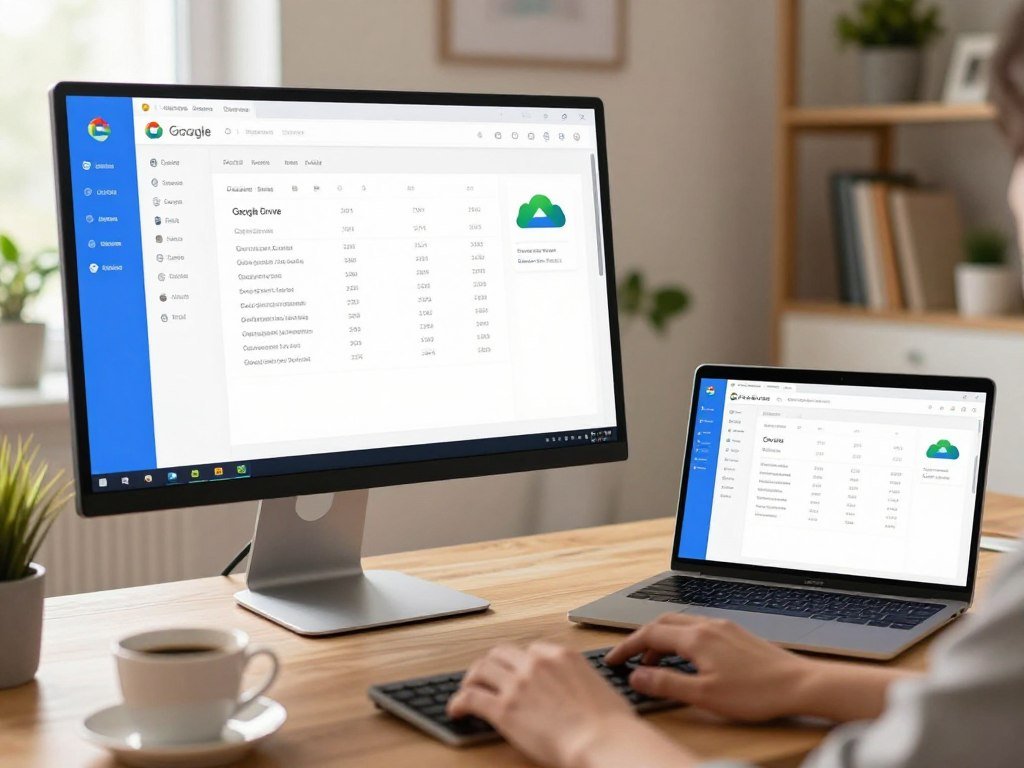
Google One storage tiers
Google One offers 100 GB for $1.99 per month and 200 GB for $2.99 per month. The shared pool can help a household with several phones, but each person’s files remain tied to their own account.
Google One covers individual storage needs. Google Workspace is the business-oriented option for organizations that need work accounts and business tools. Choose the plan type based on whether you are storing family files or managing a workplace.
| Plan | Storage | Monthly price |
|---|---|---|
| Google One | 100 GB | $1.99 |
| Google One | 200 GB | $2.99 |
| Google Workspace | Business storage | Business plan |
Stream or mirror files on a computer
Google Drive for desktop can stream files as cloud-only items or mirror them to your computer. Streaming saves local space, but you need an internet connection to open files that are not stored locally.
Mirroring keeps a computer copy as well as the cloud copy. That takes more drive space, but it lets you work offline when travel or an outage cuts your connection.
Mirror folders you need during travel or outages, and stream large folders you rarely open.
Is OneDrive the Best Fit for Windows and Microsoft 365?
OneDrive is an especially natural choice for a Windows user who also relies on Microsoft 365. Basic provides 100 GB for one person, while Personal includes 1 TB for one person. Choose by user count and storage needs, not by the plan name alone.
Which OneDrive plan fits each user?
Microsoft 365 Family subscriptions starting October 8, 2026, include 2 TB shared for up to six people. New Microsoft 365 Pro subscriptions starting on that date include 5 TB shared for up to six people.
Google Drive may suit Google-centered collaboration better, pCloud suits a buyer seeking lifetime storage, and iCloud fits Apple devices. None replaces OneDrive for every reader, since the best match depends on your current tools.
Family plans share storage across people, while Basic and Personal cover one person. Check how much space each user needs before choosing a shared pool.
What happens when an account exceeds its limit?
An over-limit OneDrive account is frozen after three months. Microsoft might delete the account and its files after six months.
Microsoft’s three-month freeze rule makes a full account more than a minor nuisance. You may be unable to use files as expected, and a long delay can put stored data at risk.
Check the account’s storage meter regularly so an over-limit notice does not turn into a recovery problem.
Is Dropbox Better for Sharing and Team Work?
Dropbox can be a better choice than Google Drive when you value device flexibility, large transfers and a simple sharing workflow. Google Drive is stronger when you work with Gmail and Google Docs. Pick the service that fits the way recipients and coworkers already handle files.
Dropbox Plus is built for one person, while business plans serve teams. Dropbox Plus supports unlimited connected devices, file transfers up to 50 GB and 30 days to restore deleted files.
Dropbox uses block-level syncing, which sends changed parts of a file instead of copying the whole item again. This can help when a large file changes only slightly. LAN sync can move files between devices on the same local network.
Those tools can make Dropbox useful across different computers and phones. Google Drive may feel more direct when people need to edit the same Google document or share it from Gmail.
Dropbox also connects with third-party tools, which can help if your work apps vary across a team. Test a shared link with the kind of recipient who will use it, especially if they do not have an account.
Before sending a large folder, confirm that the recipient can access the link and that the transfer fits the plan’s limit.
Is pCloud Worth Paying for Lifetime Storage?
pCloud is worth considering when you want a large personal library and prefer a one-time payment over recurring billing. Its lifetime plans suit people who expect to keep using the same storage for years. Compare the upfront cost with the subscription total over your expected use.
Compare the three lifetime storage tiers
pCloud lists three lifetime tiers: Premium includes 500 GB for $219, Premium Plus includes 2 TB for $499, and Ultra includes 10 TB for $1,499. Lifetime access shifts the cost to one payment rather than a monthly bill.
A subscription may be a better match if you need extra space for a shorter project or do not know how long you will use the account. A one-time plan can make more sense when your library will keep growing and staying in place.
pCloud also offers monthly and yearly billing, plus a choice of US or European servers. Paid plans retain deleted files and earlier versions for 30 days, giving you a window to restore an accidental change.
Media features and the 8 TB storage question
pCloud has a built-in music and video player, phone-gallery backup and access to cloud files without using local storage. That can help when a phone has little free space but still needs access to a media library.
The listed tier above an 8 TB need is pCloud Ultra, with 10 TB. The extra room may be useful for a large video collection, but an unused capacity cushion still adds to the upfront cost.
Compare the lifetime payment with the subscription total over the number of years you realistically expect to use the account.
Which Services Handle Large Files and Free Transfers?
A large cloud allowance is only useful for big projects if the provider also lets you upload and move files in the way you need. MEGA says its plans allow files of unlimited size, while TeraBox free accounts cap each upload at 4 GB. File size and transfer allowance are separate limits.
MEGA’s free-plan transfer limits mean that 20 GB of storage does not guarantee you can download or share 20 GB in one session. Its apps cover Windows, macOS, Linux, iOS and Android, with web access too.
Transfer capacity can affect a large job even when the file itself fits. A service may accept a file but limit how much you can move during a set period.
Check these three details before uploading a working archive:
- Maximum file size for each upload.
- Transfer allowance for uploads, downloads or sharing.
- Whether the account slows speeds or throttles transfers.
TeraBox’s file cap can block a single large video even when the account has room for it. Splitting an archive into smaller parts may help, but it adds steps and can complicate later access.
Test a representative large file before making any service the only home for a working archive.
Where Can You Store Thousands of Photos for Free?
For a US Prime member, Amazon Photos is the clearest option here for storing a large high-resolution photo library without a separate storage plan. Prime includes unlimited high-resolution photo storage, but video storage is limited to 5 GB. Photos and videos have separate allowances.
Amazon Photos offers four US video plans: 50 GB for $0.99 per month, 100 GB for $1.99, 1 TB for $6.99 and 2 TB for $11.99. A library with many long clips may need a separate plan even when the photo space remains ample.
Prime membership is the key condition for the unlimited photo offer. If you are not a US Prime member, that specific benefit does not apply to your account.
iCloud gives Apple users 5 GB free, shared across device backups, iCloud Photos, iCloud Drive and other app data. That can be tight if a phone backup and photo collection both use the same allowance.
Check how much video is mixed into a photo library before treating a photo allowance as a complete media backup.
Which Privacy-Focused Alternatives Are Worth Comparing?
Sync.com, Proton Drive and Icedrive are worth comparing when privacy matters more than a familiar office suite. Their free space, device support and recovery features differ. Compare the privacy model with the recovery tools you would use after a mistake.
Sync.com and Proton Drive
Sync.com’s free plan includes 5 GB, supports up to five devices and includes 30 days of file history and deleted-file recovery. That history can help if you replace a file by mistake or need an earlier version.
Proton Drive starts with 2 GB free. You can reach up to 5 GB by completing onboarding tasks within 30 days. Setup steps matter if you expect the full amount without delay.
Sync.com and Proton Drive both suit readers who want encrypted storage instead of a broad office suite. Check how each handles shared files if you plan to collaborate with people outside your account.
Icedrive and encrypted storage add-ons
Icedrive offers 10 GB free, while its user-controlled encrypted area is a paid feature. That makes the free allowance useful for testing the service, but not a promise that every file receives the paid protection.
You can compare privacy tools such as VPN services separately, since a VPN protects the connection to its server rather than stored files. Keep the distinction clear when weighing a cloud account’s encryption.
Use this short checklist before moving a private archive:
- Encryption model and who controls the key.
- File-history window and deleted-file recovery period.
- Number of devices the plan supports.
Confirm that the recovery period and device count match your habits before migrating a private archive.
What Should Teams Compare Before Choosing Storage?
A team should compare the shared storage pool and the recovery window, not just the advertised price per person. Dropbox Standard starts at 3 TB of shared space, while Advanced starts at 15 TB for three or more people. Per-user billing can grow quickly as a team adds members.
| Plan | Shared storage | Price | Recovery period |
|---|---|---|---|
| Dropbox Standard | 3 TB | $15 per user monthly | 180 days |
| Dropbox Advanced | 15 TB, three or more people | $24 per user monthly | One year |
| Box free individual | 10 GB | Free | Not stated |
Dropbox Standard gives a smaller team shared storage and a 180-day deleted-file recovery period. Advanced starts at a larger shared pool, costs more per user and keeps deleted files for one year.
Box’s free plan is for one person, not a team recommendation. It provides 10 GB and caps individual files at 250 MB, which can rule it out for large project files.
Compare the full monthly cost with the storage your team can actually use. A big shared pool may still be a poor fit if only one person needs most of it.
Decide who will administer access and restore deleted files before inviting the whole team.
When Do You Need Cloud Backup Instead of Storage?
Choose cloud backup when the main risk is losing a computer, phone or drive, rather than simply needing files on another device. Synced storage keeps working copies aligned, while backup aims to preserve older data. Backup can help restore a wider set of device files after loss or failure.
How synced storage differs from backup
With synced cloud storage, a change or deletion can carry across devices. That is useful when you want the same current file on a phone and computer, but it can spread an unwanted change too.
Cloud backup is designed to retain older data and restore files after a device problem. Recovery scope is the key difference: one service may sync a folder, while another can back up many devices or drives.
IDrive and Jottacloud for device backups
IDrive’s free plan provides 10 GB and can back up mobile devices and NAS drives. Its Personal plan is built for one user and multiple devices, making it a fit when several devices need backup.
Jottacloud offers 5 GB free and an unlimited-storage plan for one user at $11.99 per month. Its unlimited plan may suit someone who wants to protect a large set of personal device data.
Choose based on your goal: share current files across devices, or recover a larger body of data after loss. Keep at least one additional local copy of irreplaceable files so recovery does not depend on internet access.
How Should You Compare File Limits and Recovery?
A file-transfer comparison is useful only when the test file, connection and recovery procedure are stated. In an October test, a 500 MB archive uploaded in 3:31 with Dropbox, 3:32 with pCloud, 3:33 with Google Drive, 3:34 with Internxt and 3:48 with NordLocker. Those upload times were close under the test conditions.
Compare transfer performance under the same conditions
The Windows 11 test computer measured 187.95 Mbps down and 19.69 Mbps up. Download times were 0:26 for Dropbox, 0:24 for pCloud, 0:24 for Google Drive, 0:24 for Internxt and 0:27 for NordLocker.
Test conditions matter because another internet connection, computer or file can produce different results. These times show how the services compared under one setup, not a promise about your own transfers.
Check version history and deleted-file recovery
Paid pCloud plans retain deleted files and earlier versions for 30 days. Google Drive trash keeps deleted files for 30 days, giving you a similar window for those items.
MEGA supports file versioning and rewind for deleted files or earlier versions when those features are enabled. The setting matters: an available recovery tool cannot help if it was not active when the change happened.
Check the version-history setting on the account itself, because a recovery feature that is disabled cannot restore an earlier file.
What Should You Check Before Paying for a Plan?
Before upgrading, match the plan to the files, people and recovery features you will actually use. Cloud plans can differ by storage size, users, recovery, device access and privacy controls. A low monthly price can still cost more over time than a one-time payment.
Use this five-part checklist before paying:
- Estimate your current data and likely growth.
- Check the full recurring payment term, including renewals.
- Confirm device access and family or team sharing.
- Review file limits and recovery features.
- Verify encryption and how to recover a lost key.
Three years is a useful starting period for comparing recurring payments with a one-time plan. The result depends on how long you keep the account and whether you need more space later.
A lifetime payment moves more of the cost upfront. It may suit long-term use, but future storage needs can change, and the provider must continue operating for the service to remain useful.
Check privacy settings as well as the plan’s storage amount. A VPN can protect traffic between your device and its server, but it does not replace account security or file encryption. For a broader look at VPN speed and privacy choices, compare those tools separately.
Pay for the storage and recovery features you will use, not for unused capacity.
Save a copy of the plan limits and renewal terms with your account records.
Conclusion
The right plan protects the files you care about and fits the way you work. For everyday convenience, start with the ecosystem that matches your devices and apps. Choose a dedicated backup service when restoring whole-device data is your main goal.
Make a short list of the devices and files you need to protect. Test your preferred service with a small, nonessential folder before relying on it for important files.
FAQ
What are the top 5 cloud storage providers?
Google Drive, OneDrive, Dropbox, pCloud and MEGA are useful starting points. Google Drive suits people who already use Google tools, while OneDrive fits Windows and Microsoft 365 users. Dropbox works well for cross-device sharing, pCloud appeals to lifetime-plan shoppers, and MEGA suits privacy-focused users. Your best choice depends on your devices, file types and recovery needs.
Do Amazon Prime members get free cloud storage?
Yes, US Amazon Prime members get unlimited high-resolution photo storage through Amazon Photos. The membership includes only 5 GB of video storage, so video clips do not share the unlimited photo allowance. Amazon also offers paid video storage plans, starting with 50 GB for $0.99 per month. Check how much space your clips need before moving a full library.
Is Dropbox better than Google Drive?
Dropbox can be better for cross-device syncing, large transfers and a simple sharing workflow. Google Drive is a stronger fit when you collaborate in Gmail and Google Docs. Dropbox also supports block-level syncing, which can send only changed parts of a file. Your choice should reflect the apps your coworkers or family already use, plus the file sizes you share.
Is there anything better than OneDrive?
Google Drive can be a better fit for Google-centered work, pCloud for lifetime storage, and iCloud for Apple-device integration. OneDrive remains a natural choice for Windows users who rely on Microsoft 365. The better option depends on your main priority, not a universal ranking. Compare app support and sharing tools before moving files from an account you already use.
What is a disadvantage of using OneDrive?
An over-limit OneDrive account is frozen after three months, and Microsoft might delete the account and its files after six months. That risk makes it important to track storage use and act on an over-limit notice. A user who stores large files across several devices may reach the limit sooner than expected. Keep a separate copy of important files before making major account changes.
What is the safest and free cloud storage?
MEGA is a strong free privacy option because it uses zero-knowledge encryption, so the provider cannot read protected files without your key. Its free account still has transfer limits, which can affect large downloads or shared files. Keep the decryption key safe, since losing it may prevent access. Test a small folder first to see whether the transfer rules suit your needs.
Where can I store thousands of photos for free?
A US Amazon Prime member can store thousands of high-resolution photos in Amazon Photos without a separate photo-storage charge. The membership includes 5 GB of video storage, so clips use a separate and much smaller allowance. If your library includes many videos, you may need a paid video plan. iCloud’s free space is shared with device backups and other Apple data.



