A backup drive should match both the size of your files and the way you use them. A reliable choice depends on where the drive will live, how much data needs protection, and how often your files change. The Best External Hard Drives for Backup can look very different for a home archive and a travel kit.
A desktop HDD can store a large archive at home, while a portable SSD suits fast transfers and frequent travel. Yet the most important backup feature is not a headline speed. It is having another copy of the files you cannot replace.
Sequential read/write speed measures how quickly a drive reads or writes a continuous block of data. That number can help compare models, but your routine matters more. Decide first whether the drive will stay at home or travel with you.
Key Takeaways
- Choose a desktop HDD for a large backup that stays near your computer.
- Choose a portable HDD when affordable storage matters during travel.
- Choose an SSD when you move files often or need a small drive.
- Check the drive’s connector and interface against your computer.
- Keep a second copy of important files in a separate place.
Best External Hard Drives for Backup: Which Pick Fits Your Needs?
For most people storing a large computer backup at home, choose the WD Elements; for a portable everyday backup, choose the My Passport Ultra. The best fit depends on where you keep the drive and what you connect it to.
Choose by use first, then compare the trade-offs. The Crucial X9 Pro suits compact phone and laptop backups, while the Corsair EX400U and LaCie Rugged SSD Pro5 serve faster, demanding workloads.
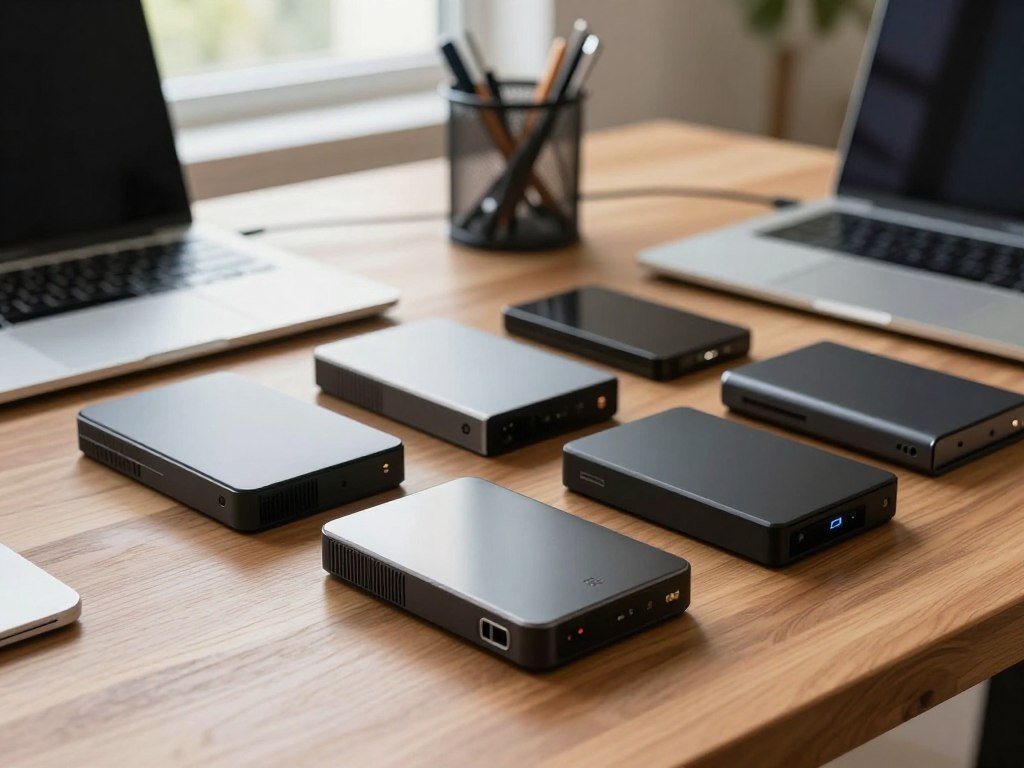
| Pick | Drive type | Best fit | Main trade-off |
|---|---|---|---|
| WD Elements | Desktop HDD | Large home backup | Needs external power |
| My Passport Ultra | Portable HDD | Travel backup | Slower than SSDs |
| Crucial X9 Pro | Portable SSD | Phone and laptop files | Costs more than an HDD |
| Corsair EX400U | USB4 SSD | Large, fast transfers | Needs compatible USB4 |
| LaCie Rugged SSD Pro5 | Thunderbolt 5 SSD | High-speed creator workflows | Premium pricing |
A second copy of important files matters more than chasing the fastest benchmark.
The WD Elements is a straightforward choice for a stationary archive, while the My Passport Ultra travels without a separate power adapter. For a small cross-platform drive, the Crucial X9 Pro covers phone and laptop files. Pick the row that matches where the drive will spend most of its time.
What matters more for backup, capacity or speed?
An HDD is usually the better value for a large backup that stays on a desk, while an SSD is better for frequent transfers or travel. The right balance comes down to cost per terabyte, speed, portability, and how often the drive may get bumped.
HDDs remain worth considering in 2026 for high-capacity, infrequently accessed backups. An HDD uses spinning platters and read/write heads, while an SSD has no moving parts. That makes an SSD less vulnerable to physical shock while it is in use.
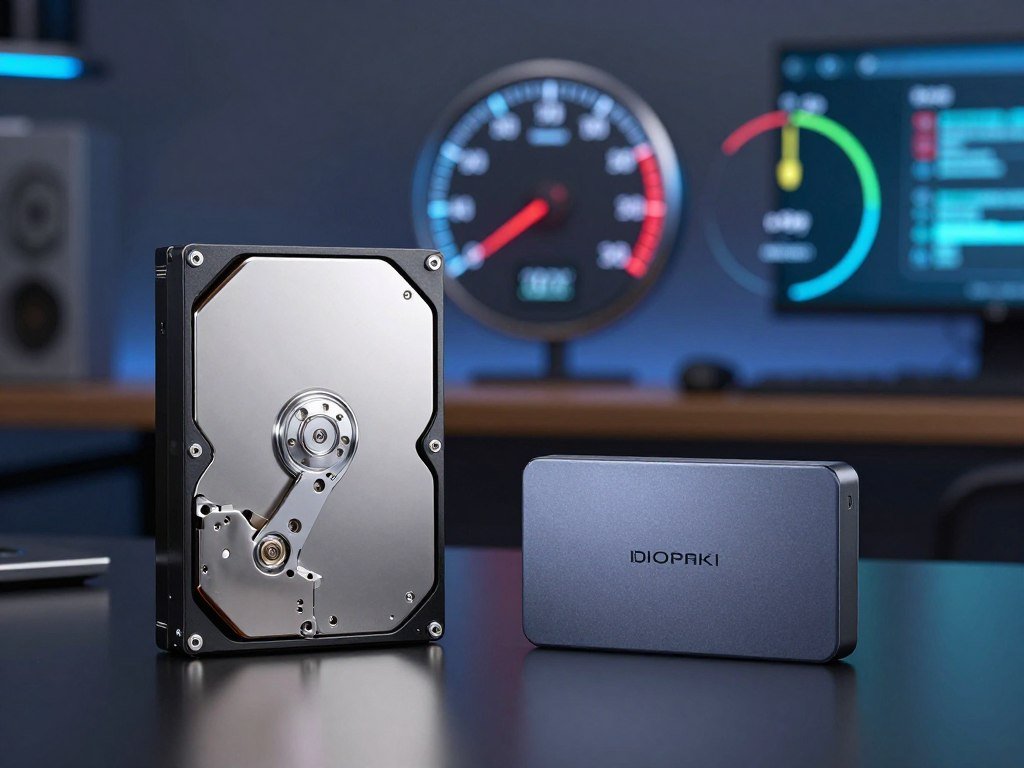
| Type | Storage medium | Typical strength | Main drawback |
|---|---|---|---|
| HDD | Spinning platters and heads | Economical large archives | Slower and sensitive to bumps |
| SSD | Flash memory | Fast transfers and portability | Higher cost per terabyte |
An external SSD suits files you move often, such as current photo folders or work projects. A desktop HDD is a practical pick for copies you make overnight and rarely open. The best external hard drive SSD choice depends on whether affordability or portability matters more.
Connector shape does not tell you the data speed. USB-C is a connector shape, while USB 3.2 Gen 2×2 supports up to 20 Gbps and USB4 supports up to 40 Gbps.
- Choose an HDD for a large archive that mostly stays put.
- Choose an SSD when you move files often or carry the drive.
- Check the computer’s interface, cable, and port before buying.
A USB-C hub for a MacBook Air may add ports, but the hub and computer still affect the connection. Match the interface to your computer before paying extra for a drive’s advertised speed.
Which desktop HDD stores the most for routine backup?
The WD Elements is the practical choice when you want a large desktop backup drive without paying extra for an SSD. Its simple setup works well for a home computer with space for an external power connection.
The 8 TB WD Elements was listed at $399 in 2026. It uses USB-C 3.2, needs external power, and comes in sizes from 1 TB to 26 TB. Windows testing recorded 120 MB/s sequential writes, enough for overnight backups, but not SSD-class speed.

The WD My Book is another stationary option. Its 8 TB model was listed at $400.22 in 2026, needs an external power adapter, and includes a three-year warranty. Its role is much like the Elements: a large drive that can sit beside a desktop computer.
The Seagate One Touch 8 TB was listed at $399.99 in 2026. Unlike those two models, it is bus-powered, but it needs a USB port with at least 15 watts of power delivery. That requirement can limit where you plug it in.
The Elements is a strong fit if you want capacity and a simple home backup routine. The My Book adds a three-year warranty, while the Seagate model avoids a separate power brick if your port meets its needs.
A desktop HDD is a poor fit for a bag or a desk without a convenient outlet. Its size and power needs favor a fixed location, not a mobile setup. Leave room near the computer for the drive and its power connection.
Which portable HDD suits backups away from home?
For a portable mechanical backup with a USB-C cable and encryption, the WD My Passport Ultra is a sensible pick. Its travel-friendly setup gives you a familiar hard drive in a size made to move between locations.
The My Passport Ultra was listed at $160 for 1 TB and $253 for 4 TB in 2026. It comes in capacities up to 6 TB and includes 256-bit AES encryption. Across Windows, macOS, and Linux, tested average speeds reached 121 MB/s read and 115 MB/s write.
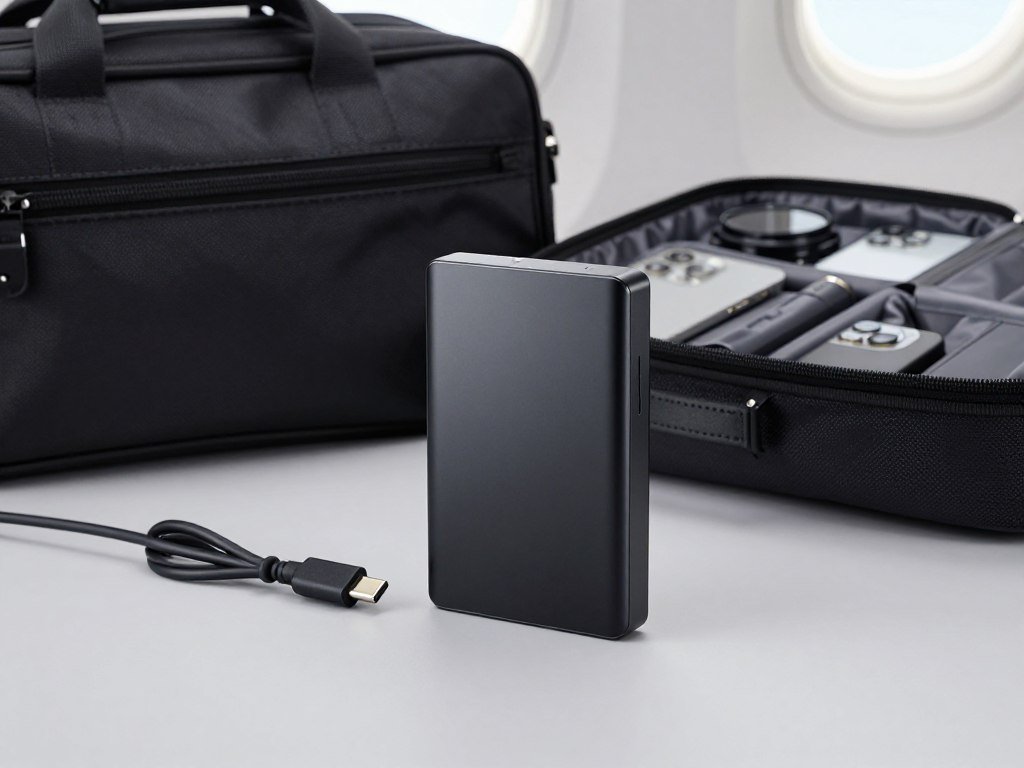
The Ultra includes a USB-C cable, but the WD My Passport name also covers a model that may use a Micro-B port with an adapter. Both are mechanical drives, so neither is built for careless drops. Check the exact connector before packing your cable.
The separate WD My Passport HDD supports 1 TB to 6 TB, states a 120 MB/s sequential read speed, and includes a three-year warranty with AES 256-bit hardware encryption. Its 6 TB version with USB-C was listed at $167.50 in 2026. That price applies to that model, not automatically to the My Passport Ultra.
For many travelers, an actual USB-C port and encryption make the Ultra easier to add to a routine. The listed 4 TB Ultra price was higher than the separate 6 TB Passport listing, but the models and features differ.
Keep the drive in a padded pocket and avoid packing it where other gear can press on it. Check the exact model and connector before ordering, since the Passport name covers different versions.
Which SSD makes phone and photo backups easier?
The Crucial X9 Pro is a strong fit for phone and photo backups when pocketability and broad device compatibility matter. It is easy to carry beside a phone or laptop, at about half the size of a deck of cards and 1.3 ounces.
The X9 Pro was tested with iOS, Android, macOS, Windows, and Linux in 2026. Its 2 TB version was listed at $244 that year, making it a compact choice for photos and important computer files.
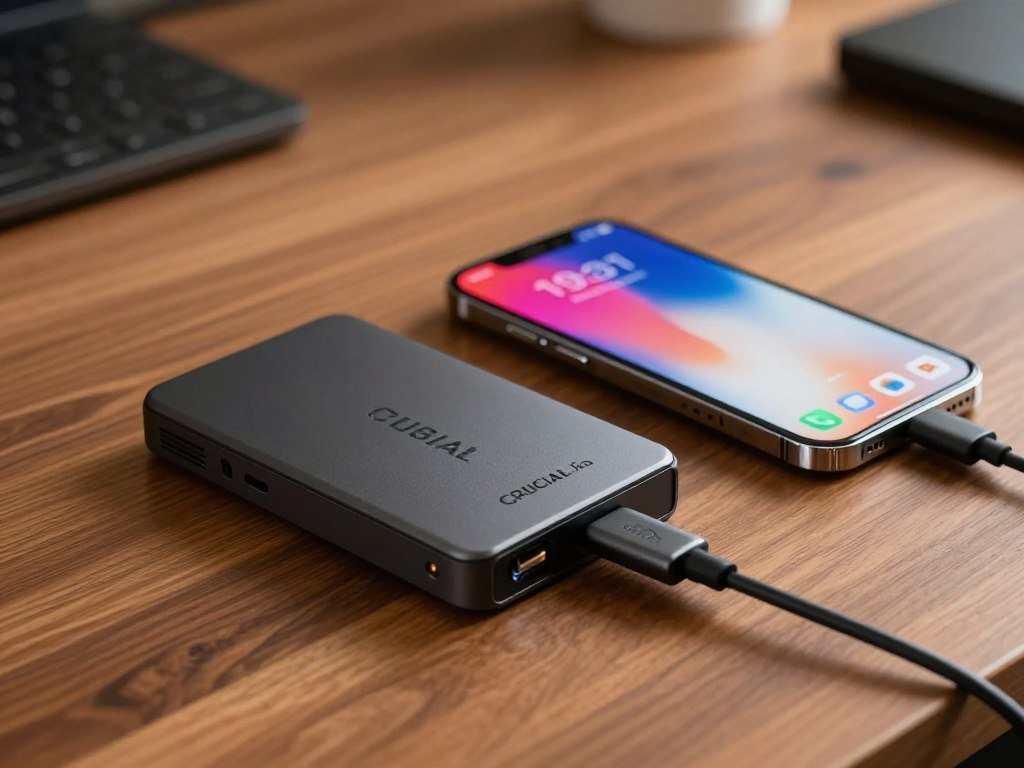
Crucial states read and write speeds of 1,050 MB/s. Testing recorded up to 1,110 MB/s read and 1,100 MB/s write. Those are different measures: the stated figures describe the product’s rating, while the higher figures were the maximum recorded in testing.
Its small body can stay in a laptop sleeve or phone bag, so it is handy for backing up pictures after a trip. It can also move files between devices that use different operating systems. Check that your phone supports the connection and file handling you plan to use.
A portable SSD makes it easier to keep a photo copy close at hand, but one local drive does not protect against theft or loss. Keep another copy of irreplaceable photos in a separate place, such as a second drive stored elsewhere.
Make the first backup before the phone or laptop is damaged, not after.
Can a rugged HDD travel safely?
The ArmorATD offers extra protection for travel, but its spinning disk still calls for careful handling. The added shell helps with some common mishaps, though it cannot remove the risks that come with a working mechanical drive.
The SanDisk G-Drive ArmorATD supports drops up to 3.3 feet and has an IP54 rating. Its removable rubber sleeve and protected USB-C port help shield it from splashes and impacts. Testing recorded a 133 MB/s read speed against a claimed 135 MB/s.
The drive was listed at $195 for 1 TB and $397 for 6 TB in 2026. It includes USB-C-to-USB-C and USB-C-to-USB-A cables, so you can connect it to more than one kind of port.
IP54 splash protection does not mean you can submerge the drive. The rating covers defined test conditions, not every accident. A rubber cover also cannot stop a hard impact from reaching the spinning parts inside.
Before you leave, run through three quick checks:
- Confirm that the rubber cover is seated.
- Avoid submerging the drive, even with its rating.
- Eject the drive before packing it away.
The sleeve can help protect the case and port while the drive moves in your bag. Treat the drop rating as a safety margin, not permission to drop a working drive.
Which USB4 SSD handles large transfers best?
The Corsair EX400U is the better fit for large transfers when you want USB4 speed and strong sustained writes. Its steady output can help when you move a large project, rather than a few small files.
The 2 TB EX400U was listed around $189 in 2026, and testing recorded read speeds above 4,000 MB/s. Write speeds exceeded 3,700 MB/s, while sustained writes typically stayed between 1,600 and 1,700 MB/s for 15 minutes.
| Model and capacity | Listed price | Measured speed or sustained writes | Useful distinction |
|---|---|---|---|
| Corsair EX400U 1 TB | Around $119 | Read above 4,000 MB/s; write above 3,700 MB/s in testing | Smallest listed EX400U capacity |
| Corsair EX400U 2 TB | Around $189 | Sustained writes typically 1,600-1,700 MB/s for 15 minutes | Strong fit for repeated large transfers |
| Corsair EX400U 4 TB | Around $349 | Read above 4,000 MB/s; write above 3,700 MB/s in testing | Larger EX400U capacity |
| Adata SE920 1 TB | $140 | Capacity and price listed; no measured speed stated | USB4 alternative |
| Adata SE920 2 TB | $200 | Capacity and price listed; no measured speed stated | Listed example costs $11 more than EX400U |
| Adata SE920 4 TB | $380 | Capacity and price listed; no measured speed stated | Largest listed SE920 capacity |
The Adata SE920 was listed at $140 for 1 TB, $200 for 2 TB, and $380 for 4 TB in 2026. These are examples, not a universal price for a 2 TB SSD. In these listings, the EX400U 2 TB cost $189 and the SE920 2 TB cost $200.
Your computer needs USB4 support to approach USB4 drive speeds. A slower host port can limit the transfer, even if the drive itself supports a faster interface. Confirm your computer’s port supports USB4 before paying for a USB4 drive.
Is a Thunderbolt 5 SSD worth paying for?
The LaCie Rugged SSD Pro5 makes sense for demanding media work on a Thunderbolt 5 system, not routine file backups. Its extra bandwidth can help when you edit high-resolution video directly from storage.
The Pro5 claims read/write speeds up to 6,700/5,300 MB/s. Testing recorded 5,787/5,188 MB/s. A Thunderbolt 5 computer is needed to approach its highest performance, while USB4 provides a fallback.
The drive supports Thunderbolt 5 and USB4, and carries an IP68 rating with a five-year warranty. Those features suit a creator who works on large video files and takes active projects between locations.
Its 2 TB version was listed at $399.99 and the 4 TB version at $599.99 in 2026. Those prices are product examples from that year, not a live offer. For routine backups, that level of speed can be more than your computer or workflow needs.
Think about how you work before paying for the top interface. If you edit high-resolution video from the drive on a Thunderbolt 5 computer, the added bandwidth may save time. Buy this class of drive only if your computer and workload can use its extra bandwidth.
Which rugged SSD tolerates water and drops?
Choose the Crucial X10 for capacities up to 8 TB and IP65 protection, or the LaCie Rugged SSD4 when speed and specified drop resistance matter more. The better match depends on how much storage you need and what conditions the drive may face.
IP65 and IP54 are different ratings, not interchangeable promises. The Crucial X10 is the capacity-led option, with water- and dust-resistance rated IP65. The LaCie Rugged SSD4 is built for high speed and specified drop and pressure tests.
The Rugged SSD4 supports USB4 and Thunderbolt 5, with stated maximum read/write speeds of 4,000/3,800 MB/s. It comes in 1 TB, 2 TB, and 4 TB capacities, with a three-year warranty that includes data recovery support.
LaCie rates the SSD4 IP54, supports drops from 3 metres, and says it withstands 1-ton pressure. Those figures describe specified test conditions. They do not make the drive immune to every fall, spill, or crushing force.
Pick the Crucial X10 if greater capacity and IP65 protection fit your needs. Choose the SSD4 if its speed, drop rating, and pressure rating match your work. Keep the drive away from hazards beyond the conditions its rating covers.
Match the protection rating to the conditions the drive will actually face.
Which external drive adds hardware encryption?
For encrypted portable HDD storage, choose the WD My Passport; for fingerprint access on an SSD, consider the Samsung T7 Touch. The security feature you need depends on whether you want data encryption or a way to control access.
The WD My Passport includes AES 256-bit hardware encryption. It comes in 1 TB to 6 TB capacities, has a stated 120 MB/s sequential read speed, and includes a three-year warranty.
Hardware encryption protects stored data when the drive is locked. A fingerprint sensor, like the one on the Samsung T7 Touch, controls access through a fingerprint check. The T7 Touch states speeds up to 1,050 MB/s read and 1,000 MB/s write.
The Samsung T9 reaches 4 TB and states read/write speeds of 2,000 MB/s. It needs USB 3.2 Gen 2×2 for full performance and has 9.8-foot drop protection. A computer without that interface may not reach its top speed.
Encryption does not remove the need for a secure password, and a protected drive is still only one copy. Store unlock details somewhere separate from the drive, so losing both does not block access.
Turn on the security feature during setup and store the unlock credentials separately from the drive.
Does the SanDisk Pro-G40 suit cross-platform work?
The SanDisk Pro-G40 suits cross-platform creators who can use Thunderbolt 3 but still need USB connectivity. Its two connection modes let one drive serve computers with different ports.
Thunderbolt 3 speeds reach 2,700/1,900 MB/s read/write, while USB speeds reach 1,050/1,000 MB/s. When Thunderbolt is unavailable, the drive can fall back to USB, with lower transfer speeds.
The Pro-G40 comes in 1 TB and 2 TB capacities and has a five-year warranty. A 1 TB model can suit a smaller set of active projects, while 2 TB leaves more room for larger libraries.
Actual performance depends on the computer’s port and the cable. A Thunderbolt-capable drive cannot reach its highest stated speed through a slower connection. Check each computer before moving a project between systems.
The warranty gives you a defined coverage period, but it does not promise a specific lifespan. Keep project files in another location if losing them would stop your work.
Check every computer’s port and cable before relying on the highest advertised speed.
Is a DIY SSD enclosure a good value?
A DIY enclosure can save money when you already own a compatible NVMe SSD. The key detail is that the TerraMaster D1 SSD Plus is a case and interface, not storage by itself.
The D1 SSD Plus was listed at $109.99, with a listed sale price of $76.49 in 2026. Neither figure includes an SSD in the enclosure, so add the cost of a compatible internal drive if you do not already have one.
Before buying, check that the enclosure accepts your SSD’s NVMe type and physical size. Also check the computer’s host port, the cable’s speed, and the enclosure’s cooling. A mismatch can lead to a drive that will not fit or cannot reach its expected performance.
Reusing an internal SSD makes sense when it is compatible and you want to put it to work. A complete external SSD may be simpler if you do not own a spare drive or want one package with storage included.
The 2026 list and sale prices are examples for the enclosure, not a promise of a current price. Factor in any SSD you still need before comparing the total cost with a ready-made drive.
Confirm the enclosure accepts your exact SSD type before buying.
How much capacity should your backup drive have?
Aim for about two to three times the data you need to protect, so the backup can grow with your files. This room to grow helps you avoid filling a drive soon after setup.
A 1 TB external hard drive can suit a modest library if growth stays limited. For 500 GB of files, the general 2-3 times rule points to about 1-1.5 TB of backup space.
Sizing a drive for personal files and photos
Photos, documents, and phone backups can grow a little at a time. Count the folders you want to protect, not just the space currently free on your computer. Keep enough unused room for new photos and a second version of files that change.
Planning space for games and video projects
Games can take up a large share of a drive, while video projects may include source clips, edits, and exports. Choose capacity based on the projects you keep, rather than assuming you will delete everything after finishing.
When one large desktop drive makes sense
A desktop HDD can suit a growing archive that stays at home. HDDs can reach larger per-drive capacities than the SSD capacities named here: Western Digital says its Ultrastar HDD series reaches up to 32 TB, while the Crucial X10 reaches up to 8 TB.
| Data type | Planning approach | What to leave free |
|---|---|---|
| Personal files and photos | Count folders and allow for new images | Space for growth and changing files |
| Games | Count games you keep installed | Space for updates and new installs |
| Video projects | Count source clips, edits, and exports | Space for active and finished projects |
Use the drive’s listed capacity as a planning guide, then compare it with the folders you actually intend to save. Western Digital’s Ultrastar HDD capacity reaches up to 32 TB per drive.
Check the size of the files you actually need to protect before choosing a capacity.
What makes an external drive reliable over time?
The most reliable backup is not a single brand, but a drive with a second independent copy of important data. The second copy matters because any drive can fail, even when you use it with care.
Backblaze monitored 341,263 qualifying hard drives in Q1 2026. The quarterly annualized failure rate was 1.24%, while qualifying models had a lifetime annualized failure rate of 1.39% through March 31, 2026.
Those rates describe a monitored group, not a promise about one drive. The analysis included models with more than 100 drives and more than 10,000 drive-days as of March 31, 2026. A rate for a large population cannot tell you exactly when your own drive will fail.
Heat, physical shocks, and wear can affect a drive over time. A backup plan with only one copy adds a separate risk: losing the drive also means losing the files. For a large home archive, consider the WD Elements; the My Passport Ultra suits portable HDD storage.
Use this short reliability checklist:
- Keep a second copy in a separate place.
- Disconnect a backup drive when you are not using it.
- Check saved files from time to time.
Backblaze’s Q1 2026 drive data reports failure rates for its qualifying drive population, not a guarantee for your model. Keep irreplaceable files in at least two separate places.
How should you set up a drive for backup and gaming?
Before plugging in a new drive, check both the computer’s port and the file system the devices can read. The right setup helps the same files work across the computers you plan to use.
USB-C names the connector shape, not a guaranteed transfer speed. USB 3.2 Gen 2×2, USB4, and Thunderbolt 5 name data interfaces, so check the drive, cable, and computer port.
Choose a file system for your computers
NTFS is common for Windows, APFS suits modern Mac SSD workflows, and exFAT supports file exchange between Windows and macOS. The best format depends on which devices need to read and write the drive.
Formatting can erase files already on a drive, so copy anything important before changing its file system. If a Mac uses a hub or dock, check its ports and charging needs too. A MacBook Pro USB-C hub guide can help you compare ports for a specific setup.
Match the connection to the job
An SSD is generally the better external hard drive for gaming when games will run from it. An HDD can store a larger game library at lower cost, though you may need to move games before playing them.
For a gaming PC, check that the motherboard and case offer the ports you need. A gaming motherboard with suitable USB ports can help match your setup to external devices.
Follow these steps before trusting the drive with important files:
- Confirm that the port and cable match the drive.
- Format the drive for the computers you will use.
- Run a test backup and verify that the files open.
Open a few backed-up files after the first transfer to confirm the backup is usable.
Conclusion
The right backup drive is the one that fits your data, your devices, and your routine. A desktop HDD suits an affordable, high-capacity archive that stays at home. An SSD fits frequent transfers and travel.
Choose enough capacity for the files that matter and leave room for new ones. Keep another copy of irreplaceable data, since a single drive cannot protect against every loss.
Your first step is simple: gather the folders you want to protect and check their total size. Choose the model that fits your use, connect it today, and make the first backup.
FAQ
Is HDD still worth it in 2026?
Yes, an HDD is still worth considering in 2026 for large, lower-cost archives and backups you do not open often. Its capacity can make it a practical choice for a home computer backup or a growing media library. Choose an SSD when you move files often or carry the drive, since it offers faster access and has no moving parts.
Is 500 GB of data a lot for an external hard drive?
No, 500 GB is a manageable amount for many external drives. Applying the general rule of choosing two to three times the data you need to protect points to about 1-1.5 TB. That gives you room for new files, though your best choice depends on how quickly your photos, projects, and other folders grow.
What is the lifespan of a hard drive?
A hard drive’s lifespan varies with its use and conditions, so treat any typical estimate as a planning guide, not a promise. Heat, shocks, and wear can affect a mechanical drive, and one failure can happen before another. Keep a separate copy of important data, then check your files from time to time.
Which is better, HDD or SSD?
An HDD is better for lower-cost capacity, while an SSD is better for speed, portability, and resistance to shocks. An HDD uses spinning parts, so moving it while it runs can put the mechanism at risk. An SSD has no moving parts, which makes it a useful choice for frequent transfers and travel.
What is the biggest drawback to SSD drive?
The biggest drawback is usually a higher price per terabyte than an HDD, especially at high capacities. That difference can matter when you need a large archive but rarely access it. For a smaller set of active files or frequent travel, the faster transfers and compact size may make the extra cost worthwhile.
Is 2TB SSD overkill?
No, a 2 TB SSD is not overkill if your backup includes a large photo, video, or game library. Compare the drive’s capacity with the files you need to protect, then leave room for growth. A smaller library may fit on 1 TB, while active projects can fill space faster than expected.
What is the lifespan of a 1TB SSD?
A 1 TB capacity alone does not set an SSD’s lifespan. The workload, flash endurance, and warranty all matter, and a warranty does not promise how long the drive will work. Protect important files with another copy, especially when the SSD holds active projects that change often.
Which is better for me, a 1TB SSD or a 2TB SSD?
Choose a 1 TB SSD for a smaller library with limited growth, and choose 2 TB when your files already approach that space or will grow. Photos, video, and game files can use storage quickly. Check the folders you plan to protect before buying, and allow room for new files and project versions.



