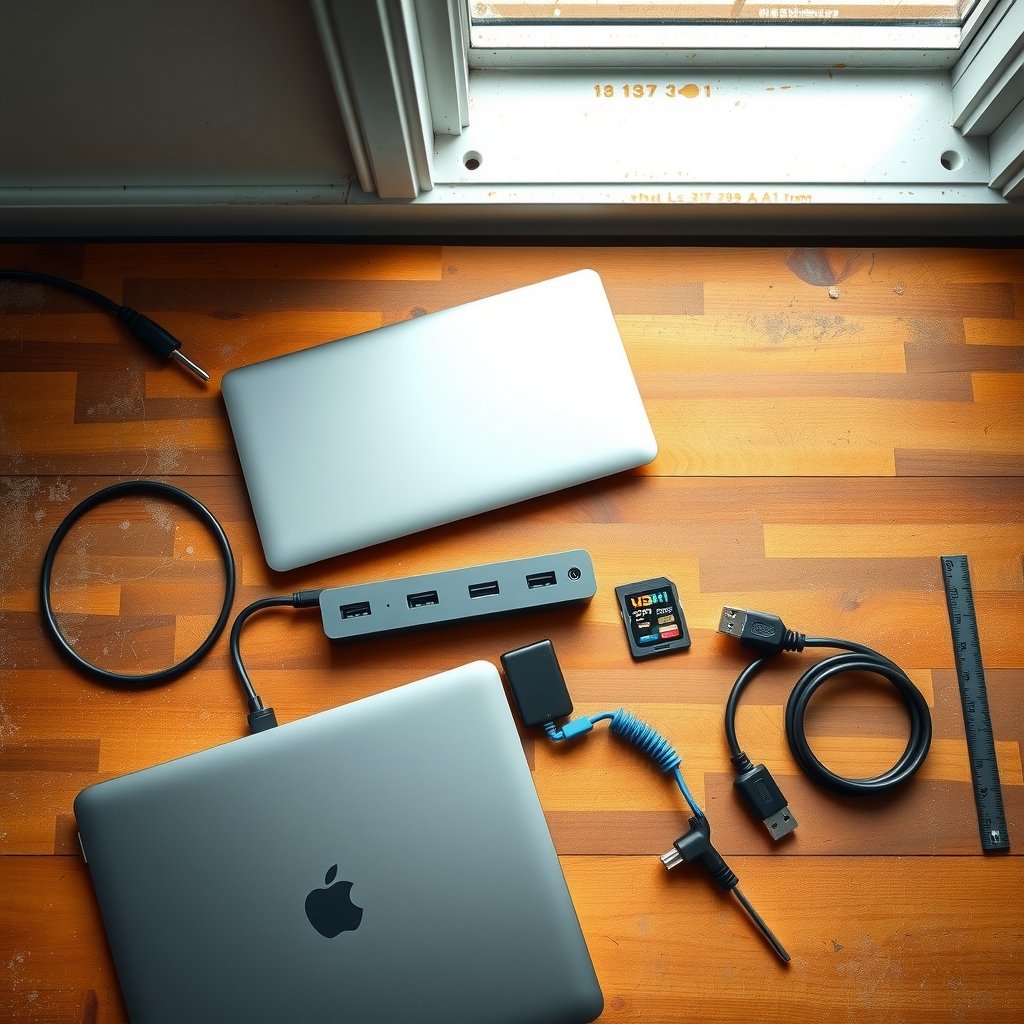
Two ports. That is what most MacBook Air owners get, plus MagSafe on newer models. So what happens when you need an external monitor, a card reader, and a wired network connection at the same time? You start juggling dongles, and something always gets unplugged at the worst moment.
A good hub solves this in one connection. But the market is crowded, and the specs that matter are buried under marketing noise. The picks below are grouped by the job they do best, so you can match one to your desk, your bag, or your camera bag without reading ten spec sheets.
Quick Comparison of the Top Picks
| Hub | Ports | Best for | Display output | Standout spec |
|---|---|---|---|---|
| Anker 555 USB-C Hub | 8-in-1 | Most people, desk and travel | 4K at 60Hz HDMI | 10Gbps data, Gigabit Ethernet |
| UGREEN Revodok Pro 109 | 9-in-1 | Ethernet plus expansion | 4K at 60Hz HDMI | 100W power delivery, SD and TF readers |
| Satechi USB4 Multiport | USB4 | Speed hounds and creatives | 4K at 60Hz HDMI | 40Gbps USB4 data |
| Anker 547 USB-C Hub | 7-in-2 | Two-plug travel setups | HDMI | Sits flush, leaves MagSafe free |
| Plugable USB-C Docking Station | Dock | Dual-monitor desk rigs | Dual 4K at 60Hz | DisplayLink, works on M1 and M2 |
| UGREEN Revodok 105 | 5-in-1 | Budget buyers | 4K HDMI | Very low price |
| BENFEI 5-in-1 | 5-in-1 | Cheapest simple option | HDMI, no refresh rate listed | 91 grams, aluminum body |
Anker 555 USB-C Hub: The Safe Default for Almost Everyone

If you want one hub that handles a normal workday without drama, the Anker 555 is the name that keeps showing up across roundups, and for good reason. It is an 8-in-1 with 4K at 60Hz HDMI, a Gigabit Ethernet port, 10Gbps USB-C and USB-A data ports, and card readers. It also passes power through to the laptop.
Who it suits: anyone who moves between a home desk and an office desk and wants one cable to do everything. Video calls stop stuttering when you plug in Ethernet, which matters more than most people expect until their Wi-Fi drops mid-presentation.
The limitation: it hangs off a short cable, so it occupies one of the Air’s two USB-C ports and leaves the other free. On a MagSafe-equipped Air that is fine. On an older M1 Air with no MagSafe, you will want the charging port free for power, which means the hub and the charger compete for space.
Price moves around with sales, so check the listing before you commit.
UGREEN Revodok Pro 109: Best When You Need Ethernet and Card Readers
The UGREEN Revodok Pro 109 turns a single USB-C port into nine. The listing promises 4K60 HDMI, Gigabit Ethernet, USB-A and USB-C data ports, SD and TF card readers, and 100W power delivery. UGREEN’s own product page confirms the 4K60 output and the 100W figure, and backs it with a two-year warranty.
One detail worth knowing before you buy: the USB-C power socket is charging only. It carries no data and no video, and roughly 85W passes through to the laptop while about 15W stays with the hub. That is still plenty for an Air.
Who it suits: photographers and videographers who offload cards and want a wired network connection in the same brick. It is also the pick if you want the hub’s branding to match a MacBook Neo, Air or Pro setup, since the listing names M1 through M5 chips.
The limitation: on a MacBook Neo, Apple lists one USB 3 port at up to 10Gb/s and one USB 2 port at up to 480Mb/s. The hub’s 10Gbps figure is only reachable on the USB 3 port, so plug into the right one.
Satechi USB4 Multiport: Fastest Data for Creative Work
The Satechi USB4 Multiport is the premium pick. It runs USB4 at 40Gbps, which is four times the bandwidth of a standard 10Gbps hub, and it still delivers 4K at 60Hz over HDMI. The aluminum build matches Apple’s finish, which sounds cosmetic until you notice how many cheap hubs look like they fell out of a cereal box.
Who it suits: editors pulling large files off fast external SSDs, or anyone who wants a hub that will not be the bottleneck when they upgrade drives later. A 10Gbps hub caps your SSD at 10Gbps no matter how fast the drive is. A USB4 hub does not.
The limitation: it uses two of the MacBook’s ports, so it is not the friendliest travel companion on a two-port Air. It is a desk accessory first.
Anker 547 USB-C Hub: The Two-Plug Design That Saves MagSafe
Here is a mistake people make constantly: they buy a single-cable hub, plug it into one port, then discover the hub body blocks or crowds the MagSafe connector. The Anker 547 solves that with a two-plug design that presses straight into both USB-C ports and sits flush against the chassis. No dangling cable, nothing to snag in a bag.
Who it suits: travelers and anyone on a MagSafe-equipped Air who wants the charging port untouched. The flush fit also looks tidy on a desk, which is a small thing that quietly matters.
The limitation: because it occupies both ports, you cannot use a second accessory without unplugging the hub. If you regularly attach a separate SSD and a charger at the same time, a single-cable hub with pass-through charging is the better shape for you.
Plugable USB-C Docking Station: For Dual Monitors on an Air
This is the pick nobody expects. Apple silicon MacBook Air models drive only one external display natively. If you want two monitors, you need DisplayLink technology, which compresses the signal in software rather than relying on the Mac’s display controller.
The Plugable USB-C Docking Station (UD-6950PDH) does exactly that: dual monitor output at 4K 60Hz, 100W passthrough charging, and it works even on M1 and M2 MacBooks that normally refuse a second screen. It is the fix for the one-screen Mac limit.
Who it suits: spreadsheet workers, traders, and anyone who has stared at a single 27-inch display wishing for a second.
The limitation: it is a dock, not a pocket hub. It needs its own power and desk space, and DisplayLink requires a driver install. That is a small setup cost for a big workflow gain.
UGREEN Revodok 105: The Budget Pick That Covers the Basics
Not everyone needs nine ports. The UGREEN Revodok 105 is a 5-in-1 that adds 4K HDMI and a few USB-A ports for a very low price. It is the hub you buy when your only real problem is “my monitor has no USB-C input.”
Who it suits: students, light users, and anyone building a first desk setup on a tight budget.
The limitation: fewer ports means fewer simultaneous jobs. Add Ethernet and a card reader to your workflow later and you will be shopping again. If you already know you want a wired network connection, jump to the Revodok Pro 109 instead. (7 best ai book writing tools 2027 drafting publishing)
BENFEI 5-in-1: Cheapest Overall, With a Catch
The BENFEI 5-in-1 is one of the most-reviewed hubs on Amazon. The listing describes 4K HDMI, a 100W USB-C power port, one 5Gbps USB-A port, and two 480Mbps USB-A ports in an aluminum body that weighs 91 grams. It lists support from MacBook M1 to M5.
Who it suits: buyers who want a spare hub for a bag, a second desk, or a travel kit and do not want to think hard about it.
The limitation is real: the listing gives no refresh rate for the HDMI output. That usually means 4K at 30Hz, which feels sluggish for anything involving a mouse cursor. Skip it if smooth 60Hz matters to you. It is a fine emergency hub, not a primary one.
How to Choose Without Overthinking It
After you have scanned the list, four specs decide almost everything.
- Check the refresh rate alongside the resolution. “4K HDMI” means nothing on its own. Look for 4K at 60Hz. A 4K30 hub is fine for video playback and painful for daily desktop work.
- Confirm your Mac’s DisplayPort version. Whether a hub outputs 4K at 60Hz depends partly on the laptop. All current Apple silicon MacBooks support DisplayPort 1.4 and hit 60Hz. Older Intel MacBooks with DisplayPort 1.2 are capped at 4K at 30Hz no matter which hub you buy.
- Count your simultaneous jobs. HDMI plus Gigabit Ethernet at the same time is the combination that matters for conference rooms and home offices. Testing across several hubs found simultaneous 4K HDMI and Gigabit Ethernet ran without drops, so the bottleneck is usually your network, not the hub.
- Decide between one cable and two plugs. Single-cable hubs leave a port free. Two-plug hubs sit flush and protect MagSafe. Neither is better in the abstract; it depends on whether you charge over USB-C or MagSafe.
One more practical note: avoid unbranded hubs with no stated specs. Cheap controllers throttle under load and, in bad cases, strain the port they are plugged into. If a listing will not tell you the refresh rate, the power pass-through wattage, or the data speed, that silence is the answer.
If you are also planning bigger gear purchases alongside your desk setup, it helps to check compatibility before you commit, the same way you would run liquid cooler vs air cooler compatibility checks before 2027 before building a PC. The principle is identical: match the spec to the machine, not the marketing. (European cruises 2027 book now before cabins sell out)
Conclusion
The short answer: buy the Anker 555 if you want one hub that does everything well, the UGREEN Revodok Pro 109 if Ethernet and card readers are non-negotiable, and the Satechi USB4 Multiport if you move big files and refuse to be capped at 10Gbps. Choose the Anker 547 for travel on a MagSafe Air, and the Plugable dock if two monitors are the whole point.
Everything else is a budget compromise, and that is fine as long as you know which compromise you are making. Check the refresh rate, check the pass-through wattage, and check which port your charger needs. Do those three things and you will avoid the most common hub regret.
FAQ
Does a USB-C hub work with every MacBook Air?
Almost all of them, yes. The connector is standard across Apple silicon and recent Intel models. The real variable is display output: older Intel MacBooks with DisplayPort 1.2 cap out at 4K 30Hz regardless of the hub, while current Apple silicon Airs support DisplayPort 1.4 and reach 4K at 60Hz.
Can a hub give my MacBook Air two external monitors?
Not by itself. M-series Airs drive only one external display natively. For dual monitors you need a DisplayLink dock, such as the Plugable USB-C Docking Station, which handles the second screen in software. Standard USB-C hubs will mirror the display instead of extending it.
Is 4K at 30Hz good enough for everyday work?
For video playback, usually. For anything involving a mouse cursor, scrolling, or window dragging, no. The difference between 30Hz and 60Hz is immediately visible once you have used both, and most people find 30Hz genuinely unpleasant for daily desktop work.
Do I need Thunderbolt instead of USB-C?
Only if you need more than 10Gbps of data bandwidth or multiple high-resolution displays. A USB-C hub is cheaper, offers plenty of ports, and is fine for a MacBook Air doing casual or office work. Thunderbolt and USB4 cost more but remove the bandwidth ceiling.
Will a hub block the MagSafe charging port?
Some single-cable hubs do, especially bulky ones. Two-plug designs like the Anker 547 sit flush and leave MagSafe clear, which is why they are popular on newer Airs. If you charge over MagSafe and want the hub to stay put, check the physical shape before buying.
How much power pass-through should I look for?
Enough to charge the laptop at full speed while the hub takes its share. The UGREEN Revodok Pro 109 accepts 100W and passes roughly 85W to the laptop, keeping about 15W for itself. That is comfortably above what an Air needs, so you are not losing charging speed by adding a hub.