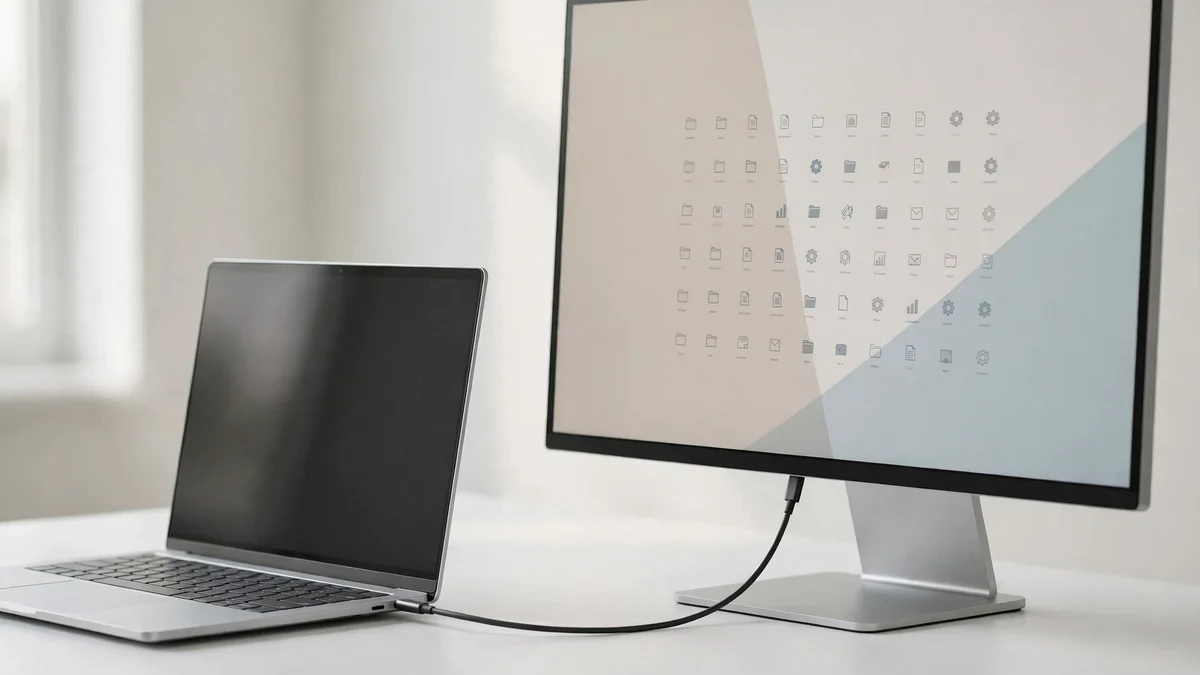
The best USB-C monitors for laptops in 2027 turn one cable into your whole desk setup. Plug a single USB-C lead into your laptop and the monitor shows your screen, charges the battery, and connects your keyboard, mouse and wired network through its built-in hub, with no separate dock and no tangle of cables to manage.
That one-cable promise only works if the monitor matches your laptop. The USB-C port needs enough wattage to charge your machine while you work, your laptop’s USB-C port must support video output, and the resolution should suit the size of screen you buy. Prices below are approximate starting prices, so check current pricing before buying, since monitor prices move often.
We compared current USB-C monitors on charging power, resolution, hub features and price, and picked eight that cover every laptop, from a slim ultrabook to a 16-inch MacBook Pro. The Dell UltraSharp U2723QE leads the list, with the HP E27u G5 as the best budget pick for lighter laptops.
Key takeaways
- The Dell UltraSharp U2723QE is the best overall USB-C monitor, with 4K sharpness and 90W charging.
- Match the monitor’s USB-C wattage to your laptop charger: 65W for ultrabooks, 90W or more for larger laptops.
- Your laptop’s USB-C port must support DisplayPort Alt Mode or Thunderbolt to send video over USB-C.
- A monitor with a built-in hub replaces a separate dock, saving money and desk space.
- MacBook users should check 5K options and colour coverage; Windows users should check refresh rate and ports.
At a glance: the shortlist
| Monitor | Best for | Starting price | USB-C power |
|---|---|---|---|
| Dell UltraSharp U2723QE | Overall USB-C monitor | From $650 | 90W |
| LG 27UP850-W | Best value 4K USB-C | From $450 | 96W |
| Samsung ViewFinity S9 | MacBook users | From $900 | 96W |
| BenQ MA270U | MacBook colour work | From $500 | 90W |
| HP E27u G5 | Best budget USB-C | From $350 | 65W |
| Asus ProArt PA279CRV | Creators on a laptop | From $430 | 96W |
| Dell UltraSharp U3425WE | Ultrawide USB-C | From $750 | 90W |
| Lenovo ThinkVision P27h-30 | Windows laptops | From $400 | 100W |
Dell UltraSharp U2723QE — Best overall
The Dell UltraSharp U2723QE is the best USB-C monitor for most laptops because its single cable does the most work. One USB-C connection carries a 4K signal, delivers 90W of charging, and connects the built-in hub, which includes USB-A ports, DisplayPort, HDMI and Ethernet. The 27-inch 4K IPS Black panel shows sharp text and deep blacks, covers 98% of DCI-P3, and the stand adjusts for height, tilt, swivel and pivot. It charges a 14-inch or 15-inch laptop while you work and still leaves power in reserve, which is exactly what a one-cable desk should do. If your laptop is your main computer, our guide to the best laptops for remote workers pairs well with this screen.

Pros: 90W charging, full hub with Ethernet, sharp 4K IPS Black panel.
Cons: No built-in webcam, premium price, 60Hz only.
LG 27UP850-W — Best value 4K USB-C
The LG 27UP850-W is the best value 4K USB-C monitor for laptops, because it pairs a strong panel with stronger charging than most rivals at this price. The 27-inch 4K display covers 95% of DCI-P3, supports HDR400, and the USB-C port delivers 96W, enough for a 16-inch laptop. The slim design and height-adjustable stand suit a small desk, and the built-in speakers are good enough for video calls.
Pros: 96W charging, accurate 4K colour, good price.
Cons: No Ethernet, basic speakers, 60Hz only.
Samsung ViewFinity S9 — Best for MacBook users
The Samsung ViewFinity S9 is the USB-C monitor to buy if you use a MacBook and want a Retina-like picture. Its 27-inch 5K panel matches the pixel density of Apple’s own displays, so text looks exceptionally sharp, and it covers 99% of DCI-P3 for accurate colour. USB-C with 96W charging powers a MacBook Pro while carrying the display signal, and the built-in 4K camera and speakers handle video calls without extra gear. The price is high, but for MacBook users who notice pixel density, nothing else at this size comes close.
Pros: 5K sharpness, 96W charging, built-in 4K camera, matte screen.
Cons: Expensive, no Ethernet, smart features add complexity.
BenQ MA270U — Best for MacBook colour work
The BenQ MA270U is a 27-inch 4K monitor designed around MacBooks, with colour modes tuned for Apple devices and a USB-C port that delivers 90W of charging. It covers 99% of sRGB and 95% of DCI-P3, includes a Mac-style colour profile, and the stand matches the clean look of a MacBook desk. The panel is factory calibrated, so photos and videos look consistent between the laptop screen and the monitor, which matters for anyone who edits on a MacBook.
Pros: Mac-tuned colour, 90W charging, factory calibrated, clean design.
Cons: No webcam, no Ethernet, 60Hz only.
HP E27u G5 — Best budget USB-C
The HP E27u G5 is the best budget USB-C monitor for laptops, because it delivers the one-cable workflow at roughly half the price of the 4K models. The 27-inch QHD panel is sharper than 1080p and comfortable for documents, email and video calls, and USB-C with 65W charging suits ultrabooks and 13-inch laptops. The stand adjusts for height, tilt, swivel and pivot, the panel is flicker-free with low blue light, and the narrow bezel keeps a dual-screen setup tidy.
Pros: Low price, 65W USB-C, full stand adjustment, eye comfort.
Cons: 65W will not fast-charge larger laptops, no 4K, no webcam.
Asus ProArt PA279CRV — Best for creators on a laptop
The Asus ProArt PA279CRV is the cheapest route to a calibrated 4K screen for laptop creators. The 27-inch panel covers 99% of DCI-P3 and 99% of Adobe RGB, is factory calibrated, and supports HDR10, so photo and video work looks right without extra calibration. USB-C with 96W charging powers even a 16-inch laptop while carrying the display signal, and the slim stand leaves more desk space than bulkier rivals.
Pros: Calibrated 4K colour, 96W charging, low price for the spec.
Cons: No webcam, no Ethernet, basic stand range.
Dell UltraSharp U3425WE — Best ultrawide USB-C
The Dell UltraSharp U3425WE is the best ultrawide USB-C monitor for laptops, replacing two screens with one 34-inch curved panel. The 3440 by 1440 resolution fits a video call, a document and a chat window side by side, and the curve keeps the edges comfortable to read. USB-C with 90W charging powers a laptop while the built-in hub connects Ethernet, USB-A devices and a second display, and the KVM switch lets one keyboard and mouse control two computers.
Pros: Huge workspace, 90W charging, full hub, 120Hz.
Cons: Needs a deep desk, higher price, heavy to move.
Lenovo ThinkVision P27h-30 — Best for Windows laptops
The Lenovo ThinkVision P27h-30 is a 27-inch QHD monitor built for Windows laptops, with a USB-C port that delivers 100W of charging, the strongest on this list. That wattage charges even a powerful 15-inch or 16-inch Windows laptop while you work, and the built-in hub includes Ethernet and USB-A ports for a wired office setup. The QHD panel is sharp enough for documents and spreadsheets, the stand adjusts in every direction, and the matte coating handles bright rooms well.
Pros: 100W charging, Ethernet hub, full stand adjustment, good price.
Cons: QHD rather than 4K, no webcam, 60Hz only.
How to choose
Start with charging power, because it decides whether the one-cable promise actually works. Check your laptop charger’s wattage: most ultrabooks need 45W to 65W, while 15-inch and 16-inch laptops often need 90W or more to charge while working. A monitor that delivers less than your laptop needs will still show a picture, but the battery will drain slowly during a long day. Next, check your laptop’s USB-C port: it must support DisplayPort Alt Mode or Thunderbolt to send video over USB-C, and most laptops made since 2020 do, but some budget models only charge over USB-C. Then pick resolution: 4K at 27 inches gives the sharpest text, QHD at 27 inches is cheaper and still comfortable, and an ultrawide suits people who keep three windows open. If you need a screen for a home desk rather than a laptop dock, our guide to the best monitors for home office covers more desk-first options.
Finally, weigh the hub. A monitor with Ethernet and several USB-A ports replaces a separate dock, which saves money and desk space, while a monitor with only one USB-C port and no hub still needs a dock for your keyboard and mouse. Also check the cable: some monitors ship with a short USB-C cable, so you may need a longer one for your desk layout, and a cable rated for the full wattage matters at 90W and above.
Checklist: before you buy
- Confirm your laptop’s USB-C port supports video output, not just charging.
- Check your laptop charger wattage and pick a monitor that matches or exceeds it.
- Decide on resolution: 4K at 27 inches, QHD at 27 inches, or ultrawide 3440 by 1440.
- Count the hub ports you need: USB-A for keyboard and mouse, Ethernet for wired network.
- Measure your desk and check the stand range, or plan for a monitor arm.
- Check the included USB-C cable length and wattage rating before you order.
Frequently asked questions
Can any laptop use a USB-C monitor?
No. Your laptop’s USB-C port must support DisplayPort Alt Mode or Thunderbolt to send video over USB-C. Most laptops made since 2020 support it, but some budget models only charge over USB-C, so check your laptop’s specifications before buying.
Will a USB-C monitor charge my laptop?
Yes, if the monitor’s USB-C wattage matches your laptop’s needs. A 65W port charges most ultrabooks, while larger laptops need 90W or more. If the wattage is too low, the battery may drain slowly during heavy work.
Do I still need a docking station with a USB-C monitor?
Usually not. A USB-C monitor with a built-in hub, Ethernet and USB-A ports replaces a separate dock for most people. You only need a dock if you want more ports than the monitor provides, or a second external display.
Is USB-C better than HDMI for a laptop monitor?
For a laptop, yes, because one USB-C cable carries video, data and charging, while HDMI only carries video and needs a separate charger. HDMI still makes sense for a desktop computer or a second screen, but USB-C is the neater laptop setup.
What is the best USB-C monitor for a MacBook?
The Samsung ViewFinity S9 is the best for MacBook users who want 5K sharpness, while the BenQ MA270U is the best value 4K option with Mac-tuned colour. Both charge a MacBook over USB-C, so the choice comes down to whether 5K sharpness is worth the higher price.
Can I connect two monitors over USB-C?
It depends on your laptop. Some laptops support daisy-chaining two monitors from one USB-C port, while others need a hub or a second port. Our guide to the best monitors for productivity explains how to plan a two-screen laptop setup in more detail.
The bottom line
For most laptops, the Dell UltraSharp U2723QE is the right buy: 4K sharpness, 90W charging and a full hub in one cable that works with Windows and Mac laptops alike. If your laptop is a light ultrabook, the HP E27u G5 gives you the same one-cable workflow for much less, and MacBook users who want the sharpest text should look at the Samsung ViewFinity S9.
Whichever you choose, match the USB-C wattage to your laptop charger, confirm your USB-C port supports video, and pick 4K or QHD rather than 1080p at 27 inches. Get those three checks right and your laptop, monitor and desk will feel like one machine.