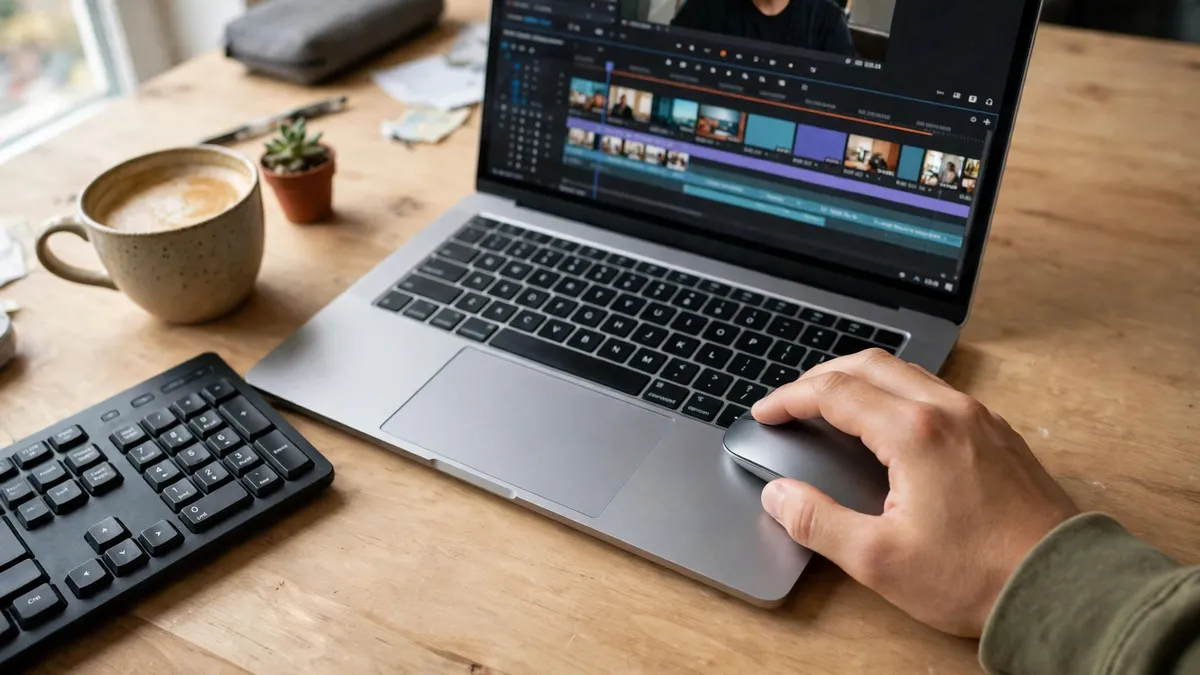
The best wireless mice for video editing in 2027 are not gaming mice with a new label. Editing is a different kind of work: hours of scrubbing timelines, trimming clips frame by frame, and switching between tools in Premiere Pro, DaVinci Resolve, or Final Cut Pro.
Comfort matters as much as precision. An editor may hold the same mouse for eight hours, so a shape that strains the wrist will cost more than any specification can save. Battery life matters too: a mouse that dies mid-export is a small disaster, and the best editing mice now run for weeks or months between charges.
We picked the shortlist below for sensor accuracy, scroll-wheel control, programmable buttons, and long-session comfort. The Logitech MX Master 3S leads overall for its quiet clicks and side scroll wheel, the Razer Pro Click is the best creator-focused alternative, and the Logitech MX Anywhere 3S is the pick for editors who cut on a laptop away from the desk.
Key takeaways
- Best overall: Logitech MX Master 3S, for its side scroll wheel, quiet clicks, and superb ergonomics.
- Best for creators: Razer Pro Click, with a precise sensor and a thumb wheel built for timeline work.
- Best portable: Logitech MX Anywhere 3S, small enough for a laptop bag yet precise on any surface.
- Best for custom buttons: Keychron M6, with a thumb cluster that maps cleanly to editing shortcuts.
- What to avoid: a gaming mouse with a stiff, notched wheel, since smooth timeline scrubbing needs a free-spinning wheel.
At a glance: the shortlist
| Product | Best for | Starting price | Standout feature |
|---|---|---|---|
| Logitech MX Master 3S | Best overall | From $99 | Side scroll wheel, 8,000 DPI |
| Razer Pro Click | Best for creators | From $99 | Thumb wheel, 16,000 DPI |
| Logitech MX Anywhere 3S | Best portable | From $79 | Tracks on glass, 70 g |
| Keychron M6 | Custom buttons | From $89 | Thumb cluster, 4,000 Hz wireless |
| Logitech G502 X Lightspeed | Gaming crossover | From $139 | Free-spinning wheel, 13 buttons |
| Dell Premier MS7421W | Windows workflows | From $89 | Rechargeable, multi-device |
| Microsoft Surface Precision | Surface users | From $99 | Three-device pairing, side buttons |
| Contour Unimouse Wireless | Ergonomic | From $89 | Adjustable tilt angle |
Logitech MX Master 3S — Best overall
The MX Master 3S is the default recommendation for video editors for a reason. Its sculpted right-handed shape supports the whole hand, the thumb rest is generous, and the side scroll wheel moves horizontally through the timeline without touching the keyboard.

The 8,000 DPI sensor tracks accurately on almost any surface, including glass, and the quiet clicks are noticeably softer than a normal mouse, which matters in shared edit suites. Battery life is rated at up to 70 days, and a one-minute USB-C charge gives around three hours of use.
Editors building a full desk setup often pair the mouse with a good keyboard, and the best compact mechanical keyboards free up desk space for the wide sweeping movements timeline work needs.
Pros: Best-in-class ergonomics; horizontal scroll wheel; very quiet clicks; months of battery life.
Cons: Right-handed only; heavy at 141 g; premium price for a non-gaming mouse.
Razer Pro Click — Best for creators
The Razer Pro Click was designed with human-factors specialists, and it shows in the shape: a gentle slope, a wide thumb rest, and a grip that suits medium to large hands. It carries a 16,000 DPI optical sensor, a thumb wheel for horizontal scrolling, and eight programmable buttons that map well to editing shortcuts like blade, undo, and zoom to fit.
It connects over Bluetooth or Razer’s 2.4 GHz HyperSpeed link, and the battery lasts up to 400 hours on Bluetooth. The clicks are quieter than a gaming mouse but still have a satisfying tactility.
Pros: Comfortable creator-focused shape; precise sensor; long battery life; on-board profiles.
Cons: No free-spinning main wheel; Synapse requires an account for full features.
Logitech MX Anywhere 3S — Best portable
Editors who cut on laptops need a mouse that fits in a bag and works on any surface. The MX Anywhere 3S weighs 99 grams, tracks on glass thanks to its Darkfield sensor, and pairs with up to three devices over Bluetooth or the included Bolt receiver.
The MagSpeed wheel is the same free-spinning design as the MX Master, so timeline scrubbing feels just as good in a smaller package. Battery life is rated at up to 70 days, and the quiet clicks are the same soft mechanism as its bigger sibling.
Pros: Tracks on glass; tiny and light; free-spinning wheel; three-device pairing.
Cons: Small shape is less comfortable for long sessions; no side scroll wheel.
Keychron M6 — Best for custom buttons
The Keychron M6 is a wireless mouse built for people who live in shortcuts. Its thumb cluster carries several programmable buttons arranged in a clean arc, and the 4,000 Hz wireless polling keeps the cursor responsive even on a busy 4K timeline.
At 78 grams it is light, and the shape is a low, symmetrical-ish shell that suits palm and claw grips. Battery life is around 120 hours on 2.4 GHz, and the mouse charges over USB-C.
Pros: Useful thumb cluster; very high polling rate; light; good value.
Cons: Software is basic; shape may feel low for large hands.
Logitech G502 X Lightspeed — Best gaming crossover
Some editors also game, and the G502 X Lightspeed is the mouse that does both without compromise. Its dual-mode scroll wheel spins freely for timeline scrubbing and clicks into a ratchet for precise stepping, and its 13 programmable controls map to editing shortcuts as easily as to game abilities.
At 102 grams it is lighter than the MX Master, and the battery lasts around 140 hours. The shape is the familiar G502 silhouette with a thumb rest, and the two DPI-shift buttons sit under the thumb for quick precision changes when trimming.
Pros: Free-spinning wheel; excellent sensor; light; great for editor-gamers.
Cons: Gaming look may not suit every office; no horizontal scroll wheel.
Dell Premier Rechargeable MS7421W — Best for Windows workflows
The Dell Premier MS7421W is a quiet workhorse for Windows-based edit suites. It is rechargeable over USB-C, pairs with up to three devices, and its sculpted shape suits long days at a desk.
Battery life is rated at up to six months on a charge, which is among the best here. The clicks are soft, the scroll wheel is smooth with a clear detent, and the mouse works seamlessly with Dell’s Display Manager for multi-monitor setups.
Pros: Months of battery life; rechargeable; multi-device pairing; understated design.
Cons: No free-spinning wheel; lower DPI ceiling; limited software customisation.
Microsoft Surface Precision Mouse — Best for Surface users
The Surface Precision Mouse is built for the Microsoft ecosystem, and it shows in the details: three-device Bluetooth pairing, a thumb wheel for horizontal scrolling, and a shape that matches Surface hardware. It works well with the Surface Dial workflow and with Windows timeline apps, and its 1,600 DPI sensor is tuned for precision rather than speed.
Battery life is rated at up to three months, and the mouse charges over USB-C. The grip is a comfortable right-handed shape with a textured thumb rest, and the three side buttons are easy to find by touch.
Pros: Excellent Surface integration; thumb wheel; long battery life; clean design.
Cons: Limited software; lower DPI; Bluetooth only, no 2.4 GHz receiver.
Contour Unimouse Wireless — Best ergonomic
Editing sessions can last all day, and the Contour Unimouse Wireless is the mouse for editors whose wrists complain first. Its thumb support tilts from flat to 35 degrees, so you can find the angle that keeps your forearm neutral, and the shape adjusts to fit different hand sizes.
The sensor reaches 2,800 DPI, which is modest on paper but ample for timeline work, and the wireless link is a stable 2.4 GHz connection with a battery life of around three months. There are six programmable buttons, and the software covers remapping and DPI stages.
Pros: Adjustable tilt reduces wrist strain; genuinely ergonomic; long battery life.
Cons: Low DPI ceiling; unusual shape takes a few days to learn; premium price.
How to choose
Start with the scroll wheel, because it is the tool you will touch most. A free-spinning wheel lets you scrub through footage quickly, while a ratchet mode gives precise frame-by-frame control.
Next, count the buttons you will actually map. Blade, ripple delete, zoom, and undo cover most editing work, so four to six well-placed extra buttons are enough.
Finally, weigh comfort and battery against portability. A full-size sculpted mouse is best for a desk, while a compact mouse is better for a laptop bag. If you move between machines, multi-device pairing and on-board profiles save constant re-pairing. Editors who also need a lighter carry should compare the best lightweight wireless mice before deciding, since a few dozen grams matter when the mouse lives in a bag.
Checklist: before you buy
- Check the scroll wheel: free-spinning for scrubbing, ratchet for frame-accurate trimming.
- Count the extra buttons and confirm they can be mapped per app in the mouse software.
- Hold the shape in mind for long sessions: palm support and a thumb rest matter more than weight.
- Confirm battery life against your working week, and whether it charges over USB-C.
- Verify multi-device pairing if you switch between a desktop and a laptop.
- Test the return policy, so a mouse that strains your wrist after a full day can go back.
Frequently asked questions
Do I need a gaming mouse for video editing?
No. Gaming mice offer high DPI and polling rates that editing rarely needs. What matters for editing is a good scroll wheel, programmable buttons, and a comfortable shape, which is why productivity mice like the MX Master 3S lead this list.
What is the best scroll wheel for timeline scrubbing?
A dual-mode wheel that switches between free-spinning and ratchet modes. Free-spinning covers long timelines quickly, while the ratchet gives frame-by-frame control. The MX Master 3S and MX Anywhere 3S both have this design.
How many buttons should an editing mouse have?
Four to six extra buttons cover the common shortcuts: blade, ripple delete, undo, zoom, and play-pause. More buttons help only if you can reach them reliably without looking down at the mouse.
Is a horizontal scroll wheel worth it?
Yes, for timeline work. A side or thumb wheel moves the playhead along the timeline without reaching for the keyboard, and editors who try it rarely go back. It is one of the MX Master 3S’s biggest advantages.
Can I use the same mouse for editing and gaming?
Yes. The Logitech G502 X Lightspeed is the best crossover here, with a free-spinning wheel, a precise sensor, and 13 programmable controls. It handles editing shortcuts and game bindings equally well, and a good keyboard completes the setup: the best mechanical keyboards with Hall Effect switches are a strong match for a dual-purpose desk.
Does DPI matter for video editing?
Only up to a point. A sensor between 2,000 and 8,000 DPI is more than enough for precise timeline work, and higher numbers add nothing. Sensor accuracy and a comfortable shape matter far more than the maximum DPI figure.
The bottom line
For most video editors, the Logitech MX Master 3S is the right buy: its side scroll wheel, quiet clicks, and sculpted shape are built for long days on the timeline. The Razer Pro Click is the best alternative for creators who want a lighter, more precise feel, and the MX Anywhere 3S is the pick for editors who work from a laptop bag.
Whichever mouse you choose, map its buttons to your most-used shortcuts on the first day. A mouse that fits your workflow is worth more than any specification, and the time saved on a single project will pay for it.