Canva vs Figma is a comparison that confuses people because the two tools look similar at first glance and do very different jobs. The short answer is that Canva is better for fast marketing content, social graphics and presentations, while Figma is better for interface design, websites and digital products built by a team. If you need to produce a social post in ten minutes, choose Canva. If you need to design an app with a team, choose Figma. The rest of this guide explains why, compares the two in detail, and shows when you might need both.
The confusion is understandable. Both tools run in the browser, both are easy to start with, both have free tiers, and both are used by millions of people. But they were built for different problems. Canva was built so that anyone could make good-looking graphics quickly, using templates. Figma was built so that design teams could collaborate on digital products, using components and prototypes. Those different starting points shape everything about how each tool works.
Key takeaways
- Canva is better for fast marketing content, social graphics, presentations and non-designers.
- Figma is better for interface design, websites, apps and team-based digital product work.
- Canva wins on templates and speed; Figma wins on precision, components and prototyping.
- Many teams use both — Canva for marketing, Figma for product — and that is often the right answer.
What Canva does best
Best for: anyone who needs good-looking marketing and social content quickly, without design training.
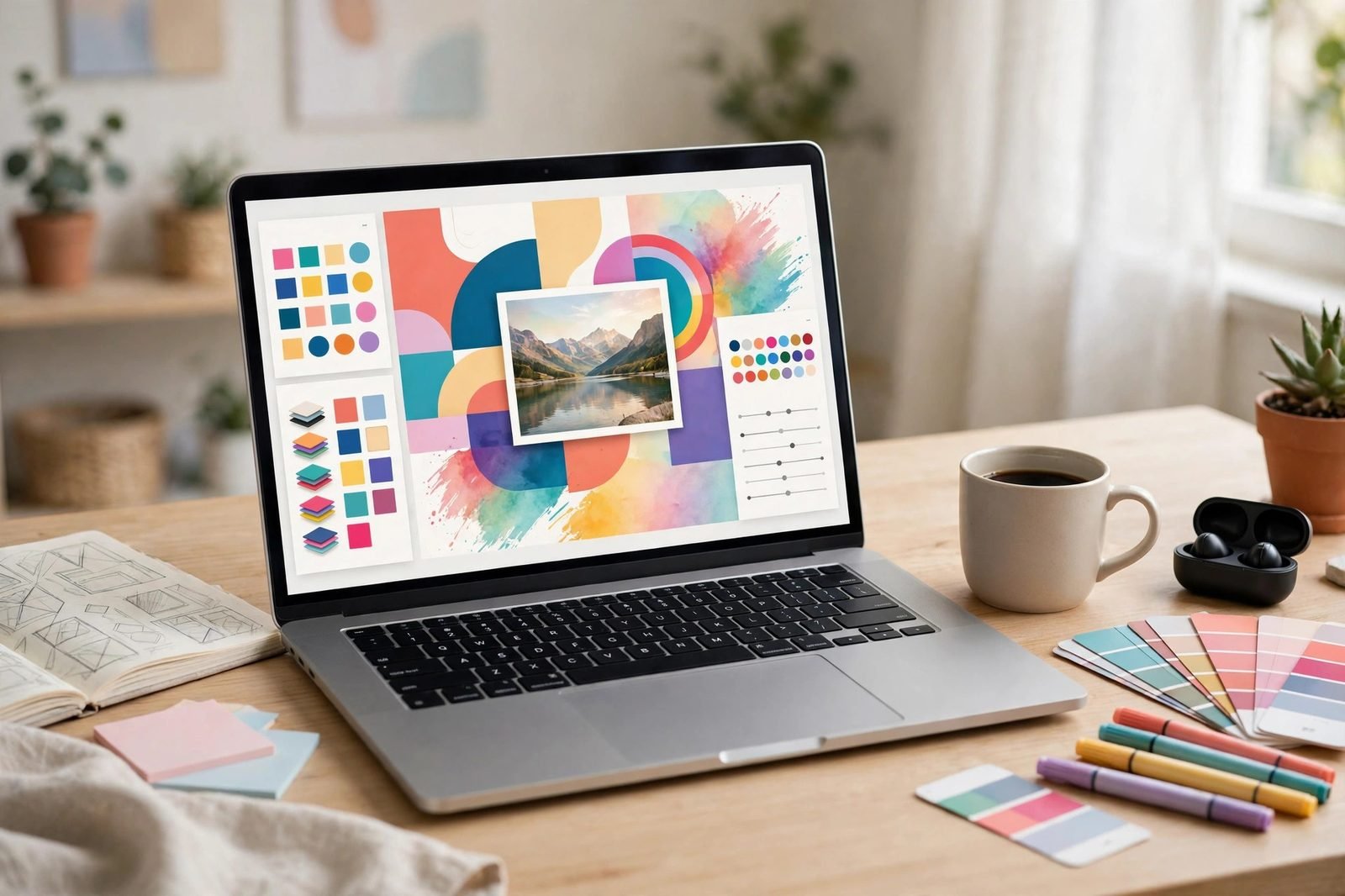
Canva’s strength is speed. You open a template for the thing you need — an Instagram post, a presentation, a flyer, a poster — and you customise it with your text, colours and images. The template library is enormous, the stock photo and illustration library is large, and the result usually looks professional. For a small business owner, a marketer or a social media manager, that is exactly what is needed.
Canva has also added AI features that make it faster still: tools that draft text, remove backgrounds, resize a design for different platforms, and generate images from a prompt. Its free tier is generous, covering most templates and a large stock library. The paid tier adds premium templates, a brand kit that keeps your colours and fonts consistent, and more AI features. Check current pricing.
Canva’s limits are real, but they only matter if you need what it does not offer. It is not a precision vector tool, it is not built for complex print layouts, and it is not the right tool for designing a website or an app interface. For the work it is designed for, though, it is fast and effective.
What Figma does best
Best for: designing websites, apps and digital products in a team, with reusable components and interactive prototypes.
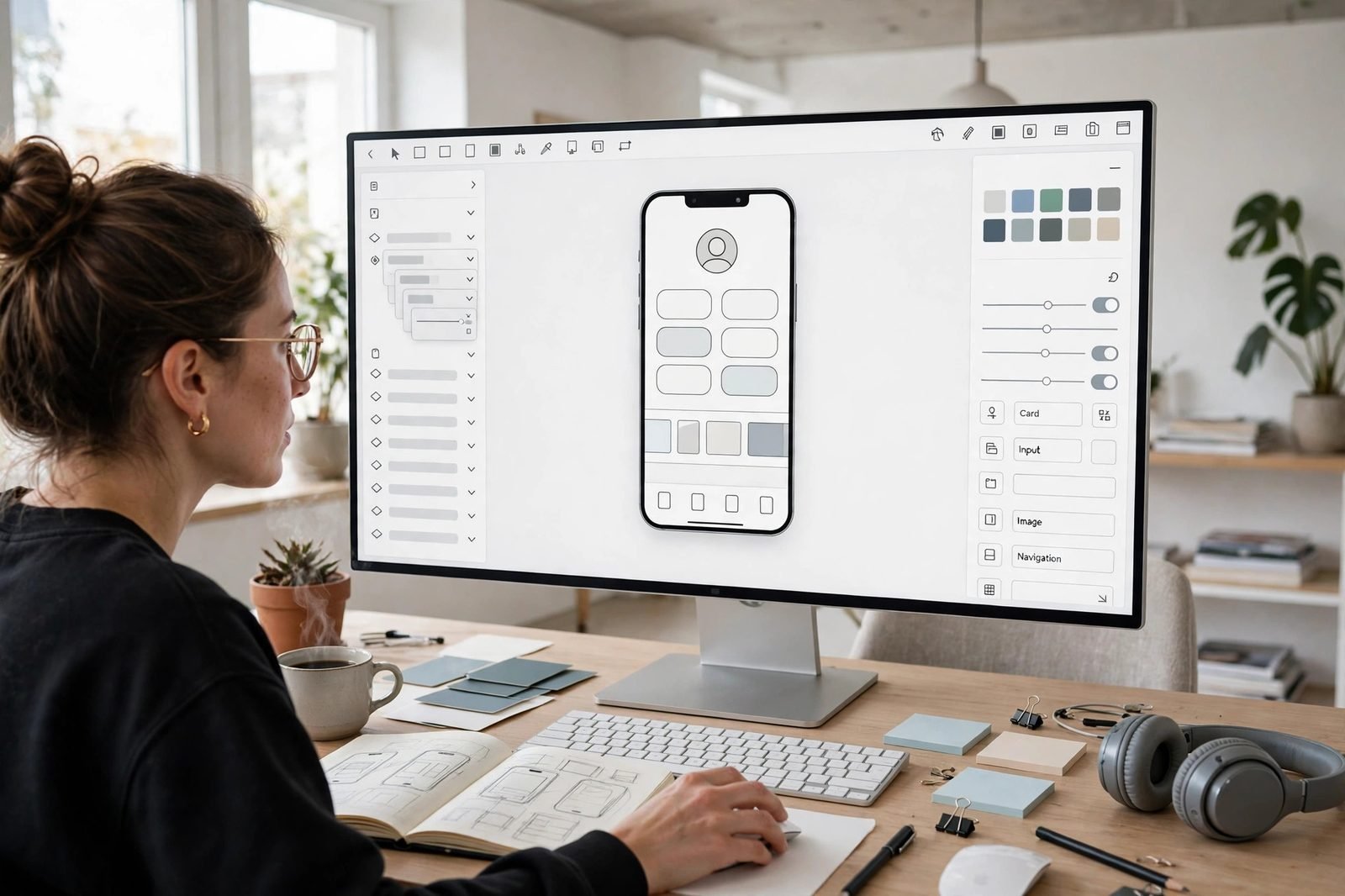
Figma’s strength is precision and collaboration. It is a vector-based design tool built for digital products, and it is designed from the ground up for teams working together in real time. Multiple people can work on the same file, leave comments on specific elements, and watch changes appear as they happen. That alone makes it the standard tool for product design teams.
Figma’s component system is its other major advantage. You can build a button, a card or a navigation bar once, then reuse it across an entire product, updating every instance at the same time when the design changes. For a large website or app, that consistency is essential. Figma also builds interactive prototypes, so you can test how a design feels before anything is built.
Figma has a free tier for individual use and small teams, with paid plans for larger teams and advanced features. Check current pricing. Its weakness is that it is not a general-purpose design tool: it is poor for print, it has no template library for marketing content, and it is not designed for non-designers.
Head-to-head: the key differences
| Feature | Canva | Figma |
|---|---|---|
| Best for | Marketing and social content | Interface and product design |
| Templates | Huge library, ready to use | Limited, community-made |
| Vector precision | Basic | Advanced, professional-grade |
| Collaboration | Sharing and commenting | Real-time multi-user editing |
| Prototyping | Basic presentation links | Full interactive prototypes |
| Print design | Good for simple layouts | Not designed for print |
| Learning curve | Very easy, minutes to start | Moderate, days to get comfortable |
| Free tier | Generous, most templates included | Free for individuals and small teams |
Pricing: what each one costs
Both Canva and Figma offer free tiers that are genuinely useful, and both charge for their paid plans on a per-user basis. Canva’s paid plan is aimed at individuals and small teams who want premium templates, brand kits and AI features. Figma’s paid plans are aimed at professional design teams who need advanced collaboration, version history and design system features.
The practical difference is who pays and why. Canva’s paid tier is cheap enough that a small business can justify it for marketing alone. Figma’s paid tier is a professional tool cost, justified when a team designs digital products every day. Check current pricing for both, and try the free tiers first — many users never need to pay for either tool.
One point worth noting: because both tools are browser-based, there is no software to install and no hardware requirement beyond a decent internet connection. That makes the cost of trying either tool effectively zero.
Which tool should you choose?
The decision comes down to what you produce and who you produce it with. Work through the questions below.
If you are a small business owner, a marketer or a social media manager who needs regular content — social posts, presentations, flyers, simple ads — choose Canva. It will save you hours every week, and the learning curve is measured in minutes.
If you are a designer, a product manager or a developer working on a website or an app, choose Figma. It is the tool your team and your clients will expect, and its components and prototyping are essential for digital product work.
If you are a freelancer who does both kinds of work, you probably need both. Use Figma for client product work and Canva for your own marketing. The free tiers of both tools make that affordable.
If you are a non-designer who occasionally needs a graphic, choose Canva and do not look back. Figma’s power is wasted on occasional use, and its learning curve is not worth it for a poster a month. For more options in this category, see our guide to the best design tools for non-designers.
Using both together
Many teams use Canva and Figma side by side, and that is often the right answer rather than a compromise. A product team might design an app in Figma, then use Canva to create the social graphics and presentation decks that promote it. A marketing team might use Canva for campaign assets while the design team works in Figma on the website those campaigns link to.
The two tools complement each other because they solve different problems. Canva is fast and template-driven; Figma is precise and component-driven. Trying to make one tool do the other’s job is where frustration comes from. If you find yourself fighting Canva to build an interface, or fighting Figma to make a social post, you are using the wrong tool for that task.
A practical checklist for choosing between Canva and Figma
- List your top five design tasks. If most of them are social posts, presentations and flyers, choose Canva. If most are interfaces, websites and prototypes, choose Figma.
- Check who you work with. If your team or clients use Figma, you need Figma. If you work alone on marketing, Canva is enough.
- Try both free tiers on a real project. Design the same thing in each tool and compare the experience, not just the result.
- Check the export you need. Canva exports images, PDFs and videos easily. Figma exports design files, specs and assets for developers. Make sure the tool you choose produces what your workflow needs.
- Consider the learning curve honestly. Canva takes minutes to learn; Figma takes days to use well. Factor that into your decision.
- Revisit in six months. Your work changes. A tool that was right when you started may not be right a year later, and both tools are easy to leave.
FAQs
Can Canva replace Figma?
No, not for interface or product design. Canva is excellent for marketing content but lacks Figma’s precision, components and prototyping. For social graphics and presentations, Canva is the better tool.
Can Figma replace Canva?
Not for fast marketing content. Figma has no template library for social posts or flyers, and it is slower for that kind of work. For interface design, Figma is the better tool.
Which is easier to learn, Canva or Figma?
Canva is much easier. Most people can produce a good design in Canva within minutes of opening it. Figma takes longer to learn, though its basics are accessible to anyone willing to spend a few hours.
Is Canva free?
Canva has a generous free tier that covers most templates and a large stock library. A paid tier adds premium templates, brand kits and more AI features. Check current pricing.
Is Figma free?
Figma has a free tier for individuals and small teams. Paid plans add advanced collaboration, version history and design system features for professional teams. Check current pricing.
Which tool do professional designers use?
Professional product and interface designers use Figma. Professional brand and print designers use Adobe Illustrator or Affinity Designer. Marketers and social media managers most often use Canva.
The bottom line
Canva vs Figma is not really a contest, because the two tools do different jobs. Canva is better for fast marketing content, social graphics and presentations, and it is the right choice for non-designers and small businesses. Figma is better for interface design, websites and digital products built by a team, and it is the right choice for product designers and developers. Many teams use both, and the free tiers make that easy to try. Choose the tool that matches the work you actually do, test it on a real project, and do not try to force one tool to do the other’s job. If you are comparing other design tools, our guide to the best graphic design software in 2027 covers the wider field, and the Figma vs Adobe XD comparison covers Figma’s closest rival in interface design.