

What if the monitor sitting on your desk right now is the slowest part of your setup? It is a strange thought. People spend a fortune on a graphics card, then plug it into a screen that cannot show what the card produces. The monitor is the one component you look at for every single second of play, so it deserves more thought than a quick glance at a spec sheet. (Common gaming monitor problems fixes that actually work) (Monitor testing methodology and explainers)
This guide walks through the decisions in the order they actually matter: panel technology, refresh rate and frame sync, resolution and pixel density, HDR, connectors, and comfort. By the end, the choice should feel less like a gamble and more like a checklist.
Start With Panel Type, Because Everything Else Follows
Every gaming monitor is built around an LCD panel, and the panel technology sets the ceiling on what the display can do. There are three main types, and each one trades something away to gain something else.
TN (twisted nematic) panels are the speed specialists. They have the fastest pixel response and are often the cheapest way to get a very high refresh rate. The cost shows up in colour and viewing angles: colours look washed out from the side, and contrast is modest. For a competitive player who sits dead centre and cares only about clarity in motion, TN still has a case.
IPS (in-plane switching) panels fix the colour and angle problem. Colours stay accurate from almost anywhere in the room, which matters if you also watch video, edit photos, or share the screen. The traditional weaknesses are lower contrast (dark scenes look grey rather than black) and, on cheaper models, slower pixel transitions that can smear in fast motion.
VA (vertical alignment) panels deliver the deepest blacks and the highest contrast of the three, which makes single-player games with moody lighting look genuinely cinematic. The catch is a phenomenon called black smearing, where dark-to-dark transitions lag and leave a faint trail behind moving objects.
| Panel | Strength | Weakness | Best for |
|---|---|---|---|
| TN | Fastest response, lowest price | Weak colours, narrow angles | Competitive shooters on a budget |
| IPS | Accurate colour, wide angles | Lower contrast, variable speed | All-round gaming plus other work |
| VA | Deep blacks, high contrast | Black smearing in dark scenes | Story-driven and dark-room gaming |
The trade-offs between these LCD technologies are well documented, and a reference overview of TFT LCD panel types is worth reading before committing. No panel is universally best; the right one depends on what you play.
Refresh Rate and Frame Sync: The Numbers That Change How Play Feels
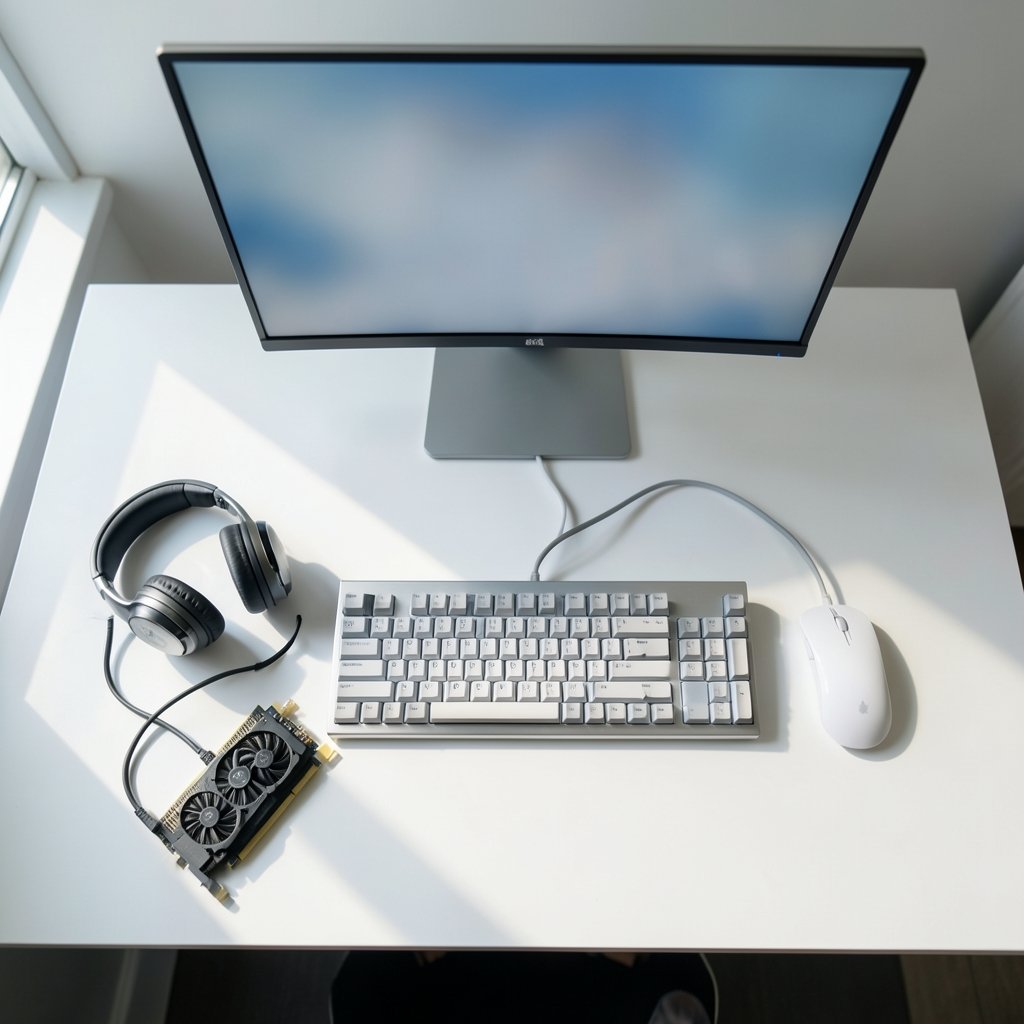
Refresh rate is how many times per second the screen redraws, measured in hertz. A 60 Hz monitor updates 60 times a second; a 144 Hz panel updates 144 times. Higher refresh rates make motion look smoother and reduce the delay between your input and what you see, which is why competitive players treat 144 Hz as a floor rather than a luxury.
Here is the practical part: a high refresh rate only helps if the graphics card can push enough frames. A 240 Hz monitor paired with a card that manages 80 frames per second in your favourite game is wasted money. Match the refresh rate to realistic frame rates, not to the marketing sticker.
Frame sync solves the mismatch between what the GPU renders and when the monitor refreshes. Without it, you get tearing (a visible split across the image) or stutter. VESA’s Adaptive-Sync standard, introduced in 2014, is the umbrella technology behind AMD FreeSync and NVIDIA G-Sync Compatible displays, and it lets the panel refresh in step with the GPU’s output. VESA’s explanation of how Adaptive-Sync works covers the mechanics in more detail.
In practice, most modern gaming monitors support some form of variable refresh rate, but check the details. Some models only offer it over one connector type, and some have a narrow working range. A monitor that advertises “FreeSync” but only engages it between 48 and 75 Hz is not delivering much.
Resolution and Pixel Density: Sharper Is Not Always Better
Resolution is the number of pixels the screen draws. The common gaming tiers are 1920×1080 (1080p), 2560×1440 (1440p), and 3840×2160 (4K). More pixels mean a sharper image, but also more work for the graphics card.
The number that actually predicts how crisp a screen looks is pixel density, measured in pixels per inch (ppi). It depends on resolution and screen size together. At a typical desk distance of 60 to 80 centimetres, a 27-inch 1440p monitor works out to roughly 109 ppi, while a 27-inch 4K panel reaches about 163 ppi. That is the arithmetic of the panel diagonal, not a lab measurement, but it explains why a 1080p screen at 27 inches looks noticeably softer than the same resolution at 24 inches.
A rough way to decide:
- 1080p at 24 inches suits budget builds and high frame rates in esports titles.
- 1440p at 27 inches is the current sweet spot for most players, balancing sharpness against GPU load.
- 4K at 27 inches or larger rewards a strong card and suits slower, prettier games more than twitch shooters.
If you are weighing up where to spend your money, a practical buying guide that saves you money on monitors is a useful companion to this section.
HDR, Brightness, and the Specs That Get Oversold
HDR (high dynamic range) promises brighter peak areas, deeper shadows, and richer colour. On gaming monitors, the promise is often bigger than the delivery. The VESA DisplayHDR programme, launched in December 2017, grades HDR performance by luminance, colour gamut, and local dimming. The entry tier, DisplayHDR 400, requires no local dimming at all, which means a monitor carrying that badge can display an HDR signal but cannot produce the contrast that makes HDR look impressive. The official DisplayHDR performance criteria explain each tier.
The practical rule: treat DisplayHDR 400 as “accepts an HDR signal” rather than “great HDR.” Real HDR impact needs local dimming and higher brightness, and that costs money.
Response time claims deserve similar scepticism. A “1 ms” figure on a box usually refers to a grey-to-grey transition measured under specific overdrive settings, and it is not directly comparable between brands. Independent lab testing, such as the measurements published by RTINGS, is far more reliable than a spec sheet, because it reports how the panel actually behaves in motion rather than how it performs in a best-case scenario.
Connectors, Stands, and the Details People Forget
Two things quietly ruin otherwise good monitor purchases: not enough bandwidth and not enough comfort.
Connector bandwidth limits what the panel can actually display. HDMI 2.1, with its specification released in November 2017, carries far more data than HDMI 2.0 and is what makes 4K at high refresh rates possible. DisplayPort versions differ in the same way. Before buying, check the version of the ports on the monitor as well as the panel specification. A capable panel fed by an older port will quietly drop to a lower refresh rate.
Ergonomics matter more than most buyers expect. A height-adjustable stand keeps the top of the screen near eye level, which reduces neck strain over long sessions. VESA mounting compatibility, defined by the Flat Display Mounting Interface standard, lets you attach the monitor to an arm or wall bracket and reclaim desk space. If you plan to mount the screen, confirm the hole pattern before you buy.
Colour coverage is the last checkbox. sRGB is the baseline for standard content, and DCI-P3 coverage matters for HDR and video work. Percentage claims vary by measurement method, so compare figures produced the same way. A monitor claiming 130% of sRGB is not necessarily better than one claiming 99%; the numbers may simply be measured differently.
Common Mistakes That Cost Real Money
A few traps catch almost everyone at some point.
Buying the highest refresh rate on the shelf. If the graphics card cannot feed it, the extra hertz sit unused. Spend on the panel you can actually drive.
Trusting the box over the review. Contrast ratios and response times are not standardised across vendors. A monitor advertised at 1000:1 contrast and another at 3000:1 may look nearly identical in a lab.
Ignoring the desk. A 32-inch screen at arm’s length forces you to move your head to see the corners. Measure the space and sit at a realistic distance before choosing a size.
Skipping the setup. A monitor fresh out of the box is rarely at its best. Brightness, overdrive, and colour settings all need adjusting, and a guide to setting up gaming monitor performance settings can walk through the changes that make the biggest difference.
Panicking at the first glitch. Flicker, a black screen, or a stuck refresh rate usually has a simple cause, and a rundown of common gaming monitor problems and fixes that actually work covers the usual suspects before you consider a return.
Match the Monitor to the Player
The single most useful question is not “which monitor is best?” but “what do I actually play?”
A competitive shooter player wants high refresh rate, fast pixel response, and a resolution the GPU can drive at high frame rates. A 1080p or 1440p TN or fast IPS panel at 240 Hz fits that profile. A player who loves big single-player worlds wants contrast and colour, which points toward VA or a good IPS panel at 1440p with a more modest refresh rate. Someone who games, works, and watches video on the same screen should prioritise colour accuracy, viewing angles, and a height-adjustable stand.
Budget matters too, and it is worth knowing where the money goes furthest. A beginner-friendly buying guide for a gaming monitor worth buying explains how to weigh price against the features that actually change the experience, and a look at a gaming monitor worth buying for everyday use covers the practical side of living with the screen day to day.
For competitive players on a tight budget, the best budget gaming monitor for competitive play usually means accepting a smaller screen or a TN panel in exchange for speed. That is a fair trade if speed is what you need.
Conclusion
Choosing a gaming monitor comes down to matching the panel to the player. Start with panel type, because it sets the ceiling on colour, contrast, and speed. Then pick a refresh rate your graphics card can actually feed, confirm the resolution and pixel density suit your desk and your eyes, and treat HDR badges and response-time claims with healthy scepticism. Check the port versions, the stand, and the mounting options before you pay. Get those pieces right, and the monitor stops being the weak link and becomes the part of the setup you notice least, which is exactly what a good display should do.
Frequently Asked Questions
Is 1440p worth it over 1080p for gaming?
For most players at a 27-inch screen size, yes. The jump in pixel density from roughly 82 ppi at 1080p to about 109 ppi at 1440p is visible in text, edges, and distant detail. The trade-off is that 1440p demands more from the graphics card, so check that your system can hold a comfortable frame rate before upgrading.
Do I need a 240 Hz monitor?
Only if your PC can push well over 144 frames per second in the games you play and you compete seriously. For most players, 144 Hz to 165 Hz is the point of diminishing returns, and the money is better spent on a better panel, a height-adjustable stand, or a stronger graphics card.
Is DisplayHDR 400 real HDR?
It is a real certification, but a modest one. DisplayHDR 400 requires no local dimming, so a monitor with that badge can accept an HDR signal without producing the deep blacks and bright peaks that make HDR look striking. For stronger HDR, look for higher tiers with local dimming.
Should I pick IPS or VA for gaming?
It depends on what you play. IPS gives accurate colour and wide viewing angles, which suits mixed use and brighter rooms. VA gives much deeper blacks, which suits dark-room, story-driven games, but can show black smearing in fast dark transitions. Neither is universally better.
Does a higher refresh rate reduce input lag?
It reduces the time between frames being shown, which makes motion smoother and can make aiming feel more responsive, but the effect depends on the whole chain: GPU, cable, port version, and in-game settings. A high refresh rate on a monitor connected through an older port may never engage.
How do I know if a monitor’s response time claim is accurate?
Treat manufacturer figures as a starting point only. Independent lab testing measures how a panel actually behaves in motion, including overdrive artefacts, and is a far better guide than a “1 ms” sticker. Reading a few measured reviews before buying will save you from disappointment.



