
Does your laptop take so long to wake up that you can start a pot of coffee and still come back to a spinning cursor? You are not alone. Millions of machines that were perfectly fine five years ago now crawl through basic tasks, and the usual advice (“just buy a new one”) ignores a simple truth: most old laptops have one or two bottlenecks, and fixing them costs far less than replacing the whole machine.
This guide walks through the upgrades and tweaks that deliver real gains, the ones that sound smart but rarely help, and how to decide when a laptop is genuinely finished.
Find the Bottleneck Before You Spend a Cent
The single most common mistake is buying parts before diagnosing the problem. A laptop that feels slow can be slow for four very different reasons: a tired hard drive, too little RAM, a hot processor, or software bloat. Each has a different fix, and spending money on the wrong one wastes both cash and time.
Start with the built-in tools. On Windows, open Task Manager and watch the Performance tab while you do your normal work. On macOS, use Activity Monitor. Look at three numbers:
- Disk usage sitting near 100% for long stretches points to a slow storage drive.
- Memory pressure climbing into the red means the machine is running out of RAM.
- CPU speed dropping below its rated clock while the laptop is warm suggests thermal throttling.
Run this check for ten minutes during a typical workload, not on an idle desktop. The pattern you see tells you where to aim.
The Upgrade That Changes Everything: A Solid-State Drive
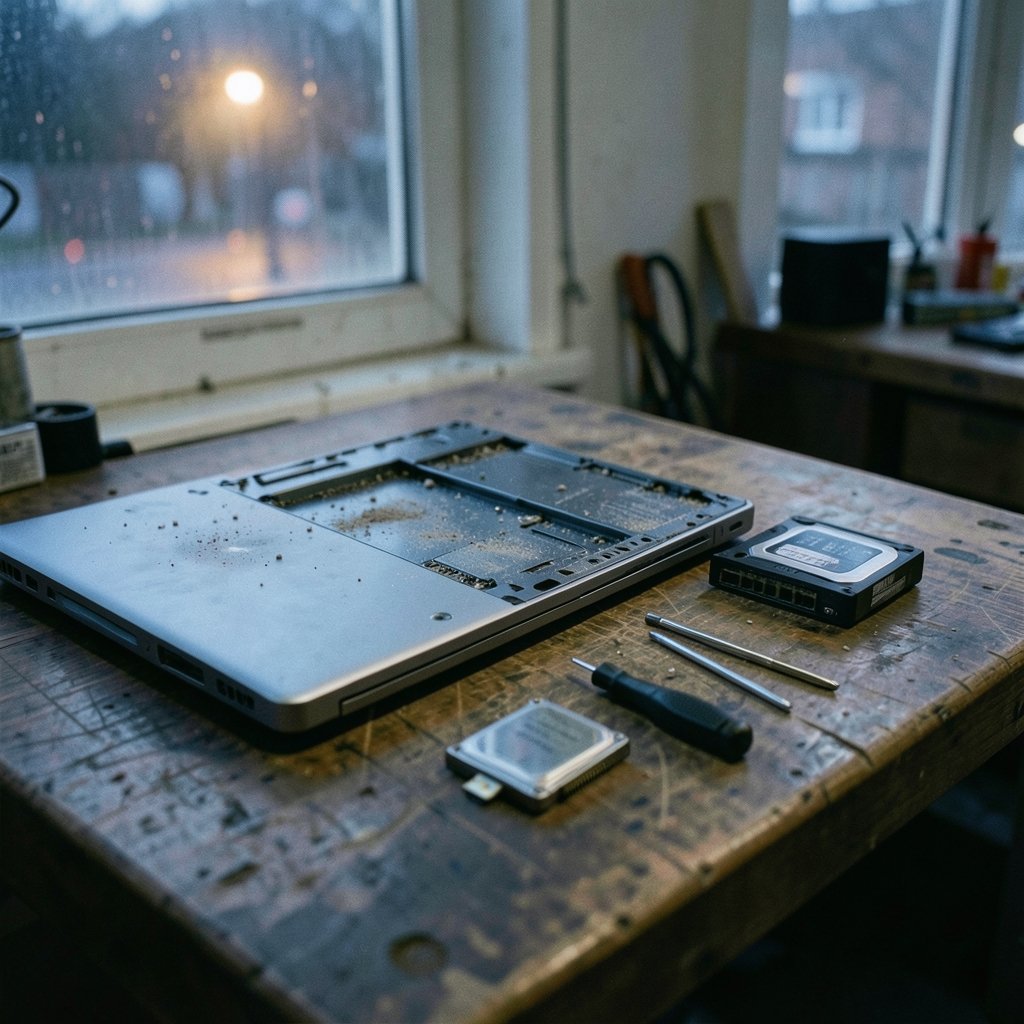
If an old laptop still has a spinning hard disk drive, swapping it for a solid-state drive (SSD) is almost always the highest-impact change you can make. Hard drives physically move a read head to find data, which takes milliseconds. SSDs have no moving parts and find data electronically, in microseconds. That difference shows up as faster boot times, snappier app launches, and a system that stops freezing whenever it touches the disk.
A solid-state drive stores data in flash memory with no moving parts, which is why its random-access latency is orders of magnitude lower than a mechanical drive’s.
Practical notes from people who do this often:
- Confirm the drive type first. Many laptops from roughly 2010 onward use a 2.5-inch SATA bay, while newer thin models use an M.2 slot. Some budget machines have soldered storage with no upgrade path at all, so check the service manual for your exact model before ordering anything.
- Buy a SATA SSD with DRAM cache if the budget allows. Cheap DRAM-less drives slow down badly on sustained writes.
- Clone the old drive to the new one with free cloning software, or do a clean install. Cloning is faster; a clean install is cleaner.
- Keep the old drive in a cheap USB enclosure. It becomes an instant backup disk.
If you are also shopping for portable storage, it helps to know how to pick an external SSD by real speed rather than marketing numbers, since advertised sequential speeds rarely match what you feel in daily use.
RAM: Add It Only When You Are Actually Running Out
More memory helps, but only up to a point. When a computer runs out of RAM, it moves data to the drive in a process called paging or swapping. On a hard drive, that is painfully slow; on an SSD, it is tolerable but still slower than real memory. Understanding how memory paging works explains why a machine with 4 GB of RAM feels unusable with a dozen browser tabs open while an 8 GB machine of the same age feels fine.
The practical rule: check peak memory usage during your heaviest normal session. If it regularly sits above 80% of installed capacity, an upgrade will help. If it hovers at 50%, more RAM will do nothing for speed.
Two warnings before you buy. First, many laptops built after about 2015 solder the RAM to the board, so it cannot be upgraded. Second, mismatched sticks can sometimes cause stability quirks, so match specifications where possible. For most people, going from 4 GB to 8 GB is transformative; going from 8 GB to 16 GB is worthwhile only for heavy multitasking.
Tame the Software That Slows Everything Down
A huge share of “slow laptop” complaints are software problems wearing a hardware costume. Before spending money, work through this list.
Cut startup programs
Every program that launches at boot adds seconds to startup and holds memory afterward. On Windows, open Task Manager and review the Startup tab, then disable anything you do not need immediately. On macOS, check Login Items in System Settings. This is reversible, free, and often shaves a minute off boot time.
Reduce browser tab load
Browsers are the biggest memory consumers on most machines. Twenty open tabs can eat several gigabytes. Close what you are not reading, or enable your browser’s tab-suspension feature, which puts idle tabs to sleep and reloads them when clicked. This one habit often does more than a RAM upgrade for casual users.
Uninstall the junk
Toolbars, “PC optimizer” utilities, trial antivirus suites, and manufacturer helper apps all run background processes. Remove anything you cannot identify or do not use. Be skeptical of cleanup software that promises miracles; the built-in tools are usually enough.
Keep the operating system current
Updates are not just security patches; they include performance fixes. A machine that has not updated in two years is carrying avoidable bugs.
Heat Is the Silent Performance Killer
An old laptop that gets hot and loud is often throttling. When the processor hits its temperature limit, firmware drops the clock speed to protect the chip. The result is a machine that benchmarks fine on a cold start and crawls twenty minutes later. This behavior is called thermal throttling, and it is one of the most overlooked causes of sluggishness.
What actually helps:
- Clean the vents and fan. Dust mats block airflow. A can of compressed air and ten minutes of careful work can restore lost performance, especially on machines used on beds and couches.
- Replace dried thermal paste. Factory paste hardens over years. Repasting the CPU is a modest job for anyone comfortable with a screwdriver, though it voids warranties and requires care.
- Elevate the laptop. Sitting flat on a desk or duvet traps heat. A stand that lifts the rear edge improves airflow noticeably, and the ergonomic side benefits matter too. If neck strain is part of your problem, this guide to laptop stands and the ergonomics that actually fix posture covers what to look for.
- Check the power profile. Windows and macOS both offer performance modes that raise fan speeds and clock ceilings when plugged in. On battery, most laptops deliberately slow down.
Consider a Clean Install or a Lightweight System
Sometimes the fastest fix is a fresh start. Years of installs, uninstalls, driver conflicts, and registry cruft accumulate. A clean install wipes the system partition and reinstalls the operating system from scratch, leaving only what you choose to add back. The clean install process is well documented and, done carefully, takes an afternoon. Back up your files first, and note your software license keys before you begin.
For very old machines, a lightweight Linux distribution can be a revelation. Distros built for low-spec hardware use less memory and fewer background services than a modern commercial OS, and they run comfortably on 2 GB of RAM. The trade-off is software compatibility: some Windows-only programs will not run, so check your must-have apps before committing.
One more consideration for Windows users: Windows 10 reached end of support on 14 October 2025. A laptop still running it stops receiving routine security updates unless it is enrolled in Microsoft’s consumer Extended Security Updates program, so the “keep or replace” math now includes a security dimension, not just speed.
When the Laptop Cannot Be Saved
Some machines have no upgrade path. Soldered RAM, soldered storage, and glued cases mean the only lever left is software tuning. Even then, a clean install plus a lightweight browser setup can buy another year or two of light duty.
There is also a hard ceiling on expectations. A 2012 dual-core processor will not edit 4K video no matter how much RAM you add. Be honest about what the machine needs to do. If it is web browsing, email, documents, and video calls, upgrades go a long way. If it is modern gaming or heavy creative work, put the money toward a replacement.
If you do decide to replace it, it pays to understand what you are buying. A machine like the Lenovo Xiaoxin 14 SE with Intel Wildcat Lake shows how budget laptops in 2026 balance price against real-world performance, and the same logic applies to alternatives such as the Colorful Air 14 Ultra with Panther Lake if you want to compare tiers before spending.
A Realistic Order of Operations
If you want a single plan, do things in this order. It moves from free to cheap to expensive, so you stop as soon as the machine feels acceptable.
| Step | Action | Cost | Typical gain |
|---|---|---|---|
| 1 | Disable startup apps, uninstall junk | Free | Noticeable boot and idle improvement |
| 2 | Reduce tabs, enable tab suspension | Free | Big on low-RAM machines |
| 3 | Clean vents, elevate laptop | Free to low | Restores lost clock speed |
| 4 | Check for updates, update drivers | Free | Fixes known bugs |
| 5 | Clean OS install | Free (time) | Removes accumulated bloat |
| 6 | Add RAM if usage is near capacity | Low | Large if RAM-starved |
| 7 | Install a SATA SSD | Moderate | Usually the biggest single jump |
| 8 | Repaste the CPU | Low to moderate | Helps hot, throttling machines |
Two practical tips that save headaches. First, change one thing at a time so you know what helped. Second, benchmark before and after with something simple, like time-to-desktop or how long a specific file takes to open. Human memory is unreliable, and a stopwatch settles arguments.
Also resist the temptation to over-optimize. Registry cleaners, “gaming boosters,” and mystery tweaks from random forums often cause instability without measurable gains. The changes that work are boring: less software running, cooler hardware, faster storage, enough memory.
Conclusion
Speeding up an old laptop is rarely about one magic trick. It is about finding the actual bottleneck and fixing that, in the cheapest order possible. For most aging machines, the story goes like this: software cleanup gets you partway, thermal maintenance restores performance you did not know you had lost, and an SSD plus a RAM bump (where the machine allows it) delivers the dramatic improvement people associate with a new computer. Spend an hour diagnosing before you spend a dollar upgrading, and you will usually find that the laptop has more life in it than the spinning cursor suggested.
Frequently Asked Questions
What is the single best upgrade for an old laptop?
For most machines with a mechanical hard drive, replacing it with an SSD gives the largest, most noticeable speed gain. Boot times and app launches improve dramatically because the drive no longer has to physically seek data. If the laptop already has an SSD, adding RAM is usually the next best step, but only if memory usage is actually hitting the ceiling.
How much RAM does an old laptop need to feel fast?
For everyday browsing, email, and documents, 8 GB is the comfortable baseline in 2026. Machines with 4 GB struggle as soon as several browser tabs are open because the system starts paging to disk. Going beyond 8 GB only helps if you run virtual machines, edit large media files, or keep dozens of tabs open constantly.
Can I upgrade the RAM or storage on any laptop?
No. Many thin laptops made after roughly 2015 have RAM soldered to the mainboard and use non-standard storage, leaving no upgrade path. Check your model’s official service manual before buying parts. If both are soldered, software tuning and a clean install are your only realistic options.
Why does my laptop slow down after twenty minutes of use?
That pattern usually means thermal throttling. Dust-clogged fans or dried thermal paste let the processor overheat, so firmware reduces clock speed to stay within safe limits. Cleaning the vents, elevating the laptop for airflow, and in stubborn cases replacing the thermal paste often restore the lost performance.
Is it worth paying for a professional tune-up?
It depends on the price relative to the machine’s value. A tune-up that includes cleaning, a clean OS install, and startup optimization can be worthwhile if you are not comfortable doing it yourself, especially on a laptop that cost a lot when new. If the quote approaches the price of a used replacement of similar spec, skip it.
Should I switch to Linux to speed up an old laptop?
It can help a lot on low-RAM hardware, since lightweight distributions use fewer background services than a modern commercial OS. The catch is software compatibility: some Windows-only programs will not run, and games are hit or miss. Test with a live USB session before committing, so you can confirm your essential apps work.



