Roughly one in four smartwatch owners reports a glitch within the first year of use, and the Apple Watch, for all its polish, is no exception. The device packs a computer, a heart sensor, a cellular radio, and a haptic engine into a case smaller than a matchbox, so it is hardly surprising that things occasionally go sideways. The good news is that the vast majority of Apple Watch complaints have simple, repeatable fixes that take minutes rather than a trip to the Genius Bar. Below is a practical field guide to the problems people actually run into, why they happen, and what genuinely resolves them.
Why Apple Watches Glitch in the First Place
Before diving into individual problems, it helps to understand the underlying causes. Most Apple Watch issues fall into four buckets: software bugs (watchOS updates that misbehave), pairing and connectivity conflicts with the iPhone, hardware wear (batteries degrade, water seals age), and user error (a charger that isn’t seated properly, a band that’s too tight for the heart sensor). Recognizing which bucket a problem belongs to saves a lot of guesswork.
A useful rule of thumb: if the problem appeared suddenly after an update, it’s almost certainly software. If it crept in gradually over months, suspect hardware or battery wear. If it only happens in certain locations or situations, look at connectivity.
The Watch Won’t Turn On or Is Frozen
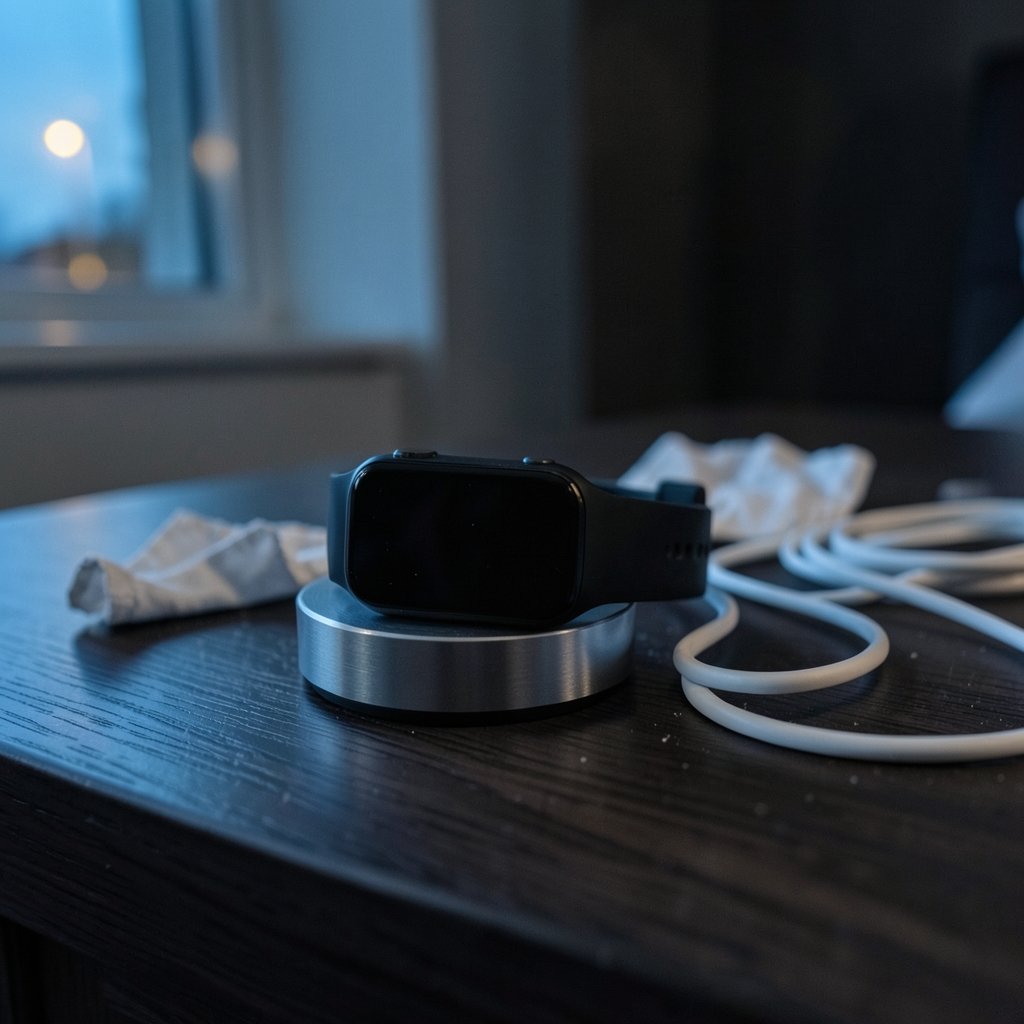
This is the single most common panic moment. A black screen does not always mean a dead watch. Apple has long documented a force restart as the first step: press and hold both the side button and the Digital Crown for about ten seconds, until the Apple logo appears. This works even when the touchscreen is unresponsive.
Common mistakes people make here:
- Assuming the battery is dead without charging it for at least 30 minutes. A fully drained watch can take a while before it shows any sign of life.
- Force restarting repeatedly in quick succession. Give the watch a full minute to boot between attempts.
- Skipping the charger test. Plug into a known-good Apple charger and cable before concluding the watch is broken.
If a force restart does nothing after a proper charge, the issue may be deeper, and a service appointment is the sensible next step.
Charging Problems and Battery Drain
Charging complaints are frequent and usually misdiagnosed. The watch is not necessarily at fault; the charging puck, cable, or power adapter is often the culprit. Practical troubleshooting order:
- Try a different Apple-branded charging cable and adapter.
- Clean the back of the watch and the charger with a soft, lint-free cloth. Sweat and skin oils interfere with the magnetic connection.
- Check for a swollen battery. If the screen is lifting or the case bulges, stop charging immediately and seek service.
- Restart the watch and check Battery Health in Settings.
Battery drain is a separate issue. Background app refresh, always-on display, and frequent GPS workouts all chew through power. Turning off unnecessary background refresh and lowering screen brightness typically recovers meaningful battery life. If maximum capacity has dropped well below 80 percent, a battery service is usually the answer.
Pairing and Connection Failures
Pairing failures frustrate new owners the most. The watch and iPhone must be close together, both charged, and running reasonably current software. Bluetooth and Wi-Fi should be enabled on the phone. If pairing stalls:
- Restart both devices.
- Move away from other Bluetooth-heavy environments.
- As a last resort, unpair and erase the watch, then pair again from scratch.
For connectivity drops after pairing, toggle Airplane Mode on the watch, then off. This forces the radios to reconnect and resolves a surprising number of “not connected” errors. If you also juggle streaming services across devices, the same account-sync logic applies to music libraries, and a quick read on Apple music vs spotify can clarify which service plays nicest with the watch’s offline storage. (Apple Watch)
Notifications Not Arriving
Silent notifications are usually a settings issue, not a hardware fault. Check three things in order: that Notifications are enabled for the specific app on the iPhone, that the watch is set to mirror the iPhone’s alerts, and that Do Not Disturb or a Focus mode isn’t active. A restart of both devices clears the occasional stuck notification daemon.
A frequent oversight: when the iPhone has passed its lock screen and is in use, notifications deliberately route to the phone rather than the watch. This correct behavior can be interpreted as a bug.
Heart Rate Sensor and Workout Tracking Issues
Inaccurate heart rate readings almost always trace back to fit and skin contact. The watch needs to sit snugly, about a finger’s width above the wrist bone. Tattoos, cold skin, and loose bands all degrade the optical sensor’s readings. Tightening the band and warming up before a workout fixes most cases.
For workout tracking that stops mid-session, check that Wrist Detection is on and that the watch isn’t locking during activity. Water workouts sometimes pause tracking if water locks engage; a quick Digital Crown turn clears the water and resumes normal touch response.
Water Resistance and Speaker Problems
Water resistance is model-dependent and degrades over time as seals age. Apple documents specific ratings per generation, so check the model-specific guidance rather than assuming. If the speaker sounds muffled after a swim or shower, the Water Lock feature ejects trapped water through the speaker. Turning the Digital Crown clears Water Lock and pushes moisture out.
A common mistake is pressing buttons or charging a wet watch. Let it dry fully before charging, and never use heat to speed the process.
Software Updates That Stall
watchOS updates occasionally hang at “verifying” or fail for lack of space or charge. The fix is boring but reliable: keep the watch on its charger, above 50 percent battery, near the iPhone, and connected to Wi-Fi. If an update repeatedly fails, restarting both devices and retrying usually clears it. In stubborn cases, removing and reinstalling the Watch app on the iPhone resets the update pipeline.
Users tracking broader Apple ecosystem quirks, from app store fee disputes to cloud infrastructure changes, tend to notice that software problems cluster right after major releases. The same pattern holds for watchOS: the first update after a big launch is the most likely to introduce temporary bugs.
When to Seek Service
Some problems are not DIY. Seek service if you notice a swollen battery, a cracked or lifting screen, a watch that won’t charge on any known-good charger, or repeated crashes after a clean reinstall. These point to hardware faults that software cannot fix, and delaying service on a swollen battery is genuinely risky.
| Symptom | Likely Cause | First Fix |
|---|---|---|
| Black screen, no response | Software freeze or dead battery | Force restart after 30-minute charge |
| Won’t charge | Cable, puck, or battery | Swap charger, clean contacts |
| Pairing fails | Bluetooth or software conflict | Restart both, then unpair and re-pair |
| Battery drains fast | Background refresh, aged battery | Disable refresh, check Battery Health |
| Heart rate inaccurate | Loose fit or skin contact | Tighten band, warm up |
| Muffled speaker | Trapped water | Use Water Lock, dry fully |
What Actually Works in Practice
Experienced users converge on a short, reliable playbook. Restart first, then charge, then update, then re-pair. Following that order resolves the large majority of complaints without any service visit. The most common mistake is skipping straight to a reset, which wipes data and takes far longer than a simple restart.
A second practical tip: keep a spare charging cable. Charging failures are so often cable-related that having a known-good spare eliminates hours of confusion. Finally, resist the urge to install every watchOS update the moment it appears if the watch is working well; waiting a week or two lets early bugs get patched.
For readers who follow Apple’s broader business and product news alongside their device troubleshooting, keeping an eye on Apple stock price trends often correlates with product cycle timing, and new hardware generations frequently ship with their own early firmware quirks worth knowing about.
Conclusion
The Apple Watch is a remarkably reliable device, and most of its “problems” are software hiccups, charging quirks, or fit issues that resolve with a restart, a fresh cable, or a tighter band. Understanding the four root causes, software, connectivity, hardware wear, and user error, turns a stressful black screen into a five-minute fix. When a problem genuinely points to hardware, such as a swollen battery or a watch that refuses every charger, service is the right call rather than endless troubleshooting. Master the restart-charge-update-repair sequence, keep a spare cable handy, and the vast majority of Apple Watch frustrations will never cost more than a few minutes of your day.
Frequently Asked Questions
How do I force restart my Apple Watch if the screen is frozen?
Press and hold both the side button and the Digital Crown at the same time for about ten seconds, until the Apple logo appears on screen. This works even when the touchscreen is completely unresponsive. Make sure the watch has been on its charger for at least 30 minutes first, since a fully drained battery can mimic a frozen watch.
Why is my Apple Watch not charging even though it’s on the charger?
The most common causes are a faulty charging cable, a dirty charging puck, or a power adapter that isn’t delivering enough current. Try a different Apple-branded cable and adapter, and clean both the back of the watch and the charger with a soft cloth. If the screen is lifting or the case looks swollen, stop charging and seek service immediately.
Why won’t my Apple Watch pair with my iPhone?
Pairing failures usually come down to Bluetooth or software conflicts. Make sure both devices are charged, Bluetooth and Wi-Fi are on, and the watch and iPhone are close together. Restart both devices and try again. If it still fails, unpair and erase the watch, then pair it fresh from the Watch app.
Why are my notifications not showing up on my Apple Watch?
Check that notifications are enabled for the specific app on your iPhone and set to mirror to the watch. Confirm that Do Not Disturb or a Focus mode isn’t active. Also remember that if your iPhone has passed its lock screen and is in use, alerts intentionally go to the phone instead of the watch, which can be mistaken for a bug.
Why is my Apple Watch heart rate reading inaccurate?
The optical sensor needs snug skin contact. Wear the band about a finger’s width above the wrist bone and tighten it during workouts. Tattoos, cold skin, and loose bands all interfere with readings. Warming up before exercise and adjusting the fit resolves most inaccuracies.
When should I take my Apple Watch in for service instead of fixing it myself?
Seek service if you notice a swollen or bulging battery, a cracked or lifting screen, a watch that won’t charge on any known-good charger, or repeated crashes after a clean reinstall and re-pair. These symptoms point to hardware faults that software fixes cannot resolve, and a swollen battery should never be ignored.
One more habit worth adopting: keep the watch’s software and the iPhone’s Watch app updated together, since mismatched versions are a quiet source of pairing and notification glitches. And if a fix seems to work, note what you changed; a short troubleshooting log saves time when the same issue resurfaces months later. Between restarts, a spare cable, and a little patience, the Apple Watch rarely stays broken for long.