
Nintendo’s Switch 2 arrived on June 5, 2025, and within days of launch, online forums filled with reports of Joy-Con connection drops, dock quirks, and storage confusion. The good news? Most of these headaches have simple fixes that take minutes, not repair tickets. This guide walks through the problems owners actually report, what causes them, and the practical steps that resolve them.
Joy-Con 2 Connection Drops and Input Lag
The most talked-about launch complaint involves Joy-Con 2 controllers briefly losing their wireless connection or registering inputs late. The new controllers attach magnetically rather than sliding on rails, and that design change matters for troubleshooting.
Before assuming a defect, try these steps:
- Re-seat both controllers firmly until you hear or feel the magnetic click.
- Update the controller firmware through System Settings > Controllers and Sensors.
- Move the console away from routers, soundbars, and USB 3.0 hard drives, which can interfere with the 2.4 GHz band.
- Run a calibration check in the same menu to rule out stick drift.
In practice, most “connection drops” trace back to a partially seated controller or a crowded wireless environment. If a single Joy-Con still disconnects while physically attached, that points to hardware, and Nintendo’s warranty covers it. For a deeper look at how the hardware itself is evolving, see this report on the Nintendo Switch 2 Lite Samsung 8LPU Plus chip rumor for 2026. (Nintendo Switch 2)
One habit worth adopting: always update controllers right after a system update, because firmware mismatches between console and accessories cause more glitches than people expect.
Dock and TV Output Issues
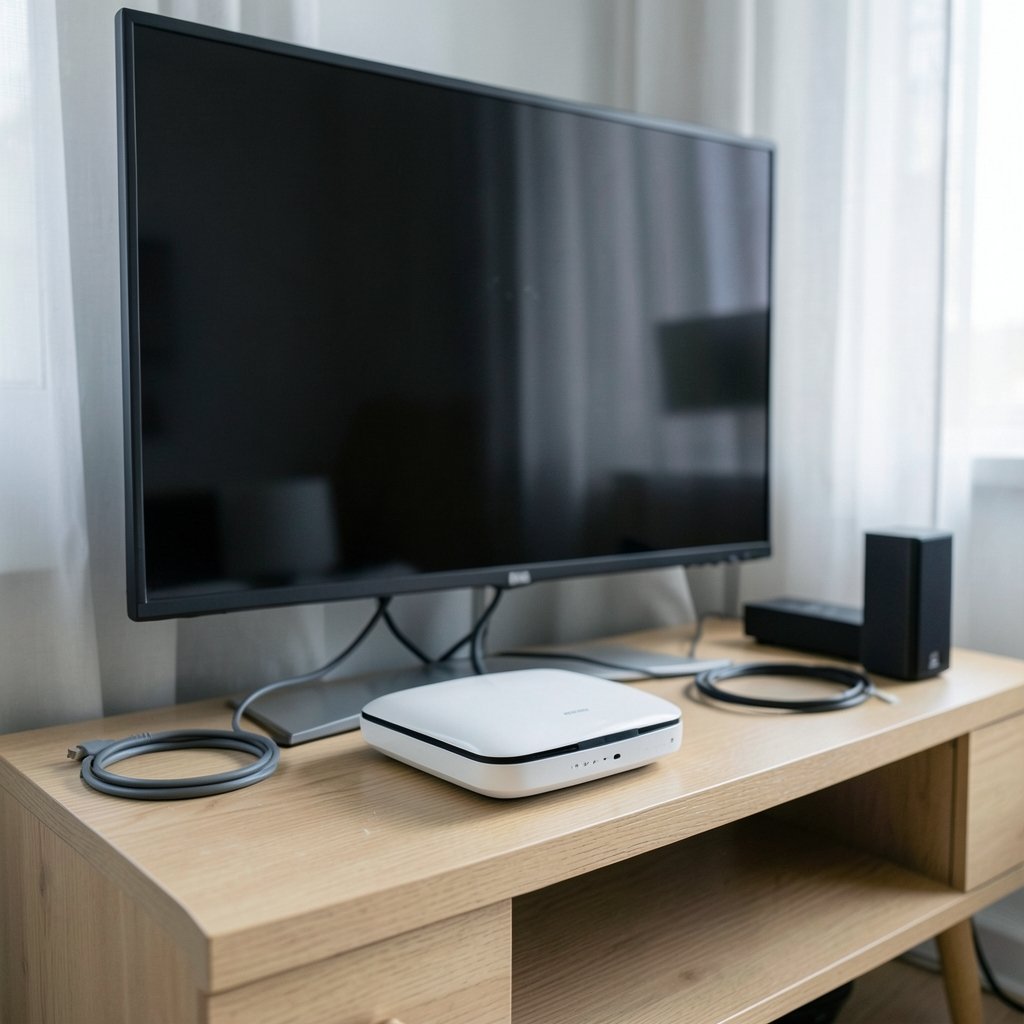
The Switch 2 dock outputs up to 4K, and that higher bandwidth exposes weak links in a home theater chain. Common symptoms include a black screen after docking, flickering, or the console refusing to wake the TV.
| Symptom | Likely Cause | Fix |
|---|---|---|
| Black screen when docked | Handshake failure over HDMI | Unplug HDMI at both ends, reseat, power-cycle the TV first |
| Flickering or dropouts | Low-quality or long HDMI cable | Use the included Ultra High Speed HDMI cable |
| Console won’t wake TV | CEC settings conflict | Enable HDMI-CEC on both TV and console, or disable it entirely |
| No signal on a monitor | Unsupported resolution mode | Lower output resolution in System Settings > Display |
The order of operations matters more than most people realize. Power on the TV before docking the console, and connect the HDMI cable to the TV’s primary input rather than a soundbar passthrough. Cheap cables sold as “4K ready” often fail at the higher frame rates the dock pushes, so stick with the bundled cable or a certified Ultra High Speed replacement.
Storage and microSD Express Confusion
The Switch 2 uses microSD Express cards, and standard microSD cards from an old Switch will not work for game installs. This single change generated a wave of confused support posts at launch.
If the console rejects your card:
- Confirm the card is labeled microSD Express, rather than only microSDXC.
- Format it through System Settings > System > Formatting Options.
- Check for counterfeit cards by running a capacity test on a PC.
- Update the system firmware, since early builds had card-detection bugs.
Express cards cost noticeably more per gigabyte, which frustrates buyers, but there is no workaround. A regular card will mount for screenshots at best. Given how large modern installs have grown, budgeting for a 256GB or 512GB Express card is realistic, and it connects to the broader conversation about how much a Nintendo Switch 2 really costs once accessories are factored in. (Nintendo Switch 2)
Battery Drain and Charging Problems
Owners report two distinct battery complaints: fast drain in sleep mode and slow charging in the dock. Both usually have mundane explanations.
Fast drain in standby typically comes from background downloads, the always-on network connection, or a game left suspended. Disable “Stay Connected to the Internet” in sleep settings if you do not need automatic updates, and fully close games rather than leaving them suspended.
Slow charging is often a power delivery issue. The dock requires its official power adapter, and third-party chargers that worked fine on the original Switch may not supply enough wattage. Check that the adapter is plugged directly into a wall outlet, not a power strip shared with a space heater or gaming PC. If the battery percentage jumps erratically, run a full discharge-and-recharge cycle once before contacting support.
Overheating and Fan Noise
The Switch 2 runs hotter than its predecessor, and a loud fan during demanding titles is normal. A console that shuts down mid-game or throws a temperature warning is not.
Practical fixes that work:
- Keep the vents on the top and back clear, especially in docked mode.
- Avoid enclosed cabinet shelves; the dock needs airflow on all sides.
- Clean vents monthly with short bursts of compressed air.
- Play demanding games in a cooler room during summer heat waves.
Dust is the number one culprit. A console that has run in a pet household for six months can accumulate a felt-like layer inside the intake. If cleaning does not help and the console overheats within minutes, stop using it and arrange service, because continued heat cycling can damage the battery.
eShop and Download Errors
Download failures, stalled progress bars, and eShop error codes spike during major releases when servers strain. Before you panic:
- Test the connection under System Settings > Internet.
- Switch from Wi-Fi to a wired ethernet adapter in the dock.
- Change the DNS to a public resolver such as 8.8.8.8.
- Pause and resume the download, which forces a fresh connection.
- Check Nintendo’s official server status page during launch windows.
If downloads fail only on one game, delete the partial file and redownload. If they fail across the board, the problem is your network or the servers, not the console. Also confirm you have free space, since the system will silently stall when storage is nearly full.
Pairing and Bluetooth Headset Woes
The Switch 2 supports Bluetooth audio more gracefully than the original, but pairing still trips people up. Headsets that pair with phones sometimes refuse to appear in the console menu.
Hold the headset in pairing mode until its light flashes rapidly, then open System Settings > Bluetooth Audio and wait for the scan to complete. Remove old paired devices first; the console’s list fills up and stops scanning new ones. Audio lag with cheap earbuds is a codec limitation, not a fault, and a wired connection or the official wireless headset avoids it entirely.
Firmware Bugs and System Crashes
Early firmware always ships with rough edges. Random crashes, menu freezes, and games that fail to launch after an update usually resolve with the next patch. Keep the console set to auto-update, and check for manual updates when a game misbehaves.
For enthusiasts curious about the deeper technical side, the community’s interest in the Nintendo Switch 2 firmware dump and PC emulation reverse engineering efforts shows how actively the platform is being studied, though tinkering with firmware voids warranties and risks bans. Regular owners should simply install official updates and report persistent crashes to support with the error code.
What Actually Works: Practical Takeaways
Across dozens of reported issues, a few patterns repeat. Power-cycling in the right order solves a surprising share of dock and display problems. Reseating accessories fixes most controller complaints. Using official or certified cables and chargers eliminates a long tail of intermittent faults. And checking server status before troubleshooting downloads saves hours of pointless router fiddling.
The mistake people make most often is skipping the basics. Before filing a repair request, update the system, reseat every cable, and test in a second location if possible. If the problem follows the console rather than the TV or network, then it is time to contact Nintendo.
Conclusion
The Switch 2 is a solid piece of hardware, and the launch-window complaints that dominated forums mostly trace back to setup details rather than design flaws. Magnetic Joy-Cons need firm seating, the dock demands quality HDMI cables, and microSD Express is non-negotiable for storage. None of that is a dealbreaker, but all of it rewards a careful setup. Handle the basics first, keep firmware current, and save the repair ticket for problems that genuinely persist. Owners who do that spend their time playing, which is the entire point.
Frequently Asked Questions
Why do my Joy-Con 2 controllers keep disconnecting?
The most common cause is a controller that is not fully seated on its magnetic mount, followed by wireless interference from routers or USB 3.0 devices. Reseat both controllers, update their firmware, and move the console away from other wireless hardware. If one controller drops while physically attached, treat it as a hardware fault and use the warranty.
Can I use my old Switch microSD card in the Switch 2?
No, not for games. The Switch 2 requires microSD Express cards, and standard microSD cards from the original Switch will not run software. You may be able to use an old card for screenshots, but game installs need an Express card formatted through the system settings menu.
Why does my Switch 2 show a black screen when docked?
A black screen usually means the HDMI handshake failed. Unplug the HDMI cable at both ends, reseat it, power on the TV first, then dock the console. Use the included Ultra High Speed HDMI cable, connect directly to the TV rather than a soundbar, and check that the output resolution matches what your display supports.
Is a loud fan on the Switch 2 normal?
Yes, within reason. The console runs hotter than the original Switch, and the fan spins up during demanding games, especially in docked mode. A fan that stays loud at idle, or a console that shuts down with a temperature warning, points to blocked vents or dust buildup and needs cleaning or service.
How do I fix slow eShop downloads on the Switch 2?
Test your connection first, then switch to a wired ethernet adapter in the dock if possible. Changing the DNS to a public resolver, pausing and resuming the download, and confirming free storage space resolves most stalls. During major game launches, check Nintendo’s server status before assuming the fault is on your end.
What should I do if my Switch 2 keeps crashing?
Install any pending system and game updates first, since early firmware bugs are common and usually patched quickly. If crashes continue, note the error code, try a different game to isolate whether the fault is software-specific, and contact Nintendo support with the details. Persistent crashes across multiple games suggest a hardware issue.
Worth adding: the same dust that clogs vents also collects around the dock’s rear ports, where a fuzzy layer can interrupt the USB-C connection and cause intermittent charging. A quick wipe with a dry microfiber cloth every few weeks prevents most of it. Finally, keep the console’s serial number and purchase receipt somewhere accessible; warranty claims move far faster when you can supply both on the first call, and Nintendo’s regional support pages list the exact steps for your country. None of these fixes require tools or technical skill, just a few minutes of patience and a habit of checking the simple things before assuming the worst. Treat the setup as part of the hobby rather than a chore, and the Switch 2 rewards you with years of dependable play.



