
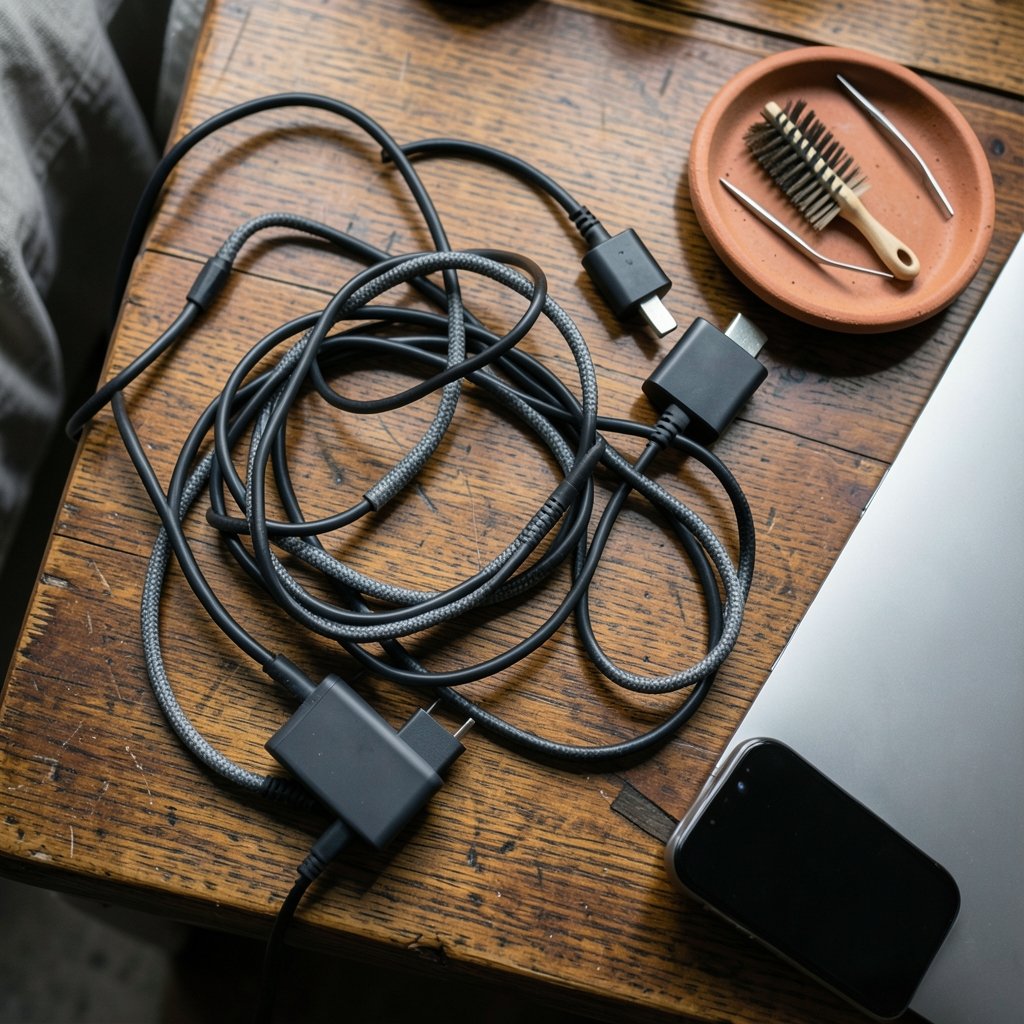
USB-C was supposed to end cable confusion forever. One oval connector, reversible, capable of pushing up to 240 watts and moving data at blistering speeds. Yet here we are, years later, and the words “not charging” still trigger a quiet panic in millions of people every day. Search interest in USB-C charging faults stays stubbornly high, and repair shops report that a large share of “dead” laptops and phones walk in with nothing more wrong than a lint-packed port or an underpowered cable.
That gap between expectation and reality is the story here. USB-C is genuinely excellent, but it hides enormous variation behind an identical-looking plug. The fixes below start with the cheapest, simplest checks and work toward the ones that need a screwdriver or a warranty claim. (How to Stop Snoring at Night Home Remedies: 8 Easy Fixes)
Why USB-C Charging Fails So Often
The connector’s biggest strength is also its biggest weakness: it looks the same no matter what it can do. A cable that came free with a budget accessory may be rated for 3 amps, while fast charging over USB Power Delivery can demand 5-amp cables and an electronically marked chip inside the cable itself. Plug a 5A-rated laptop into a 3A cable and the system may refuse to charge at full speed, or refuse entirely.
USB Power Delivery works by negotiation. The charger and the device talk over the configuration channel pins, agree on a voltage and current, and only then ramp up. If that conversation breaks down because of a damaged pin, a non-compliant cable, or a counterfeit charger, the device typically drops back to a slow, safe trickle. It is not broken. It is being cautious, and it is usually right to be.
That single design fact explains most complaints people file under “USB-C is unreliable.” The port is fine. The conversation between charger and device is not.
Problem 1: The Device Says It Is Charging but the Battery Percentage Climbs Nowhere

This is the most common complaint, and it almost always comes down to wattage. A phone charger pushing 5 watts into a laptop will technically “charge” it, but only while the laptop is asleep. Wake the screen and the battery drains faster than it fills.
What actually works:
- Check the charger’s printed output. A laptop generally needs 45W or more; many performance models want 65W to 100W.
- Swap in a cable rated for the same current as the charger. Cables are not interchangeable at high wattage.
- Unplug every other accessory from the charger’s second port. Multi-port chargers split their total output, so a 100W brick feeding a laptop and a tablet may only give the laptop 60W.
A useful habit: match the charger to the device’s original spec, then add headroom. Overshooting wattage is safe because the negotiation handles it. Undershooting is what causes the slow-charge misery.
Problem 2: Nothing Happens at All When the Cable Goes In
Before assuming the worst, clean the port. Pocket lint, dust, and fabric fibers compact into the bottom of a USB-C socket and physically block the pins from seating. The plug clicks in, feels fine, and does nothing.
Use a wooden toothpick or a soft dry brush. Never insert metal, and never spray anything into the port. A surprising number of “dead” phones revive after five minutes of gentle excavation.
If cleaning does not help, work through this order:
- Try a different cable, then a different charger, then a different wall outlet.
- Test the same charger on another device to isolate which end is faulty.
- Look inside the port with a flashlight for a bent or depressed pin.
- Check for a software state like “charging paused” or an optimized-charging schedule that deliberately delays a full charge overnight.
That last point trips up a lot of people. Modern phones and laptops intentionally hold the battery around 80 percent until morning to reduce wear. The device is not failing. It is protecting itself, and the setting can be changed if the behavior is unwanted.
Problem 3: The Charger Gets Alarmingly Hot
Warm is normal. Uncomfortably hot to the touch is not. Heat usually points to one of three causes: a cheap uncertified charger running near its limit, a cable with thin conductors acting as a resistor, or a blocked ventilation path under a laptop.
Safety regulators and standards bodies have repeatedly warned about counterfeit chargers that skip basic insulation and overcurrent protection. If a charger smells like hot plastic, buzzes, or discolors, stop using it. The money saved is never worth the risk.
Practical prevention: buy from reputable brands, look for genuine safety certification marks, avoid charging on soft surfaces like beds and cushions, and unplug chargers that run hot even with nothing attached.
Problem 4: Charging Cuts In and Out Randomly
Intermittent charging is the classic signature of a worn connector. The cable’s plug may be loose in the socket, or the socket itself may have lost grip after thousands of insertions. Wiggle testing tells you a lot: if the charge indicator flickers when you move the cable, the mechanical connection is failing.
Other culprits include:
- A damaged cable near the strain relief, where bending concentrates
- Debris that lets the plug seat only partway
- A power strip or extension that cannot sustain the load
- A device that pauses charging because it is thermally throttled
If a known-good cable and charger still cut out, the port likely needs professional service. Continuing to force a loose cable accelerates the damage.
Problem 5: Data Works but Power Does Not, or Vice Versa
USB-C carries power, data, video, and audio over the same connector, and different cables support different subsets. A charge-only cable has no high-speed data wires at all. A cable that handles data fine may lack the wiring for video output.
This is where the “one cable for everything” dream quietly collapses. The fix is labeling. Put a small tag on each cable noting its capability, or buy cables with clear printed ratings. Anyone juggling a laptop, a dock, and a couple of accessories will save hours of confusion by treating cables as distinct tools rather than interchangeable strings.
For laptop users in particular, a quality dock or hub solves a lot of these headaches at once by consolidating ports and negotiating power properly. Guides on picking the right best usb c hub and matching it to a specific machine, such as the best usb c hub for macbook air, are worth reading before buying, because dock power delivery ratings vary widely. (USB-C)
Problem 6: The Charger Works Everywhere Except One Device
When a charger powers three devices happily and fails on the fourth, the problem is usually compatibility, not hardware failure. Some devices are picky about which fast-charge protocols they accept, and a charger that speaks one standard may fall back to a slow default with a device expecting another.
The table below sums up the usual suspects and the fastest realistic fix.
| Symptom | Most likely cause | Fastest fix |
|---|---|---|
| Charges slowly or not at all | Underpowered charger or 3A cable on a 5A device | Match wattage and cable rating to the device |
| Completely dead | Lint in port or faulty cable | Clean port, swap cable, test charger elsewhere |
| Cuts in and out | Worn connector or bent pin | Wiggle test, then professional repair |
| Very hot charger | Uncertified unit or blocked airflow | Replace with certified charger, improve ventilation |
| Works on some devices only | Protocol mismatch | Use the device’s original charger or a certified multi-protocol unit |
Problem 7: Charging Stops at 80 Percent
This one deserves its own heading because it generates so much needless worry. Battery health features on modern phones and laptops deliberately cap charging at around 80 percent during long idle periods. The goal is to reduce the time the battery spends at full voltage, which is where chemical aging accelerates.
The fix is not a repair. It is a setting. Look for battery health or optimized charging options and adjust them if a full charge matters that day. Understanding this behavior also reframes the whole conversation: a device that refuses to hit 100 percent overnight is often healthier than one that dutifully tops off every night for three years.
Mistakes People Make When Troubleshooting
A few habits make USB-C problems worse rather than better.
Blowing into the port. Moisture from breath can corrode contacts. Use dry air or a soft brush instead.
Buying the cheapest cable on the shelf. Cables are the most commonly replaced and most commonly under-specified part of any charging setup.
Assuming a new charger fixes everything. If the port is packed with lint, a 140W charger will fail exactly as thoroughly as a 5W one.
Ignoring heat. A hot connector is a warning, not a quirk.
Never testing components in isolation. Swap one variable at a time: cable, then charger, then outlet, then device. Shotgunning all four at once teaches nothing.
When to Stop Troubleshooting and Get Help
Some symptoms warrant professional attention rather than another cable swap. A port that smells burnt, shows visible scorching, or sparks is a stop-immediately situation. So is a device that reports water in the connector, a battery that swells, or a laptop that shuts down the moment the charger connects.
Bent pins inside the socket are also a repair job. They can sometimes be straightened, but the risk of shorting adjacent pins makes DIY attempts a poor bet on expensive hardware.
Conclusion
Almost every USB-C charging complaint traces back to one of four things: a cable that cannot carry the current, a charger that cannot supply the wattage, a port that needs cleaning, or a safety feature doing its job. The connector itself is rarely the villain. It is a remarkably capable standard that simply asks users to pay attention to ratings printed in very small type.
The practical takeaway is a short checklist worth memorizing: clean the port, match the cable, match the wattage, test one variable at a time, and respect heat. That sequence resolves the overwhelming majority of cases in under ten minutes and costs nothing. For the rest, a certified replacement charger or a quick repair visit settles it. USB-C is not fragile. It is precise, and precision rewards a little patience.
Frequently Asked Questions
Why does my USB-C charger work on my phone but not my laptop?
Laptops need far more power than phones. A phone charger typically outputs 5W to 30W, while most laptops require 45W to 100W. The laptop may detect the charger, show a charging icon, and still lose battery while in use. Use a charger rated at or above the laptop’s original specification.
Is it safe to use a higher-wattage USB-C charger than the one that came with my device?
Yes. USB Power Delivery negotiates the voltage and current, so the device draws only what it needs. A 100W charger will safely charge a device that only accepts 18W. The reverse is the problem: an underpowered charger causes slow charging and heat.
How do I clean a USB-C port without damaging it?
Power the device off, then use a wooden toothpick or soft dry brush to gently lift out lint and dust. Never use metal tools, compressed air held close, or liquids. If debris is compacted hard or a pin looks bent, stop and have a technician look at it.
Why does my device stop charging at 80 percent?
Battery health features intentionally pause charging near 80 percent during long idle periods to reduce wear. This is a software setting, not a fault. Check your device’s battery or optimized charging options if you need a full charge before heading out.
Can a bad cable really stop charging entirely?
Yes. Cables vary in current rating and internal wiring. A charge-only cable has no high-speed data lines, and an under-rated cable can cause a charger and device to fail negotiation, resulting in no charge or a very slow one. Always test with a known-good cable first.
Why does my charger get hot enough to worry me?
Some warmth is normal during fast charging. Genuine concern starts when a charger is painful to touch, buzzes, or discolors. That often signals an uncertified unit, a cable with thin conductors, or blocked airflow. Replace suspect chargers rather than continuing to use them.



