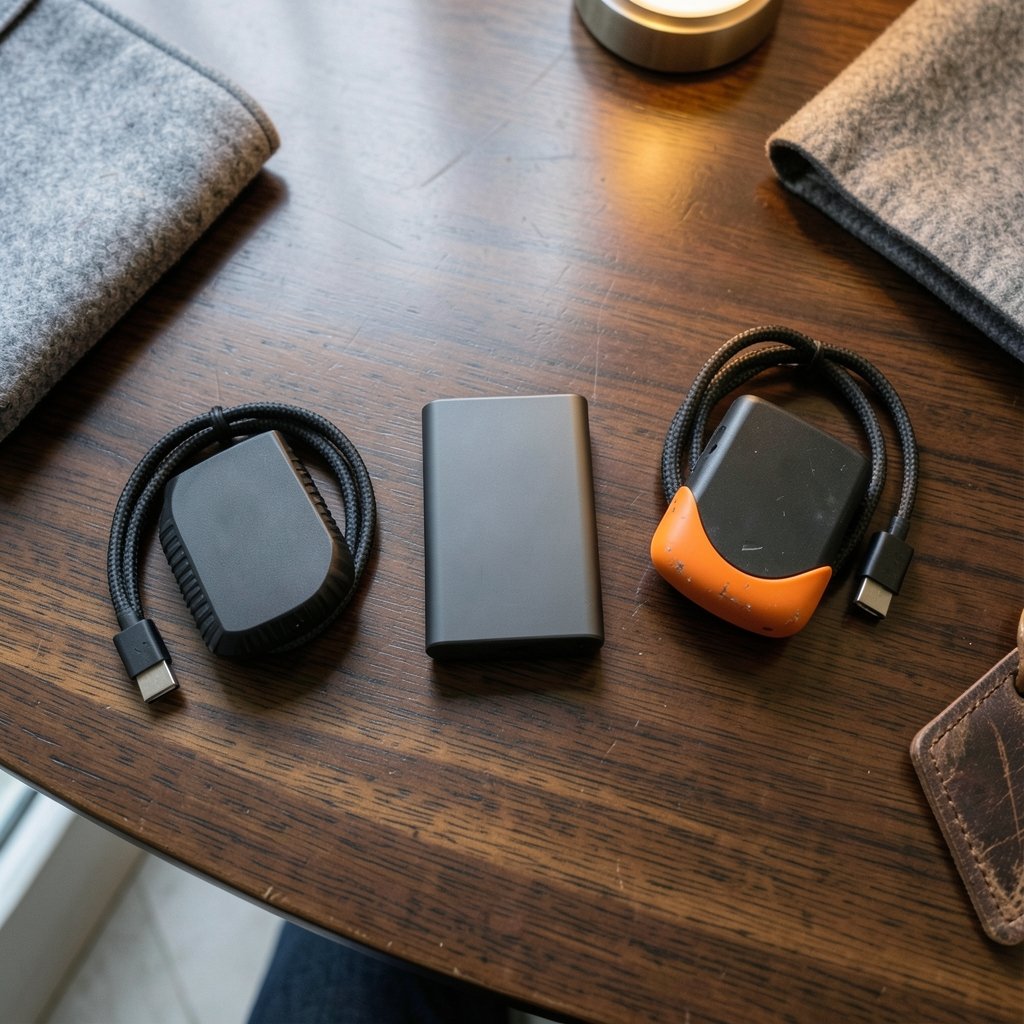
What if the portable SSD you buy is faster than your laptop can actually use? That is not a trick question. It is the single most practical thing to understand when comparing the Corsair EX400U, the Samsung T9, and the SanDisk Extreme. All three are pocket-sized, bus-powered drives that promise big speed numbers. But the workflow differences between them come down to less glamorous things: which port your machine has, how long the drive can hold its speed, and what happens when you plug it into a different computer.
This comparison walks through those differences in plain terms. It focuses on how each drive behaves in real work rather than on spec-sheet bragging rights.
The three drives at a glance
The headline difference is the interface class. Each drive sits in a different USB tier, and that tier shapes everything downstream.
| Feature | Corsair EX400U | Samsung T9 | SanDisk Extreme |
|---|---|---|---|
| Interface class | USB4 (up to 40 Gbps) | USB 3.2 Gen 2×2 (up to 20 Gbps) | USB 3.2 Gen 2 (up to 10 Gbps) |
| Host requirement | USB4 or Thunderbolt 3/4 port | USB 3.2 Gen 2×2 controller | Any USB 3.2 Gen 2 port |
| Typical Mac behavior | Full speed on Thunderbolt/USB4 ports | Often falls back to 10 Gbps | Runs at its rated 10 Gbps |
| Best-fit workloads | Large media, disk images, mixed fleets | Windows-centric fast transfers | Rugged field work, everyday backups |
| Vendor software | Corsair peripheral software | Samsung Magician | SanDisk dashboard and security tools |
One caveat before going further: SanDisk sells several products under the Extreme name, including Extreme, Extreme Pro, and Extreme Portable variants, and their speeds differ. This article treats the current portable Extreme line as a USB 3.2 Gen 2 (10 Gbps) class drive. Check the exact model’s spec sheet before buying, because the name alone does not tell you the speed.
Why the host port decides your real-world speed

Here is the mistake almost everyone makes. They buy the fastest drive on the shelf, plug it into the only USB-C port they have, and assume they are getting the advertised speed. They usually are not.
USB4 at 40 Gbps needs a USB4 or Thunderbolt 3/4 host port. USB 3.2 Gen 2×2 at 20 Gbps needs a Gen 2×2 host controller, and that controller is uncommon on Apple Silicon Macs. Those machines generally top out at USB 3.2 Gen 2 (10 Gbps) over USB-C, plus Thunderbolt. The practical result: on a Mac, the Samsung T9’s 20 Gbps mode typically drops back to 10 Gbps, which narrows its gap with the SanDisk Extreme to almost nothing.
That single fact reshapes the whole comparison. If your daily machine is a Mac, the T9’s headline advantage mostly evaporates unless you connect through a Thunderbolt dock that negotiates a faster link. If you work on a Windows desktop with a Gen 2×2 port, the T9 can stretch its legs.
The Corsair EX400U sits in a different position. USB4 is built on Thunderbolt 3 technology and is backward-compatible with USB 3.x and Thunderbolt, and USB4 version 2.0 targets 80 Gbps. That makes the EX400U the most future-proof of the three for mixed Thunderbolt and USB4 fleets. It also means the drive is only as fast as the slowest link in the chain, so an old USB 3.0 hub in the middle will drag it down to that hub’s ceiling.
Burst speed versus sustained speed
Marketing numbers describe burst throughput. Sustained write speed is a different animal, and it depends on the controller, the NAND, and thermal throttling. All three drives live in compact aluminum enclosures, and compact aluminum enclosures get warm during long sequential writes. When they get hot, they slow down.
This is general SSD behavior, not a measured claim about these specific models, and independent sustained-write benchmarks for all three drives are worth seeking out before a purchase. But the workflow lesson holds: a drive that hits a huge number for ten seconds and then settles to a lower plateau will feel slower than its spec sheet suggests during a 200 GB video dump.
Practical tip: test your own drive with a large file copy that runs for several minutes, not a five-second benchmark. Watch whether the transfer rate holds steady or sags partway through. That curve tells you more about your workflow fit than any peak number.
Which workloads actually care about the interface gap
Not every job benefits from a faster bus. The differences between 10, 20, and 40 Gbps matter enormously for some tasks and barely at all for others.
Large sequential work
Video editing, moving camera footage, cloning disk images, and backing up virtual machines are all sustained sequential workloads. These are the tasks where the EX400U’s USB4 ceiling can matter, provided the host supports it. They are also the tasks where thermal headroom matters most, because the drive is working hard for minutes at a time.
Many small files
Code repositories, photo libraries with thousands of images, and document archives lean on random 4K performance and latency rather than raw sequential throughput. For these jobs, the gap between 10 and 40 Gbps shrinks, and the drive’s controller behavior and your file system matter more. If your work looks like this, paying a premium for the fastest interface is often money poorly spent. The same principle shows up elsewhere in tooling decisions, which is why comparisons like sql vs nosql workflow differences keep circling back to matching the tool to the actual access pattern.
Moving between machines
A drive that travels between a Mac, a Windows laptop, and a shared edit bay needs to behave predictably everywhere. USB4’s backward compatibility helps the EX400U here. The T9 is happiest on Windows machines with the right controller. The SanDisk Extreme is the least demanding of the three, which is its own kind of reliability.
Software, encryption, and management
The drives ship with different tools. Samsung bundles Magician, which includes encryption and benchmarking features. SanDisk offers its own dashboard and security tools. Corsair’s software is oriented toward its peripherals. That affects workflow: firmware updates, encryption setup, and health monitoring happen in different places with different interfaces.
Feature sets change with firmware versions, so verify current capabilities rather than trusting an old review. The practical advice is to set up the vendor software once, confirm encryption works the way your organization requires, and then check for firmware updates every few months. Skipping firmware updates is a common mistake that leaves performance fixes and bug patches on the table.
Ruggedness and field work
The SanDisk Extreme line is marketed with IP-rated dust and water resistance and a carabiner loop. The Samsung T9 and Corsair EX400U are compact but are not marketed with the same IP ratings. Exact ratings and drop specifications vary by model, so check the spec sheet for the specific drive you are considering.
If your drive lives in a bag, gets carried to job sites, or travels through weather, that ruggedness marketing matters. If it sits on a desk between a laptop and a monitor, it matters much less. This is a workflow question, not a spec-sheet question.
Power draw and bus-powered behavior
All three are bus-powered portable SSDs, meaning they draw power from the port rather than a wall adapter. Higher interface speeds can increase power draw and heat. USB4 and Thunderbolt hosts may deliver different power budgets than plain USB 3.2 ports, and that can affect behavior on battery-powered laptops.
A common mistake: running a long transfer on a laptop that is unplugged and in a power-saving mode. The port may throttle, the drive may slow, and the user blames the hardware. Plug in, disable aggressive power saving during big transfers, and the same drive often performs noticeably better.
Matching the drive to the person
The cleanest way to choose is to start from the workflow, not the spec sheet.
| If your work looks like this | The drive that fits best | Why |
|---|---|---|
| Mac-based editing, large media, Thunderbolt dock | Corsair EX400U | USB4 ceiling works on Thunderbolt/USB4 hosts |
| Windows desktop with Gen 2×2 ports, fast transfers | Samsung T9 | Can actually reach 20 Gbps on the right controller |
| Field work, travel, weather, everyday backups | SanDisk Extreme | Rugged design, undemanding host requirements |
| Mixed fleet of old and new machines | Corsair EX400U | Backward-compatible USB4 interface |
| Mostly small files and code | Any of the three | Interface gap matters less than latency |
That last row deserves emphasis. Teams often over-buy on interface speed and under-buy on the boring stuff, like a reliable backup routine and a labeled cable that does not silently cap the link at USB 2.0 speeds. Cable quality is an underrated variable. A charge-only cable will turn a 40 Gbps drive into a crawl, and the user will never suspect the cable.
The same logic of matching infrastructure to workflow shows up across the tooling world. Teams comparing development environments wrestle with similar tradeoffs, as laid out in these cline vs cursor workflow differences, and the pattern repeats in backend infrastructure choices like rabbitmq vs kafka workflow differences. The lesson is consistent: the fastest component is not automatically the right one.
What to verify before you buy
A short checklist saves a lot of regret.
- Identify the exact ports on your primary machine, including whether they are USB4, Thunderbolt 3/4, USB 3.2 Gen 2, or Gen 2×2.
- Confirm the exact SanDisk Extreme model, since speeds differ across the line.
- Check the drive’s sustained-write behavior in an independent test, rather than only the peak number.
- Confirm the vendor software supports the encryption and management features you need.
- Budget for a proper cable rated for the interface speed you expect.
- Check current firmware and update it after purchase.
For readers weighing other platform decisions, the same discipline applies to hosting and editor choices, as explored in one com vs hostinger workflow differences and kiro vs cursor workflow differences. The pattern holds everywhere: the tool that fits your actual habits beats the tool with the biggest number.
Conclusion
The Corsair EX400U, Samsung T9, and SanDisk Extreme are all good drives, and the choice between them is less about which is fastest and more about which is fastest for you. The EX400U brings a USB4 interface that shines on Thunderbolt and USB4 hosts and travels well across mixed fleets. The T9 can hit 20 Gbps on Windows machines with the right controller, but often falls back to 10 Gbps on Macs. The SanDisk Extreme trades headline speed for ruggedness and easy compatibility.
Start with your ports, then your workload, then your environment. A drive that matches your machine and your habits will feel faster every day than one that wins a benchmark you can never reproduce.
FAQ
Is the Corsair EX400U faster than the Samsung T9 in real use?
Only if your host supports USB4 or Thunderbolt 3/4. On a machine limited to USB 3.2 Gen 2, the EX400U cannot reach its USB4 ceiling, and the practical gap shrinks considerably. The drive is only as fast as the port it plugs into.
Why does the Samsung T9 often run slower on a Mac?
The T9’s 20 Gbps mode requires a USB 3.2 Gen 2×2 host controller, which is uncommon on Apple Silicon Macs. Those machines generally top out at USB 3.2 Gen 2 (10 Gbps) over USB-C plus Thunderbolt, so the T9 typically falls back to 10 Gbps.
Which drive is best for video editing?
For large sequential media work on a Thunderbolt or USB4 machine, the EX400U’s interface ceiling is the most useful. But sustained write performance and thermal headroom matter as much as peak speed, so check independent sustained-write tests for the specific model.
Does the SanDisk Extreme name guarantee a specific speed?
No. SanDisk sells several Extreme variants, including Extreme, Extreme Pro, and Extreme Portable, and their speeds differ. Verify the exact model’s interface class on its spec sheet rather than assuming from the product family name.
Do these drives need special software?
Each vendor bundles its own tools: Samsung Magician, SanDisk’s dashboard and security utilities, and Corsair’s software for its peripherals. These handle firmware updates, encryption, and health monitoring. Feature sets change with firmware, so confirm current capabilities.
What is the most common mistake when buying a portable SSD?
Buying for peak speed without checking the host port and the cable. A drive rated for 40 Gbps connected through an old hub or a charge-only cable will run far below its rating, and the user usually blames the drive instead of the link.