
What happens when your free Dropbox space runs out in the middle of a work week? You need somewhere to put those files, and you need it set up today. That is exactly the problem this guide solves. (Dropbox)
Plenty of people stick with Dropbox simply because switching feels risky. Files get scattered. Shared folders break. Clients lose access. But moving to an alternative is far less scary when you follow a clear order of operations. This guide walks through the realistic options, the setup steps that actually matter, and the mistakes that trip people up along the way.
Why People Look for Dropbox Alternatives
Dropbox built its reputation on reliability and clean syncing, and it still earns that reputation. The friction usually comes from three places: storage limits on the free tier, per-seat pricing that adds up fast for teams, and a desire for more control over where data physically lives.
Storage quotas and prices across all major providers change often, so treat any number you read as a starting point rather than a fact. Check each provider’s live pricing page before committing. What does not change is the structural difference between the options: some are closed ecosystems built for convenience, and some are open platforms built for control.
The Main Contenders at a Glance
Before touching any settings, it helps to see how the field splits up. Here is a practical comparison based on how each service is typically positioned.
| Service | Best For | Hosting Model | Typical Setup Effort |
|---|---|---|---|
| Google Drive | People already in Google Workspace | Cloud only | Very low |
| Microsoft OneDrive | Windows and Microsoft 365 users | Cloud only | Very low |
| pCloud | Buyers who want lifetime storage | Cloud, with EU/US data regions | Low |
| Sync.com | Privacy-focused teams | Cloud, end-to-end encryption | Low |
| Box | Enterprise document workflows | Cloud only | Medium |
| Nextcloud | Anyone wanting full control | Self-hosted or managed | High |
The pattern is simple. If convenience matters most, the big three cloud drives win. If control matters most, self-hosting wins. Everything else sits in between.
Step 1: Audit What You Actually Store in Dropbox
This step gets skipped constantly, and it is the one that prevents disasters later.
Open Dropbox and look at three numbers: total storage used, the size of your largest shared folders, and how many external people have access to something you own. That third number surprises people. Shared links created years ago may still be live.
Make a quick list with three columns: files you need daily, files you need occasionally, and files you could archive. Most people find that a large chunk of their storage is old project material they have not opened in a year. Archiving that first can shrink the migration dramatically.
One practical tip: check for selective sync settings before you start. If only part of your Dropbox lives on your laptop, the cloud copy is the source of truth, and that is what you are migrating.
Step 2: Pick the Right Alternative for Your Situation
A few scenarios cover most readers.
You live in Google or Microsoft already. Google Drive or OneDrive is the path of least resistance. Files open in the tools you already use, and sharing permissions follow your existing account. Setup is genuinely a ten-minute job.
You want to pay once. pCloud sells lifetime storage plans, which appeals to people tired of subscriptions. It also lets you choose EU or US data regions, which matters for anyone thinking about data residency.
Privacy is the priority. Sync.com markets end-to-end encryption, meaning the provider cannot read your files. That is a real architectural difference, not a marketing label, but it comes with trade-offs in collaborative features.
You want to own the whole stack. Nextcloud is open-source and can run on your own hardware or a managed host. It is the most work by far, but nobody can change your storage terms overnight.
If you are the type who enjoys configuring tools properly, the same discipline that goes into a careful migration shows up in other setup projects, like getting VS Code extensions and Cursor configured without breaking your existing workflow. The principle is identical: change one layer at a time and verify before moving on. (Steam deck out of stock alternatives 2026)
Step 3: Create the Account and Set Storage Rules First
Here is a mistake worth naming: most people install the desktop client immediately, point it at a giant folder, and let it run. Then the sync queue chokes, the laptop fan spins up, and panic sets in.
Do it in the opposite order.
- Create the account and confirm your email.
- Go into settings and set up selective sync before any files exist. Choose only the top-level folders you actually need on this device.
- Check the default sync location. If your system drive is small, change it to a larger drive now, not later.
- Enable two-factor authentication. This takes two minutes and protects everything you are about to upload.
- Only then install the desktop client and sign in.
For teams, add a sixth step: create the folder structure in the browser before inviting anyone. Empty folders with clear names beat a flat pile of files that everyone reorganizes differently.
Step 4: Move the Files Without Losing Anything
You have two reliable routes.
The official route. Dropbox itself offers a transfer tool for moving to some competing services, and most providers offer importers for pulling files in from elsewhere. These are the safest options because permissions and sharing links are handled by the platforms themselves.
The manual route. Download everything to a local drive, then upload to the new service. It is slower but gives you a full local backup as a side effect, which is a genuine benefit.
The command-line route. For large libraries, rclone is the tool most power users reach for. It syncs between dozens of cloud providers and can verify checksums after transfer. The learning curve is real, but for anything above a few hundred gigabytes it saves hours.
Whichever route you choose, follow the same rule: never delete the Dropbox copy until the new copy is verified. Run a spot check on a random sample of files. Open a few documents and confirm they are not corrupted. Then, and only then, consider cleanup.
If you are migrating a project that includes game data or emulator saves, the same verification habit applies, as covered in this walkthrough of RetroArch cheat setup on PC where a single misplaced file path breaks everything.
Step 5: Rebuild Sharing and Permissions
This is where migrations quietly go wrong. Files transfer fine; access does not.
Shared links do not travel between providers. Every link you ever sent to a client or collaborator will stop working the moment you leave Dropbox. Plan for that.
Go through your audit list from Step 1 and identify every folder with external collaborators. For each one, decide whether to recreate the share on the new platform or move that collaboration to a different mechanism entirely. Then notify the people involved before you switch, not after. A short message with the new link prevents a week of confused emails.
For team accounts, check role assignments carefully. Viewer, commenter, and editor roles do not map identically between providers. Someone who could comment in Dropbox might end up with full edit rights elsewhere, which is a permissions problem waiting to happen.
Step 6: Handle the Business Details
If you are moving a company account, three things need attention beyond the technical steps.
Data residency. Regulations like GDPR shape where data can live. Providers such as pCloud let you pick a data region; others do not. Confirm this before signing anything.
Retention and legal hold. Enterprise tools like Box offer governance features that consumer drives lack. If your organization has compliance obligations, verify the new provider supports them.
Billing overlap. Do not cancel Dropbox on day one. Run both services in parallel for two to four weeks. The double payment is cheap insurance against discovering a missing file after cancellation.
Common Mistakes That Actually Happen
A short list, drawn from the patterns that show up again and again.
- Cancelling too early. The single most expensive mistake. Overlap the subscriptions.
- Skipping selective sync. Full sync on a small laptop drive causes hours of churn and sometimes a full disk.
- Assuming shared links survive. They do not. Recreate and reshare.
- Ignoring the mobile app. Desktop gets all the attention, but phone photo backup settings need checking separately on the new service.
- Forgetting integrations. Any app connected to Dropbox, from note tools to design software, needs reconnecting. Make a list.
A Note on Self-Hosted Setups
Nextcloud deserves its own paragraph because it attracts a specific kind of user and punishes a specific kind of mistake. (NIST Cybersecurity Framework)
The appeal is obvious: your hardware, your rules, no per-seat fees. The catch is that you become the operations team. Backups, updates, security patches, and uptime all land on you. A home server that dies at 2 a.m. does not have a support line.
The realistic path is a managed Nextcloud host for the first year. Learn the platform with someone else handling the infrastructure, then consider moving in-house if the economics justify it. Self-hosting is a great answer for the right person and a frustrating one for everyone else. Be honest about which one you are.
FAQ
Is it safe to switch cloud storage providers?
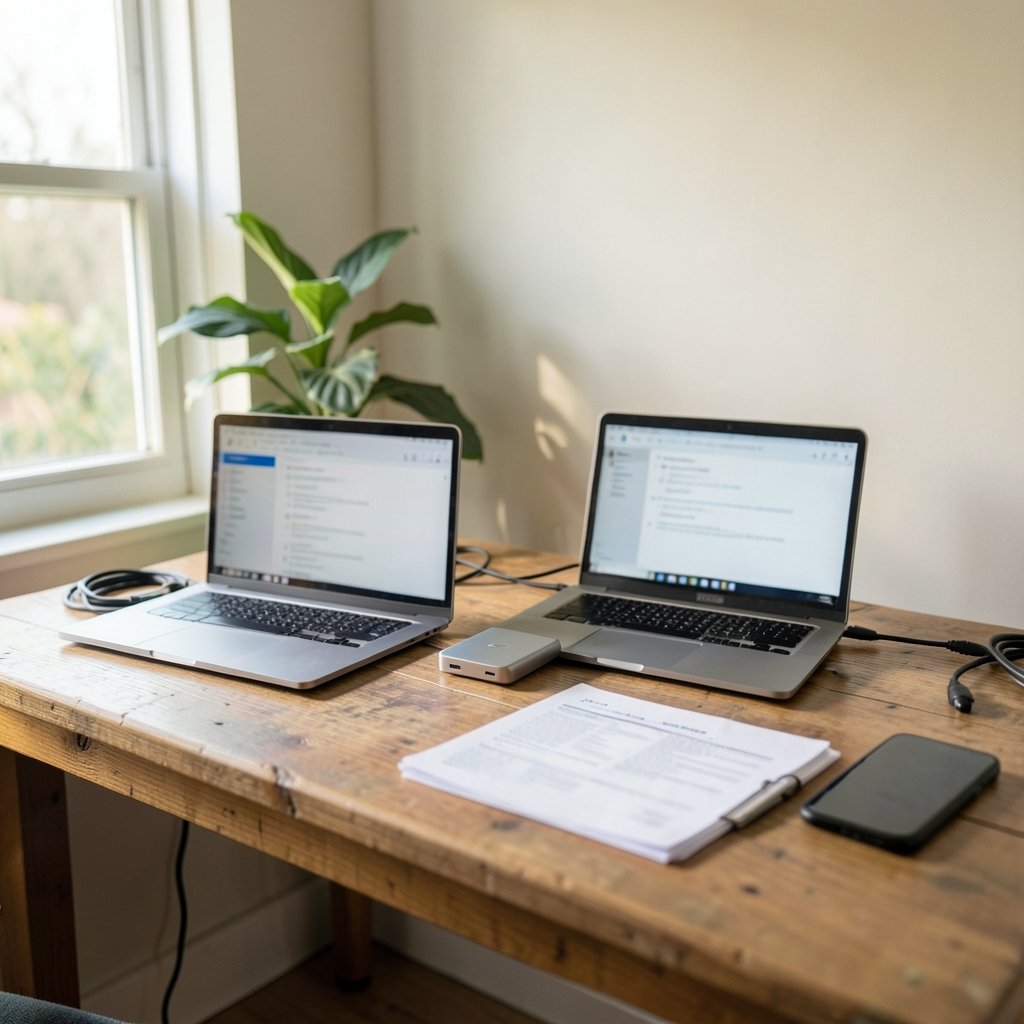
Yes, if you keep both accounts active during the transition. Verify a sample of files after transfer, confirm shared folders work, and only then cancel the old service. Running both in parallel for a few weeks removes almost all risk.
How long does a typical migration take?
For a personal account under 100 GB, an afternoon is realistic. For a team account with shared folders and external collaborators, plan one to two weeks of parallel running. The file transfer itself is fast; rebuilding permissions and notifying people takes longer.
Do shared links keep working after I move?
No. Shared links are tied to the original provider and stop working when the account closes. Recreate the shares on the new platform and send fresh links to everyone who needs them before you cancel.
Which alternative is closest to Dropbox in feel?
Google Drive and OneDrive are the closest in day-to-day experience. Both offer desktop sync, selective sync, mobile apps, and smooth sharing. The main difference is that they tie into their own productivity suites rather than staying neutral.
Can I move files without downloading everything first?
Yes. Dropbox offers transfer tooling for some destinations, and rclone can sync directly between cloud providers. Both avoid a full local download, though a local backup is still worth having as a safety net.
Is a free tier enough for real work?
Sometimes. Free tiers usually offer a few gigabytes, which covers documents but not photo libraries or video projects. If you are near the limit now, you will hit it again on the new service. Size the plan for next year, not today.
Conclusion
Switching away from Dropbox is a sequencing problem more than a technical one. Audit what you have, pick the alternative that matches how you actually work, set storage rules before installing anything, move files with verification, rebuild sharing deliberately, and overlap the subscriptions until you are certain.
The people who struggle are the ones who cancel first and check later. The people who breeze through it treat the migration like a small project with clear steps and a safety net. Do that, and the whole thing takes an afternoon instead of a stressful week.