

What does it actually feel like to write on a glass screen with a plastic pen? Most people who buy an E Ink tablet find out within the first five minutes, and many of them immediately start shopping for a screen protector. The texture of that protector turns out to matter more than almost any other accessory decision, because it changes how the pen drags, how the display looks, and how often you replace nibs.
This guide breaks down the real options, the trade-offs nobody mentions in product listings, and the practical mistakes that ruin a good install.
Why Texture Matters More on E Ink Than on LCD
On a regular tablet, a screen protector mostly guards against scratches. On an E Ink device, it does something else entirely: it becomes part of the writing instrument. E Ink screens are glass with a matte anti-glare coating, and a stylus tip sliding across that surface feels slick and slightly slippery, like writing on a whiteboard with a dry marker.
That friction gap is why the market for paper-like films exploded. The whole appeal of a device like a reMarkable or a Kindle Scribe is the promise of a notebook replacement, and a notebook has drag. A paper-textured protector restores some of that resistance.
There’s a second factor: E Ink displays sit close to the surface but not at it. Adding a thick film creates a small air gap between the pen tip and the actual display layer, which can introduce a faint parallax effect where the ink appears slightly offset from the tip. Thin films minimize this; thick ones amplify it.
The Main Texture Types Compared
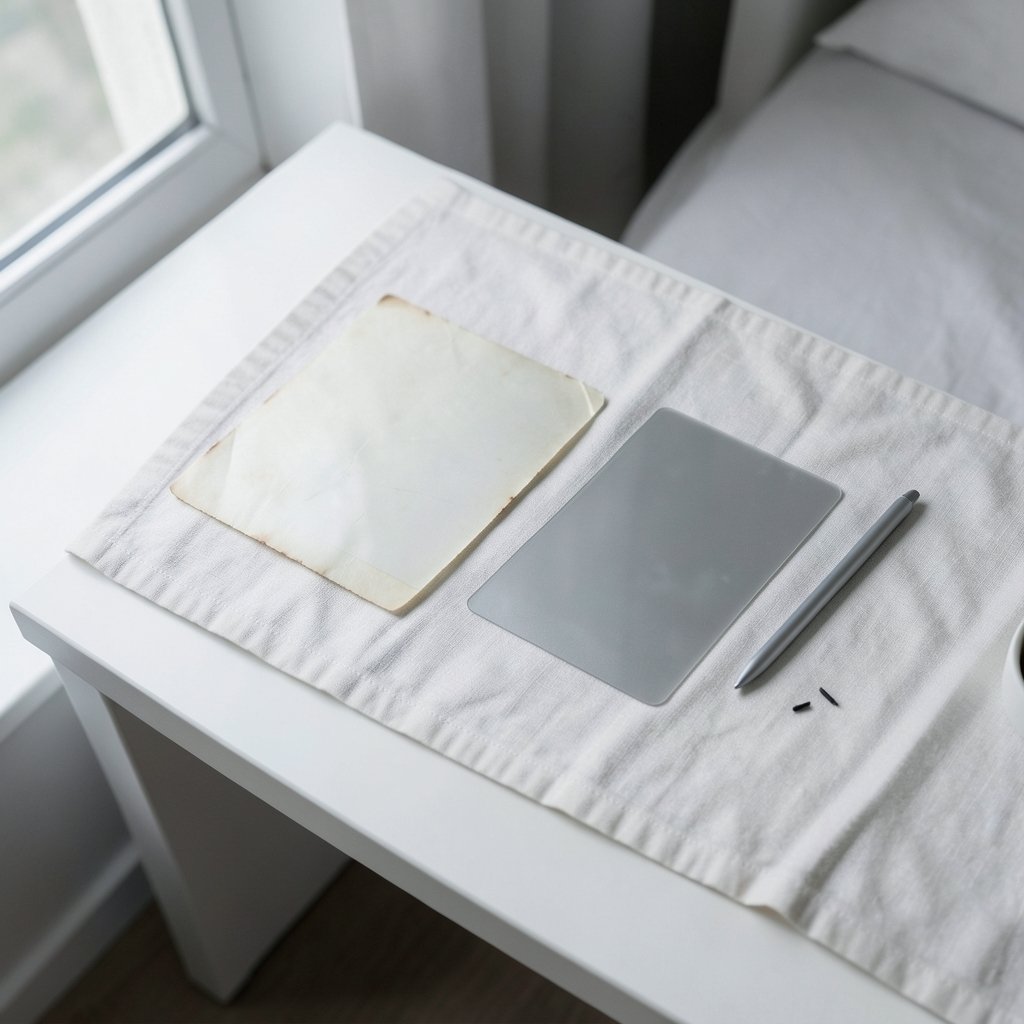
Most protectors fall into three broad families. Each one makes a different bargain.
| Texture type | Feel | Glare reduction | Display impact | Nib wear |
|---|---|---|---|---|
| Paper-like (fine grain) | Grippy, pencil-on-paper drag | Strong | Slight softening, faint grain | High |
| Smooth matte | Light friction, satin finish | Moderate to strong | Mild haze, minimal grain | Low to moderate |
| Clear or glossy film | Slick, glass-like | Little to none | Almost none | Low |
Paper-like films
These are the ones marketed hardest, usually with words like “paper texture” or “writing feel” in the listing. They use a fine particulate coating that creates micro-roughness. The result is genuine friction, and for people who sketch or take long handwritten notes, it’s a meaningful upgrade.
The cost shows up in two places. First, the display gets a subtle frosted quality, so blacks look slightly less deep and fine text loses a bit of crispness. Second, that roughness acts like sandpaper on the stylus nib. If you write for hours a day, expect to replace nibs far more often than you would on bare glass.
Smooth matte films
A middle path. These cut glare and fingerprints without much grain, so the screen stays sharp. The writing feel is better than bare glass but nowhere near paper. For readers who occasionally annotate, this is often the sweet spot.
Clear films
A clear protector is really just scratch insurance. It preserves the display perfectly but does nothing for writing feel, and it can actually make reflections worse because it adds a second reflective surface. Buyers who mostly read and rarely use the pen should think hard before adding one.
What Actually Works in Practice
A few practical lessons come up again and again among long-term E Ink users.
First, thinner is usually better for pen accuracy. Films in the 0.2 to 0.3 mm range keep parallax manageable. Anything noticeably thicker starts to feel like writing through a sheet of acrylic.
Second, texture and clarity trade off against each other almost linearly. If you can’t decide, buy the mildest paper texture available rather than the most aggressive one. Many people who chase maximum grip end up disliking the graininess within a week.
Third, installation quality matters as much as the product. Dust is the enemy. Install in a steamy bathroom where airborne particles settle, use the alignment tabs, and accept that a wet-install film gives you more repositioning time than a dry one.
Fourth, check model-specific fit. Cutouts for the pen magnet area and the power button vary by device, and a protector designed for one model often fits a sibling model badly. Measure before ordering.
Common Mistakes That Ruin the Experience
The biggest mistake is buying a protector before deciding how you’ll use the device. Heavy note-takers and heavy readers want opposite things. Someone who reads 90 percent of the time and writes 10 percent of the time will likely regret a heavy paper texture.
The second mistake is ignoring nib wear. A textured film plus a soft nib is a fast-wearing combination. Stock up on replacement nibs when you buy the protector, and consider harder nib options if the manufacturer offers them.
The third is applying the film over a screen that isn’t perfectly clean. A single speck of dust under a paper-textured film creates a permanent bump that you’ll feel with the pen every single time.
The fourth is expecting a protector to fix a device that isn’t right for you. If the pen latency or the display refresh feels wrong, texture won’t save it. It’s worth reading up on what these devices can and can’t do before spending on accessories, and the same logic applies when you’re weighing a cheap tablet for casual reading instead of a dedicated E Ink device.
How Texture Interacts With the Rest of Your Setup
Texture doesn’t exist in isolation. It interacts with three other variables.
The stylus tip. Hard plastic tips glide; soft felt or fiber tips grip. A paper-like film paired with a felt nib can feel almost too draggy, while the same film with a hard tip feels balanced.
Handwriting style. People who print in small letters notice graininess more than people who write large cursive strokes. Small, precise work demands clarity; big, loose strokes care more about drag.
Lighting. Matte surfaces scatter light rather than reflecting it, which is exactly why they reduce glare. But under a strong overhead lamp, a heavily textured film can produce a slight shimmer, sometimes called sparkle, across the display. It’s most visible on white backgrounds.
If you also capture your screen for tutorials or notes, remember that a textured film shows up in recordings as a faint haze, so it’s worth learning how to record your computer screen cleanly before you commit to a heavy matte finish.
Do You Even Need a Protector?
It’s a fair question. E Ink screens are generally more scratch-resistant than people assume, and the built-in anti-glare coating is decent. Some manufacturers explicitly warn that third-party films can void warranty or degrade the writing experience.
The honest answer: a protector makes sense if you write daily, if you dislike the glass feel, or if you share the device with kids. It makes less sense if you mainly read, if you’re sensitive to any loss of sharpness, or if you plan to sell the device later and want the original surface intact.
For households where children use the tablet, a matte film plus a curated set of safe kid games is a reasonable combination, since matte surfaces also hide fingerprints better than glass.
Texture on Dual-Screen and Handheld Devices
The texture question gets more complicated on devices with more than one display. Dual-screen handhelds and foldable-style E Ink concepts raise a new problem: a film that adds friction on one panel may interfere with a hinge, a folding mechanism, or a second screen’s tolerances.
Early buyers of dual-screen hardware should be cautious. Reports around foldable and dual-panel devices have highlighted durability concerns, and the same logic applies here: adding an aftermarket layer to a moving or multi-panel assembly is riskier than protecting a single flat slab. Anyone considering a dual-screen 3DS-style handheld should check whether the manufacturer supports screen films at all before applying one. The same caution applies to early dual-screen phone buyers weighing screen damage risk on foldable designs.
A Quick Buying Checklist
Before you click buy, run through these questions:
- How many hours a week do you actually write on the device?
- Does the manufacturer sell or endorse a specific film?
- What’s the film thickness in millimeters?
- Does the listing mention nib wear or include replacement nibs?
- Is the cut precise for your exact model number?
- Are there real user photos of the installed film, rather than only renders?
If you can’t answer questions two and five, keep looking. Those two answers separate a good purchase from a frustrating one.
Matching Texture to Your Reading Habits
Reading is where texture decisions get quietly expensive. A paper-like film that feels wonderful under the pen can make a novel slightly less pleasant to read for two hours, because the grain softens letter edges and reduces contrast. People with sensitive eyes notice this fastest.
A useful rule: the more you read, the smoother your film should be. The more you write, the more texture you want. If you’re split 50/50, a light matte film is the safer compromise, and it’s the option most people stick with long term.
It also helps to compare the device itself against alternatives before investing in accessories. A budget-friendly tablet with a matte film can cover reading and light note-taking for far less than a dedicated E Ink notebook, though it won’t match the battery life or eye comfort.
Installation: What Separates a Clean Install From a Messy One
The single biggest variable in whether you’ll love your textured film is how well it goes on. A few habits make a real difference.
Work in a low-dust room, ideally right after a shower when steam has pulled particles out of the air. Clean the screen with the supplied wipe, then use a lint roller or tape to lift any remaining specks. Align the film using the tabs before pressing down, and smooth from the center outward with the included card. If bubbles remain after 24 hours, most films can be lifted slightly and re-laid, but textured films are less forgiving than clear ones because the grain traps air differently.
Avoid stretching the film during install. Stretch marks on a matte surface show up as permanent shiny streaks.
Conclusion
Screen protector texture is one of the few accessory choices on an E Ink tablet that genuinely changes daily use. A paper-like film transforms the writing feel but taxes nibs and softens the display. A smooth matte film balances both. A clear film protects without changing anything, which is either exactly what you want or a waste of money depending on how you hold the pen.
The right answer comes down to a simple ratio: how much of your time goes to writing versus reading. Get that ratio honest, buy thin, buy model-specific, and install carefully. Do those four things and the texture question stops being a gamble.
Frequently Asked Questions
Does a paper-textured screen protector ruin an E Ink display?
No, but it changes it. Expect slightly softer text, marginally less contrast, and a faint grain visible on white backgrounds. Most people adapt within a day, and heavy writers usually consider the trade worth it.
How often do I need to replace the stylus nib with a textured film?
It depends on how much you write, but textured films wear nibs noticeably faster than bare glass. Daily heavy writers should keep spares on hand and check the tip for flattening every few weeks.
Can I remove a textured protector without damaging the screen?
In most cases yes. Quality films lift cleanly, especially if warmed slightly. Cheap adhesives can leave residue, which usually comes off with a soft cloth and a little isopropyl alcohol, but check your device maker’s cleaning guidance first.
Is a matte film better than a paper-like film for reading?
Yes, generally. Smooth matte films cut glare while keeping text sharper. Paper-like films prioritize writing feel and add more grain, which some readers find distracting over long sessions.
Will a screen protector affect pen accuracy?
It can, slightly. Thicker films increase the gap between the pen tip and the display layer, which can create a small parallax offset. Films under about 0.3 mm usually keep this unnoticeable.
Do all E Ink tablets support third-party screen protectors?
Not all. Some manufacturers warn that aftermarket films can affect warranty or the built-in anti-glare coating. Check your model’s documentation before buying, especially on dual-screen or folding devices.



