

Roughly nine out of ten people who ask how to reset a Mac actually need one of two very different procedures, and choosing the wrong one wastes an afternoon. Apple has shipped two chip families and a decade of macOS versions, and the reset path changed completely along the way. Get the method right and the job takes about fifteen minutes. Get it wrong and you will be staring at a spinning globe wondering where your Wi-Fi password went.
This guide walks through both routes, the backup you must do first, the sign-out chores people skip, and the traps that turn a clean wipe into a locked paperweight.
First, decide which kind of reset you actually need
“Factory reset” gets used for two jobs. They are not interchangeable.
| What you want | Who it applies to | Method |
|---|---|---|
| Erase all data but keep macOS installed | Apple Silicon Macs and Intel Macs with a T2 chip, running macOS Monterey 12 or later | Erase All Content and Settings |
| Erase the disk and reinstall macOS from scratch | Every Mac, including older Intel models | macOS Recovery plus Disk Utility |
| Fix a Mac that will not boot | Every Mac | macOS Recovery, reinstall only |
If your Mac has an M-series chip or a T2 security chip on macOS Monterey or newer, the first row is by far the easier path. It wipes your data, signs you out of Apple services, and leaves a fresh copy of macOS in place, ready for the next owner or a clean start.
Older Intel Macs without a T2 chip simply do not have that option. The menu item does not exist, and no amount of searching will produce it. Those machines need the Recovery route.
How to check your chip quickly
Click the Apple menu, choose About This Mac, and read the Chip or Processor line. “Apple M1,” “M2,” “M3,” or similar means Apple Silicon. Anything starting with “Intel Core” means Intel, and you will need to check whether it has a T2 chip. Apple’s own documentation on erasing a Mac and reinstalling macOS spells out the supported combinations, and it is worth a two-minute read before you start. (Best code editor for mac)
Back up before you erase anything
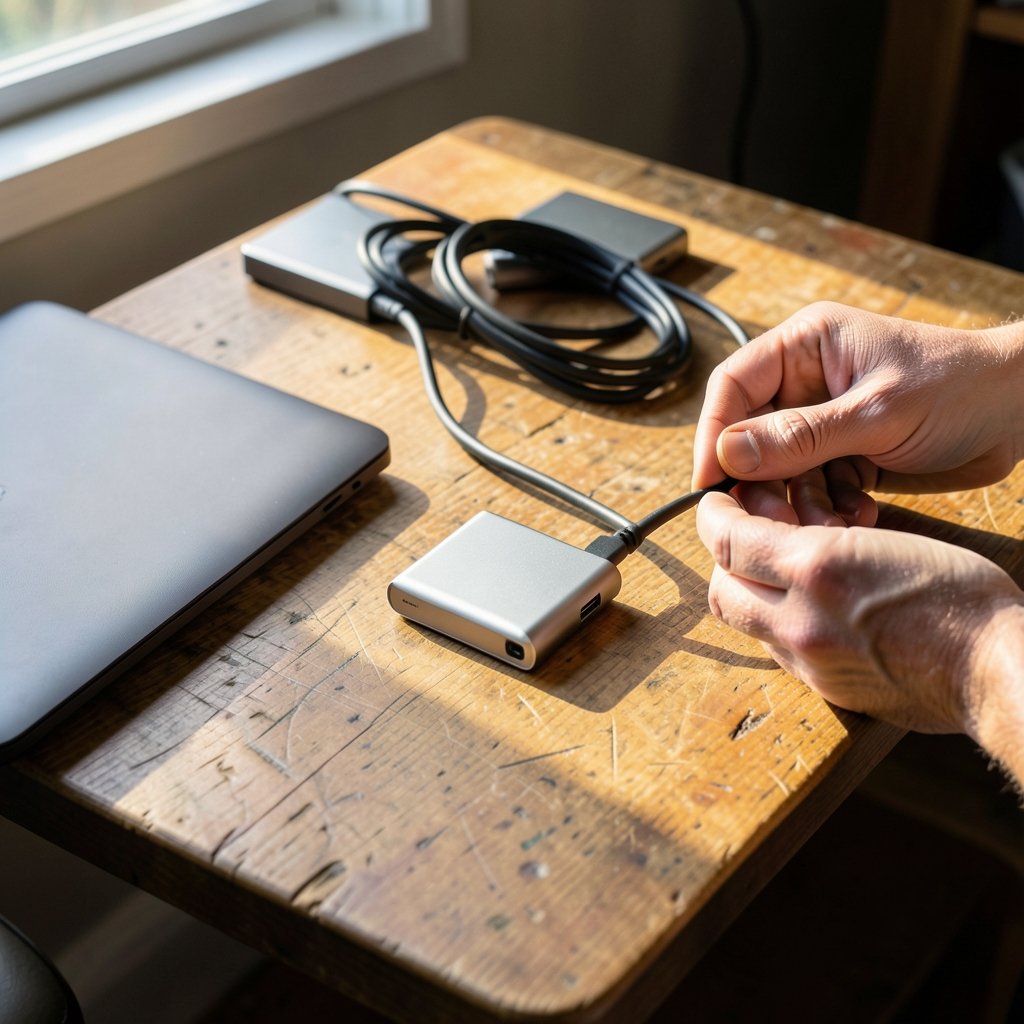
This is the step almost everyone skips, and it is the one that causes real pain. Erasing a Mac is destructive. There is no undo shortcut for a wiped disk, no recycle bin, no recovery tool that reliably brings back a full drive.
Plug in an external drive and run a Time Machine backup. Apple’s guidance on backing up with Time Machine covers the setup, and the first backup of a large drive can take hours, so start it the night before. If you only need a handful of files, copy them to cloud storage or a USB stick instead. Either way, verify the backup opens and contains what you expect before you touch Disk Utility.
One practical tip from people who do this often: do not wipe the Mac until you have confirmed the backup on a different machine. A backup you have never opened is a hope, not a backup.
The easy route: Erase All Content and Settings
On a supported Mac, this is the whole procedure.
- Back up your data and confirm the backup works.
- Sign out of iCloud, the App Store, iMessage, and any other accounts you care about. Apple’s checklist for what to do before you sell or give away a Mac is the definitive list.
- Unpair Bluetooth accessories such as keyboards, mice, and AirPods so they are free to pair elsewhere.
- Open System Settings, go to General, then Transfer or Reset.
- Click Erase All Content and Settings.
- Enter your administrator password when prompted.
- Review the summary of what will be erased, then confirm.
The Mac restarts, shows a progress bar, and eventually lands on the setup assistant as if it were new. That is it.
What this method handles for you
Erase All Content and Settings wipes the disk. It also signs you out of Apple services, removes your Apple Account from the machine, and turns off Find My Mac as part of the process, which matters a lot for the next owner. A Mac left signed in to Find My can end up Activation Lock-protected, meaning the new owner cannot set it up without your Apple Account credentials. That single detail has ruined countless secondhand sales.
The feature also keeps your current macOS version installed, so there is no long download and no risk of grabbing the wrong installer.
What it does not do
It does not fix a corrupted system, a failing drive, or a Mac that will not boot. For those, you need Recovery. It also does not work if the Mac is managed by an organization through mobile device management. In that case the management profile comes back after the wipe, and only the administrator can release the machine.
The universal route: macOS Recovery and a clean reinstall
This works on every Mac, and it is the only option for Intel models without a T2 chip. The idea is simple: start from a hidden recovery system stored on the Mac, erase the startup disk, then download a fresh copy of macOS.
Step 1: Start up in Recovery
The key combination depends on your Mac.
| Mac type | How to enter Recovery |
|---|---|
| Apple Silicon (M-series) | Shut down, then hold the power button until “Loading startup options” appears, click Options, then Continue |
| Intel with T2 chip | Restart and hold Command and R |
| Older Intel | Restart and hold Command and R, or Option-Command-R for the latest compatible macOS |
Apple’s guide to using macOS Recovery covers the screen you should see: a window offering Restore from Time Machine, Reinstall macOS, Safari, and Disk Utility. If you get a spinning globe instead, the Mac is downloading Recovery over the internet, which can take a while on slow connections.
Step 2: Erase the disk in Disk Utility
- Choose Disk Utility and click Continue.
- Click View and select Show All Devices so the physical drive appears, rather than only the volume.
- Select the top-level drive, not the “Macintosh HD” volume indented beneath it.
- Click Erase.
- Name the drive “Macintosh HD,” choose APFS as the format, and choose GUID Partition Map as the scheme.
- Confirm and wait.
A common mistake here is erasing only the volume. That leaves the container and partition layout in place, which is usually fine but occasionally causes odd install failures. Erasing the whole device is the cleaner move when you are starting over anyway.
Another mistake: erasing the wrong drive. If an external backup disk is plugged in, it shows up in the same list. Unplug it before you open Disk Utility. Nothing focuses the mind quite like realizing you just erased the backup instead of the source.
Step 3: Reinstall macOS
- Close Disk Utility.
- Back in the Recovery window, choose Reinstall macOS and click Continue.
- Follow the prompts, accept the license, and select the freshly erased drive as the destination.
- Let it download and install. This can take anywhere from twenty minutes to a couple of hours depending on your connection and the Mac.
When it finishes, the Mac restarts into the setup assistant. Apple’s instructions for reinstalling macOS walk through the same flow if you want the official version.
Problems you may hit, and how to get past them
The Mac asks for a firmware password
A firmware password blocks startup from Recovery and blocks reinstalling. It is set by whoever configured the Mac, often a school or employer. There is no legitimate workaround; the machine has to go back to that organization.
Find My Mac will not turn off
If the previous owner never signed out of iCloud, Activation Lock can block setup. The fix is the original owner’s Apple Account credentials, entered during setup. This is why signing out before selling matters so much. If you bought a used Mac and hit this wall, contact the seller; Apple cannot bypass it for you.
The installer says the disk is not formatted correctly
Go back to Disk Utility, erase the drive again with APFS and GUID Partition Map, then quit and relaunch the installer. Do not format as Mac OS Extended unless the Mac is very old and running an ancient macOS version.
Recovery will not load at all
Try Option-Command-R for an internet-based recovery, which pulls the latest compatible macOS. If that fails, a bootable USB installer made on another Mac is the reliable fallback.
The Mac runs hot, slow, or strange after setup
A fresh install is a good moment to check that nothing unwanted came along for the ride. If you restored from a backup and the machine still behaves oddly, it is worth learning how to check for malware on a Mac before you assume the hardware is failing.
Before you hand the Mac to someone else
A reset is only half of a clean handover. The rest is account hygiene.
Sign out of iCloud, iMessage, FaceTime, the App Store, and any music or media accounts. Unpair Bluetooth devices. If you use a password manager, revoke the Mac as a trusted device. Turn on multi-factor authentication for your Apple Account if it is not already active, because a secondhand Mac with a weak account behind it is a gift to whoever buys it.
If the Mac is going to a family member rather than a stranger, you can skip the full wipe and simply create a new user account for them, then delete yours. It is faster, and it keeps your apps and settings intact. Just remember that your data is still recoverable from the drive until it is properly erased, so do not do this with a machine leaving your control.
Conclusion
The right reset comes down to one question: does your Mac have Apple Silicon or a T2 chip, and is it running Monterey or later? If yes, Erase All Content and Settings in System Settings is the clean, fast, sign-out-included answer. If no, macOS Recovery with Disk Utility and a fresh install does the same job with more steps and more waiting.
Either way, the order is the same. Back up and verify. Sign out of everything. Then erase. Skip the first two and you will spend the rest of the day learning why professionals never rush a wipe. Do them, and the Mac comes out the other side looking and behaving exactly like it did on day one.
Frequently asked questions
Does a factory reset delete everything on a Mac?
Yes. Both methods erase your files, apps, settings, and accounts from the drive. Erase All Content and Settings also removes your Apple Account and turns off Find My Mac. Anything you have not backed up elsewhere is gone permanently, with no recovery path.
How long does it take to factory reset a Mac?
Erase All Content and Settings usually finishes in ten to thirty minutes. A full Recovery erase plus reinstall takes longer, often one to two hours, because the Mac downloads the entire macOS installer over the internet. A fast connection makes a noticeable difference.
Can I reset a Mac without reinstalling macOS?
Yes, if it is an Apple Silicon or T2 Mac on macOS Monterey 12 or later. Erase All Content and Settings wipes your data while leaving the operating system in place, so there is nothing to download and nothing to reinstall.
Will a factory reset remove Activation Lock?
Only if you sign out of iCloud and turn off Find My Mac first. Erase All Content and Settings handles this for you on supported Macs. A manual Recovery erase does not, so a Mac erased that way can still be locked to the previous owner’s Apple Account.
What should I do before resetting a Mac I plan to sell?
Back up your data, sign out of iCloud and every other account, unpair Bluetooth accessories, and confirm Find My Mac is off. Then run the reset. Apple publishes a full checklist for selling, giving away, or trading in a Mac, and it is worth following line by line.
Why is Erase All Content and Settings missing on my Mac?
That option only appears on Apple Silicon Macs and Intel Macs with a T2 chip running macOS Monterey 12 or later. On older Intel Macs, use macOS Recovery instead: restart holding Command and R, erase the startup disk in Disk Utility, then reinstall macOS. (Wikipedia: macOS)



