
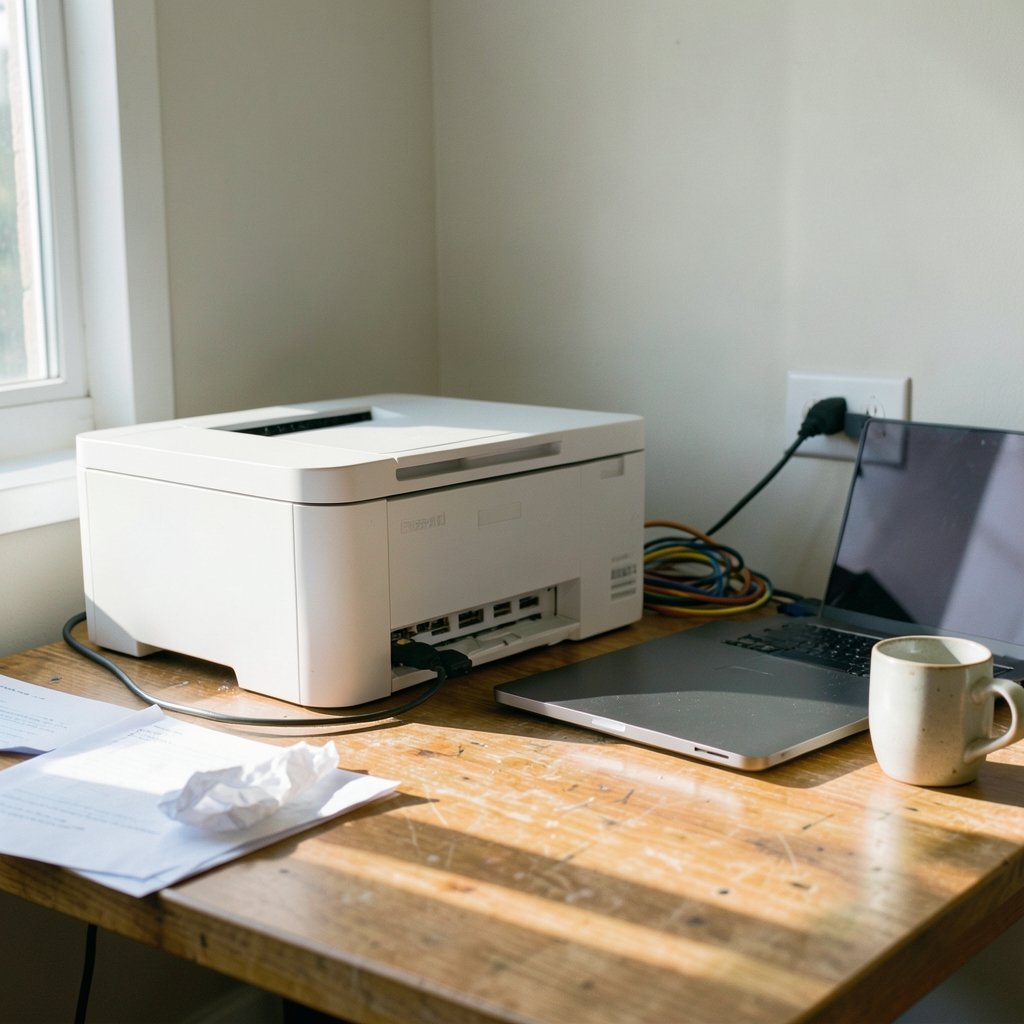
Roughly three out of four office workers say they have wanted to throw their printer out a window at least once. It is one of the most reliable sources of quiet, simmering frustration in modern computing, and Windows 11 has not made that reputation any better. Between driver conflicts, spooler hiccups, and network discovery quirks, a printer that suddenly stops responding can feel like a problem with no clear cause.
The good news is that most “printer not responding” errors in Windows 11 come from a small handful of fixable causes. This guide walks through the fixes in the order that actually works, from the 30-second checks to the deeper resets, so you can stop guessing and start printing.
Why Windows 11 Printers Stop Responding
Before touching any settings, it helps to understand what is actually happening. When you hit Print, Windows sends the job to the Print Spooler, a background service (`spoolsv.exe`) that queues documents and feeds them to the printer one at a time. If the spooler gets stuck, the queue jams, or the driver stops talking to the device, the job sits in limbo and the printer appears dead.
Common culprits include:
- A stuck print job blocking everything behind it in the queue
- A corrupted or outdated driver after a Windows Update
- The printer being offline due to a dropped Wi-Fi or USB connection
- The spooler service crashing or hanging
- Windows 11’s default printer setting grabbing jobs meant for another device
- Security software or a misconfigured network blocking communication
The fix almost always lives in one of those six areas. Work through them in order.
Start With the Boring Checks That Solve Most Cases
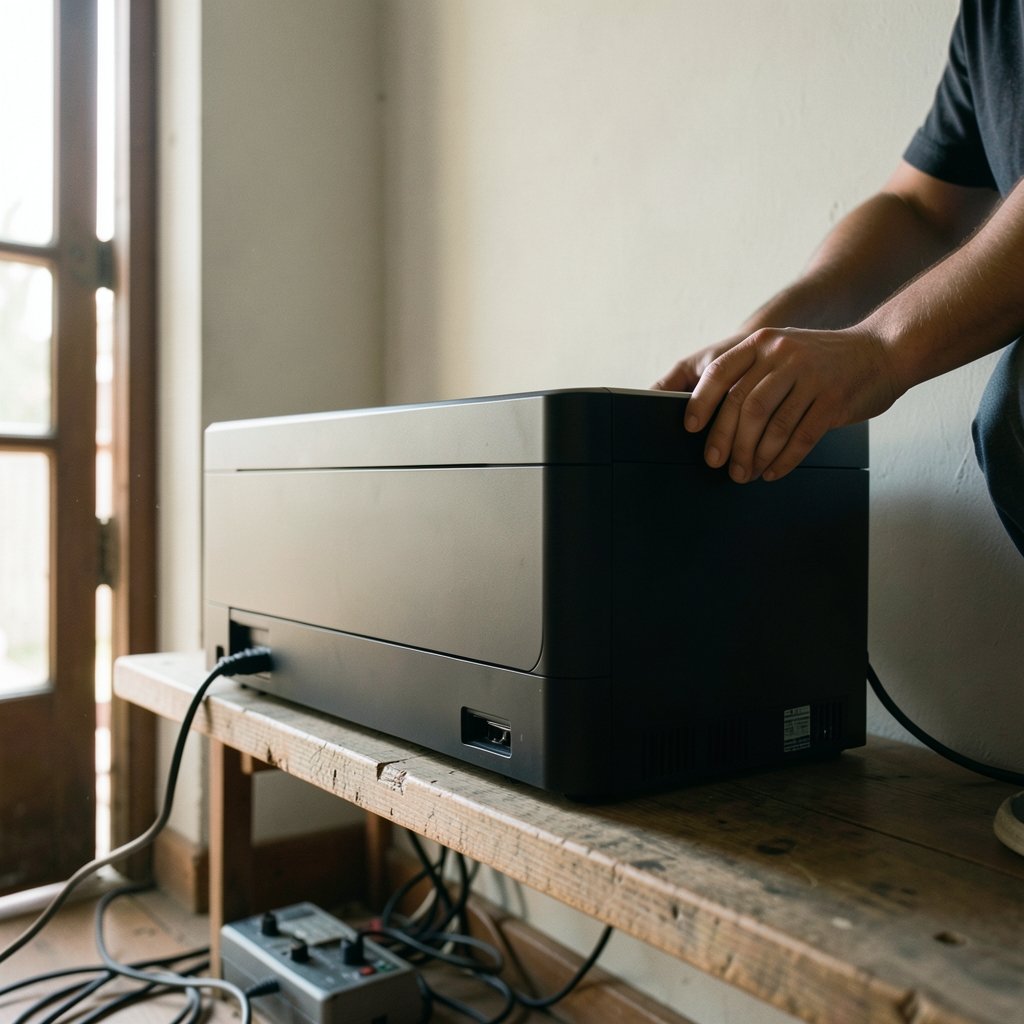
It sounds almost insulting, but a huge share of “printer not responding” complaints end at the power cable. Before diving into Settings, confirm the basics:
- Check the printer is powered on and not in a deep sleep or error state (look for a blinking light or a message on its display).
- Verify the connection. For USB, unplug and replug the cable into a different port, ideally directly into the PC rather than a hub. For Wi-Fi, confirm the printer and the PC are on the same network.
- Print a test page from the printer itself if it has a screen. If the printer cannot print its own internal test page, the problem is the hardware, not Windows.
- Restart both devices. A full shutdown of the PC (rather than sleep) clears a surprising number of spooler and driver glitches.
If the printer responds to its own test page but not to your PC, you have confirmed the issue is on the Windows side and can move on with confidence.
Clear the Stuck Print Queue
A single jammed document can block every job behind it, and Windows will happily report the printer as “not responding” while the queue sits frozen. Clearing it is the single most effective fix.
The easy way
Open Settings > Bluetooth & devices > Printers & scanners, select your printer, and choose Open print queue. If you see documents listed, click Printer in the menu bar and select Cancel all documents. If a job refuses to cancel, you will need the deeper method.
The thorough way
- Open Services by pressing Windows key + R and typing `services.msc`.
- Scroll to Print Spooler, right-click it, and choose Stop.
- Open File Explorer and navigate to `C:WindowsSystem32spoolPRINTERS`.
- Delete every file in that folder. These are the pending print jobs.
- Return to Services, right-click Print Spooler, and choose Start.
- Try printing again.
This clears the queue at the file level, which works even when the normal cancel button is greyed out or unresponsive.
Restart the Print Spooler Service
If clearing the queue did not help, the spooler itself may be hung. You can restart it from Services as above, or use an elevated Command Prompt:
- Press the Windows key, type `cmd`, right-click Command Prompt, and choose Run as administrator.
- Type `net stop spooler` and press Enter.
- Type `net start spooler` and press Enter.
Once the service restarts, send a fresh test print. If the spooler keeps crashing within minutes, a bad driver is the likely cause, which the next section addresses. If you regularly deal with background services misbehaving, the same troubleshooting mindset applies to other system processes; our guide on how to fix antimalware service executable high CPU usage walks through a very similar process for a different Windows service.
Reinstall or Update the Printer Driver
Drivers are where Windows 11 printing problems most often hide. A Windows Update can silently replace a working driver with a generic one that does not fully support your model.
- Open Settings > Bluetooth & devices > Printers & scanners.
- Select your printer and click Remove device.
- Go to Settings > Windows Update > Advanced options > Optional updates and check for any printer driver updates.
- Better still, download the latest Windows 11 driver directly from your printer manufacturer’s support page, matching your exact model.
- Reinstall the driver, then re-add the printer.
When reinstalling, prefer the manufacturer’s full driver package over the basic one Windows installs automatically. The generic driver is convenient, but it often lacks the features and stability of the official release. It is also worth noting that Windows 11 dropped support for some legacy printing protocols that older network printers relied on, so a printer from the Windows 7 era may simply need a firmware update from the manufacturer to work reliably.
Remove and Re-Add the Printer
Sometimes the printer’s registration in Windows gets corrupted, and re-pairing fixes it faster than any driver surgery.
- Go to Settings > Bluetooth & devices > Printers & scanners.
- Select the printer and click Remove device.
- Restart your PC.
- Click Add device and let Windows scan. If your printer does not appear, choose Add manually and enter its IP address or select it from the list by name.
For network printers, adding by IP address is often more reliable than letting Windows auto-discover, because it bypasses the discovery protocols that frequently fail on mixed networks.
Check the Default Printer and Offline Status
Windows 11 has a habit of quietly switching your default printer to “Microsoft Print to PDF” or another device. If your jobs are vanishing, confirm the right printer is selected in the print dialog. Also check that the printer is not stuck in Use Printer Offline mode: (Printer (computing)))
- Open the print queue for your printer.
- Click Printer in the menu bar.
- If Use Printer Offline has a checkmark, click it to turn the mode off.
This single toggle resolves an astonishing number of “not responding” reports, because Windows holds jobs indefinitely while the printer is flagged offline.
Run the Built-In Troubleshooter
Windows 11 still includes a printing troubleshooter, though its location has shifted between builds. Open Settings > System > Troubleshoot > Other troubleshooters and look for Printer. Run it, and Windows will attempt to detect and repair common issues automatically, including spooler faults and connection problems.
It will not fix everything, but it is a free first pass that occasionally catches something you would otherwise miss.
Fix Network and Connectivity Problems
If your printer is wireless or networked, connectivity is the usual suspect. Try these in order:
| Symptom | Likely Cause | Fix |
|---|---|---|
| Printer shows offline | Wi-Fi dropped or IP changed | Reconnect printer to Wi-Fi; assign a static IP |
| Other devices can print, this PC cannot | Firewall or network profile | Set network to Private; allow printer sharing |
| Printer appears then disappears | Discovery protocol failure | Add printer manually by IP address |
| Slow or partial prints | Weak signal | Move printer closer to router or use Ethernet |
A quick diagnostic: open a browser and type the printer’s IP address. If its web interface loads, the network connection is fine and the problem is in Windows. If it does not load, the printer has lost its network connection and needs to be reconnected at the device itself.
When to Reset, and When to Replace
If you have cleared the queue, restarted the spooler, reinstalled drivers, re-added the printer, and confirmed the network, you are down to a few remaining options. A full network reset (Settings > Network & internet > Advanced network settings > Network reset) can clear stubborn configuration issues, though it wipes saved Wi-Fi passwords. A factory reset of the printer from its own menu can also clear corrupted internal settings.
If none of that works and the printer is more than seven or eight years old, replacement may genuinely be the smarter move. Modern budget models have become remarkably capable, and our roundup of the best budget 3D printer shows how far entry-level hardware has come in other printing categories too. For standard document printing, a current entry-level inkjet or laser will usually cost less than the hours you will spend fighting a dying machine.
One habit that prevents future headaches: keep a note of your printer’s exact model number and driver version. When Windows Update inevitably breaks something, you will know precisely what to reinstall. The same principle of keeping a record of your system’s known-good state applies across Windows; our guide to the undo shortcut key for Windows and Mac is a small reminder that knowing the right keystroke saves far more time than hunting through menus.
A Quick Word on Third-Party “Fixer” Tools
Search for printer fixes and you will be flooded with driver-updater utilities promising one-click repairs. Treat these with caution. Many bundle adware, install unnecessary drivers, or replace a working manufacturer driver with a generic one that causes new problems. The manual steps above take fifteen minutes and cost nothing. If you do want automated help, stick to tools from your printer manufacturer or well-known security vendors, and be wary of anything demanding payment before it will even scan your system.
Conclusion
A printer that stops responding in Windows 11 is rarely broken beyond repair. In the overwhelming majority of cases, the fix is one of five things: a cleared print queue, a restarted spooler, a fresh driver, a re-added device, or a corrected network connection. Work through them in that order, and you will solve the problem far faster than by randomly toggling settings.
The deeper lesson is that printers fail in predictable ways. Once you understand the spooler, the driver layer, and the network path between PC and device, “not responding” stops being a mystery and becomes a checklist. Keep your drivers current, avoid third-party fixer tools, and remember that a printer which cannot print its own test page is a hardware problem, not a Windows one.
FAQ
Why does my printer show as offline in Windows 11 when it is turned on?
Windows 11 often flags a printer as offline when it loses its network connection or when the “Use Printer Offline” setting gets toggled on. Check the print queue menu first, then confirm the printer and PC are on the same network. Assigning the printer a static IP address prevents the issue from recurring.
How do I clear a print job that will not cancel?
Stop the Print Spooler service through `services.msc`, delete all files in `C:WindowsSystem32spoolPRINTERS`, then restart the service. This removes the job at the file level and works when the normal cancel button is unresponsive.
Do I need to reinstall my printer driver after a Windows update?
Not always, but it is the most common fix when a printer stops working right after an update. Windows sometimes replaces a manufacturer driver with a generic one. Download the latest Windows 11 driver from your printer maker’s support site and reinstall it.
Why can other devices print but my Windows 11 PC cannot?
This usually points to a firewall, network profile, or discovery issue on the PC itself. Set your network to Private, allow printer sharing through the firewall, and try adding the printer manually by its IP address rather than relying on auto-discovery.
Is it safe to use third-party driver updater tools for printers?
Be cautious. Many bundle adware or install generic drivers that cause new problems. The manual method, downloading the official driver from the manufacturer, is safer and just as effective. Only use tools from the printer maker or reputable security vendors.
When should I give up and replace the printer?
If you have cleared the queue, restarted the spooler, reinstalled drivers, re-added the device, and confirmed the network, and it still fails, the hardware may be failing. Printers older than seven or eight years often cost more to troubleshoot than a current budget model costs to buy.



