
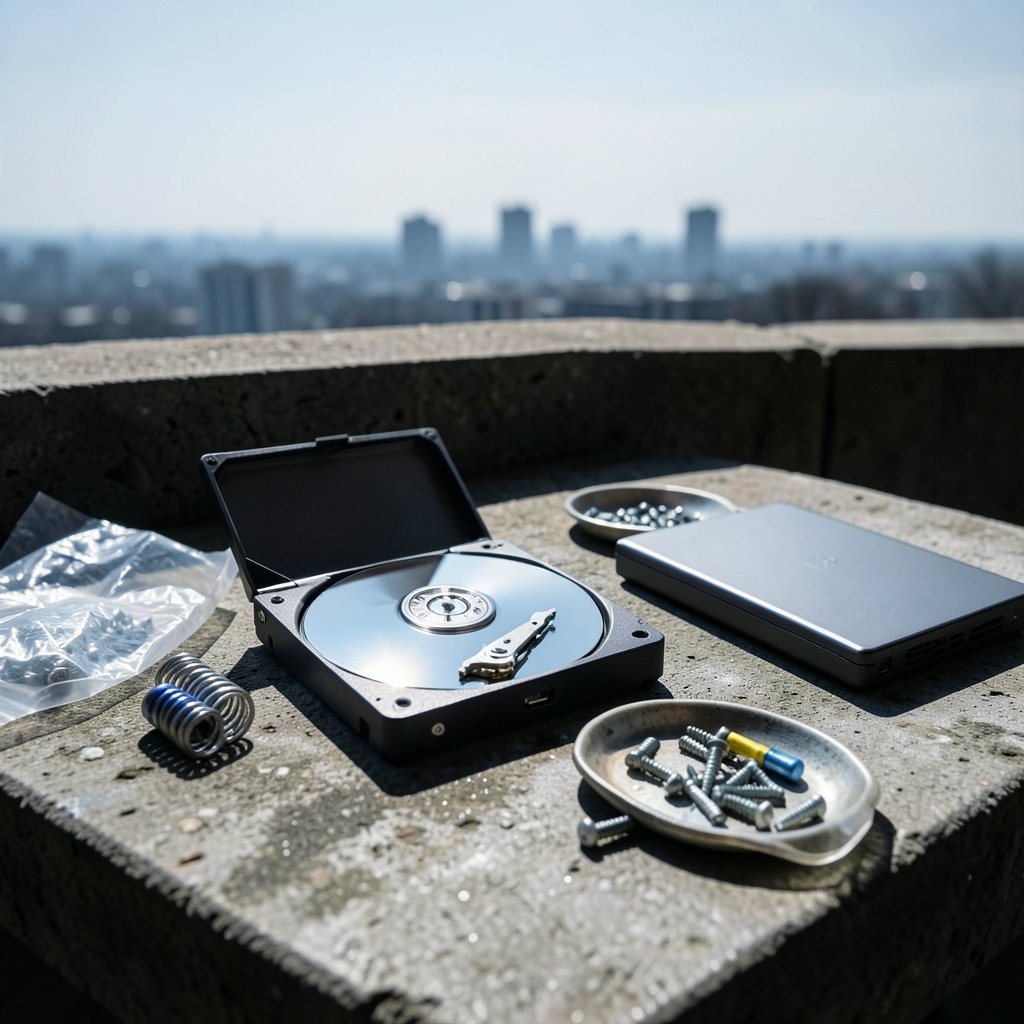
When a hard drive starts clicking, grinding, or refusing to appear in Windows, the first question is almost always the same: can this thing be repaired, or is it already gone? The answer depends far less on the symptom than on what kind of failure is behind it. Some drives are genuinely fixable at home with free tools. Others are damaged the moment someone tries. Knowing which situation you are in is the whole game.
What “Hard Drive Repair” Really Means
The phrase gets used for two very different jobs. Repair means restoring the drive to working order. Data recovery means pulling the files off a drive that may never work again. They are not the same goal, and mixing them up is the most common mistake people make.
If the files are precious, recovery comes first. A drive that is failing can often be imaged to a healthy one, and that image can be mounted and read at leisure. Fixing the original afterwards is optional. Getting the data out is not.
The Three Failure Types (and Which Ones You Can Fix)
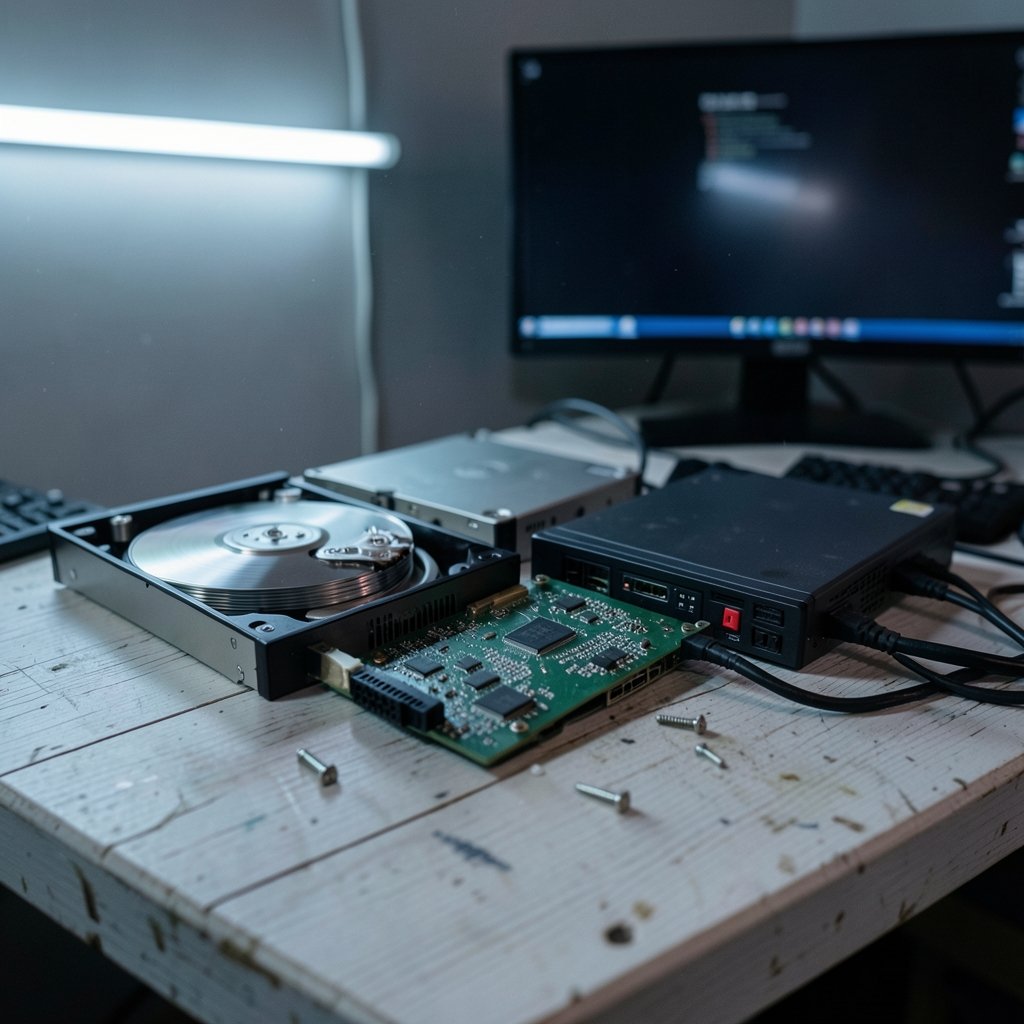
Almost every dead drive falls into one of three buckets. The bucket determines whether a screwdriver is a good idea or a disaster.
| Failure type | Typical symptoms | DIY-friendly? |
|---|---|---|
| Logical | Drive detected, files missing or unreadable, RAW file system, accidental deletion | Yes, with software |
| Electronic or firmware | Drive not detected at all, no spin-up, wrong capacity reported | Sometimes, with care |
| Mechanical | Clicking, grinding, beeping, drive spins up then down repeatedly | No, stop immediately |
Logical failures are by far the most common and the most recoverable. A partition table gets corrupted, a file system is damaged, or files are deleted by accident. The hardware is fine. Recovery software or a careful partition rebuild solves most of these cases.
Electronic failures sit in the middle. A failed circuit board or corrupted firmware can make a perfectly healthy drive invisible. The catch is that swapping the PCB (printed circuit board) on a modern drive usually requires moving the drive’s unique adaptive data onto the replacement board. A straight board swap from an identical model often fails for exactly this reason.
Mechanical failures are the ones to leave alone. A head crash happens when the read/write head touches the platter surface, scraping the magnetic coating and throwing off debris that damages more of the disk. Every second the drive is powered on after a head crash makes recovery harder and more expensive.
Why Opening a Drive at Home Almost Always Ends Badly
It is tempting. The drive is already broken, so what is there to lose? Quite a lot, actually.
Hard drives are assembled in cleanrooms because a single speck of dust on a platter can cause a head crash. Cleanroom air cleanliness is graded by ISO 14644-1, a standard that classifies rooms by the number of particles per cubic meter of air. A normal bedroom is many orders of magnitude dirtier than the environment a drive needs. Opening the lid exposes the platters to that air instantly.
Professionals who open drives work inside a laminar flow bench or a cleanroom and use head replacement tools that cost more than most laptops. Without those conditions, a drive that had a recoverable logical problem can become a mechanically destroyed one in under a minute.
The practical rule: if the drive spins and is detected, work on it with software. If it clicks, do not open it. Do not shake it, do not freeze it, and do not run it for hours hoping it recovers.
Step One: Find Out Whether the Drive Is Actually Dying
Before any repair, get data on the drive’s condition. S.M.A.R.T. (Self-Monitoring, Analysis and Reporting Technology) is built into nearly every drive and reports attributes such as reallocated sector count, spin-up time, and pending sector errors. Rising reallocated sectors are the clearest early warning that a drive is on its way out. (Nas hard drive hibernation settings when spin down saves)
A practical guide to checking hard drive health walks through reading those values in Windows without installing anything sketchy, and a Windows 11-specific walkthrough covers the built-in tools. If the drive shows a handful of reallocated sectors and nothing else, it may still have years left. If the count is climbing every week, start backing up now.
Step Two: Back Up or Image Before You Fix Anything
This is the step people skip, and it is the step that saves data. Before running any repair tool, copy everything readable off the drive. If the drive is unstable, a disk image is better than a file copy, because imaging reads the drive once, sequentially, and does not hammer it with random access.
Free imaging tools exist for every platform. The workflow is simple: connect a healthy drive at least as large as the failing one, image the failing drive to it, then work on the image rather than the original. Every repair attempt after that point is risk-free because the original data is safe.
If the drive is not showing up at all, a step-by-step fix for an undetected external drive covers the cable, port, and driver checks worth doing before assuming the worst. For internal drives, reseating the SATA or power cable and trying a different port costs nothing and fixes a surprising number of “dead” drives.
Step Three: Logical Repairs You Can Do Yourself
Once the data is safe, logical repair becomes low-stakes. The tools are free or cheap.
Rebuild the partition table
A drive that shows as RAW or unallocated in Disk Management usually has a damaged partition table, not damaged data. Partition recovery tools can scan for lost partitions and rebuild the table without touching the files. Doing a partition operation on a healthy drive is a different job entirely, and a guide to partitioning a hard drive in Windows 11 without losing data explains the safe order of operations.
Run a file system check
Windows includes CHKDSK, which scans for file system errors and bad sectors. Run it read-only first (`chkdsk /r` without the fix flag) to see what it reports. If it finds errors, run it with the repair flag, but only after imaging.
Use recovery software for deleted files
Deleted files are usually recoverable if the drive has not been written to since. Stop using the drive immediately, connect it read-only if possible, and scan with recovery software. The longer the drive runs, the more likely the deleted blocks get overwritten.
Step Four: Electronic and Firmware Problems
A drive that does not spin up, or spins up and is never detected by the BIOS, may have a board or firmware problem. These are the cases where a professional repair shop earns its fee.
Firmware corruption can make a drive report the wrong capacity or refuse to initialize. Fixing it requires vendor-specific tools that are not sold to the public. PCB failure is more approachable but still risky: the replacement board must match the drive’s model and firmware, and the adaptive data must be transferred. A mismatched board can make things worse.
For most people, this is the point to call a recovery service. For a drive holding irreplaceable photos, it is almost always the right call. (IBM Documentation)
Step Five: When to Stop and Call a Professional
Professional recovery is expensive, often several hundred dollars, and it is not always successful. It makes sense in specific situations:
- The drive clicks, grinds, or beeps.
- The data is irreplaceable and there is no backup.
- The drive is not detected at all after cable and port checks.
- The drive was dropped, flooded, or exposed to heat.
A reputable recovery service will give a free or low-cost evaluation and quote before starting work. Ask whether they work in a cleanroom and whether they charge if recovery fails. A shop that cannot answer those questions is not the right shop.
Repair or Replace? A Simple Decision Rule
For most drives more than a few years old, replacement beats repair on cost. A new SSD costs less than a professional recovery job and will outlive the old drive by years. The one exception is data: if the files matter and there is no backup, recovery comes first, replacement second.
Cloning a failing drive to an SSD before it dies is the move that turns a crisis into a routine upgrade, and a walkthrough of cloning a hard drive to an SSD in 2026 covers the process end to end. If the plan is to keep the drive spinning in a NAS, hibernation settings matter too: aggressive spin-down can wear a drive faster than leaving it running, and NAS hard drive hibernation settings explain when spin-down actually saves anything. (Hard disk drive)
Common Mistakes That Turn a Fixable Drive Into a Dead One
A short list, drawn from the errors that show up again and again:
- Running the drive for hours while it clicks. Every spin-up risks more head contact.
- Opening the lid “just to look.” Dust ingress alone can finish a drive.
- Freezing the drive. The old freezer trick sometimes buys minutes, but condensation and thermal shock often cause permanent damage.
- Skipping the backup. Repair tools write to the drive. Without an image, a failed repair can destroy the data.
- Swapping PCBs without transferring adaptive data. The drive will not initialize.
- Trusting a single S.M.A.R.T. reading. Trends matter more than any single value.
Conclusion
Hard drive repair is really a decision tree, not a single skill. Logical problems are fixable at home with free tools and a cool head. Electronic problems are sometimes fixable, often by a professional. Mechanical problems are never a DIY job, and the best thing anyone can do is stop, unplug, and call someone who works in a cleanroom.
The thread running through all of it is the same: get the data off before you fix anything. A drive is replaceable. The photos, tax records, and half-finished novel on it are not. Back up first, diagnose second, repair third, and replace when the math says so.
Frequently Asked Questions
Can a clicking hard drive be repaired at home?
No. Clicking almost always means a head crash or a failed motor, and both require cleanroom conditions and specialized tools. Power the drive down, do not shake or freeze it, and contact a data recovery service if the files matter.
Is it worth repairing a hard drive or better to replace it?
For drives more than four or five years old, replacement usually wins on cost. A new SSD costs less than most professional recovery jobs. Repair only makes sense when the data is irreplaceable and there is no backup.
How much does professional hard drive repair cost?
Logical recovery from a healthy drive typically runs from about one hundred to several hundred dollars. Cleanroom recovery from a mechanically failed drive often costs several hundred to over a thousand, and many services charge nothing if recovery fails. Always get a quote first.
Can I fix a hard drive that is not showing up in Windows?
Often, yes. Check the cable, try a different USB port or SATA port, and look in Disk Management to see whether the drive appears without a letter. If it shows as RAW or unallocated, a partition rebuild may fix it. If it does not appear at all, the problem is likely electronic or mechanical.
Does S.M.A.R.T. tell me when a drive will fail?
It gives warning signs, not a deadline. Rising reallocated sector counts and pending sector errors are meaningful red flags, but plenty of drives fail with clean S.M.A.R.T. data. Treat it as one input, not a guarantee.
Can I swap the circuit board on a dead hard drive myself?
Rarely. Modern drives store unique adaptive data on the board, so a replacement from an identical model usually will not work without transferring that data. A mismatched board can also damage the drive further. This is a job for a specialist.
What should I do first when a drive starts failing?
Copy the data off, or image the drive to a healthy one, before running any repair tool. Every repair writes to the drive. Without a backup or image, a failed repair can turn a recoverable problem into permanent data loss.



