A hard drive upgrade does not have to mean rebuilding Windows, reinstalling every app, and resetting your preferences. If you own a Windows PC, you can move your existing setup to a new SSD without reinstalling Windows. A bootable clone is a full-disk copy that includes Windows and boot partitions, so the target disk can start Windows.
This guide covers a careful migration, from checking the new SSD to testing Windows after the copy. Back up important files first, confirm the target disk, and make sure the SSD can hold your data. Cloning software uses different screens and terms, so follow the prompts for your chosen tool.
You can keep your apps and settings while moving to faster storage, but a wrong disk choice can erase data. Treat the source and target as separate disks until Windows has started successfully from the new SSD.
Key Takeaways
- Back up important files before you start.
- Check the new SSD’s fit, connection, and usable capacity.
- Confirm the source and target by model and size.
- Keep the old drive unchanged until the new SSD works.
- Test Windows, files, and apps after the first boot.
What Does Disk Cloning Copy?
A disk clone copies the Windows installation and its partitions, not just the documents you can see in File Explorer. A full-disk clone brings over Windows, installed apps, system settings, user files, and the system partitions needed to boot. The whole setup moves as a point-in-time copy.
A bootable clone can start Windows from the target disk because it includes the operating system and boot partitions. The copy reflects the source drive as it existed when cloning began. Changes made later do not appear on the target unless you copy them again.
A clone is a snapshot, not an ongoing backup. Make a separate backup of irreplaceable files because a clone only reflects the source drive at the moment you create it.
Copying folders in File Explorer moves visible files, but it does not recreate a complete Windows setup. Windows also needs hidden system partitions and boot details that ordinary file copying does not reproduce.
A disk image works differently. It stores the drive’s contents in an archive, which you must restore before Windows can use that copy as a system drive. A direct clone writes the copied data to the target disk.
That difference matters if you need a working replacement quickly. A clone can preserve your apps and settings, but it cannot protect files that were missing or damaged on the source. Keep a second copy of key documents on a separate device, such as an external hard drive for backups.
Is Cloning the Right Choice for Your PC?
If Windows starts reliably and the source drive is healthy, cloning is usually the simplest way to keep your current apps and settings. A stable Windows 10 or Windows 11 system can move to an SSD with its familiar setup intact. That continuity saves you from reinstalling every program.
Frequent crashes, suspected malware, or serious drive errors are reasons to consider a clean installation instead. Cloning preserves the existing software environment, including problems already present. A fresh install can avoid copying clutter or damaged system files, though you will need to reinstall apps and adjust settings.
Drive health affects whether the migration is safe. If the source shows serious errors or stops responding, repeated reads may make recovery harder. Save important data before attempting a clone, and consider professional help if those files exist only on the failing drive.
Moving an HDD to an SSD is a common system migration. Moving between SATA and NVMe storage is also common, as long as the PC supports the new drive type and can boot from it.
Check the computer’s model specifications before choosing between these interfaces. A physically fitting M.2 drive may still use the wrong protocol for the slot. Compatibility comes first, especially in thin laptops with limited storage options.
Do not use a clone to carry a known malware infection or serious file-system damage onto the replacement drive.
How Much Space Does the New SSD Need?
Compare the new SSD’s usable capacity with the data on the source drive, not just the old drive’s advertised size. A larger target is usually straightforward, while a smaller SSD may work if the used data fits. Usable space is the amount that matters.
The target needs enough usable capacity for the data and partitions the cloning software must copy. The source drive’s full size does not always decide the outcome. Software support and the layout of its partitions also affect cloning to a smaller SSD.
| Target compared with source | Used data compared with target | Practical result |
|---|---|---|
| Larger target | Used data fits | Usually straightforward, with resizing as needed |
| Smaller target | Used data fits | Possible if software can shrink or rearrange partitions |
| Smaller target | Used data exceeds capacity | Not possible until data is removed or target is changed |
For example, an HDD can hold more total space than the data stored on it. A smaller target may still fit that data, but the software must also handle the required partitions. Some tools cannot move or shrink every partition layout.
Advertised capacity and Windows-reported usable capacity can differ. Leave working room instead of filling the target exactly, since Windows and your apps need space for updates and new files.
If the source holds more data than the new SSD can fit, remove files you do not need or choose a larger target. For a portable drive used for other tasks, compare its real capacity and connection needs with a guide to external SSD capacity and speed.
If the used space does not fit with room to spare, clean up the source or choose a larger SSD before starting.
What Should You Check Before Cloning?
A matching capacity is not enough if the SSD’s physical shape or connection is unsupported by the PC. Check the computer’s specifications for the supported form factor and interface before buying or installing a drive. Fit and protocol both matter.
Check the PC, source-drive health, target capacity, backup, and recovery-key access before starting. Common SSD formats include 2.5-inch SATA, M.2 SATA, and M.2 NVMe. They are not interchangeable just because they look similar.
Confirm the SSD fits the PC
Read the PC manual or support page for its supported drive type. Check whether an M.2 slot supports SATA, NVMe, or both, and confirm the drive’s physical length fits the space.
Check the source drive’s health and make sure Windows runs steadily. Also confirm that the computer recognizes the new SSD. If the SSD does not appear, resolve that issue before cloning.
Protect files and encryption keys
Save irreplaceable files to a separate device or backup service. A second copy protects you if the source fails or you choose the wrong target. A separate drive for essential file backups keeps those files apart from both disks.
Find your BitLocker recovery key or the key for any other full-disk encryption before you begin. Windows may request it during recovery or when the cloned system starts on different hardware.
- Confirm the PC supports the SSD’s size and interface.
- Check the source drive’s health and Windows stability.
- Confirm the target has enough usable capacity.
- Make a separate backup of important files.
- Find the encryption recovery key and test access.
Keep the recovery key somewhere accessible from another device, not only on the encrypted PC.
Which Cloning Tools Are Worth Considering?
The right cloning software can complete a system-disk clone on your Windows version without exceeding your comfort level. For many home migrations, a guided Windows tool is the easiest place to start. Free does not always mean complete.
Check that the free edition can finish a Windows system migration, not just start a trial. Some downloads let you explore the workflow but require payment to write the clone. Read the license terms before depending on a tool.
Windows-friendly tools for home migrations
DiskGenius is a free personal-use option that supports Windows 10 and 11. It offers a Windows-based interface, making it a reasonable choice if you want to work from your current desktop. Its free personal-use edition is one option to assess.
AOMEI Backupper Standard’s free edition supports data-disk cloning. Cloning a Windows system disk requires matching source and target disk styles, so a system migration may have extra limits.
Bootable tools and drive-maker utilities
Clonezilla is a bootable option for technically confident users who are comfortable working outside the usual Windows interface. Community recommendations have also included FOG, FoxClone, and Macrium Reflect, though each tool has its own workflow and terms.
Some SSD makers, including Crucial and Samsung, offer free cloning tools for certain drives. Check whether your specific SSD qualifies. A brand utility can be a simple fit, but it may not support every model or setup.
| Option | Typical fit | What to verify | Example |
|---|---|---|---|
| Guided Windows tool | Home migration | System-clone limits | DiskGenius |
| Bootable tool | Technical users | Comfort with its workflow | Clonezilla |
| Brand utility | Supported SSD brand | Drive eligibility | Crucial or Samsung |
| System backup suite | Cloning plus backup | System-disk limits | AOMEI Backupper |
DiskGenius is a reasonable free personal-use option for Windows 10 and 11, Clonezilla fits technical users, and a supported drive-maker utility is worth checking.
Confirm that the free tier completes a system migration before relying on it for the only copy of your Windows setup.
How to Clone Hard Drive to SSD 2026 With Hasleo Disk Clone
Hasleo Disk Clone V5.9 offers a free route for supported Windows system and disk migrations. Its free edition supports system migration without reinstalling Windows, drivers, or applications. That can save setup time when your current system is stable.
The free edition supports Windows x86 and x64, but not ARM64. Native ARM64 support is available in paid editions. Windows 11 Arm PCs can run many apps, but drivers and some programs need Arm-specific support, as explained in Microsoft’s Windows Arm FAQ.
Check Windows and processor support
V5.9 supports Windows 11, 10, 8, 7, and Vista. Its supported systems include Windows Vista or Windows Server 2008 and later on x86, x64, and ARM64 processors, though free ARM64 support is excluded.
The software can work with HDDs, SSDs, external HDDs, Thunderbolt devices, and dynamic disks. It also supports system migration from an HDD to an SSD or from one SSD to another on supported systems.
Know what the free edition excludes
The free edition does not support Delta Clone, ReFS file systems, emergency-disk creation, or business use. It supports FAT12, FAT16, FAT32, NTFS, exFAT, and ReFS, with other file systems handled in sector-by-sector mode.
That ReFS support statement concerns the software’s file-system handling, while the free edition’s stated ReFS limitation still applies. Check the file system and the exact task before choosing a mode.
Hasleo Disk Clone’s free-edition limits rule out some workflows. Free SSD-to-SSD cloning remains an option on supported systems, with the usual compatibility and target-capacity checks.
Skip this edition for business use, ARM64 systems, or a workflow that depends on Delta Clone, ReFS, or emergency-disk creation.
What Does EaseUS Disk Copy Include and Cost?
EaseUS Disk Copy lets you try the workflow for free, but completing the migration requires a paid license. It supports Windows 11, 10, 8, and 7. The trial is not a free completed clone.
A paid license is required to finish a disk clone or Windows migration. The software includes disk cloning, system migration, automatic partition resizing, sector-by-sector cloning, and WinPE bootable-media creation.
What the trial and license let you do
WinPE media can help start a PC outside its normal Windows session. Sector-by-sector cloning copies sectors across the disk, while automatic resizing can adjust partitions for a target with a different size.
EaseUS says the tool can skip problematic sectors when possible. This may help with some read errors, but it does not make a failing source drive safe to reuse or repeatedly scan.
Compare the listed Individual and Education prices
| License | Billing term | Price | Condition |
|---|---|---|---|
| Individual, one computer | Monthly | $19.90 | Personal use |
| Individual, one computer | Annual | $39.90 | Personal use |
| Individual, one computer | Lifetime upgrade | $59.90 | One computer |
| Two-computer license | Monthly | $29.90 | Two computers |
| Education | Lifetime upgrade | $35.94 | Student-status verification |
The two-computer lifetime options list at $59.90 and $89.90. The Education license lists at $19.94 monthly, $23.94 annually, or $35.94 for a lifetime upgrade.
Version 7.1 added cloning one source disk to multiple destination disks at once. Version 7.2 added Internet Clone, which transfers data and system environments over a network without a direct hardware connection. Network setups still need to match the tool’s requirements.
Check the license count and exact billing term before paying, since the Individual license covers one personal-use computer.
How Do You Connect a New SSD to a PC With One Drive Slot?
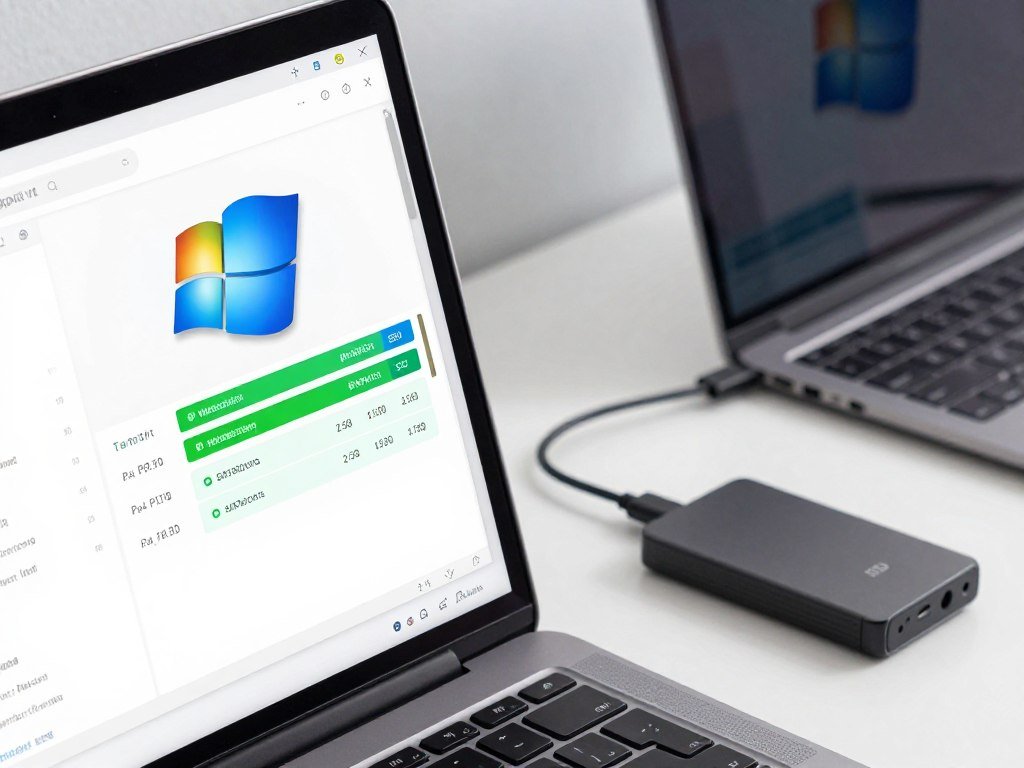
A laptop with only one internal slot can still clone to a new SSD by connecting the target through USB. Keep the source drive installed and attach the target SSD with a suitable enclosure or adapter. Both drives do not need internal slots.
A USB enclosure or adapter makes a one-slot clone possible without installing both drives inside the PC at once. Match the enclosure to the target’s interface, such as SATA or NVMe. A SATA adapter will not connect an NVMe SSD.
A SATA-to-USB adapter or external enclosure can connect a new SSD to a laptop for cloning. Check the enclosure’s supported drive size and connection type, then attach it securely to the computer.
A desktop with an available compatible slot can connect the target internally instead. That avoids the USB link, though the desktop still needs a free slot and the right connection.
- Match the enclosure or adapter to the SSD interface.
- Connect the enclosure securely to the PC.
- Confirm Windows detects the target SSD.
USB speed depends on the SSD, computer port, and cable working together. A USB-C plug alone does not tell you the data speed. A guide to external SSD connections can help explain those differences.
Confirm the new SSD appears as the target disk in Windows before opening the cloning wizard.
How Should You Prepare Windows Before Cloning?
Before cloning, make sure Windows can see both the running system disk and the new SSD. Open Disk Management by right-clicking Start and choosing Disk Management. Check the disk list first.
Note the model, capacity, and partition style of both disks before cloning software makes changes. Disk Management shows disks and partitions, while MBR and GPT are two partition styles. The C: partition commonly holds Windows.
Confirm Windows sees the new SSD
Look for the new drive by its model and capacity. Compare it with the source disk, then note whether each uses MBR or GPT. Do not initialize an unfamiliar disk unless the cloning software’s instructions call for it.
Windows may show a new SSD without a drive letter. That alone does not mean the drive is missing. Use the model and capacity to identify it rather than relying on a letter.
Reduce avoidable interruptions
Close demanding apps so they do not compete for system resources during the copy. Plug a laptop into power and prevent sleep or shutdown while the job runs.
- Check that Windows sees both disks.
- Close heavy apps before starting.
- Keep the PC connected to power.
If Windows does not detect the target, fix the connection or detection issue before proceeding.
How Do You Choose the Source, Target and Partition Layout?
The source is the disk you are keeping, and the target is the disk the software will erase and replace with the clone. Identify each by its model and capacity before making a choice. Names can look alike.
The target disk will be overwritten during a Windows system-drive clone. Hasleo Disk Clone supports cloning between MBR and GPT styles, as well as matching styles. Its support does not remove the need to choose the right disk.
Identify the two disks correctly
Compare the model and capacity shown in the cloning software with the details you noted in Windows. A wrong target choice can erase the disk that holds your working Windows setup.
| Source style | Target style | Hasleo Disk Clone support |
|---|---|---|
| MBR | MBR | Supported |
| GPT | GPT | Supported |
| MBR or GPT | The other style | Supported |
Set the target partition layout
For a larger SSD, the software may resize partitions automatically. If it allows manual resizing or moving, use those controls to set how the extra space is assigned.
Sector-by-sector mode may be needed for some file systems or migration goals. The right choice depends on the file system and what you need the copy to include. Do not assume every mode fits every disk.
Read the final disk summary and verify the target model one more time before approving the operation.
How Do You Run the Clone Safely?
Once the summary shows the correct source and target, start the clone and leave the computer undisturbed. Choose the software’s disk-clone or system-migration mode, then review its disk and partition summary. Pause before confirming.
A clone may take tens of minutes to a couple of hours. The amount of data and the connection type affect the time, with USB and direct motherboard connections performing differently.
Start the cloning job
Confirm that the source is the disk you are copying and the target is the disk receiving the copy. Review the partition layout and any resize choices shown by the tool. Start only when the summary matches your plan.
- Open the disk-clone or system-migration mode.
- Select the source drive.
- Select the target disk.
- Review the partition layout.
- Start the job and wait for completion.
Let the transfer finish
Do not run heavy tasks while the software copies data. Large apps or downloads can slow the PC and add activity to the source drive.
Keep power connected and avoid sleep, restart, or shutdown during the transfer. If a progress bar pauses, give the software time to report an error or finish.
Wait for the software to report completion before shutting down the PC.
How Do You Boot From the New SSD?
After the clone finishes, shut down and make the new SSD the first boot device. On a PC with both disks installed, open BIOS or UEFI during startup and select the new SSD first. Choose the right Windows entry.
Look for the new SSD or its Windows Boot Manager entry in the boot list. Common setup keys include F2, F10, F12, and Delete, but each PC uses its own key. Press the key during startup.
Set the new SSD as the first boot device
Use the BIOS or UEFI boot menu to move the new SSD above the old drive. Save the setting and restart. If the menu shows two Windows Boot Manager entries, use the drive details to choose the new SSD.
If the PC opens a one-time boot menu, select the new SSD there. That can test the clone without changing the saved boot order, though the menu key varies by computer.
Swap the drives in a one-slot PC
For a laptop or mini PC with one internal slot, shut the computer down completely before removing the source drive. Replace it with the cloned SSD, then power on the PC.
Do not remove or swap a drive while the computer is running. Follow the PC maker’s steps for opening the case and handling the storage device.
If both disks remain installed, confirm that the boot menu points to the new SSD rather than the old source.
What Should You Check After the First Boot?
A successful first sign-in is not enough; confirm that Windows and your expected files are running from the new SSD. Check your desktop, personal files, and usual apps. Look for familiar details.
Use Disk Management to check the new SSD’s capacity and partitions. Confirm that Windows sees the expected disk size and that its partitions look right. This helps catch a clone that left space unused.
Check apps that use sign-ins or activation. Some may ask you to sign in again after the storage change. Open your regular work tools and confirm they load as expected.
To check TRIM, open Command Prompt as an administrator and run fsutil behavior query DisableDeleteNotify. A result of DisableDeleteNotify = 0 means TRIM is enabled.
Most modern cloning tools handle partition alignment automatically. A 4K-boundary check matters mainly if you used an old cloning utility, since poor alignment can affect SSD performance.
Keep the old drive unchanged until you have opened your everyday apps and confirmed the files you need are present.
What Can You Do If the Clone Does Not Work?
If the cloned SSD will not start Windows, first rule out a boot-order mistake before repeating the clone. Check whether BIOS or UEFI points to the new SSD. A simple boot choice can look like a failed copy.
Do not repeat a clone if serious file-system errors or a failing source drive may threaten your data. Confirm that the required Windows system and boot partitions were included. Windows Recovery Environment includes Startup Repair, which may help when the boot files need repair.
The new SSD does not boot
Check the boot device and the partitions copied to the target. If Windows still will not start, open Windows Recovery Environment and try Startup Repair when available. It can repair some startup problems, but it cannot fix every damaged clone.
If the software reported an error, note its message before trying another method. A missing boot partition, unreadable source data, or unsupported file system can point to different fixes.
The capacity or clone result looks wrong
Disk Management may show unallocated space after a clone. If the space sits next to the main partition, Windows may let you extend that partition. Check the layout before changing it.
Use this short list to narrow down the issue before another attempt:
- Verify that the correct boot device is selected.
- Check that the needed system and boot partitions exist.
- Inspect Disk Management for unallocated space.
- Recheck source-drive health for errors or failure signs.
A clean install or professional data recovery may be safer when the source is unstable. Stop and preserve the source drive if troubleshooting begins to involve errors that threaten the only remaining copy of your files.
What Should You Do With the Old Drive?
Keep the old drive untouched until the new SSD has proved reliable for your normal work. Leaving it disconnected for a short time gives you a fallback if an app or file is missing. Keep the option open.
Reuse the old drive only after confirming that nothing unique remains on it. You can keep it disconnected, use it for storage, or wipe it before selling or recycling it.
If you want to use an old SSD as external storage, choose a USB enclosure that matches its interface. SATA and NVMe drives need different enclosures, so check the drive before ordering one.
A quick format is not a secure erase. Before giving the drive away, use an SSD-aware secure erase method designed for that drive type. Keep the source drive intact if you still need its files or may need to roll back.
Do not erase the old drive just because Windows started once. Keep it available until the new SSD has proved reliable during your normal work.
Before selling or recycling the old drive, use an SSD-aware secure erase method and verify the correct disk is selected.
Conclusion
A careful disk migration keeps your Windows setup intact while making the new SSD the system drive. Protecting important files and confirming the target help prevent avoidable loss. Test the result by starting Windows from the new SSD.
Before beginning or retrying a clone, compare the source and target capacities and make a separate backup. Then write down both disk models so you can identify them in the cloning software.
Take one practical step now: write down the source and target models and make one separate copy of your essential files before starting.
FAQ
Do I need to format or initialize a new SSD before cloning?
No, you usually do not need to format or initialize a new SSD before cloning. Cloning software normally creates the target layout as it copies the source. Initializing it first can add steps or change what the tool sees. Follow the software’s instructions, and do not change the disk in Windows without a clear reason.
Can I clone a larger HDD to a smaller SSD?
Yes, a larger HDD can clone to a smaller SSD when the used data fits and the software can shrink or rearrange the required partitions. Leave working space rather than filling the target exactly. Some partition layouts cannot be reduced by every tool, so check the clone summary before starting.
Does Windows include a direct disk-cloning wizard?
No, Windows does not include a dedicated direct disk-to-disk cloning wizard. Its backup and imaging features can save or restore Windows data, but that is different from cloning straight to another drive. A dedicated cloning tool handles the source and target disks as one migration task.
Will my Windows apps and settings remain after cloning?
Yes, a full system clone copies installed apps and settings along with Windows and user files. Most apps should behave as before, but some may ask you to sign in again. Programs that track hardware or activation can treat the SSD change as new hardware, so check their status after the first boot.
Is it safe to keep the old drive connected after cloning?
Yes, you can keep the old drive connected as a temporary fallback. Set the new SSD first in BIOS or UEFI so the PC starts from the right Windows installation. Two connected Windows drives can cause confusion when boot entries look alike, so identify the new drive by its model.
What should I do if the clone reports unreadable sectors?
Protect important files before trying the clone again. Some tools can skip problematic sectors when possible, but unreadable-sector errors may mean the source drive is failing. Repeated attempts can put extra strain on it. If the files matter and exist nowhere else, stop using the drive and consider professional data recovery.