
A page that suddenly loads incorrectly or shows old content is a practical reason to learn how to clear browser cache and cookies. Stored information can affect privacy, take up space on your device, or keep a site from showing its latest version. Clearing the right items can help without removing every kind of data.
Use these steps for Chrome, Safari, Firefox, and Edge on common devices. You can choose what to delete, so you do not have to erase your browsing history or other information. Some sites may ask you to sign in again after cookies are removed.
Key Takeaways
- Clear cached files to troubleshoot page loading or layout problems.
- Removing cookies can sign you out and reset site preferences.
- Choose the data types and time range that fit your issue.
- Browser controls differ between desktop and mobile devices.
- Identify your browser and device before following a set of steps.
What Clearing Cache and Cookies Changes
Cache holds reusable page resources, while cookies hold information a site uses to remember a session or preference. Cache means temporary copies of website resources saved on your device so a browser can reuse them later. Cookies are small files that can keep session details and choices, such as language or theme.
Clearing cached images and files can make a browser download those resources again. That may help fix loading or formatting problems, show updated content, or free local storage. Clearing cookies can sign you out or reset a shopping cart, language, or other site setting.

Chrome Incognito and Edge InPrivate usually remove stored website data when the private session ends. Regular browser windows may keep site data until you clear it. Cookies also help sites measure visits and improve browsing, as described in OCCCY’s privacy policy.
Clear data to troubleshoot a problem or remove stored information, not because a browser requires routine cleanup.
Before you clear cache cookies, make three choices: pick the data types, set a time range, and check whether passwords or history are selected. Browsing history is the list of pages you visited, and it is separate from cache and cookies. Select only the items that fit your goal.
For example, a layout problem may call for cached files, while a sign-in loop may call for cookies. The right choice depends on what the site is doing. If your pages work normally, routine clearing is not needed.
How to Clear Browser Cache and Cookies in Chrome
On a Windows PC or Mac, the shortcut opens Chrome’s browsing-data controls without requiring a trip through multiple settings screens. Choose your data before deleting anything, since Chrome separates cookies site data from cached images. The steps also work when you want to clear browsing data in Chrome on Windows 10.
Chrome’s desktop deletion screen lets you set a time range and select each data type separately. On Windows, press Ctrl + Shift + Delete; on Mac, press Command + Shift + Delete. You can also open the menu and choose Delete browsing data.

- Open the Delete browsing data menu with the shortcut or Chrome menu.
- Choose the time range you want to clear.
- Select Cookies and other site data and Cached images and files.
- Leave unrelated data types unchecked, including browsing history if you want to keep it.
- Review the selections, then choose Delete data.
This clears cache and cookies in Chrome without requiring you to erase every kind of browser data. Cached images may need to load again the next time you visit a page. The same steps clear the cache in Google Chrome on a desktop computer.
Chrome handles saved passwords separately. To delete them, open Manage other Google data, then choose Passwords and passkeys. Saved-password removal is not part of the regular Delete browsing data screen.
Check each selected data type before confirming, especially if you intend to keep browsing history or passwords.
Clear Chrome Cache on iPhone, iPad, and Android
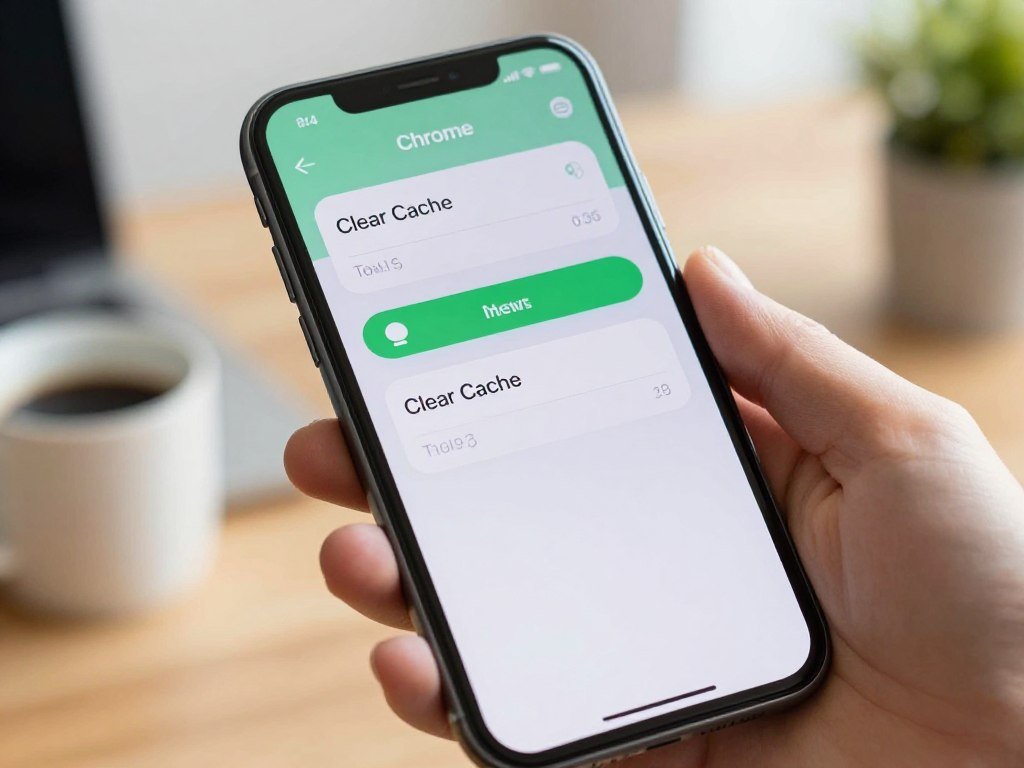
The Chrome app places the mobile deletion controls in its More menu on iPhone and iPad, and in the three-dot menu on Android. Check the range before you confirm, since iOS and iPadOS start with a shorter selection. The menu lets you choose which data to remove.
On iPhone and iPad, Chrome defaults to a 15-minute time range. Choose another range if you want to clear older cached images or cookies. On Android, select Cookies and site data and Cached images and files before deleting.
| Device | Menu path | Data selections | Confirmation |
|---|---|---|---|
| iPhone | Chrome app > More > Delete Browsing Data | Choose needed data types | Delete Browsing Data |
| iPad | Chrome app > More > Delete Browsing Data | Choose needed data types | Delete Browsing Data |
| Android | Three-dot menu > Delete browsing data | Cookies and site data; Cached images and files | Delete data |
To clear browser cache and cookies on an iPhone, open Chrome, tap More, then choose Delete Browsing Data. Select a time range and the data types you want to remove. For an iPad, follow the same Chrome app path and review the selections before tapping the delete control.
On Android, open the three-dot menu and tap Delete browsing data. Select Cookies and site data and Cached images and files, then choose a time range. These controls let you clear browser cache on an iPhone, iPad, or Android device without using desktop settings.
Confirm the selected time range on the device before tapping the delete control.
Clear Safari History and Website Data
Safari offers separate controls for clearing Mac browsing history and managing website data on Apple devices. Keep the difference in mind: history records pages you visited, while website data includes information a site stores. You can clear history or remove site data based on what you want to reset.
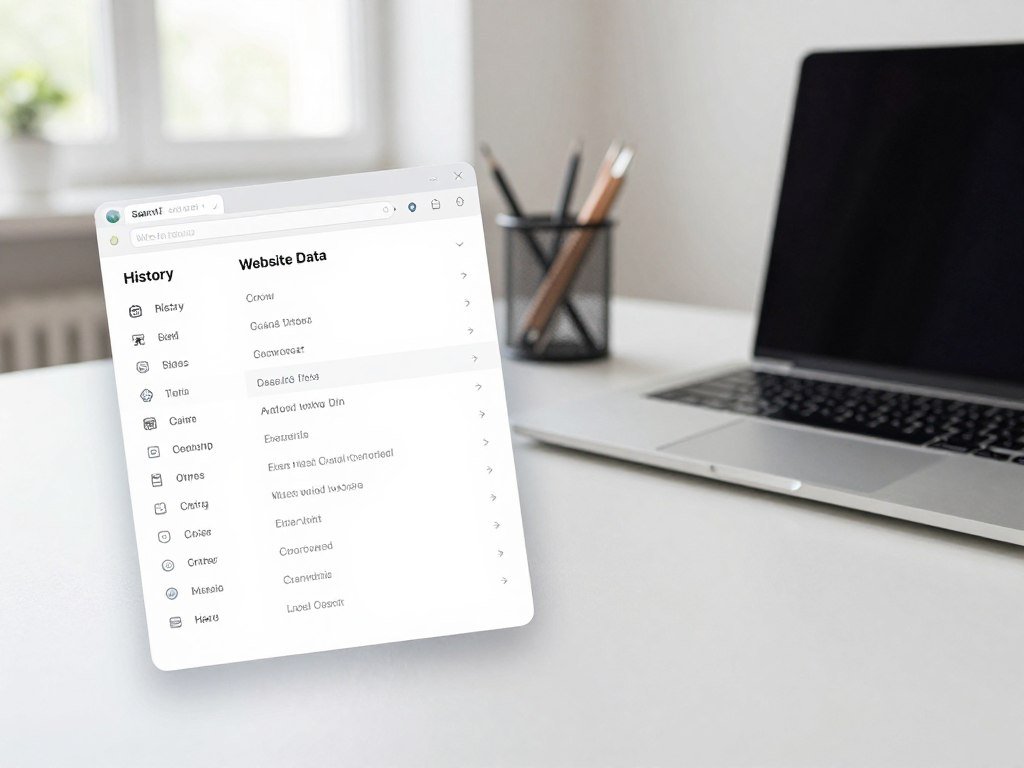
On a Mac, History > Clear History removes browsing records, not downloaded files. The menu lets you choose how far back to clear. When Safari uses iCloud, the history removal also affects other connected Apple devices.
Clear history on a Mac
Choose History, then Clear History, and select the period you want to remove. Safari clears visited-page records, recent searches, frequently visited sites, webpage icons, and snapshots for open webpages. It also removes the download list, but downloaded files stay on your Mac.
When Safari is set up in iCloud, clearing history on one Mac removes that history from other Apple devices linked through iCloud. Check your iCloud setup before clearing history if you want to keep it on another device.
Remove Safari website data
Safari’s website-data controls vary by device and let you manage either selected-site data or all website data. Apple’s Safari history and website data instructions show the iPhone and iPad path: Settings > Apps > Safari > Advanced > Website Data.
| Device and task | Path | Scope |
|---|---|---|
| Mac history clearing | History > Clear History | History over a selected period |
| Mac selected-site data | Safari > Settings > Privacy > Manage Website Data | Website data for selected sites |
| iPhone or iPad all-site data | Settings > Apps > Safari > Advanced > Website Data | Option to remove all website data |
On Mac, use Manage Website Data to remove information for a selected site. Safari also has Intelligent Tracking Prevention, which automatically limits third-party tracking cookies. That protection is separate from manual website-data removal.
On a Mac with Safari in iCloud, consider that clearing history also removes it from the other connected Apple devices.
Clear Cookies and Cache in Firefox
Firefox lets you clear stored data for one open site or choose a broader time period for cleanup. Use the broad control when several sites have problems, or the site-specific option when only one page misbehaves. Firefox can remove cookies and cached pages together.
Firefox lets you choose Everything or a shorter period in its Clear Data controls. You can also remove cookies and site data while keeping other selected browsing data. Review the selections before you confirm.
- Open Firefox Settings.
- Choose Privacy & Security.
- Find Cookies and Site Data, then select Clear Data.
- Choose Everything or a shorter period.
- Confirm the data types and clear them.
This route clears cookies, site data, and cached pages across the chosen period. Firefox’s controls can clear browsing data without removing every other selected type. That helps when you want to keep some browser information intact.
To remove information for one website, open Settings, choose Privacy & Security, then select Manage Cookies and Site Data. Find the site and remove its stored information. The shield icon beside the address bar also clears cookies and site data for the page currently open.
Use the shield icon when the problem is limited to the site currently open.
Clear Browsing Data in Microsoft Edge
Edge separates cached files, cookies, passwords, autofill, and download history into selectable data types. Choose each item carefully, since some selections affect sign-ins or other devices. The browser also lets you set a time range before clearing data.
With sync on, clearing synced browsing data can remove it from your other synced devices. Turning sync off limits the clearing to the current device. Edge cached images and files are stored copies of pages, images, and media that help sites load faster later.
- Open Settings and more.
- Go to Settings > Privacy, search, and services.
- Choose Clear browsing data, then Choose what to clear.
- Select a time range and the data types you want to remove.
- Choose Clear now.
Cookies and other site data may include sign-in information, location, media licenses, and site preferences. Passwords and autofill form data appear as separate selections, so you can leave them unchecked. Choose the cached images and files option only when you want those stored copies removed.
Clearing the download-history option removes the list of downloaded files, not the files themselves. Microsoft’s privacy dashboard does not delete browsing data from your device. That dashboard is separate from Edge’s local clearing controls.
Turn sync off before clearing if the goal is to remove browsing data only from the current device.
Remove Data for One Website or Automatically on Exit
Targeted deletion is useful when one site is misbehaving or retaining a preference you want to reset. Site-level controls narrow the change to stored information for that website. Chrome and Firefox also offer ways to clear selected site data when you close the browser.
A website’s stored data is commonly tied to its origin, which uses a scheme, hostname, and port. Those parts identify the site address and help define which site data a browser removes. The controls below cover individual sites or automatic cleanup.
| Browser | Site-specific route | Automatic deletion option |
|---|---|---|
| Chrome | Settings > Privacy and security > Site settings > View permissions and data stored across sites | Delete site data when all Chrome windows close; signs you out of websites, not your Google account |
| Safari on Mac | Safari > Settings > Privacy > Manage Website Data | No automatic option listed here |
| Firefox | Settings > Privacy & Security > Manage Cookies and Site Data | Delete cookies and site data when Firefox closes |
| Firefox, open site | Shield icon beside the address bar | No automatic option for this control |
Chrome’s site settings show stored data across sites, where you can find a website and remove its data. Chrome can also delete site data when all browser windows close. This signs you out of websites, but not your Google account.
Firefox offers both a site list and a shield control for the open page. You can also set Firefox to delete cookies and site data when it closes. Tools that block ads and trackers, such as Chrome privacy extensions, do not replace your choice to remove stored website data.
Check whether an automatic-clearing setting will sign you out of websites you still use.
Conclusion
The right cleanup is the smallest one that addresses the problem you are trying to fix. For a loading or formatting issue, clearing cache is a reasonable troubleshooting step. Removing cookies or browsing history makes a broader change, so select those only when they fit your goal.
Choose the data types and time range that match the issue, then reopen the page. If it still fails after clearing the relevant data, check whether the problem remains before clearing anything else.
FAQ
How do you clear browser cache on iPhone?
In Chrome on iPhone, open More > Delete Browsing Data, select cached files and any other data types you need, check the time range, then tap Delete Browsing Data. The default range is 15 minutes. Safari uses separate controls in the iPhone’s Settings app, so Chrome steps do not clear Safari’s stored data.
How do I clear the cache in Microsoft Edge?
Open Settings > Privacy, search, and services > Clear browsing data > Choose what to clear. Select a time range and the data types you want, then choose Clear now. With sync on, clearing synced browsing data can remove it across synced devices. Turn sync off first if you want to clear data only on this device.
How do I clear browsing data in Chrome settings?
On desktop, open Delete browsing data from Chrome’s menu, or press Ctrl + Shift + Delete on Windows and Command + Shift + Delete on Mac. Choose a time range, then select the data types to remove. Cached images and cookies have separate controls, so you can clear one without choosing the other.
How do I view my browser cache?
There is no single standard settings screen that displays every cached file. Browser developer tools can inspect resources for a page that is currently loaded, though the exact view varies by browser. Those tools show page resources for troubleshooting, not always a simple list of every stored file across all websites.
Is it a good idea to clear browser cache?
Yes, clearing cache can help with loading or formatting issues, show updated content, and free local storage. It is not needed as a routine fix when websites work normally. Cached files help pages load faster on later visits, so a browser may need to download them again after you remove them.
Will I lose anything if I clear my cache?
Clearing cached files alone differs from deleting cookies, history, or passwords. Cookies can sign you out and reset site preferences, while history records pages you visited. Review the selected data types before you confirm, and leave any items you want to keep unchecked.
What happens if I never clear my cache?
Browsers manage stored website data, and private-session data is usually deleted when the session ends. You can still encounter old or corrupted cached resources that make a site load or display incorrectly. If pages work as expected, leaving the cache alone does not require routine cleanup.



