Press Shift-Command-3 to capture the entire screen, or Shift-Command-4 to choose an area. These shortcuts work on Mac laptops and desktops, so you can grab a screen capture without opening another app. A crosshair pointer is the cursor that lets you mark the screen area to capture.
Use the keyboard when you need an image right away, or open the Screenshot app for visual controls and extra choices. You can also copy a capture to the clipboard, record on-screen activity, or trim an image later. Before sharing a screenshot, check what private details appear on screen.
A quick check matters when a screen shows messages, account details, or a name in a menu. Closing a private window first can save you from sharing more than you meant to. Keep the screen free of private information before you capture or share an image.
Key Takeaways
- Shift-Command-3 captures the whole display.
- Shift-Command-4 lets you select a screen area.
- Shift-Command-5 opens the Screenshot app.
- By default, screenshot files appear on the desktop.
- Add Control to a capture shortcut to copy instead of save.
How to Take a Screenshot on a Mac With Keyboard Shortcuts
A MacBook Air uses the same Shift-Command-3 and Shift-Command-4 capture shortcuts as other Macs. Use the first for the entire screen and the second for a chosen portion. Both shortcuts work across MacBook models and desktop Macs.
Shift-Command-3 captures the full display, while Shift-Command-4 starts an area selection. The screen capture appears as an image file unless you choose a clipboard shortcut later.
Capture the Entire Screen
Press Shift-Command-3 once to capture the entire screen. This is the fastest way to capture everything visible, including open windows, menus, and the desktop background. It works well when you need the full context around an app or alert.
Select a Portion of the Screen
Press Shift-Command-4 to turn the pointer into a crosshair. Drag across the portion of the screen you want, then release the mouse or trackpad button to capture it. Press Escape to cancel before you finish.
If the rectangle has the right size but sits in the wrong spot, hold Space while dragging. The selection moves without changing its size, which helps when you have already framed the exact content.
| Capture type | Shortcut | Action |
|---|---|---|
| Entire screen | Shift-Command-3 | Captures the display |
| Selected area | Shift-Command-4 | Drag the crosshair, then release |
| Window or menu | Shift-Command-4, then Space | Click the camera-highlighted target |
| Toolbar | Shift-Command-5 | Opens capture controls |
Release the mouse or trackpad button only when the selected rectangle contains everything you want to keep.
A narrow selection can cut off a label or the edge of a chart. Check the rectangle before you release, especially when small text needs to stay readable.
How to Capture a Window or Menu
Use the window shortcut when you want one app panel without surrounding desktop clutter. Shift-Command-4 followed by Space changes the pointer into a camera icon, so you can choose a window or menu directly. This method avoids dragging around the target.
Click only after the camera icon highlights the window or menu you want. The capture keeps the target separate from nearby desktop items.
- Open the window or menu you want to capture.
- Press Shift-Command-4, then Space, and move the camera pointer over the target.
- Click to capture the highlighted window or menu.
Hold Option as you click to leave out the window shadow. That can make the image fit more neatly into a document or slide. The Option key changes the edge around the window, not which window you select.
Some apps may block window capture. Apple TV is one example, so a camera icon over its window may not produce the screenshot you expect.
The camera pointer can also highlight a menu instead of an app panel. Press Escape before clicking if it sits over the wrong window or menu.
What the Screenshot App Can Capture and Customize
Shift-Command-5 brings the Screenshot app’s capture controls onto the screen. On macOS Mojave 10.14 or later, the app offers tools for the entire screen, a window, or a portion. Visual controls help when a single shortcut does not fit the job.
On a MacBook Neo, use Command-Shift-5 to open screenshot and recording controls. You can also find Screenshot through Spotlight if you prefer not to use a keyboard shortcut.
Choose a Capture Tool
The toolbar shows separate tools for the whole screen, one window, or a selected portion. Click the tool that matches what you want, then use its Capture button. The visual choices make the app handy when you do not remember a shortcut.
Set a Timer, Save Location, or Pointer
Open Options to set up a capture before it starts. These settings can help when you need to move a menu aside or show where you clicked.
- Timer: delay the capture so you can prepare the screen.
- Save location: choose where the image goes.
- Floating thumbnail: show a preview after capture.
- Mouse pointer: include the pointer in the image.
On supported Mac models running macOS Tahoe 26 or later, screenshot format can be SDR PNG or HDR HEIF. The right choice depends on the Mac’s chip and software support, not just its product name; compare Apple silicon and Intel Macs when checking compatibility.
SDR PNG suits most sharing and editing tasks. Choose SDR when broad compatibility matters, and HDR when the supported Mac and display workflow calls for it.
Where Mac Screenshots Save and How to Find Them
Check the desktop first, where a new screenshot normally appears with its capture date and time in the filename. The default name follows “Screen Shot [date] at [time],” which helps you spot a recent image among older files.
Screenshots save to the desktop by default as PNG files. If you captured several images, compare the time in each name to find the latest one.
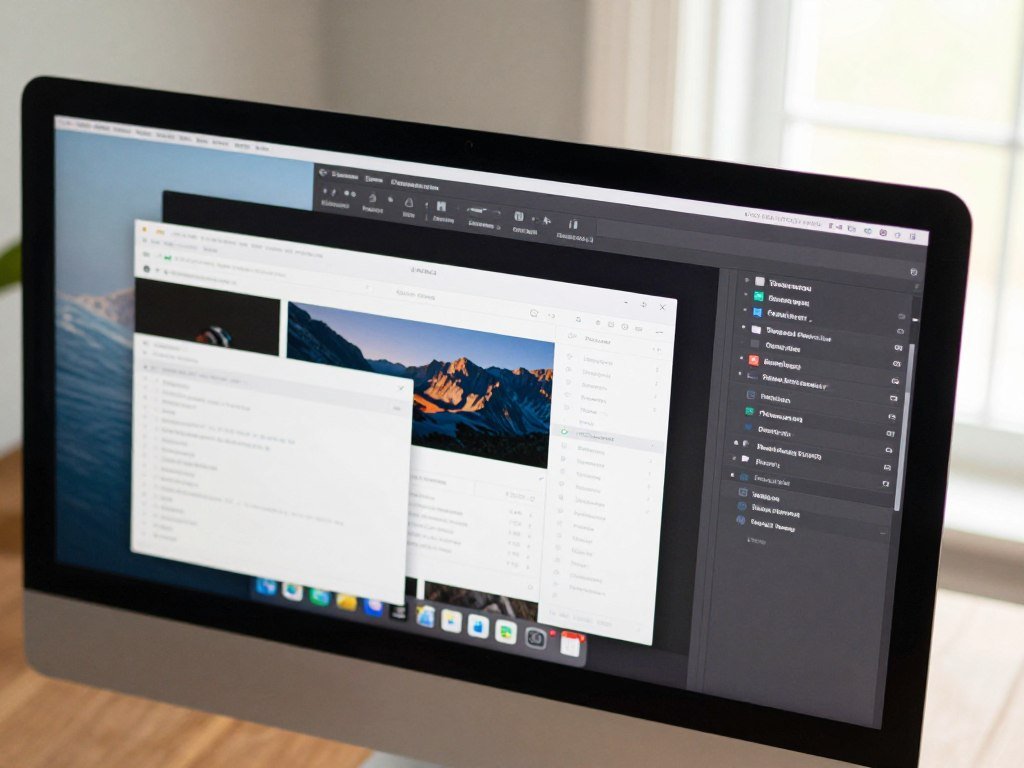
On macOS Mojave or later, open the Screenshot toolbar’s Options menu and choose Save to. Select another folder to send later captures there. A dedicated folder can keep work images apart from downloads and other desktop files.
A saved screenshot is a file you can find in a folder. A capture copied to the clipboard is a temporary image destination instead, so it will not appear on the desktop as a new file.
Set a dedicated folder in Save to if a busy desktop makes recent captures hard to spot.
How to Copy a Screenshot or Record Your Screen
Add Control to a screenshot shortcut when you want to paste the image directly instead of creating a file. Control-Shift-Command-3 copies the full screen, while Control-Shift-Command-4 copies a selected area. The clipboard holds the image until you paste it into a compatible app.
Press Command-V in the app where you want the copied screenshot to appear. This works for a message, document, or other app that accepts images.
Copy a Capture to the Clipboard
Choose the full-screen shortcut for a complete view or the area shortcut for a tighter image. The Control key changes the destination from a saved file to the clipboard. Paste the capture with Command-V before copying something else over it.
Record the Entire Screen or a Portion
Shift-Command-5 opens the screen-recording controls. Choose the entire screen or a selected portion, then set up the recording before you start.
- Open the toolbar with Shift-Command-5 and choose a recording area.
- Use Options to choose a microphone, pointer clicks, timer, and destination.
- Click Record, then stop from the menu bar or press Command-Control-Escape.
On macOS Tahoe 26 or later, you can also record a selected window. Supported Macs can record SDR with H.264 or HDR with HEVC. Check Mac chip and software support before choosing an encoding.
On macOS 27 Golden Gate or later, recording Options can include system audio. A recording saves as a MOV file, and the desktop is its default destination.
Check the microphone and destination in Options before you start a recording.
How to Edit or Crop a Screenshot in Preview
Open the saved image in Preview when you want to remove extra screen area after capture. Use the Markup toolbar to select the part you want to keep, then click the crop control. A clean crop can make the key detail easier to read.
Keep any screen detail that gives the image needed context. Cropping changes the image’s visible bounds, so cutting too close can hide a label or show too little of a chart.
Open the Markup toolbar, then drag across the area to keep. Adjust the selection before clicking Crop if its edge covers a word or icon. The remaining image shows only the selected bounds.
For a clear walk-through of image selection and cropping in Preview, see the University of Minnesota Preview crop steps. The same selection approach works for screenshots and other image files.
Preview can reverse a crop right away through Edit > Undo Crop. Use Edit > Undo Crop right away if the selection cuts off something you meant to keep.
How to Capture a Full Webpage or a Long Scrolling Page
Safari’s Web Inspector can capture a webpage beyond the portion currently visible on screen. Enable the Develop menu, open Web Inspector, and use its Elements panel to capture the full page. That built-in route is for webpages.
For long content in a document or program, use an app with scrolling capture. These tools can follow content beyond the visible screen instead of limiting the image to one screenful.
In Safari, right-click the line beginning with “<html” in Elements, then choose Capture Screenshot. The browser captures the entire webpage, including content below the current view.
| Tool | Long-page method | Additional capability |
|---|---|---|
| Safari | Web Inspector Capture Screenshot | Captures an entire webpage |
| Snagit | Scrolling capture | Handles long webpages or documents |
| Shottr | Scrolling screenshot | Text recognition, optimized for Apple Silicon |
| CleanShot X | Scrolling capture | Works in a browser, app, or program |
Shottr adds text recognition and is optimized for Apple Silicon. Check your Mac’s chip and software needs when comparing Apple Silicon and Intel support.
Safari’s built-in Capture Screenshot tool is for webpages, while app-based scrolling capture can handle other long content.
Choose an app-based scrolling capture when the content continues through a document or program rather than a webpage.
Conclusion
For most quick captures, Shift-Command-3 and Shift-Command-4 cover the two choices you will use most. One grabs the whole display, while the other gives you control over the selected area.
A chosen save folder can make later files easier to find. A timed capture also helps when you need to prepare a menu or screen before the image appears.
Try one shortcut now, then check that the resulting image is saved where you expect.
FAQ
How to take a screenshot of a whole page on Mac?
Safari can capture an entire webpage through Develop and Web Inspector. In the Elements panel, right-click the line beginning with “<html,” then choose Capture Screenshot. This built-in option captures the webpage beyond the part currently visible. It does not capture a long document in another app, so use a scrolling-capture app for that kind of content.
How do I take a screenshot on my laptop?
On a Mac laptop, press Shift-Command-3 to capture the whole screen or Shift-Command-4 to select an area. These shortcuts work on MacBook Air and other Mac laptops. For an area capture, drag the crosshair pointer around the content, then release the trackpad button. The image normally saves to the desktop unless you changed its destination.
How to screenshot without pressing buttons?
Open Screenshot from Spotlight, choose a capture tool, and click Capture. Spotlight lets you find the app without using its keyboard shortcut, and the toolbar gives you choices for the full screen, a window, or an area. Pick the option that matches your screen, then click the on-screen button to take the screenshot.
How to screen record on MacBook Air?
Press Shift-Command-5 on a MacBook Air to open screen-recording controls. Choose the full screen or a selected portion, then click Record. Stop the recording with the menu bar’s Stop button or Command-Control-Escape. Use Options first if you need a microphone, timer, or different save destination. The resulting screen recording saves as a MOV file.
Where do screenshots save on a Mac?
Mac screenshots save to the desktop by default. Look for a PNG file named “Screen Shot” followed by the capture date and time. To choose another destination for later screenshots, open the Screenshot toolbar, select Options, and choose Save to. A screenshot copied with a Control-modified shortcut goes to the clipboard instead of appearing as a file.
Why are my screenshots not showing up on my Mac?
Check the desktop and the Save to location selected in Screenshot Options. Look for a recent filename that starts with “Screen Shot” and includes the date and time. If you added Control to the shortcut, the image went to the clipboard rather than a folder. Paste it into a compatible app with Command-V to see the capture.
How do I copy and paste a screenshot on a Mac?
Add Control to Shift-Command-3 for a full-screen copy or Shift-Command-4 for an area copy. Then press Command-V in an app that accepts images. The capture goes to the clipboard, a temporary destination, rather than saving as a file. Paste it before copying another item, which would replace the image held there.
How do I crop a screenshot on a Mac?
Open the screenshot in Preview, select the area to keep with the Markup toolbar, and click the crop control. The crop removes the parts outside your selection. To reverse it right away, choose Edit > Undo Crop. Keep any labels or surrounding details that help explain the image before you apply the crop.



