
Knowing how to clear cache on iPhone is the quickest fix when Safari feels slow, a website shows an old version of a page, or an app starts misbehaving. Cache is simply the temporary files your phone saves so things load faster: website images, login data, thumbnails and app files. Over weeks and months, that pile grows, and stale or corrupted files can cause more problems than they solve.
The important thing to understand is that the iPhone has no single “clear all cache” button. Safari has its own cache, Chrome has its own, and individual apps manage theirs differently. This guide covers all three, in order, so you can clear exactly what is causing trouble without wiping anything you want to keep. Most of the steps take under a minute.
Clearing cache is safe, but it has side effects worth knowing first. Clearing Safari data signs you out of websites, so you will need your passwords again, and clearing an app’s cache by deleting it removes the app until you reinstall it.
Key takeaways
- The iPhone has no single clear-all-cache button: Safari, Chrome and each app must be cleared separately.
- Clearing Safari cache is the fastest fix for slow or broken websites, and it takes under a minute in Settings.
- Clearing Safari history and website data signs you out of every website, so have your passwords ready first.
- For apps, offloading frees storage while keeping your data, while deleting and reinstalling clears the app’s cache completely.
- Clearing cache does not delete your photos, messages or contacts, and it will not speed up a phone that is simply out of storage.
At a glance: where cache lives on iPhone
| Cache type | Where to clear it | Time needed | What you lose | Best for |
|---|---|---|---|---|
| Safari cache | Settings, then Apps, then Safari | Under 1 minute | Website logins | Slow or broken websites |
| Chrome cache | Chrome app, then History | Under 1 minute | Website logins in Chrome | Chrome running slowly |
| App cache | Offload or delete the app | 2 to 3 minutes per app | Nothing with offload | One app misbehaving |
| System cache | Restart the iPhone | 2 minutes | Nothing | General sluggishness |
What cache is, and what clearing it actually does
Cache is a shortcut. When you visit a website, Safari saves images and files from that page so the next visit loads faster, and apps do the same with thumbnails and feeds. In small amounts, cache makes your phone feel quick. In large amounts, especially when files go stale, it eats storage and can cause pages to display old content or apps to freeze.
Clearing cache deletes those temporary files only. It does not delete your photos, messages, contacts, notes or app data. What it does do is force websites and apps to fetch fresh copies of everything, which is why the first visit after clearing feels slower. It also signs you out of websites in that browser, which catches people by surprise. That is the main reason to check your passwords before you clear Safari, and it is also why keeping a password manager is useful: our roundup of the best password managers for iPhone in 2027 covers the options that fill logins back in automatically after a clear-out.
How to clear Safari cache on iPhone
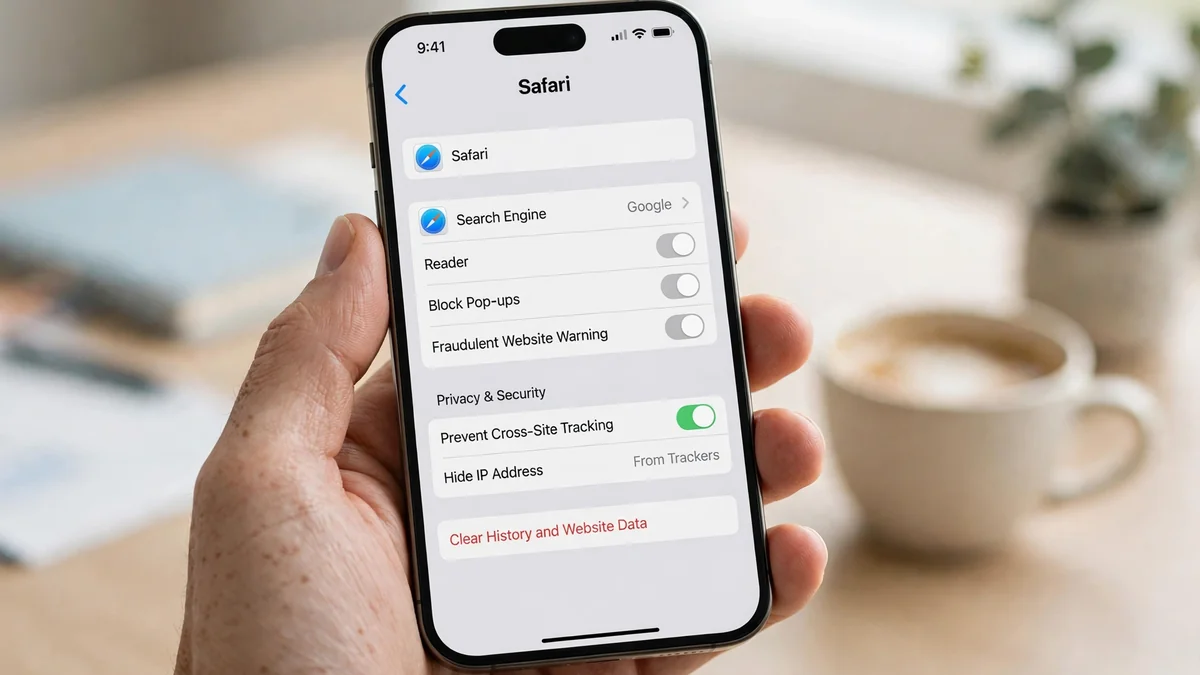
Safari is the default browser on every iPhone, and its cache is the one most people need to clear. The steps below work on iOS 26. In older versions of iOS the Safari settings sit directly in the main Settings list rather than under Apps, but the options have the same names.
Follow these steps:
- Open Settings, scroll down and tap Apps, then tap Safari.
- Scroll to the bottom and tap Clear History and Website Data.
- Choose a time range. All History clears everything; Last Hour or Today fixes a recent problem without signing you out of every site.
- Tap Clear History to confirm.
- Open Safari and reload the page that was giving trouble. It should now load a fresh copy.
To remove data from one website only, stay in the Safari settings, tap Advanced, then Website Data, and swipe left on the site you want to forget. This keeps you signed in everywhere else.
How to clear cache for a single app
Most iPhone apps do not offer a clear-cache button. Instead, iOS gives you two tools: offloading and deleting. Offloading removes the app but keeps its documents and data, so reinstalling restores everything. Deleting removes the app and all of its data, including its cache, and is the only way to fully clear an app’s cached files.
Follow these steps to offload an app:
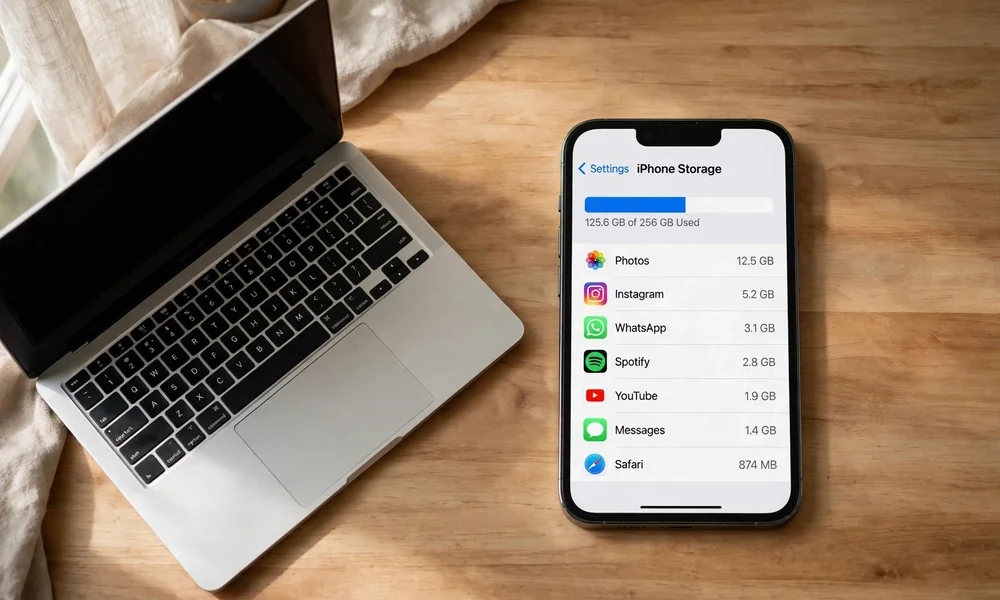
- Open Settings, tap General, then tap iPhone Storage.
- Wait for the list to load, then tap the app that is using more space than it should.
- Tap Offload App and confirm. The app icon stays on your home screen with a small cloud symbol.
- Tap the icon later to reinstall the app with your data intact.
To fully clear an app’s cache, delete it instead and reinstall it from the App Store:
- On the same iPhone Storage screen, tap the app, then tap Delete App.
- Open the App Store, search for the app, and install it again.
- Sign in to the app again. Your account data syncs back from the service, but anything stored only on the phone is gone, so only delete apps whose data lives in an account or in the cloud.
Start with the biggest apps on the storage list. Social media and streaming apps are usually the worst offenders, because they cache endless images and video previews. If storage is the real problem rather than a single misbehaving app, our guide on how to free up storage on iPhone covers the bigger clean-up, including message attachments and downloaded media.
How to clear Chrome cache on iPhone
If you browse with Chrome instead of Safari, clearing Safari does nothing for you. Chrome keeps its own cache, history and cookies, and the steps happen inside the Chrome app rather than in Settings.
Follow these steps:
- Open the Chrome app and tap the three dots in the bottom-right corner.
- Tap History, then tap Clear Browsing Data at the bottom of the screen.
- Choose a time range at the top. All Time clears everything; Last Hour fixes a recent glitch.
- Make sure Cached Images and Files is ticked. Tick Cookies, Site Data as well if websites are showing errors or old logins.
- Tap Clear Browsing Data and confirm.
Chrome also lets you clear data for one site only. Visit the site, tap the padlock or tune icon in the address bar, then tap Site Settings and Clear Data. This is handy when a single site is broken but you do not want to sign out of everything else.
Troubleshooting: when clearing cache does not help
Clearing cache fixes stale pages and glitchy apps, but it is not a cure for everything. If the phone is still slow after clearing, the cause is usually somewhere else.
Websites still show old content
Try a hard refresh in Safari, or close the tab and open the site in a new one. If the site still looks wrong, check whether the problem exists on another device or network. A site that is broken everywhere is a server problem, not a cache problem.
An app still crashes after reinstalling
Delete the app, restart the iPhone, then reinstall. A restart clears temporary system files that neither offloading nor deleting touches. If the app still crashes, check the App Store for an update. Clearing cache cannot fix a bug in the app itself, and if the phone has other faults, such as refusing to install updates, our guide on how to fix an iPhone that will not update to the latest iOS covers the next steps.
The phone is still slow and storage is still full
Cache is rarely the real culprit when storage is full. Open Settings, then General, then iPhone Storage and look at the biggest categories. Photos, videos and message attachments usually take far more space than cache ever will. Clearing cache on a phone with 1 GB free will not make it fast; freeing several gigabytes will.
Safari keeps signing you out
This is normal after clearing website data, but if it happens on its own, check Settings, then Apps, then Safari, and make sure Block All Cookies is switched off. With cookies blocked, sites cannot keep you signed in at all.
Checklist: keep your iPhone fast without constant clearing
- Clear Safari cache once a month, or whenever a website starts acting strangely.
- Check iPhone Storage every few weeks and offload apps you have not opened in months.
- Keep your website passwords in a password manager before clearing Safari, so signing back in takes seconds.
- Restart your iPhone once a week to clear temporary system files.
- Keep at least 5 GB of free storage, because iOS slows down when the drive is nearly full.
- Update iOS and your apps promptly, since updates often fix the bugs that cache clearing only masks.
Frequently asked questions
Does clearing cache on iPhone delete photos?
No. Clearing cache deletes temporary files such as website images and app previews. Your photos, videos, messages, contacts and notes are stored separately and are not touched by clearing Safari, Chrome or an app’s cache.
Will clearing cache log me out of apps?
Clearing Safari cache logs you out of websites in Safari, and clearing Chrome cache logs you out of websites in Chrome. Clearing an app’s cache by deleting and reinstalling the app logs you out of that app. Offloading an app does not log you out.
How often should I clear cache on my iPhone?
For most people, once a month is plenty, plus any time a website or app misbehaves. Clearing cache every day gains nothing and only makes websites load slower, because the phone has to re-download files it had already saved.
Is there a clear-all-cache button on iPhone?
No. Unlike some Android phones, the iPhone has no single button that clears all cache at once. Safari, Chrome and each app must be cleared separately, and a restart is the closest thing to a system-wide clear.
Does clearing cache make my iPhone faster?
Sometimes. It helps when a browser or app is slowed down by stale or corrupted cached files. It does not help when the phone is slow because storage is nearly full, the battery is degraded, or the iOS version is out of date. Check storage and updates first if the whole phone feels slow.
What is the difference between offloading and deleting an app?
Offloading removes the app but keeps its documents and data, so reinstalling restores everything and you stay signed in. Deleting removes the app and all of its data, including its cache. Delete only when you want a completely fresh start for that app.
The bottom line
Clearing cache on iPhone is three small jobs, not one: Safari in Settings, Chrome inside the Chrome app, and individual apps through offloading or reinstalling. Safari is the one most people need, and it takes less than a minute. Do it when a site looks stale or an app misbehaves, not on a daily schedule.
If clearing cache does not fix the problem, look at storage next. A phone with almost no free space will stay slow no matter how much cache you clear, and the storage screen tells you in seconds where the gigabytes actually went.



