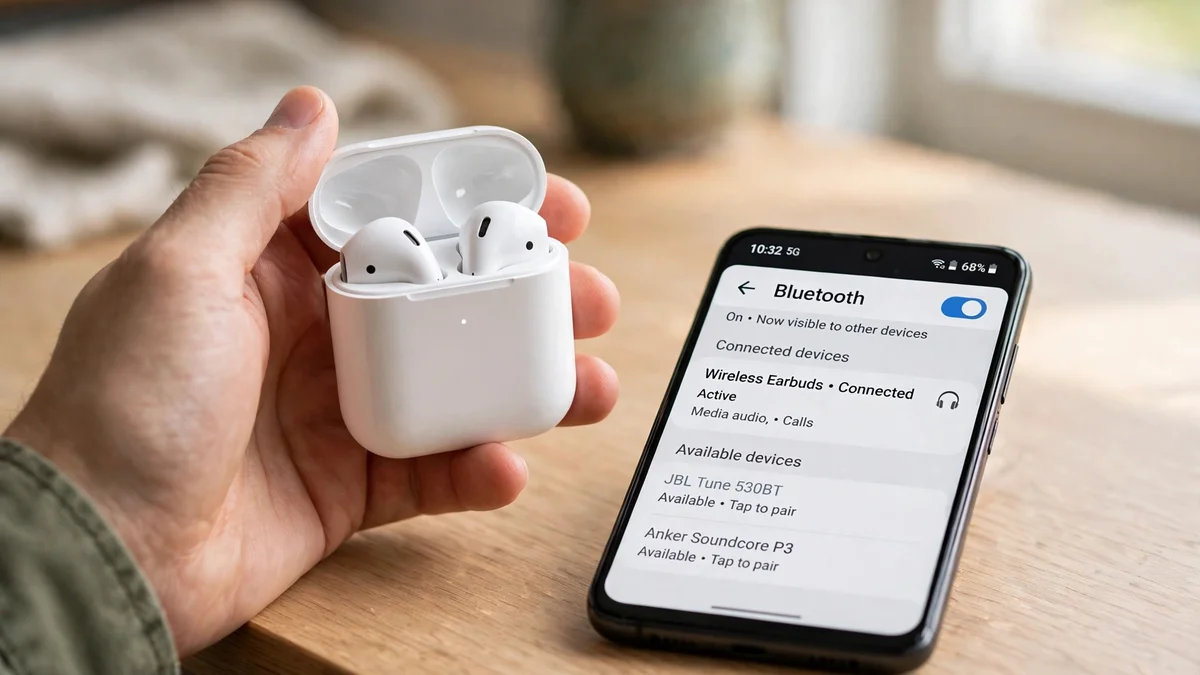
Learning how to connect AirPods to Android takes about two minutes once you know where the pairing button is, because AirPods work on Android as standard Bluetooth earbuds even though they were designed for iPhone. You do not need an Apple account, an iPhone, or a special adapter. You need charged AirPods, an Android phone with Bluetooth switched on, and the case within a few feet of the phone.
The pairing itself is simple: open the AirPods case, press and hold the setup button until the status light flashes white, then choose the AirPods in your Android Bluetooth settings. The connection is saved, so the next time you open the case near your phone, the AirPods should reconnect without repeating the full process. Most problems come from skipping the flashing-white step or from trying to pair while the AirPods are still connected to an iPhone.
This guide covers AirPods, AirPods Pro, and AirPods Max on Samsung, Google Pixel, OnePlus, Xiaomi, and other Android phones running Android 12 or later, including what works, what does not, and how to fix the most common problems.
Key takeaways
- AirPods pair with Android over standard Bluetooth, so no Apple account or iPhone is required.
- Press and hold the case setup button until the light flashes white, then select the AirPods in Android Bluetooth settings.
- Music, calls, and the microphone work on Android, but automatic ear detection and Siri do not.
- Noise cancellation and Transparency mode can be changed only with a third-party app or by switching the setting on an Apple device first.
- If pairing fails, forget the AirPods in Bluetooth settings, reset the case, and pair again from scratch.
At a glance: AirPods on Android
| Detail | What is known |
|---|---|
| Connection type | Standard Bluetooth, no Apple account needed |
| Pairing time | About two minutes for a first-time setup |
| Works on Android | Music, podcasts, calls, microphone, and volume |
| Does not work | Siri, automatic ear detection, and automatic device switching |
| Partial support | Noise control and battery level need a third-party app |
| Audio codec | AAC on most Android phones, with SBC as a fallback |
| Best for | People who own AirPods and an Android phone |
| Main risk | Pairing while the AirPods are still connected to an iPhone |
Before you start: what you need
Charge the AirPods and the case first. Put both earbuds in the case, close the lid for a few seconds, then open it: green means a good charge and amber means low.
Turn on Bluetooth on your Android phone and stay on the Bluetooth screen while you pair, because some phones hide new devices when you leave it. Keep the case within about three feet of the phone. Disconnect the AirPods from any iPhone, iPad, or Mac first: they connect to only one device at a time, and an active iPhone connection will block the Android pairing. On the Apple device, open Bluetooth settings and tap Forget This Device, or turn off Bluetooth there for a few minutes.
Step 1: Put your AirPods in pairing mode
Open the case with both earbuds inside and find the small round setup button on the back. On AirPods Max, hold the noise control button on the right ear cup instead. Press and hold until the status light flashes white, usually about five seconds.
If the light flashes amber, keep holding the button a little longer, or close the lid, wait fifteen seconds, and try again. Keep the earbuds in the case during this step. If the light does not flash at all, check the charge and that the earbuds are seated correctly.
The same hold-until-white rule applies to every generation, including AirPods 4 and AirPods Pro 2 with a USB-C case.
- Put both AirPods in the case and open the lid.
- Press and hold the setup button on the back of the case.
- Wait for the status light to flash white, then release the button.
- Keep the lid open and the case near your Android phone.
Step 2: Pair the AirPods in Android Bluetooth settings
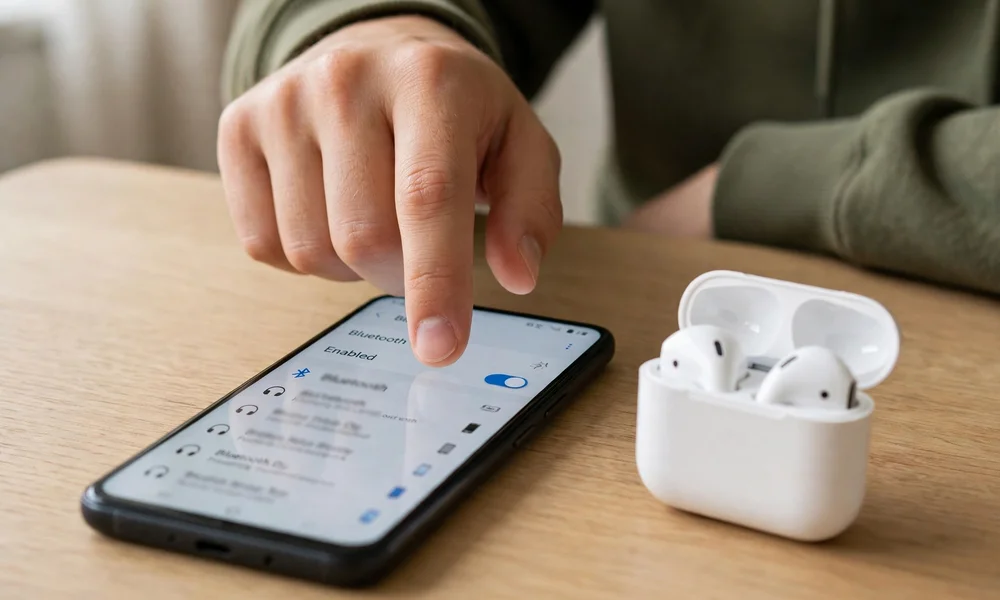
With the case open and the light flashing white, open Settings, then Connected devices, then Bluetooth, and make sure Bluetooth is on. Under Available devices, tap the AirPods name, then tap Pair if your phone asks.
The name shown is the name stored on the AirPods, including any custom name set on an iPhone. The connection usually takes a few seconds, and the AirPods move from Available devices to Connected devices when it succeeds.
The wording changes slightly by brand — Samsung uses Settings, then Connections, then Bluetooth — but the flow is the same. If nothing appears after thirty seconds, close the case, reopen it, hold the setup button again until the light flashes white, and refresh the list.
Once paired, put the AirPods in your ears and play a short clip to confirm sound. If you hear audio, the pairing worked. If the phone still plays sound through its speaker, tap the AirPods in the Bluetooth list and check that Media audio is switched on for the connection. A full guide to the best wireless earbuds in 2027 can help if you are comparing AirPods with earbuds made for Android.
Step 3: Set AirPods as your audio output and test them
After pairing, Android should route music, video, and call audio to the AirPods automatically. Test with a song or video at medium volume. If sound comes from the phone speaker, open Quick Settings, tap the media output button, and choose the AirPods.
Check call audio separately, because media and call audio use different Bluetooth profiles. Make a short test call and confirm both sides can hear each other. If the microphone sounds muffled, test in a quiet room and check that the AirPods are selected as the microphone in the call screen.
Adjust the volume from the phone. AirPods Pro 2 also let you swipe on the stem to change volume. If the volume is very low even at maximum, open Bluetooth settings, tap the gear icon next to the AirPods, and make sure Media audio and Phone audio are both switched on.
Step 4: Control playback, calls, and noise control on Android
Double-tap an AirPod to play or pause, and double-tap again to skip to the next track. On AirPods Pro, squeeze the stem once to play or pause, twice to skip forward, and three times to go back. Press and hold the stem to switch noise modes, but only if that action was set up on an Apple device first.
Answer or end a call by double-tapping an AirPod or squeezing the stem once, depending on the model. If you take one AirPod out during a call, it continues in the other earbud and will not pause, because automatic ear detection does not work on Android.
Noise cancellation and Transparency mode keep the last setting they had on an Apple device. To change them on Android, use a third-party app such as MaterialPods or AirBattery, which can also show the battery level. Check any app’s permissions and reviews first. For a wider comparison, see the best noise cancelling earbuds available this year.
What works and what does not work on Android
Music, podcasts, video sound, phone calls, and voice recording all work well for everyday listening. Bluetooth is stable within about thirty feet in open space, battery life is unchanged, and the case charges the earbuds as normal.
Several Apple-only features do not work on Android. Siri is not available, music will not pause when you remove an earbud, and automatic switching between devices does not work, so you must switch by hand. Spatial audio with head tracking is not available, and Find My cannot locate AirPods from an Android phone.
Battery level is the most visible gap. Android has no native AirPods battery widget, so use a third-party app or the case light to check the charge. Most Android phones use the AAC codec with AirPods, which sounds good, though some fall back to SBC. AirPods are still good earbuds on Android, especially if you already own them, and the wider choice between ecosystems is covered in our Pixel vs iPhone in 2027 comparison.
Troubleshooting: when AirPods will not connect to Android
If the AirPods do not appear, the case is probably not in pairing mode. Close the lid, wait fifteen seconds, open it, and hold the setup button until the light flashes white, then refresh the device list. An amber light means the case needs charging.
If pairing fails, forget the AirPods in Bluetooth settings, then reset the case by holding the setup button for fifteen seconds until the light flashes amber and then white, and pair again. A reset clears old connections, which fixes most cases where the AirPods keep connecting to an iPhone.
If the AirPods connect but there is no sound, check that Media audio is on and the phone volume is up, then restart the phone and reconnect. If only one earbud plays, clean the speaker mesh gently, put both earbuds back in the case for thirty seconds, and try again. If sound keeps cutting out, move closer to the phone and check for an Android system update.
Checklist: connecting AirPods to Android
- Charge the AirPods and the case before pairing.
- Disconnect the AirPods from any iPhone, iPad, or Mac first.
- Hold the setup button until the status light flashes white.
- Select the AirPods in Android Bluetooth settings and tap Pair.
- Test music and a call, and confirm Media audio is switched on.
- Install a battery app only if you need the charge level or noise controls.
Frequently asked questions
Can AirPods connect to Android at all?
Yes. AirPods use standard Bluetooth, so they pair with Android phones, tablets, and Chromebooks like any other Bluetooth earbuds, though you lose Siri, automatic ear detection, and automatic switching.
Do I need an app to use AirPods on Android?
No app is needed for basic pairing, music, and calls. A third-party app is useful only if you want a battery indicator or a way to switch noise cancellation modes on Android, and it is optional rather than required.
Why do my AirPods keep connecting to my iPhone instead?
AirPods connect to the last device they were used with, and an iPhone nearby will often win the connection. Turn off Bluetooth on the iPhone, or forget the AirPods on the iPhone, then pair them with the Android phone while the case light is flashing white.
Can AirPods connect to two devices at the same time?
No. AirPods connect to one device at a time, so disconnect from the first device, then select the AirPods in the second device’s Bluetooth settings.
Does the microphone work on Android?
Yes. The AirPods microphone works for calls, voice notes, and voice recording on Android. If the other person cannot hear you, check that Phone audio is switched on for the AirPods in Bluetooth settings and that no other Bluetooth device is taking the microphone.
Will AirPods sound worse on Android?
For most listeners, the difference is small. Android usually uses the AAC codec with AirPods, which sounds good for music and podcasts. Some phones fall back to SBC, which is slightly lower quality, but the earbuds, the fit, and the recording quality matter more than the codec in everyday use.
The bottom line
Connecting AirPods to Android is a standard Bluetooth pairing: open the case, hold the setup button until the light flashes white, and choose the AirPods in your Android Bluetooth settings. The whole process takes about two minutes, and the connection is saved for next time. Music, calls, and the microphone work well, even though Siri, ear detection, and automatic switching stay behind on Apple devices.
If you already own AirPods, there is no need to buy new earbuds just because you switched to Android. Pair them, test a song and a call, and add a battery app only if you miss the charge indicator. If pairing fails, forget the device, reset the case, and start again with the light flashing white.