Knowing how to connect Bluetooth devices takes the frustration out of everyday tech, whether you are pairing wireless earbuds to a phone, a speaker to a laptop, or a smartwatch to a tablet. Bluetooth is the short-range wireless link built into almost every modern phone, computer, and accessory, and once two devices are paired, they usually reconnect on their own the next time they are near each other.
Most pairing problems come from one small detail: the accessory has to be in pairing mode before the phone or computer can see it. Every device enters that mode differently, usually by holding a button for a few seconds until a light blinks. Once you know where to look, the whole process takes under a minute.
This guide covers the full process on Windows, Mac, iPhone, and Android, plus the accessory types people pair most: headphones, speakers, keyboards, mice, and smartwatches. It also covers what to do when a device refuses to show up or keeps dropping its connection.
Key takeaways
- Put the accessory into pairing mode first, or the phone or computer will never see it.
- Keep the two devices within a metre of each other while pairing to avoid a weak signal.
- Paired devices usually reconnect automatically, so you only need to pair each one once.
- If a device will not appear, turn Bluetooth off and on again and restart the accessory.
- Remove old pairings you no longer use, since a crowded paired list causes connection mix-ups.
At a glance: connecting Bluetooth devices
| Device type | Pairing method | Typical range | First step |
|---|---|---|---|
| Wireless earbuds | Open the case, hold the button | Up to 10 metres | Charge the case first |
| Bluetooth speaker | Hold the Bluetooth button | Up to 10 metres | Turn the speaker on |
| Smartwatch | Pair through the watch app | Up to 10 metres | Install the companion app |
| Keyboard or mouse | Hold the pairing button underneath | Up to 10 metres | Check the batteries |
| Car audio | Select Bluetooth on the car stereo | Inside the car | Park before pairing |
Step 1: Turn on Bluetooth and put the accessory in pairing mode
Start on the phone or computer you want to connect from. On a phone, open Settings and switch Bluetooth on; on Windows, open Settings, then Bluetooth and devices, and switch it on there. Leave that settings screen open, because the list of available devices only refreshes while you are looking at it.
Now prepare the accessory. This is the step most people miss. A Bluetooth accessory is not discoverable just because it is switched on; it has to be put into pairing mode, a separate state where it broadcasts its name for a minute or two. The method varies: earbuds often pair when you open the case with the buds inside, speakers usually need a long press on a dedicated Bluetooth button, and keyboards and mice have a small pairing button on the underside.
Watch for the signal that pairing mode is active, usually a blinking blue or white light, or a voice prompt saying the device is ready to pair. For background on what happens during this handshake, our explainer on how Bluetooth works covers the radio link and the pairing process in plain language.
Step 2: Pair the device on Windows
With the accessory in pairing mode, look at the Windows Bluetooth settings screen. The device name should appear under Add device within a few seconds. If it does not, check that the accessory is still blinking and move it closer to the computer, since distance matters more than people expect.

Click Add device, choose Bluetooth, then click the accessory name when it appears. Windows may show a code to confirm on both screens for keyboards and some speakers; click Pair or Yes if the codes match. Within a few seconds, Windows reports that the device is connected. Test it straight away: play a short audio clip for headphones or a speaker, or type a few characters for a keyboard.
If Windows asks for a PIN, try 0000 or 1234 first, the defaults for most older accessories. Once paired, the device stays in the list and should reconnect automatically whenever it is switched on near the computer.
Step 3: Pair the device on iPhone and Android
On iPhone, open Settings, tap Bluetooth, and make sure the switch is on. The accessory should appear under Other Devices while it is in pairing mode. Tap its name, wait for the status to change to Connected, and it moves to My Devices. Some accessories, especially smartwatches and fitness trackers, pair through their own companion app instead of this screen.
On Android, the path is similar but the menu names vary slightly by brand. Open Settings, tap Connected devices, then Pair new device, and tap the accessory name when it appears. Samsung phones show the same list under Settings, then Connections, then Bluetooth. If the accessory does not appear, refresh the list and confirm the accessory light is still blinking, since pairing mode times out after a minute or two on many models.
After pairing, check the small details that matter in daily use. On both systems, you can tap the info icon next to a paired device to change its name and choose whether it handles calls or media audio. That separation is useful when one pair of earbuds is shared between a phone and a laptop.
Step 4: Pair the device on Mac
On a Mac, click the Apple menu, open System Settings, and choose Bluetooth from the sidebar. Make sure Bluetooth is on, then put the accessory in pairing mode. Its name should appear in the Nearby Devices section within a few seconds. Click Connect next to the name and wait for the status to change to Connected.
Macs are particular about one thing: an accessory already paired to another computer nearby may connect to that computer first and refuse to appear on the Mac. If that happens, turn Bluetooth off on the other computer, or disconnect the accessory from it, then try again.
Once connected, open System Settings, then Sound, to confirm the Mac is sending audio to the right output. Macs sometimes stay on their built-in speakers after pairing headphones, and switching the output there fixes it in one click.
Step 5: Connect headphones, speakers, and smartwatches
Headphones and earbuds are the most common Bluetooth accessory, and they have one quirk worth knowing: many pairs only enter pairing mode when both buds are in the case and the lid is open, or when a button on the case is held for three seconds. If they connect to your phone instead of your laptop, turn the phone’s Bluetooth off for a moment, pair them to the laptop, and then turn it back on.
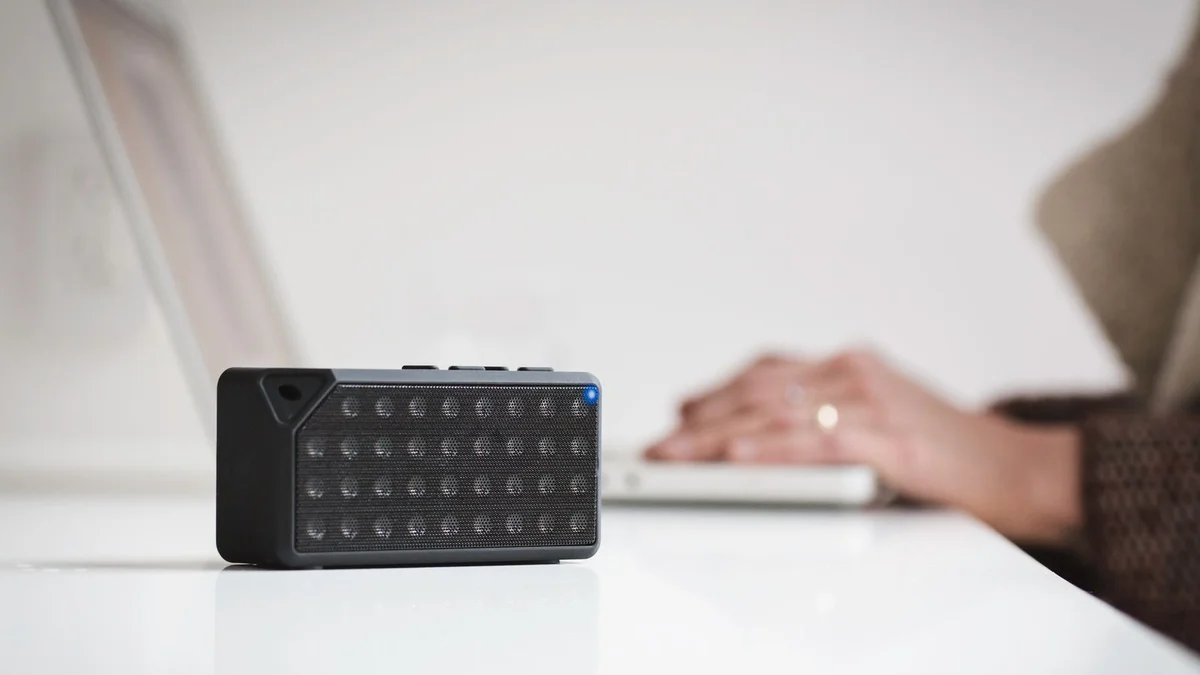
Speakers are simpler, since most have a visible Bluetooth button and a clear voice or light signal when they are ready. Place the speaker within a few metres of the source device, pair it once, and it should reconnect whenever it is switched on. Our guide to what a speaker is and how it works explains the parts that affect sound quality.
Smartwatches pair differently from other accessories, because they need a companion app on the phone to finish setup. Install the watch maker’s app and follow the on-screen steps while the watch shows its pairing code. The watch then syncs notifications, health data, and settings through that app. Our guide to what a smartwatch does and who it is for covers what to expect from the watch once it is connected.
Step 6: Manage paired devices and automatic reconnection
Once you have paired a few accessories, take a minute to manage the list. Open the Bluetooth settings on each computer and phone, and remove any device you no longer own or use. A long paired list causes real problems: a phone may connect to an old speaker in another room instead of the headphones in your hand.
Check the reconnection behaviour for each device. Most accessories reconnect to the last device they were used with, which is convenient until you want to switch. To move headphones from a phone to a laptop, disconnect them from the phone first, then connect from the laptop. Do not unpair them, since unpairing forces a full setup again.
Finally, keep the software on both sides up to date. Phone and computer updates often include Bluetooth fixes, and accessory makers release firmware updates through their companion apps that improve connection stability.
Troubleshooting: when Bluetooth will not connect
When a device does not appear in the list, work through the short checklist in order. Confirm the accessory is charged and its pairing light is blinking, move it within a metre of the phone or computer, and turn Bluetooth off and back on. If it still does not appear, restart both devices.
When a device pairs but the sound still comes from the phone or computer speakers, the audio output is set to the wrong device. On Windows, click the speaker icon in the taskbar and choose the Bluetooth device; on a phone, open the media output settings and select it there.
When a connection keeps dropping, distance and interference are the usual causes. Bluetooth works best within ten metres with a clear line of sight, and walls, a busy Wi-Fi network, and a microwave oven can all interrupt it. Move closer, keep the phone or computer out of a bag or pocket, and remove the device and pair it again if the drops continue.
Checklist: before you pair a Bluetooth device
- Charge the accessory and confirm it is switched on.
- Put the accessory into pairing mode and watch for the blinking light.
- Turn Bluetooth on and keep the settings screen open on the phone or computer.
- Keep the two devices within a metre of each other while pairing.
- Test the connection straight away with audio or a few keystrokes.
- Remove old pairings you no longer use to avoid connection mix-ups.
Frequently asked questions
How many Bluetooth devices can I connect at once?
Most phones and computers handle around seven paired devices, but only one or two can actively play audio at the same time.
Why does my Bluetooth device keep disconnecting?
The most common causes are low battery, too much distance, and interference from Wi-Fi or other wireless devices. Move closer, charge the accessory, and remove and re-pair it if the problem continues.
Do I need to pair my headphones every time I use them?
No. Once paired, headphones reconnect automatically when they are switched on near the phone or computer. You only need to pair again if you unpair them or reset the accessory.
Can I connect Bluetooth headphones to two devices at once?
Some newer headphones support multipoint, which keeps them connected to two devices and switches between them. Check the model specifications, since many cheaper pairs connect to only one device at a time.
Is Bluetooth safe to leave on all day?
Yes. Modern Bluetooth uses very little power when idle, and keeping it on means your accessories reconnect instantly.
Why can’t my laptop find my Bluetooth device?
The accessory is usually not in pairing mode, or it is already connected to another device nearby. Put it back into pairing mode, disconnect it from the other device, and move it closer to the laptop.
The bottom line
Connecting Bluetooth devices is a one-minute job once you know the order: accessory into pairing mode first, then pick its name from the Bluetooth list, then test it. The same steps work on Windows, Mac, iPhone, and Android, with only the menu names changing.
If a pairing fails, do not assume the device is broken. Check the battery, confirm the pairing light is blinking, move the devices closer together, and restart both sides. That short routine fixes almost every Bluetooth problem.