How to Extend Your iPhone Battery Life
An iPhone that dies before dinner is one of the most common frustrations in daily life. Learning how to extend your iPhone battery life starts with finding out what is actually draining the battery, because the fix for a bright screen is different from the fix for a worn-out battery or a chatty background app.
iPhone batteries lose capacity slowly over time, and heavy use speeds that process up. The good news is that iOS gives you clear tools to see exactly where power goes, and small setting changes can add hours to a normal day.
This guide works through the checks and fixes in order, from a quick battery health check to the charging habits that protect your battery for years. Follow the steps in sequence, give each change a day to show its effect, and you will know by the end which settings matter most for your phone.
Key takeaways
- Check Battery Health and the per-app usage list first, so you fix the real drain instead of guessing.
- Turn on Low Power Mode when you need extra hours, and keep Optimised Battery Charging switched on.
- Lower screen brightness, shorten Auto-Lock, and use Dark Mode on OLED iPhones to cut the biggest power draw.
- Limit Background App Refresh, location access, and notifications for apps that do not need them.
- Charge between 20 and 80 percent when you can, and keep the phone cool to slow long-term battery wear.
What You Need
You need only your iPhone, its charger, and about 30 minutes to work through the settings in this guide. No extra apps or accessories are required, and every step uses the built-in iOS settings, so there is nothing to buy or install.
Make sure your iPhone is running a recent version of iOS before you start, because battery settings and health reports change slightly between versions. Go to Settings, then General, then Software Update, and install any pending update first if one is available.
It also helps to use the phone normally for a full day after making changes, rather than judging the result after an hour.
Step 1: Check Battery Health and Find the Biggest Drains
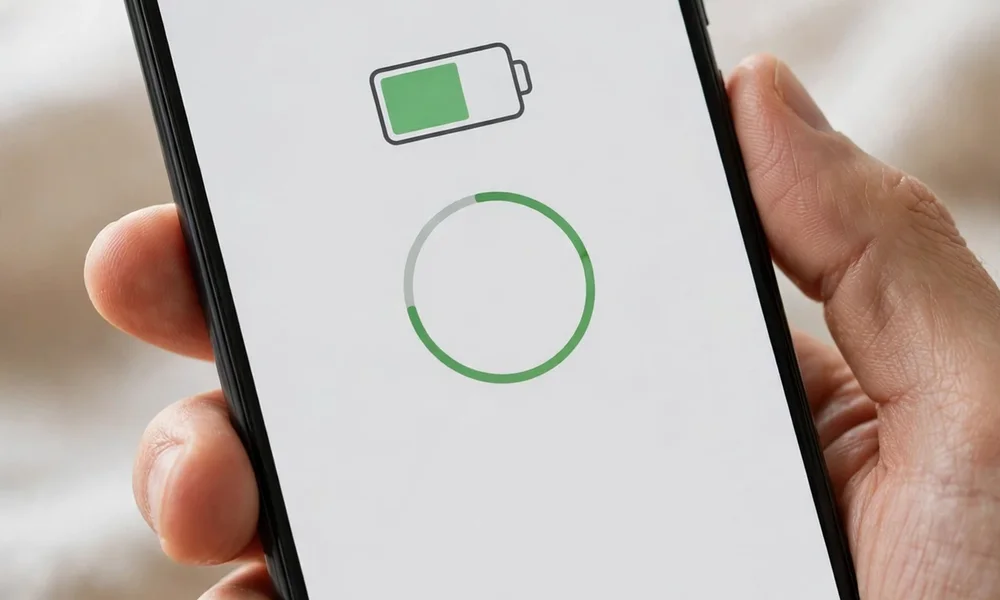
Before changing anything, find out what is draining the battery. iOS records battery use by app and by time of day, so you can see whether the problem is one hungry app, a weak signal, or a battery that has simply worn out.
Check Your Maximum Capacity
Open Settings, then Battery, then Battery Health and Charging. Between 80 and 90 percent, the settings in this guide can still make a real difference.
Read the Per-App Usage List
Go back to the Battery screen and scroll down to the list of apps ranked by battery use over the last 24 hours and the last 10 days.
Look for Signal and Heat Clues
The Battery screen also shows periods of low signal and heavy screen use. If the phone feels warm while idle, an app may be stuck running in the background.
Step 2: Turn On Low Power Mode and Optimised Charging
Low Power Mode is the fastest way to stretch a low battery, and Optimised Battery Charging is the best long-term protection for battery health. Both are built into iOS, both are free, and both take seconds to switch on.
Use Low Power Mode When You Need Extra Hours
Open Settings, then Battery, and switch on Low Power Mode, or add its button to Control Centre for quick access. The battery icon turns yellow while it is active, and the mode switches off automatically when the phone charges past 80 percent.
Keep Optimised Battery Charging Switched On
In Settings, then Battery, then Battery Health and Charging, make sure Optimised Battery Charging is on. It reduces the time the battery spends at full charge, which is one of the main causes of long-term wear.
Use the 80 Percent Charge Limit on Newer iPhones
On iPhone 15 and later models, the same screen offers a charge limit option. Raise the limit to 100 percent before a long travel day when you need maximum runtime.
Step 3: Adjust Screen Brightness and Auto-Lock
The screen is the biggest power user on any iPhone, so screen settings deliver the largest savings of any single change.
Turn On Auto-Brightness and Lower the Level
Open Settings, then Accessibility, then Display and Text Size, and make sure Auto-Brightness is on. Even a small reduction makes a noticeable difference over a full day.
Shorten Auto-Lock to 30 Seconds
Open Settings, then Display and Brightness, then Auto-Lock, and set it to 30 seconds. The change feels minor, but it prevents many minutes of wasted screen time every day.
Use Dark Mode on OLED iPhones
If your iPhone has an OLED screen, which includes most models from the iPhone X onwards, turn on Dark Mode in Settings, then Display and Brightness.
If you are comparing phones and battery life matters to you, our guide to the iPhone vs Samsung Galaxy in 2027 compares battery performance, charging speed, and daily endurance across the latest flagship models.
Step 4: Manage Background App Refresh, Location, and Notifications
Apps that refresh, track your location, or light up your screen all day can drain a battery without you ever opening them. Limiting these permissions to the apps that genuinely need them is one of the most effective fixes in this guide.
Limit Background App Refresh
Open Settings, then General, then Background App Refresh, and review the list. Keep it on for messaging, email, and navigation apps that need to stay current.
Set Location Access to While Using
Open Settings, then Privacy and Security, then Location Services, and check each app. Only navigation, weather, and ride-hailing apps usually need the Always setting, and each Always app adds a steady background drain.
Cut Notifications That Wake the Screen
Open Settings, then Notifications, and turn off notifications for apps that send frequent alerts you do not act on. Keep notifications only for messages, calls, and apps where an alert genuinely matters to you.
Step 5: Update iOS and Tame Hungry Apps
Software updates often fix battery-draining bugs, and a single misbehaving app can undo all your other savings. Keeping iOS current and dealing with the worst offenders directly protects the gains from the earlier steps.
Install the Latest iOS Update
Open Settings, then General, then Software Update, and install the latest version. Charge the phone above 50 percent or keep it plugged in while the update installs.
Deal With the Worst Battery Users
Return to the per-app list from Step 1 and look for any app using far more battery than its screen time justifies. If the drain continues, delete the app and reinstall it, which clears corrupted data, or replace it with a lighter alternative.
Use Wi-Fi Instead of Mobile Data When Possible
Wi-Fi uses less power than mobile data, especially in areas with weak signal. If you are in an area with very poor signal and do not need calls or data, switching on Airplane Mode stops the phone from constantly searching for a signal.
Protecting your phone also protects your battery routine: a good case prevents damage that can lead to repairs, and our roundup of the best iPhone Duo cases and accessories for 2026 covers cases and chargers that keep an iPhone safe without adding bulk.
Step 6: Charge Correctly and Protect Long-Term Health
How you charge matters as much as how you use the phone. A few charging habits can slow that wear by months or years.
Keep the Charge Between 20 and 80 Percent
Try to plug in before the battery falls below 20 percent, and unplug around 80 percent when you can. Overnight charging is safe with Optimised Battery Charging switched on.
Use a Good Charger and Avoid Cheap Cables
Use the charger that came with your iPhone or a certified charger from a reputable brand. Wireless charging is convenient but generates more heat than a cable, so use a cable when the phone is already warm or when you want the fastest, coolest charge.
Keep the Phone Cool
Never leave your iPhone in a hot car, in direct sunlight, or under a pillow while charging. Remove a thick case while charging if the phone feels warm, and let it cool before using demanding apps or games.
Tips to Make the Battery Last Longer Every Day
Small daily habits add up to hours over a week. Turn off Bluetooth and Wi-Fi from Settings when you will not use them for hours, rather than just disconnecting them from Control Centre.
Use the built-in screen time tools to see how much time you spend in each app, and set limits for the apps that eat both your time and your battery.
Keep your phone out of extreme cold as well as heat, because cold temporarily reduces battery capacity and can cause sudden shutdowns.
Finally, remember that battery life depends on the phone itself. Compare current options in our guide to the best phones for gaming in 2027, which includes battery endurance alongside performance. com/best-phones-for-gaming/”>best phones for gaming in 2027, which includes battery endurance alongside performance.
Troubleshooting
If your battery still drains fast after the steps above, work through these problems one at a time. Drain that happens only at work or on a commute usually points to weak signal, while constant drain points to an app or a worn battery.
If a specific app is the culprit, force close it, update it, and if the problem continues, delete and reinstall it.
If the phone gets hot while idle, restart it and check the battery usage list again after an hour. If the phone still heats up, back up your data and reset all settings, which fixes corrupted settings without deleting your photos or apps.
If Maximum Capacity is below 80 percent, the battery itself is the limit, and no setting change can restore lost capacity. A new battery restores the phone to near-new endurance for far less than the cost of a replacement phone.
Frequently Asked Questions
Does Low Power Mode damage the iPhone battery?
No, Low Power Mode protects the battery by reducing background activity and power draw. You can leave it on for as long as you like.
Should I charge my iPhone to 100 percent?
Charging to 100 percent occasionally is fine, especially before a long day or a trip. The difference is measured over months and years, not days.
Is it bad to leave my iPhone charging overnight?
Overnight charging is safe with Optimised Battery Charging switched on, because the phone holds the charge at 80 percent and finishes just before you wake up.
Why does my iPhone battery drain overnight?
Overnight drain usually comes from background refresh, mail fetching, location access, or a weak signal that keeps the phone searching. Check the battery usage list for the overnight hours, and switch off Background App Refresh for the apps listed there.
Does Dark Mode really save battery on an iPhone?
Dark Mode saves battery on iPhones with OLED screens, which includes most models from the iPhone X onwards, because dark pixels use almost no power. Either way, it is worth using alongside the bigger fixes, such as brightness and background limits.
When should I replace my iPhone battery?
Replace the battery when Maximum Capacity falls below 80 percent, when the phone shuts down unexpectedly at 20 or 30 percent, or when battery life no longer lasts a normal day even after the settings in this guide.
The Bottom Line
Extending iPhone battery life is mostly a matter of finding the real drain and fixing it. Most people gain several hours a day from those changes alone, without buying anything.
If your battery health is below 80 percent, no setting can bring back lost capacity, and a battery replacement is the sensible next step.