
You can use a picture as a starting point when you do not know the right words to describe what you want to find. Maybe you spotted an unfamiliar lamp in a screenshot, or saw a plant you want to name. A picture can help you search the web for related content, matching pages, or useful clues.
How to Find Similar Images Online depends on what you hope to learn. Search results can include an exact match, a similar image, or a public page that helps explain what you see. Results depend on images already found and cataloged online, so a search may miss private or hard-to-find pictures. A clear goal, such as finding a match or identifying an object, makes it easier to choose the right search approach.
Key Takeaways
- Search with a saved image or its direct image URL.
- Google Lens, TinEye, and Bing Visual Search offer free searches.
- Results can show exact matches, similar images, and source pages.
- Try another image search tool if the first results miss your goal.
- Check the public page before trusting a match or its attribution.
What Can Reverse Image Search Find?
A reverse image search can show the same picture, visually related pictures, and public pages where matching or similar images appear. It uses an existing image instead of typed keywords as the search query. That can help when you recognize a detail but cannot describe it well.
An image index is a searchable collection of images a search engine has already found and cataloged. Google Lens can return exact matches, similar images, and pages that contain matching or related pictures. Only images already in the search engine’s index can appear as results.
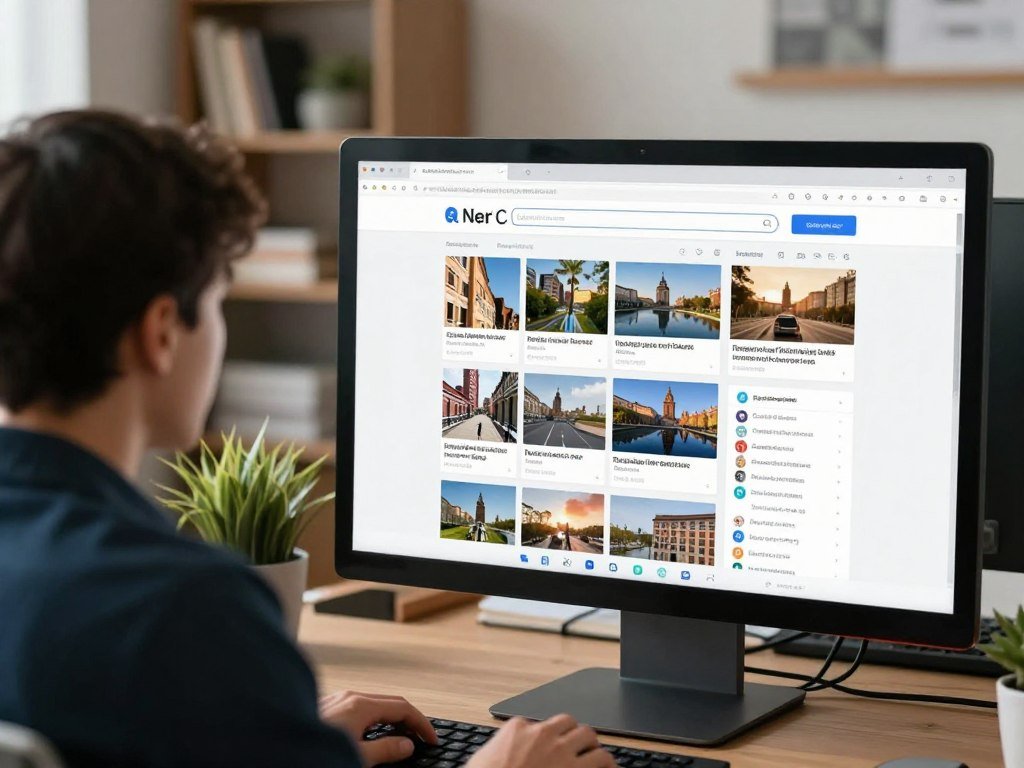
An exact match is the same picture, even if it appears on several websites. A similar image looks alike but may show another item, angle, or version. A source page is a webpage that contains a result, such as a product listing or a news post.
Image search may also show other sizes of the query image. A larger copy can be useful when you need to inspect details, while a smaller copy may lead to another page. A study of image retrieval methods explains how systems can compare color, shape, edges, and texture.
A missing match reflects the limits of the available index, not proof that a picture has never appeared online.
Private images may not appear, and a search tool may not be able to reach some public pages. Search engines also differ in what they find and catalog. Treat a missing match as a limit of the available index, not proof that a picture has never appeared online.
How to Find Similar Images Online
Start by choosing whether to submit a saved file or the direct URL of an image already online. Many free image search tools let you upload a picture or paste an image URL. An image URL is the direct link to the picture itself, not the address of the webpage around it.
You can find similar images online for free with Google Lens, Bing Visual Search, or TinEye. Each search tool may return different results, so use the one that suits your goal. The same basic steps work for a saved photo or a picture already on the web.

Upload an image from your device
Use a saved image when you have a screenshot, photo, or downloaded file on your device. You do not need to turn the picture into search words first. The image itself becomes the query that the tool compares with its indexed images.
Search with an image URL
Use an image URL when the picture is already online and you can open its direct link. A webpage address leads to a page, which may include text, menus, and several pictures. Copy the image URL, rather than the webpage URL, when the tool asks you to search by image.
Follow these four steps to run the search and check what comes back:
- Choose a saved image file or copy the image URL.
- Submit the file or URL to an image search tool.
- Review exact matches and visually similar results.
- Open relevant public pages to check the picture’s context.
Results may include products, other sizes, or pages with a similar picture. A thumbnail alone leaves out nearby text and page details. Open a promising result on its public page instead of relying on a thumbnail alone.
Which Image Search Tool Fits Your Goal?
For broad visual discovery, start with Google Lens; choose TinEye when tracking exact or altered copies matters most. Bing Visual Search can help you find similar images, products, pages, and recipes. Pick the tool whose results fit the question you want answered.
These image search tools are free to use for image searches, though TinEye limits its free web use. The comparison below shows their main strengths and access details.

| Tool | Best fit | Free access detail |
|---|---|---|
| Google Lens | Broad visual discovery and related information | Free image searches |
| TinEye | Exact and modified copies | 100 searches per day, 300 per week for non-commercial use |
| Bing Visual Search | Similar images, products, pages, and recipes | Free image searches |
Google Lens for broad visual discovery
Google Lens is a practical image finder when you want to learn what an object is or find related information. It can surface similar images and pages that include a matching picture. A Google image search can use a picture as its starting point instead of relying on keywords alone.
People also use the term Google reverse image search for this picture-based approach. Google Lens is useful when the goal is broader than finding one copy. It may show pages that add context to an unfamiliar object or scene.
TinEye for exact and modified copies
TinEye focuses on exact and near-duplicate images. It can find altered versions, including pictures that were cropped, resized, recolored, or had a watermark removed. You can sort its results by Best match, Most changed, Biggest image, or Newest.
The free TinEye web tool allows 100 searches per day and 300 per week for non-commercial use. That cap matters if you need to check many versions in one week. Its focus makes it a useful image finder for copy tracking.
Bing Visual Search for related content
Bing Visual Search can return similar images, products, webpages containing a picture, and recipes. It suits a search where you want related content, not only a copy of the same image. If you use an AI image search using text, you submit a description instead of a picture, so that is not reverse image search.
If one tool returns no useful match, try another because their result indexes and strengths differ.
How Do You Search Images on iPhone and Android?
On an iPhone or Android phone, the Google app can start a Lens search from a new photo or one in your library. Open Google Photos to search an image you already saved. You can start from the photo itself, without moving it to a computer.
These phone options let you search an image, a photo on a webpage, or an object already visible on screen. The table lists where to begin and what to tap.
| Device or starting point | Where to begin | Action |
|---|---|---|
| Google app on iPhone or Android | Search bar | Tap the camera icon, then choose a library photo or take one |
| Google Photos on either platform | Saved image | Open the image, tap the three-dot menu, then choose Google Lens |
| Chrome on Android | Webpage image or saved photo | Hold a webpage image and tap “Search image with Google Lens,” or use Lens in a new tab |
| Safari on iPhone | images.google.com | Tap the aA menu, then choose “Request Desktop Website” |
Use Google Lens on iPhone or Android
In the Google app, tap the camera icon in the search bar. Choose an existing photo from your library or take a new picture. Lens then searches with that image and can show related information.
Google Photos offers another route when the photo is already saved. Open the picture, tap the three-dot menu, and select Google Lens. The search starts from the open image rather than a typed description.
Search directly from a screen or browser
On Android, Chrome can search an image on a webpage. Press and hold the picture, then tap “Search image with Google Lens.” To search a saved photo, open a new tab and tap Lens in the search bar.
Circle to Search on Android lets you circle an item on screen without taking a separate photo. This works well when the item appears in a video, app, or webpage. On iPhone Safari, requesting the desktop version of Google Images exposes an upload control when the mobile page does not show one.
How Can You Improve Results From a Screenshot or Photo?
If a screenshot includes browser controls or a phone status bar, crop the picture itself before uploading it. Interface elements can distract a reverse image search from the picture you want to find. A tighter crop around the object or detail can make results more relevant.
Use the clearest image you have, then test a different crop if results miss the mark. Each crop changes the query image, so different crops can surface different matches. A busy background may pull attention away from the object you want.
Crop to the detail you want to find
A full screenshot may include menus, captions, and unrelated images. Crop those interface elements away before you upload the file. Then isolate the object, logo, or small detail you want the search tool to recognize.
A tight crop can help when a product sits among other objects. If you are trying to identify a chair, keep the chair in view and remove the room around it. For a logo, crop close enough to make its shape clear.
Try a clearer image or a different version
A small thumbnail may hide details that help an image search tool find matches. Use a clear, higher-resolution version when one is available. Phone cameras can produce different results based on light, lens, sensor size, and image processing; this camera phone guide explains why megapixels alone do not define photo quality.
Some reverse image tools support GIFs, but a long or heavily compressed animation can be hard to match. Try a clear, representative frame instead. Use this four-part checklist when your first search gives weak results:
- Crop browser controls and phone status bars out of screenshots.
- Isolate the object or detail you want to find.
- Use the clearest, highest-resolution version available.
- Test a new crop or a representative GIF frame.
For a specific product in a crowded room, search a close crop of the product rather than the whole scene.
How Do You Check an Image’s Original Source?
A reverse image result is a lead to investigate, not automatic proof that the page first published the picture. Search results can help you locate public pages with a matching image, but a matching page may be a repost. An image match alone does not prove who owns the picture.
Check the image and the page details before treating a result as the original source. A page may show a cropped, edited, or reposted version. Use these checks to assess what you found:
- Compare the image with the result, including visible edits or crops.
- Inspect the surrounding page context and the page’s purpose.
- Check the publication date shown on the page.
- Look for creator details or other corroborating attribution.
A page that appears early in search results is not necessarily the first page that published the picture. The source page may have copied it from another site, or the date may refer to an update. Compare available details instead of assuming that one result tells the whole story.
Finding an image online does not establish who owns it or whether using it would be unlawful. The picture could belong to a photographer, an organization, or another creator. A repost can also carry an incorrect name or no credit at all.
Look for attribution connected to the work, not only text beside a search thumbnail. If a creator has a portfolio or official page, compare the image there. Before crediting a creator, confirm the attribution on a credible page connected to the work.
Is Reverse Image Search Safe and Legal?
Whether an upload is retained depends on the specific tool, so check its handling terms before submitting a sensitive picture. A service may process, store, or delete uploads under its own rules. Do not assume every image search tool treats uploads as private or deletes them.
Tool policies can differ. For example, Google says Chrome on Android stores a webpage and image temporarily to process a Google Lens query, and does not use them for training as a result. Pic Detective says it automatically deletes uploaded images after a search and does not use them to train machine-learning models.
Check how a tool handles uploads
Pic Detective accepts JPG, PNG, WebP, GIF, AVIF, BMP, and ICO files up to 25MB. Those limits apply to that service, as do its stated deletion and training policies. Check the specific tool’s terms before sending it a personal or sensitive image.
A search tool may need to process the query image to return results. That does not mean every tool follows the same storage rules. Read the service’s own handling details, especially when a picture shows a person, home, or private document.
Separate searching from reusing an image
Finding a picture online does not by itself give you permission to publish or reuse it. In the United States, original photographs are generally protected by copyright once fixed. The U.S. Copyright Office explains copyright for photographers and notes that registration is required before an owner can bring an infringement lawsuit in federal court.
In October 2026, the NO FAKES Act of 2026 had advanced through a Senate committee and was set to go before the full Senate. The bill would address unauthorized digital replicas of a person’s voice or likeness. It does not make reverse image search illegal or settle questions about image copyright.
If you plan to publish or reuse an image, confirm the rights and permissions separately from the search result.
Can ChatGPT Recognize Images or Reverse-Search Them?
ChatGPT can describe what appears in an uploaded picture, but it cannot match that exact photo against an image index. It can name visible objects or point out details that may help you investigate. A description is not a check of where the exact photo appears online.
That difference matters when you want to find the original source or matching pages. ChatGPT can use visible clues to research related web context, but that is not the same as searching an image index. Its suggestions may sound certain and still be wrong.
What ChatGPT can describe
An AI assistant may describe colors, objects, text, or other visible features. You can use those clues to form keywords for a separate web search. For instance, a description of a red ceramic vase with a narrow neck gives you words to try.
That kind of AI image search uses text or visible clues to look for related information. It does not submit the photo to an image index to check whether the exact picture appears online. A confident guess about a plant, person, or place is a starting point, not confirmation.
What a reverse-image engine does differently
A reverse image search submits the picture itself as the query. The search tool compares it with images in its index and may return matching or visually related pages. That makes it better suited to tracking a copy than asking an AI to describe a scene.
ChatGPT can still help you think of useful terms after describing an image. A description might point toward a type of object or a place to investigate. Verify any suggested identity or source with a dedicated image-search tool and credible page evidence.
What Can Visual Search Identify Besides Exact Matches?
For an unknown object, plant, animal, landmark, or short piece of text, Google Lens can return related identification information. It can also find visually similar clothes, furniture, and home decor. Visual search can help with discovery even when you are not tracking an exact copy.
Bing Visual Search can return similar images, products, webpages containing an image, and recipes. Use the table to match a practical goal with a tool and the kind of result it may show.
| Goal | Tool to try | Useful result type |
|---|---|---|
| Identify an unknown plant, animal, landmark, or text | Google Lens | Related identification information |
| Find clothes, furniture, or decor with a similar look | Google Lens | Visually similar items |
| Explore a product or find a recipe | Bing Visual Search | Products, related pages, and recipes |
A plant result can help you find a name to research, while a landmark result may point to related pages. Text in a picture can also give Lens a clue for finding information. Check the details, since a suggested label is not always a confirmed identification.
For shopping, a similar image can lead to items with a close shape, color, or style. Two products that look alike may have different sizes, materials, or features. A recipe result can also relate to the pictured food without matching the exact dish.
A visually similar product is a lead for comparison, not proof that two items are identical.
Compare the details on a product page before treating a visually similar result as the exact item.
Conclusion
A clear image and a specific goal are enough to start a useful visual search. Choose a broad image search for related information, or use a tool built to track exact and altered copies. The picture gives you a way to search when words are hard to find.
Upload a clear image or paste its image URL, then review the strongest results on their public pages. Check that the page supports what you think the picture shows. Upload your picture or paste its image URL, then check the strongest result against the page where it appears.
FAQ
Can ChatGPT recognize images?
Yes, ChatGPT can describe visible contents in an uploaded image, but it cannot check where the exact photo appears in an image index. It can point out colors, objects, or text that may help you form search terms. Treat its identification as a clue, not proof. Use a dedicated image search tool to check for matching pages.
What are some websites similar to Google Lens?
TinEye is useful for finding exact and modified copies, while Bing Visual Search can surface similar images, products, pages, and recipes. These tools offer free image searches, though TinEye limits its free web tool to 100 searches per day and 300 per week for non-commercial use. Results can differ between tools because their indexes differ.
How to search for similar images on iPhone?
Open the Google app, tap the camera icon in its search bar, then choose a library photo or take a new one. You can also open a saved photo in Google Photos, tap the three-dot menu, and choose Google Lens. Both options start a search from the picture itself, rather than from words describing it.
Is there a free reverse search?
Yes, Google Lens, TinEye, and Bing Visual Search offer free image searches. TinEye’s free web tool allows 100 searches per day and 300 per week for non-commercial use. Google Lens and Bing Visual Search can help find related images and pages. Try more than one tool if your first search does not return useful results.
How can I find similar images for free?
Upload a picture to Google Lens or Bing Visual Search, or try TinEye for exact and near-duplicate matches. All three offer free image searches. TinEye’s free web tool has limits of 100 searches per day and 300 per week for non-commercial use. Open a promising result’s public page to see the context around its image.
Can ChatGPT do reverse image search?
No, ChatGPT does not match a photo against an image index. It can analyze a picture, describe visible details, and use clues to research related web information. Those steps can help you form a search, but they do not show where the exact photo appears. Use a dedicated image search tool to look for matching copies and pages.
Can you screenshot an image and reverse Search it?
Yes, you can search with a screenshot, but crop away the interface and keep the picture or detail you want to find. Browser bars, phone status icons, and unrelated items can distract from the image. A close crop around one product or object may return more relevant results than the full screen.
Is reverse image search illegal?
No, searching with an image does not by itself establish unlawful use. Reusing or publishing a result raises a separate question about copyright and permission. A search result does not prove who owns the picture or whether you may use it. Check the rights and any needed permission before using someone else’s image.



