A few routine security habits can make it much harder for malware to reach your files or disrupt your day. For home users, an infection can interrupt work, expose personal information, or damage files you need. No single setting removes every risk, but steady habits can lower your chances of trouble.
Use current software, antimalware software, a firewall, and safer habits with email, websites, and downloads. Limit administrator access, protect your accounts, and keep a separate copy of important data. These steps help you use the internet with less risk and give you options if malware still gets through.
Careful prevention is about reducing risk, not promising that every threat will be stopped. Treat prevention as a set of small habits you maintain, not a one-time fix.
Key Takeaways
- Install Windows, browser, and app updates.
- Keep one antimalware product active and current.
- Use a firewall and limit administrator access.
- Pause before opening suspicious links or files.
- Protect accounts with unique passwords and MFA.
- Keep backups you can restore.
How to Prevent Computer Viruses by Keeping Software Updated
Installing security updates closes flaws that malware can use to get onto an otherwise well-maintained PC. Keep Windows, browsers, and installed programs current so attackers have fewer known weaknesses to exploit. Updates are one part of a ten-way plan to protect your computer from viruses.
Windows Update installs security updates for the operating system. Some changes need a restart before they take effect, so save your work when Windows asks.
- Windows Update: Open Settings, choose Windows Update, and check for updates.
- Browser updates: Open your browser’s About or Update page and check its version.
- App updates: Check each program’s update menu or its trusted app store.
- Restart prompts: Save your work and restart when Windows requests it.
- Automatic-update settings: Turn on automatic updates where the program offers them.
A ten-way prevention plan treats updates as one layer of defense, not a complete answer to every threat.
Some programs update through their own menus instead of Windows Update. Check the software you use often, including tools that do not open every day.
The NIST guide to patch management explains how updates help reduce software risks. Its planning advice is written for organizations, but the basic value of installing fixes applies to home computers too.
Restart when Windows asks so downloaded security changes can finish installing.
Which Antivirus Protection Should a Home PC Use?
Choose one reputable antimalware product that stays active and receives updates, rather than stacking several products. Real-time protection means continuous monitoring that checks files and activity as they happen, rather than waiting for you to start a scan. Keep real-time protection on for everyday use.
An on-demand scan is a malware check you start manually. It can look for threats, but it does not replace an always-on product between scans.
Real-time protection and manual scans serve different purposes
Microsoft Defender Antivirus is recommended for real-time protection with automatic updates on Windows 11, Windows 10, and Windows 8. A free scan-only tool can offer an extra check, but it does not watch your computer continuously.
Running multiple antimalware products at once can slow your computer or cause instability. If you compare security software, check whether each product offers continuous monitoring or only manual scans. Our Windows antivirus comparison explains those differences and product limits.
What the Windows 11 test scores show
In AV-TEST’s July-August 2026 Windows 11 home-user test, Microsoft Defender Antivirus (Consumer) earned these scores:
| Test category | Microsoft Defender score | Maximum score |
|---|---|---|
| Protection | 6 out of 6 | 6 |
| Performance | 5.5 out of 6 | 6 |
| Usability | 6 out of 6 | 6 |
AV-TEST tested 15 Windows 11 home-user security products at default settings in July and August 2026. The Microsoft Defender test scores reflect that test, not a promise against every threat. AV-TEST’s TOP PRODUCT distinction requires at least 17.5 out of 18 points across all three categories.
After installing or removing security software, check that real-time protection is active.
How Does a Firewall Reduce Online Risk?
A firewall helps block network traffic you have not allowed, but it does not inspect every file you open. Use a firewall alongside antimalware software, since each protects against different risks. Windows includes a built-in firewall.
A computer firewall runs on that computer and controls its network connections. A router firewall runs at the edge of your home network, where it can help control traffic reaching connected devices.
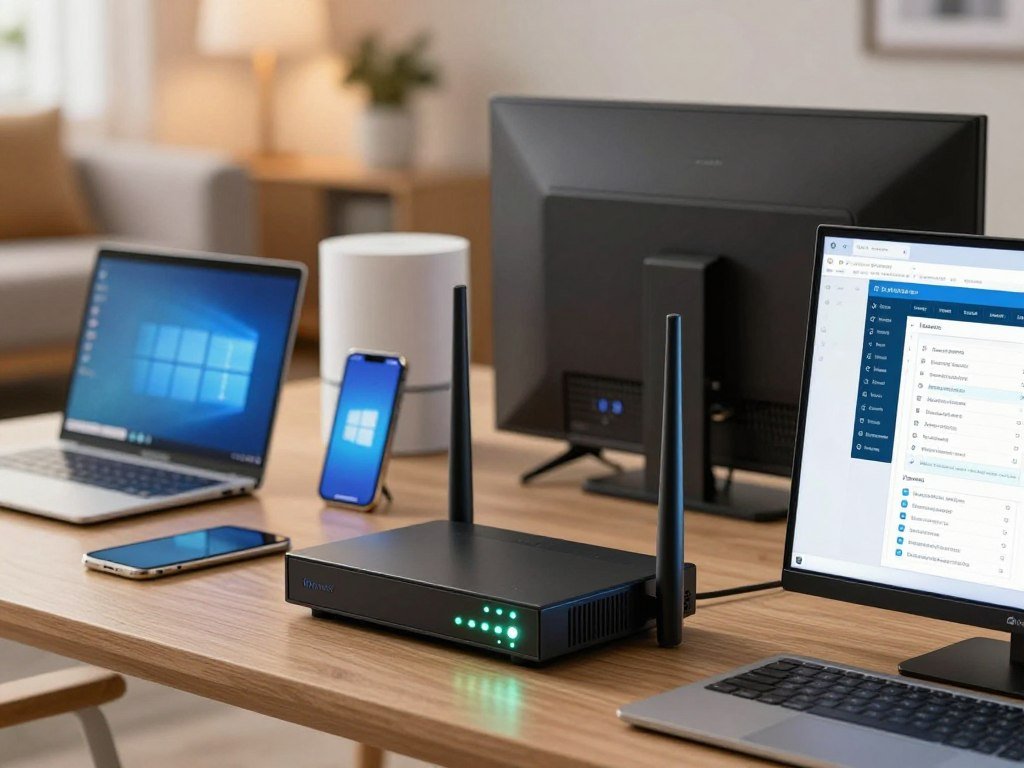
| Firewall type | Where it runs | What it controls |
|---|---|---|
| Windows Firewall | On a Windows PC | Network traffic to and from that PC |
| Router firewall | In the home router | Traffic entering or leaving the home network |
| Third-party firewall | On a device or in security software | Network traffic under its rules |
Both a router and a computer firewall can help limit unwanted network access. A firewall does not replace antimalware software or careful browsing, and it cannot make every internet connection safe.
Removing security software before setting up its replacement can leave a gap in protection. Check that your replacement antimalware product and Windows Firewall are enabled before uninstalling the old program.
Before removing a security product, confirm that replacement protection and Windows Firewall are turned on.
How Can You Spot Phishing Emails and Attachments?
An unexpected message asking you to act urgently deserves a pause, even if the sender’s name looks familiar. Phishing messages can imitate real senders to trick you into sharing personal information or opening unsafe links and attachments. A familiar display name does not prove an email is genuine.
Check the message for a request that feels out of place, such as a surprise invoice or an urgent demand for account details. Email caution is one of five practical ways to reduce virus risk, alongside broader safeguards for your computer.
- Verify the sender’s full email address, not just the display name.
- Pause when a message creates pressure or threatens quick consequences.
- Avoid unexpected links, even when the message looks familiar.
- Do not open email attachments you did not request or expect.
- Report suspicious messages with your email service’s reporting control.
Phishing can arrive in emails that copy a bank, delivery service, or coworker. CISA recommends avoiding and reporting phishing scams, rather than responding to suspicious messages.
Do not reply to ask whether an unexpected message is real. That can expose your address or invite more unwanted messages.
If a message claims to be from a bank or service, contact it through its known app or website instead of its link.
Which Browser and Download Settings Should You Turn On?
Turn on your browser’s safety and privacy controls, and get programs from official developer sites or trusted app stores. Browser protections can warn you about risky pages, but they cannot make every download trustworthy. Check the publisher before running an unfamiliar program.
Microsoft Edge has a pop-up blocker turned on by default. It can suppress some unsafe windows, but a pop-up blocker cannot make every website safe.
Review SmartScreen in Microsoft Edge, which warns about websites and download locations reported as unsafe. Also review your browser privacy settings to control what websites can see or do.
Download software from the developer’s official website or a trusted app store. Avoid download buttons that appear in ads or on pages unrelated to the program you want.
A familiar-looking download page can still host a risky file. Check the publisher shown by Windows before you run an unfamiliar program, even if the download came from a page you recognize.
Browser settings can reduce exposure to unsafe content, but they cannot assess every file. Pause before running an unfamiliar download, even when the browser has not shown a warning.
Why Should You Limit Administrator Access?
Use a standard account for everyday work when practical, and save administrator approval for software installation or system changes. Everyday tasks rarely need an administrator’s broad access. Approve only changes you recognize and started.
User Account Control, or UAC, asks for approval when a change needs administrator-level permission. A prompt may appear during a program installation or when software tries to change system settings.
If a prompt appears unexpectedly, stop and check what program or change triggered it. The prompt gives you a chance to block an action you did not start, not a reason to approve it automatically.
Windows 10 and Windows 11 include Tamper Protection, which helps prevent unauthorized changes to security settings. In Windows Security, open Virus & threat protection, then Manage settings, to check its status.
Limiting access makes it harder for unwanted software to change system settings without your approval. NIST’s least-privilege security controls describe the same basic idea: give users only the access they need.
Decline an administrator prompt when you cannot identify the program or change that triggered it.
How Do Strong Passwords and MFA Protect Accounts?
A stolen password is less useful to an attacker when it is unique and protected by a second sign-in check. Use a different password for each account, then store them in a password manager. Turn on multifactor authentication, or MFA, wherever it is available.
MFA asks for another check beyond your password, such as a one-time code or an approval on another device. That extra step can make a stolen password alone less useful.
- Make each account password unique, especially for email and banking.
- Use a password manager to create and store passwords.
- Turn on MFA for accounts that offer it.
- Keep recovery details current so you can regain account access.
CISA names strong passwords, MFA, a password manager, phishing awareness, and software updates among its core cybersecurity steps for everyone in 2026. A six-part virus-prevention checklist can include account security with updates, antimalware, a firewall, cautious browsing, and backups.
Protecting an email account matters because it can help reset access to other services. A financial account may hold personal information or details that attackers could use elsewhere.
Turn on MFA first for email and financial accounts, since access to those accounts can expose other information.
How Should You Back Up Important Files?
A backup is useful only if it survives the incident and you can restore the files you need. Keep a separate copy of important data, away from the everyday files it protects. Encrypt critical backups and test that you can restore files.
A drive that stays connected to your computer may be exposed to the same malware or ransomware. An offline copy can be harder for ransomware to reach and delete or encrypt.
Keep critical backups offline and encrypted
Different backup options suit different home setups. The table describes common uses, not a promise that any one option will stay protected.
| Backup option | Can be kept offline | Practical role |
|---|---|---|
| External drive | Yes, when disconnected | Local copy for selected files |
| Cloud backup | No, while syncing online | Remote copy stored with a provider |
| Network-attached storage | Sometimes, when disconnected | Shared storage on a home network |
CISA recommends keeping critical backups offline and encrypted. A connected drive or network storage may still be reachable during an attack, depending on its setup.
Test that files can be restored
A completed backup job does not prove that your files will open after a problem. Restore a few files to a safe location and check that they work.
CISA also recommends testing backup availability and integrity on a regular basis. Backups can include photos, documents, and other files that would be hard to replace.
Disconnect an external backup drive when the backup is complete and test a restore periodically.
When Should You Run an On-Demand Malware Scan?
A manual scan is useful for checking a concern, but it does not continuously watch a PC. Run an on-demand scan to investigate odd activity or get a second check. Keep separate real-time antimalware protection active between scans.
Microsoft Safety Scanner is a portable executable that you launch manually. It has no Start menu entry or desktop icon, and it is designed to find and remove malware on Windows computers.
Use a scan to check for malware or confirm a concern
The tool can try to reverse changes made by threats it identifies. It supports Windows 11, Windows 10, Windows 10 Tech Preview, Windows 8.1, Windows 8, and supported Windows Server versions.
Microsoft Safety Scanner does not replace an installed antimalware product. Treat it as a manual check, not as continuous protection for files or activity.
Know the limits of Microsoft Safety Scanner
The scanner expires 10 days after download. Download the latest version before each scan, rather than saving one copy for future use.
Start the file yourself and follow its on-screen choices to select a scan. A scan may take time, and its result only reflects what the tool checked at that time.
If you use a different Windows device, check whether the tool supports that version before launching it. Keep a separate real-time antimalware product enabled after the manual scan ends.
What Should You Expect From Virus Removal Help?
Get help when a threat keeps returning or you cannot safely restore normal access to important files. Repeated warnings, files you cannot open, or signs of reinfection can call for technical support. A slow computer alone does not prove malware is present.
Other software problems, full storage, or aging hardware can also slow a computer. Describe what changed and when it began so a support worker can narrow down the issue.
In 2026, Geek Squad lists Virus Removal and Operating System Repair for $149.99 as an in-store service. The same named service costs $149.99 for remote support.
Those prices apply to that listed service, not to every repair shop or every kind of computer problem. Before you authorize work, ask which checks and repairs the service includes.
Ask whether the service includes a system reinstall, file recovery, or help restoring your data. Those tasks may be separate from removing malware, so clarify the scope before work begins.
Before approving any repair, ask what the service covers and whether you will need to restore files afterward.
What Should You Do if Malware Is Already on the PC?
If ransomware may be active, isolate the affected computer immediately to limit further spread. Disconnect it from the network, and contact your organization’s IT team if it is a work device. Do not treat one warning sign as proof of infection.
Possible signs include slow performance, crashes, missing files, changed settings, pop-ups, browser redirects, unfamiliar programs, disabled security tools, unusual account activity, or a ransom note. These signs can have other causes, so use security software to investigate.
Here are 12 warning indicators, shown as six paired examples:
- Slow performance and repeated crashes.
- Missing files and changed settings.
- Unexpected pop-ups and browser redirects.
- Unfamiliar programs and unresponsive apps.
- Disabled security tools and unusual account activity.
- Encrypted files and a ransom note.
A computer virus does not reliably go away on its own; removal may take security software, isolation, or a system rebuild.
Use these steps if you suspect an infection:
- Disconnect the affected device from its network.
- If you cannot disconnect a ransomware-affected device, power it down.
- Contact your organization’s IT team if the computer belongs to work.
- Restore files only from a clean backup after the system is safe.
CISA recommends isolating systems affected by ransomware as soon as possible. If the device cannot be disconnected from its network, shutting it down can help limit further spread.
Ransomware or a persistent rootkit may need specialist cleanup or a clean system reinstall. No single malware type is always the hardest to remove, and effective cleanup depends on the infection.
Do not reconnect restored files or devices until the affected system has been cleaned and checked.
Conclusion
A safer PC comes from keeping a few useful protections working together. Current software, careful online choices, active antimalware, and files you can restore each help in a different way.
You do not need to change every setting today. Start with one check that can prevent an avoidable problem, then keep the habit in your routine.
Today, check for pending updates and verify that one important file can be restored from backup.
FAQ
How do I prevent my laptop from viruses?
Keep your operating system and apps updated, use one active antimalware product, enable a firewall, avoid suspicious links and downloads, and back up important files. These steps lower the chance of infection and help you recover if malware damages data. Use unique passwords and MFA too, especially for email and financial accounts.
How can you protect your home computer cyber awareness?
Protect a home computer by keeping software current, learning to spot phishing, using strong unique passwords, enabling MFA, and turning on a firewall. Keep backups of important files and test that you can restore them. These habits help with both online account risks and malware that may affect your computer.
How to 100% get rid of a virus?
No cleanup process can guarantee 100% removal of every virus or other malware. Use reputable, updated antimalware and isolate the computer when a threat may spread. If signs persist, seek specialist help or reinstall the system from a clean source. Restore files only after the system has been checked and made safe.
How do I know if my PC has malware on it?
Unexpected pop-ups, disabled security tools, browser redirects, missing files, or unusual activity can be warning signs. They do not prove that malware is present, since other problems can cause similar behavior. Run an on-demand scan with reputable antimalware, and get help if the signs continue or you cannot access important files.
What are the 12 signs your computer has been hacked?
Warning signs can include crashes, missing files, changed settings, unfamiliar apps, browser redirects, disabled security tools, unusual account activity, and encrypted files. Slow performance, pop-ups, or unresponsive apps may also matter. These signs are not proof by themselves. Check the computer with security software and consider technical help if the problem continues.
Will a computer virus go away on its own?
Do not count on a computer virus going away by itself. Malware usually needs to be found and removed with effective security tools, and some threats can keep changing files or settings. Isolate the device when a threat may spread. Persistent infections may need professional cleanup or a clean system reinstall.
What kills computer viruses?
Reputable, updated antimalware can detect, quarantine, or remove many computer threats. Run a scan when you have a concern, but keep real-time protection active for ongoing checks. Some persistent malware may resist normal cleanup and require specialist help or a clean system reinstall. Back up clean files before restoring them.
How much does Geek Squad charge for virus removal?
In 2026, Geek Squad lists Virus Removal and Operating System Repair for $149.99 for both in-store and remote service. That price applies to the named service, not every repair provider or every computer issue. Before approving work, ask what checks and repairs it includes and whether file recovery or system reinstall costs extra.



