An image on your Android phone can be the starting point for finding related pages, similar pictures, or details about an object. Visual search means using an image, rather than typed words, as the search input. It helps when you have a picture but do not know its name, maker, or source.
Results may show websites with the same image, similar images, or information about objects in the picture. A match can give you a useful lead, but it does not always identify who made the image or where it first appeared. The right app and method depend on whether the image is on a webpage, saved to your device, or displayed elsewhere on screen.
This guide gives you practical ways to search from Google apps, a saved photo, or an image already on screen. You can also see when another tool may help and how to read the results with care. Start with the image you already have, whether it is on a webpage or saved on your phone.
Key Takeaways
- Google Lens is a simple first option for image search on Android.
- Chrome can search webpage images without saving a copy first.
- Circle to Search works on select Android devices.
- Saved photos and screenshots can be selected from your device.
- TinEye can help find exact or edited copies of an image.
- A matching website is a lead, not proof of an image’s origin.
How to Reverse Image Search on Android With Google Lens
For most Android users, opening the Google app and tapping Lens in its search bar is the simplest starting point. Lens lets you take a picture or choose one already on your phone. The Google app and Chrome both offer Lens through the search bar.
These routes work on a Samsung Android phone as well as other Android devices with Google apps. The labels may look slightly different across devices, but the Lens icon remains the key control.
Use the Google app or Chrome search bar when you want to start a Lens search quickly. Google image results also let you search a picture you have already opened.
Search from the Google app
Open Google and find the Lens icon in the search bar. Tap Google Lens, then take a new picture or select an image from your device. The camera view is useful for objects in front of you, while the picker works for saved photos.
This is the usual Google Lens reverse image search route when the Google app is already on your phone. The same steps work when you want to use Google for image search without typing a description first.
Start with a Google image result
For Google reverse image search on a phone, open Google Search and look for the picture you want to check. Tap the image result to open it, then tap the Google Lens icon. Lens uses that result as the search input, so you do not need to save it first.
This route helps when you have found a picture in search results and want related pages or other matches. It also keeps the original image close at hand as you compare what Lens finds.
Use Chrome’s Lens search bar
To Google search an image without the Google app, open Chrome and tap Lens in its search bar. Take a picture or choose a saved image to begin. Chrome’s Lens search bar offers a direct option for people who prefer to keep browsing in Chrome.
| Route | Starting point | Action | Best for |
|---|---|---|---|
| Google app | Google app search bar | Tap Lens, then take or select an image | Quick searches from the Google app |
| Google image result | Opened Google Search image | Tap the Lens icon on the result | Finding pages related to a search result |
| Chrome Lens search bar | Chrome search bar | Tap Lens, then take or select an image | Searching without opening the Google app |
If Lens is missing from the search bar, open Chrome and use its Lens search control instead.
How do you search an image on a webpage?
If the image is already on a webpage, Chrome can send it straight to Google Lens without saving a copy first. This direct route works on Chrome for Android when Google is the default search engine. Chrome searches the selected webpage image, while Circle to Search can search content across your screen.
The two options suit different situations. Chrome targets one image on a website; Circle to Search can focus on an item shown anywhere on screen, including a video or app.
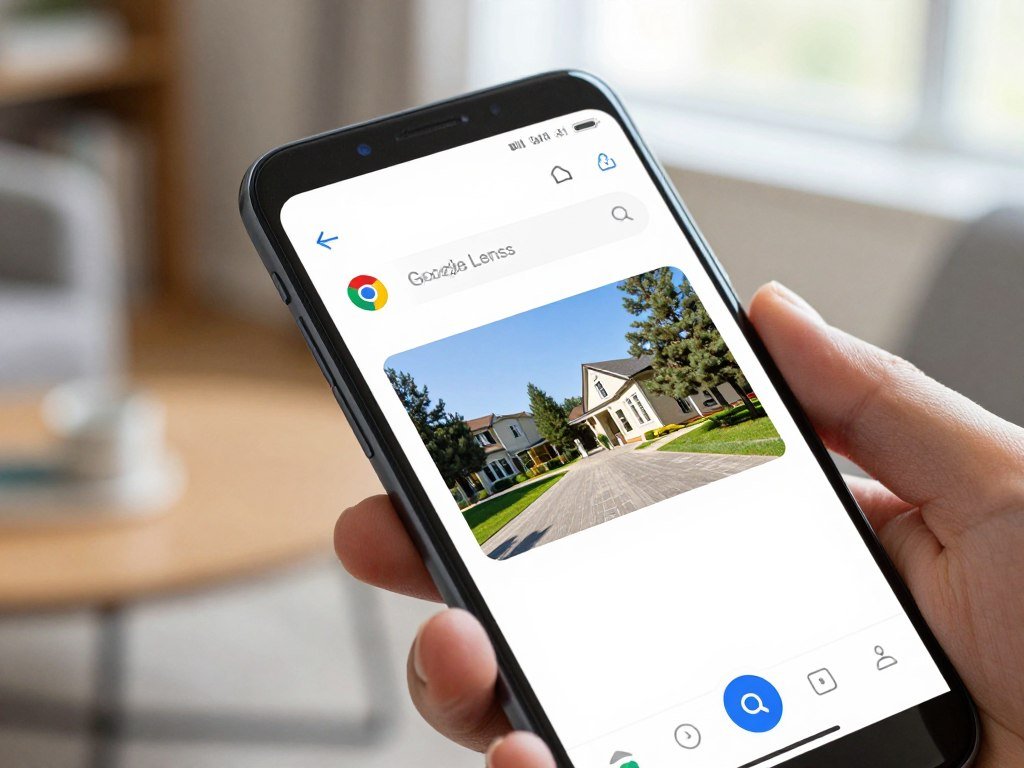
Search the image directly in Chrome
Touch and hold the webpage image you want to check. When the menu appears, tap “Search image with Google Lens.” Chrome sends the selected picture to Lens, which can look for related images and pages.
You do not need to download the image to your phone first. If the menu option is absent, check Chrome’s default search engine setting before trying again.
Circle or tap what is on screen
On select Android devices, Circle to Search lets you mark a screen item without opening a separate app. Start it and follow these steps:
- Long-press the Home button or navigation bar to open Circle to Search.
- Circle an image or tap the object you want to identify.
- Swipe up to see search results for the selected content.
Circle to Search works with visible screen content, not just a single image on a webpage. It can be handy when the picture sits inside a post or another app and you want to search one object.
Check that Google is Chrome’s default search engine if the webpage-image option does not appear.
How can you narrow the results to one object?
A wide scene can return more useful matches when you select just the object or detail you want to investigate. A smaller selection can help Lens focus on a product, person, or place instead of the whole picture. Choose the part that carries the clue you need.
Tap the subject, or drag the selection-box corners to frame it. For a jacket in a crowded photo, include the jacket and trim away people, walls, and other items. A tighter crop can lead to more specific results.
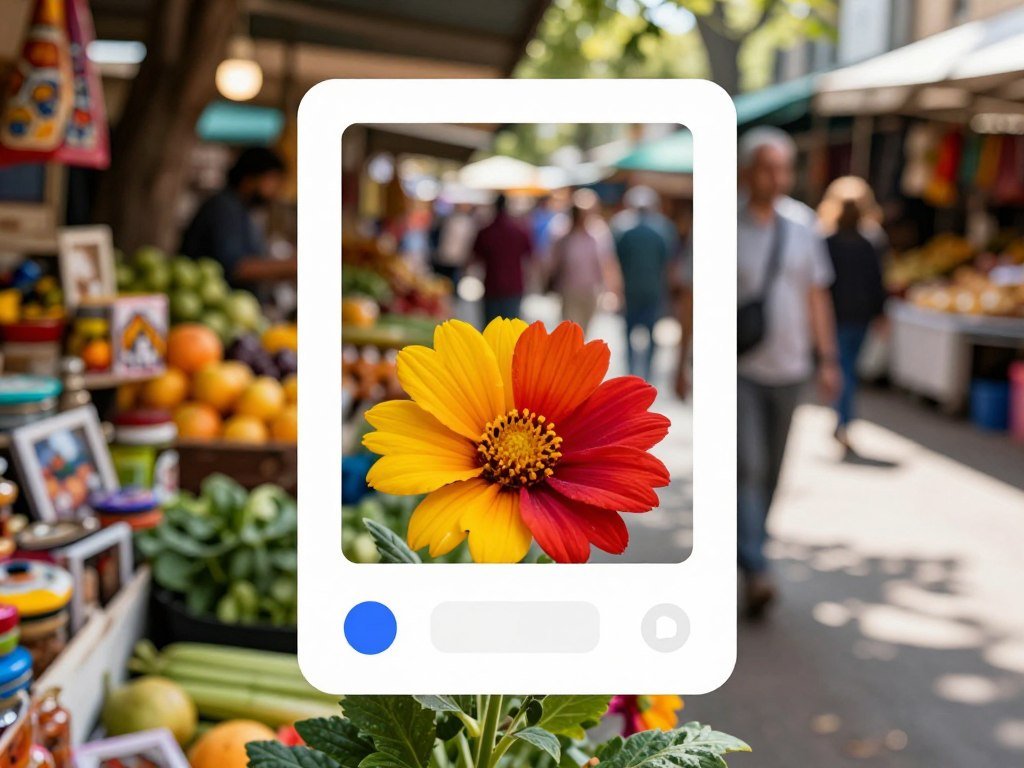
Select a smaller part of the image
Lens results can include AI Overviews, object search results, similar images, and websites with the same or a similar image. A broad picture may return pages about several objects, while a focused selection can point toward the item you meant to search.
Look at the picture itself as well as the labels beside each result. A matching color or shape may be useful, but it does not always mean two products are the same model.
Refine the results with words
Add a few descriptive keywords when visual matches are too broad. A product type, brand name, or place name can help narrow the image search using both the picture and text. For example, add a clothing type or location when the image shows several possible subjects.
Lens may also show “About this image,” which can help you inspect image context. The feature is available in 40 languages globally and rolled out in 2024 to Circle to Search on select Android devices and Lens in the Google app on Android and iOS. About this image’s rollout gives useful context when the feature appears.
Add a short, specific term such as a product type or place name when the visual matches are too broad.
How do you search a saved photo or screenshot?
A screenshot works as a saved image, so you can search it from your phone’s photo picker without reopening the original post. Saved pictures can go into Lens from the Google app or Chrome. Google Lens needs an internet connection to search an image.
Open Google or Chrome, tap Lens in the search bar, and choose an image from your device. The Google reverse image search upload an image route can use a photo, screenshot, or other saved picture. From Chrome, open a new tab and tap Lens in the search bar to search by uploading an image.
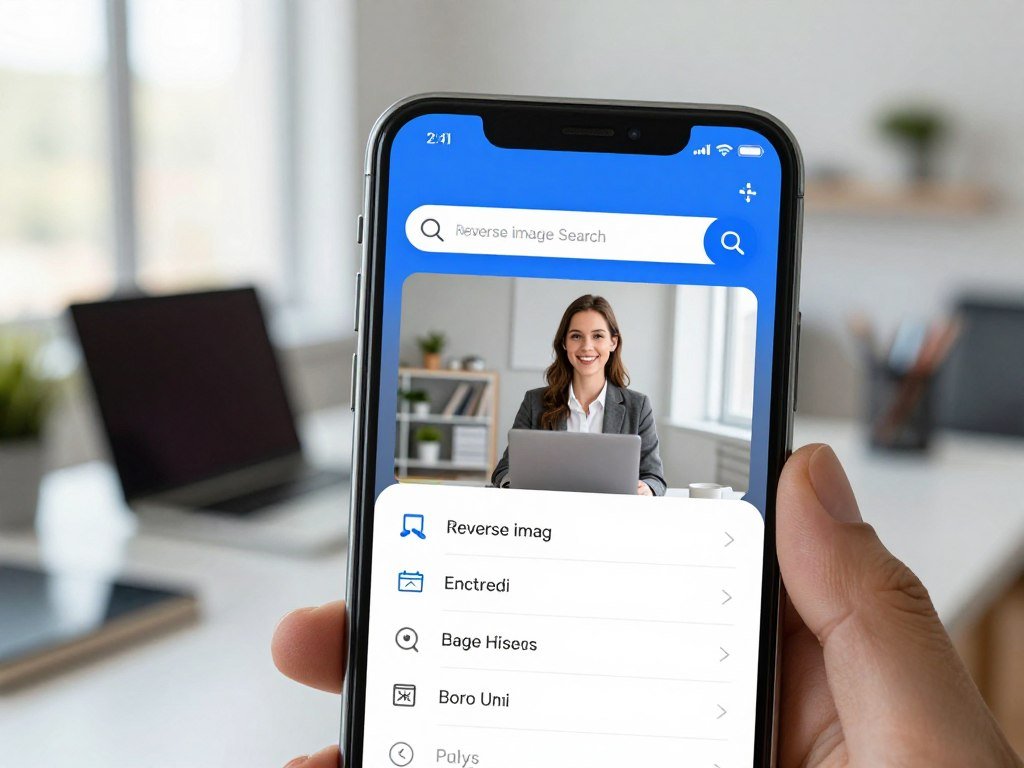
Google reverse image search from the camera roll uses the saved-image picker in Lens. If the picture is not saved, take a fresh photo with the camera and search that instead. These three steps cover either choice:
- Open Lens from the Google app or Chrome search bar.
- Take a picture with the camera or select a saved image.
- View the results and open a match that looks useful.
The camera route can help with a plant, sign, or object nearby. The saved-photo route works well for a screenshot or a picture you received earlier.
Lens can translate text in images in over 100 languages. That can help you read a menu or sign before searching for other details. Image text translation in over 100 languages is one of Lens’s image tools.
Lens shopping results are available in the United States, so a product picture may lead to shopping matches. The feature can help you compare similar products, but check the details before choosing one.
Use a clear screenshot that includes the subject but trims away unrelated screen content.
When is TinEye a better fit than Google Lens?
Choose TinEye when the goal is to locate copies or altered versions of the same image rather than other pictures of the same subject. TinEye matching focuses on exact and modified copies, while Google Lens is more useful for similar subjects and identifying objects. TinEye often will not find different pictures of the same subject.
Use it when you have a picture and want to see where copies appear online. TinEye accepts common image files, though size and format can affect whether you can submit one.
Check TinEye’s image requirements
Review the file before uploading it. TinEye’s limits include a maximum file size and supported formats, and larger images tend to work better for matching.
| Attribute | TinEye detail | Practical meaning |
|---|---|---|
| File size | Up to 20 megabytes | Files larger than 20 megabytes cannot be submitted |
| Image dimensions | Best at 300 pixels or more in either dimension; accepts 100 pixels | Small files can work, but larger dimensions are preferred |
| Accepted formats | JPEG, PNG, GIF, BMP, TIFF, and WebP | Save the image in one of these six formats |
| Matching behavior | Exact and modified copies, including crops, resized, rotated, color-adjusted, or edited versions | It commonly misses different images of the same subject |
TinEye’s image file limits help you check whether a picture fits before you submit it. TinEye says it does not save or share submitted images or track searches.
Understand what its matches and dates mean
TinEye’s Oldest sort shows the earliest-crawled matching images it found. A crawl date marks when TinEye found a page, not when the image first appeared online. An older result can guide your search, but it cannot settle the image’s publication date.
TinEye’s focus on copies makes it a different tool from a broad search for similar images. A crop or color change may still match, while a new photograph of the same item may not.
Treat the Oldest result as the earliest crawl TinEye found, not as proof of the image’s first online date.
Use the date as a clue when comparing matching pages, not as a confirmed origin date.
What can a reverse image search result prove?
A matching result can point you toward a source, but it does not by itself prove who made the image or when it first appeared. A match is a lead, not proof of authorship or publication history. Compare more than one result before treating a source as verified.
A search with no matches does not prove that the image is absent from the web. Private Instagram pages and other pages search engines cannot access may not appear in results.
A matching page is a starting point for checking context. It cannot prove who created the image or when it first appeared.
Chrome Lens webpage searches send a screenshot and page data to help select objects. Google temporarily processes that data for the query and says it does not use the page or image for training as a result of the search.
Open a matching page and read its caption, date, and surrounding text. Compare those details across multiple results, and check whether the pages refer to the same image or merely a similar one. A page may show where an image appears without proving that its owner created it.
You can also use a guide to checking suspicious images to compare dates, captions, and claims about an image’s setting. Verify an apparent source by opening the matching page and checking its surrounding context.
Conclusion
Google Lens gives Android users a direct way to search what is on screen or saved on the phone. It is a straightforward first choice when you want visual matches or information about an object.
TinEye can help locate exact or edited copies when that is your main goal. The result still needs context, so compare the matching page with other details in the image.
Try the method that fits the picture you have, whether it is open in Chrome, saved in Photos, or in front of your camera. Pick one image you want to investigate and run it through the method that matches your goal.
FAQ
How to Google search an image without the app?
Use Chrome’s Lens search bar or search a webpage image directly. Tap Lens in Chrome’s search bar to take or select a picture. To search an image on a webpage, touch and hold it, then choose “Search image with Google Lens.” Google must be Chrome’s default search engine for that webpage option to appear.
How do I turn on Google Lens on Android?
You do not need a separate Lens switch for these search steps. Open the Google app or Chrome and tap the Lens icon in its search bar. You can then take a picture or choose one saved on your device. If the icon is not visible in one app, try the other app’s search bar.
Can you reverse image search faces?
Yes, Lens can search a face for similar images or pages that contain it, but a visual match does not confirm someone’s identity. Results may show photos with similar features or copies of the same picture. Check the page context and avoid treating a match as proof of who a person is.
How do I reverse image search a photo on my phone?
Open Lens in the Google app or Chrome, then take a picture or choose an existing image from your device. The saved-image picker lets you select a photo or screenshot from your phone. Lens needs an internet connection to search, so connect before expecting results to load.
Can you screenshot an image and reverse search it?
Yes, you can select a screenshot from your device’s image picker and use it as the Lens input. Open Lens in the Google app or Chrome, tap the image picker, and choose the screenshot. A clean crop that keeps the subject and removes extra screen details can make the search easier to focus.
What is the best free reverse image search?
Start with Google Lens for broad visual matches and object information; try TinEye when exact or edited copies matter. Lens can search a saved image, a webpage picture, or an object in front of your camera. TinEye focuses on matching copies, so it suits a different goal than finding other pictures of the same subject.



