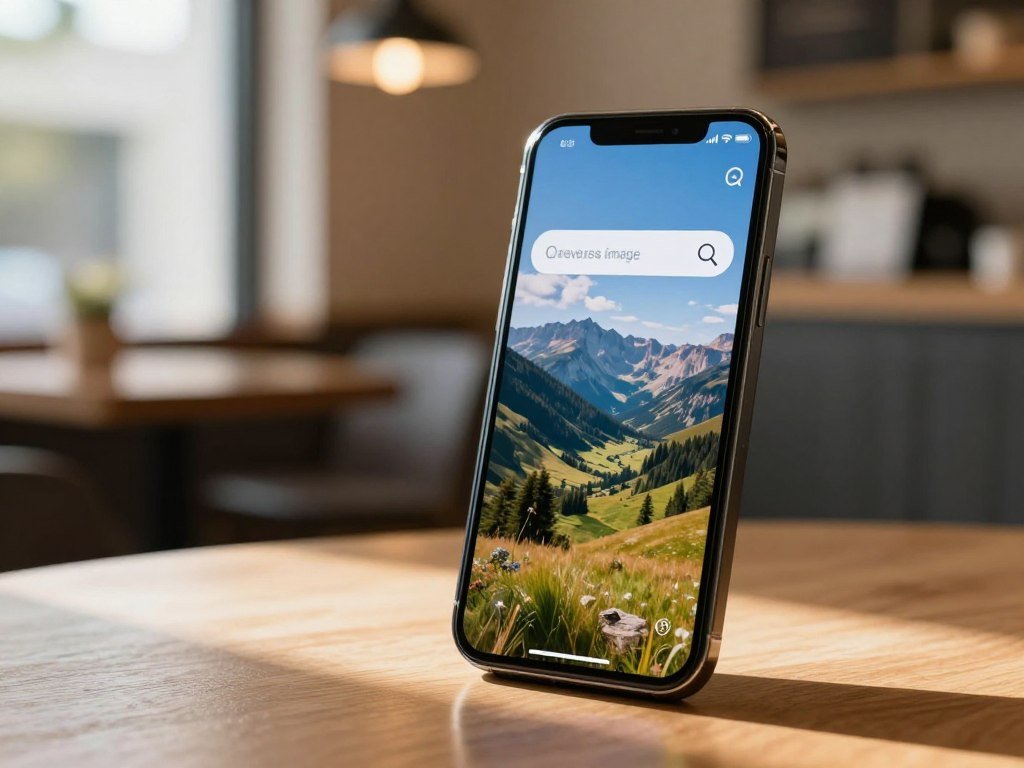
A saved photo, a screenshot or an object in front of you can all be starting points for an image search on iPhone. You might want to find a product, learn what a plant is, or see where a picture appeared online. The right app or search bar depends on where the image is now: in your photo library, open on a webpage, or right in front of your camera. Google Lens is Google’s image-recognition tool for searching with a live camera view or a saved photo. You can use familiar tools on your phone to find visual matches, related webpages and useful product details. A visual match resembles your picture, but may not be the same file. Have the image or object ready before choosing the method that fits.
Key Takeaways
- Use Google Lens for saved photos or live camera searches.
- Safari can upload a photo through Google Images.
- Search many webpage images without saving them first.
- Visual Look Up can identify supported subjects on iPhone.
- TinEye can help trace matching images online.
How to Reverse Image Search on iPhone With Google Lens
Google Lens is the quickest route when you want to search a saved photo or identify something in front of your iPhone. Start with the Google app for a free image search using a photo or live camera view. Google Lens can show image matches, related webpages and product listings.
A live camera search does not require saving a new photo first. Open the Google app and tap the camera icon beside the search bar. Choose an image from your photo library, or point the camera at a subject. You can adjust the selected area before you view results.
A live camera search works without saving a new picture first.
The [Google Lens search options](https://search.google/ways-to-search/lens/) include both live camera searches and searches with photos on your phone.
Search from the Google app
Use these four actions to perform reverse image search in the Google app:
- Open the Google app on your iPhone.
- Tap the camera icon beside the search bar.
- Select a saved photo, or aim the camera at a subject.
- Adjust the image area if needed, then tap Search.
The search results may include similar images, webpages and products. A visual match can look like your image without being the same original file. Try a few descriptive words if a picture alone does not bring up useful results.
Search a saved photo in Google Photos
Google Photos offers another way to search an image already in your library. Open the photo, tap the three-dot menu, then choose Google Lens. Lens will examine the picture and show related results. This route is handy when you are already browsing photos and do not want to switch apps first. If the photo contains several subjects, start by selecting the one that matters most.
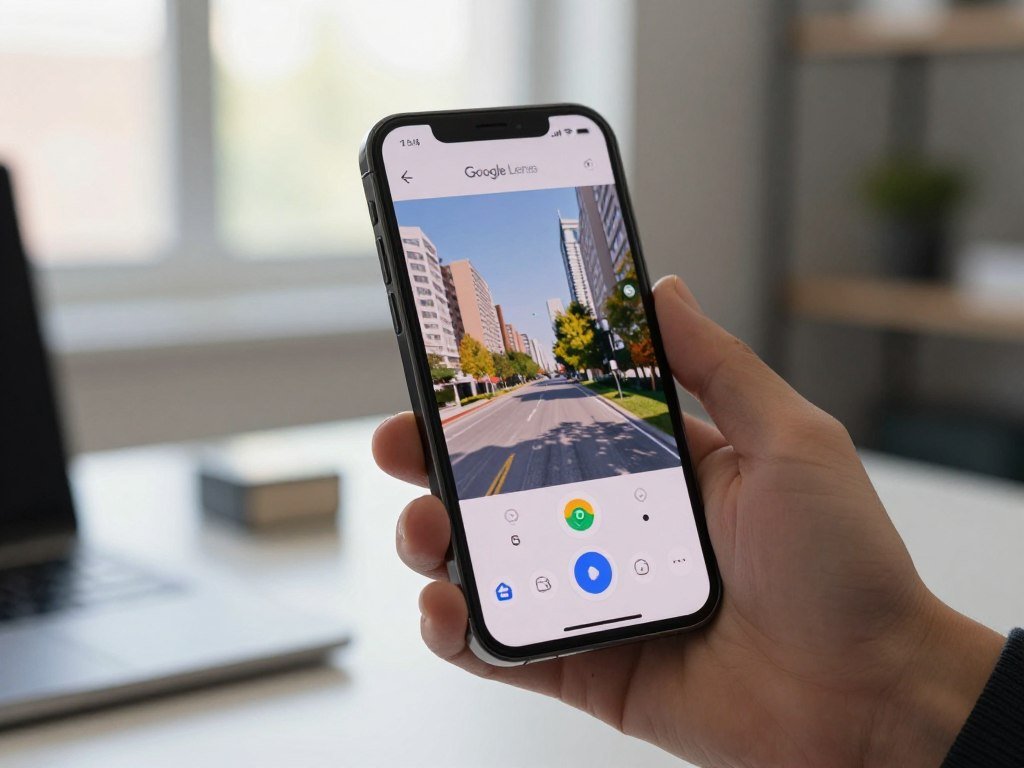
How to Upload a Photo in Safari
Safari can upload a photo from your library through the desktop version of Google Images. This route works in Safari when you prefer a browser to the Google app. Google Images can show visual matches and related webpages for an uploaded picture.
The upload route starts at images.google.com, not with a webpage image already open. Requesting the desktop website brings up controls designed for a larger screen. On an iPhone, those controls may look small or sit close together.
Request the desktop Google Images site
Follow these four actions to start a Google image search in Safari:
- Open images.google.com in Safari.
- Request the desktop website from Safari’s page controls.
- Tap the camera icon and choose Upload an image.
- Select a photo from your photo library.
The photo upload searches the image file you choose. It is different from searching a picture that is already visible online, where you can use the webpage image directly. You do not need to save that online picture to your library for this upload route. If you cannot find the image file, check that the photo appears in your iPhone library before selecting it.
Choose a photo from the library
After you tap Upload an image, select the photo you want to search. Google Images then looks for visual matches and related pages. The results can help you find similar versions or places where the image appears. They may not show the exact original source. Safari’s desktop controls can be awkward to tap on a phone screen. Zoom in on the page if the upload controls are difficult to tap.

How to Search an Image You Find Online
You can search many online images directly, without downloading the original first. Use the option that fits where you found the picture. Google Lens can search images in Google results, the Google app and Chrome.
Chrome’s website-image search requires Google as its default search engine. Choose one of these three starting points:
- In Google image results, select the image and tap the Lens option.
- On a website in the Google app, open camera search and choose Use image from browser.
- On a website in Chrome, touch and hold the image, then select Search image with Google.
These methods search the image displayed on the page, rather than a separate photo you upload from your library. A result may point to pages that use the same picture or a visual match. That can help you follow the image to a page with more context, such as a product listing or an older post.
Some pages block image selection, or the picture may not open as an image by itself. In that case, take a screenshot and save it as a photo, then search the screenshot from your library. This searches the visible part of the page, not the original image file. If Chrome does not offer its website-image search action, check whether Google is set as its default search engine.
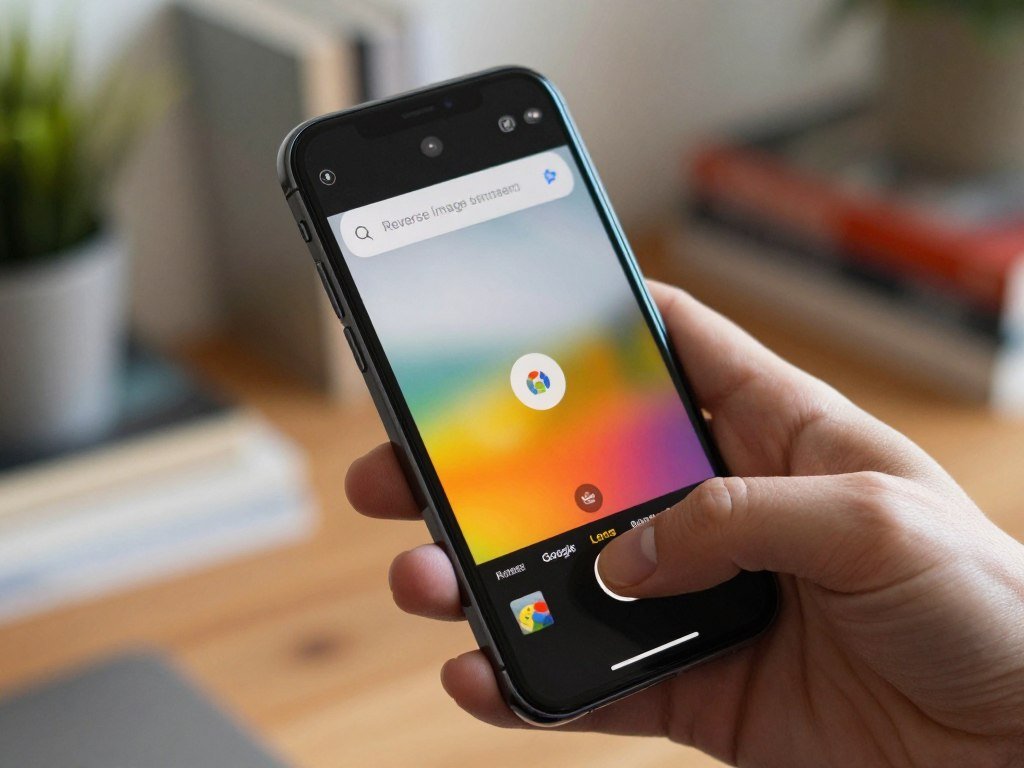
Can iPhone Visual Look Up Identify a Photo?
Visual Look Up is useful when you want your iPhone to identify a supported subject in a photo rather than find copies of the image online. It recognizes certain subjects and can show related information from Siri Knowledge and the web. It requires iOS 15 or later.
Open a photo full screen, tap the starred Info button, then tap Look Up. Visual Look Up can identify landmarks, statues, famous art, plants, pets, books and food. For food, it can also suggest recipes.
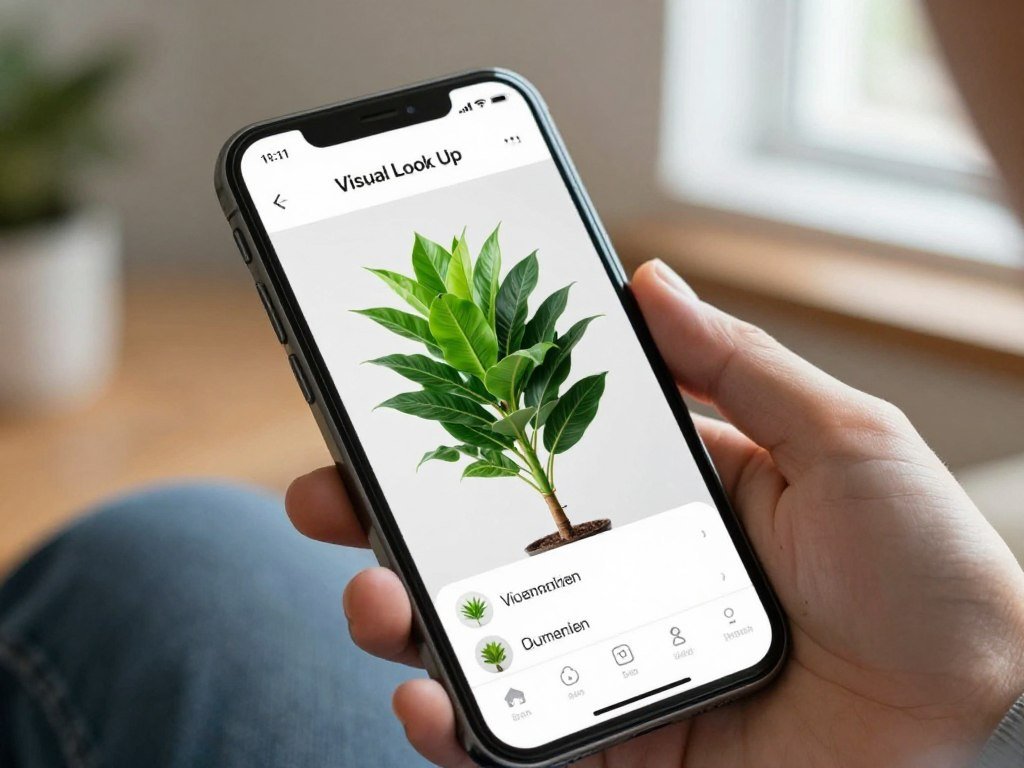
The feature works in Photos, Safari, Quick Look and other iPhone apps. It can be a quick way to get information about a subject without looking for copies of the whole image. Look Up appears only when the iPhone can use Visual Look Up with that picture.
If the Info button in Photos has no star, Visual Look Up is unavailable for that photo. The feature is also not available in every region or language. A supported iOS version alone does not mean every photo will have a Look Up option. Check for the star on the Info button before expecting a Look Up option.
When Is TinEye Useful for Finding an Image Source?
TinEye is useful when your main goal is to find where matching versions of a picture appear online. It focuses on image matches, which can help when you want to trace a picture’s online appearances. TinEye searches over 86.5 billion images and says it does not save or index images submitted for searches.
A match can show where an image appeared, but it does not prove who created it. TinEye can sort matches by first occurrence online, largest version or most-edited version. These choices help you review results based on the clue you care about.
| Sort option | What it prioritizes |
|---|---|
| First occurrence online | Earliest appearance found online |
| Largest version | Largest matching image |
| Most-edited version | Most-edited matching image |
An early result may point to an older appearance, but it does not confirm the creator or prove that the page is the original source. Treat each match as a clue and check the page’s context. If you are also checking whether a picture may be AI-generated, use a guide to assessing suspicious images alongside your search results.
Choose the first-occurrence sort when the order of online appearances matters most.
How to Improve Reverse Image Search Results
A tighter crop can make a search more useful when one subject is the clue you care about. Keep the main subject clear, such as a logo, plant or piece of furniture. A wider crop can preserve background details that may help identify the place or context.
No result does not prove that an image is genuine. Reverse image search can miss new, private, edited, cropped, mirrored, face-swapped or AI-generated images. A small change to the picture can make it harder for a search tool to find a match.
In Google Lens, use Add to your search to include a few descriptive words. For example, add a color or object type if the image shows a jacket or chair. A text clue can narrow the search when several similar images appear.
Try a close crop and a wider crop if the first search misses useful results. Keep an uncropped copy before changing the image for another search attempt. A steady, clear picture can help when you take a new one, so simple iPhone camera tips may help you capture a sharper subject.
What Can Google Lens Identify?
Google Lens can help with everyday identification as well as finding visual matches. It can recognize subjects such as plants, animals, landmarks and storefronts. It can also find similar clothing and furniture, and scan QR codes and barcodes.
Identifying an object or finding a similar product is different from proving where a particular photo first appeared. Lens can help you learn about a subject or locate items with a similar look.
Google describes Lens search features for identifying plants and animals, learning about landmarks, and finding products.
| Subject or item | What Lens can do |
|---|---|
| Plants and animals | Identify the subject |
| Landmarks and storefronts | Recognize the place or building |
| Clothing and furniture | Find similar items |
| QR codes and barcodes | Scan the code |
Similar products can help you identify an item, but they do not trace a photo’s online history.
Use a source-matching tool when you need to trace a photo’s online appearances rather than identify its subject.
Conclusion
For a saved image or a subject in front of you, start with Google Lens; for a supported subject already on screen, try Visual Look Up. Choose the route that fits where the picture is and what you hope to learn.
A visual match can point you toward useful details, but it may not be the same file or prove who made it. Try one photo or screenshot first, then adjust the search if the result misses the detail you need. Pick one photo or screenshot and run a search on the part you most want to identify.
FAQ
How do you search using an image on an iPhone?
Open the Google app, tap the camera icon beside the search bar, then select a saved photo or use the live camera. Lens searches the part of the image you choose and can show related webpages, visual matches and product listings. You can search an object in front of you without taking or saving a new picture first.
How to search from a screenshot in iPhone?
Open or save the screenshot in your photo library, then select it through Google Lens’s photo picker. The search uses what the screenshot shows, so text, borders or other screen details may affect the matches. If the screenshot contains several subjects, choose the main one first. A screenshot works like any other saved still image.
Does the iPhone have reverse image search?
Yes, iPhone has Visual Look Up on iOS 15 or later for supported subjects, while Google Lens offers broader image matching. Visual Look Up can identify subjects such as plants, pets and landmarks in a photo. Lens can also search saved pictures, live camera views and many images found online. The two tools serve different needs.
Can reverse image search work with screenshots?
Yes, reverse image search can use a screenshot saved as a still image in your photo library. Choose it with Google Lens or upload it through Google Images. The screenshot may show a cropped or edited version of the original, so results can differ. No search result does not prove that the image is genuine.
Can I take a picture of an item and find out what it is?
Yes, Google Lens can search a live camera view and identify subjects such as plants, animals and landmarks. Open camera search and point your iPhone at the item. You can also select a saved photo if you already took one. Lens may find similar clothing or furniture, though a similar result does not confirm the exact brand.
How to use Visual lookup on iPhone?
Open a photo full screen, tap the starred Info button and choose Look Up. Visual Look Up requires iOS 15 or later, and it is not available in every region or language. It works only for supported subjects and photos. If the Info button has no star, Look Up is not available for that image.



