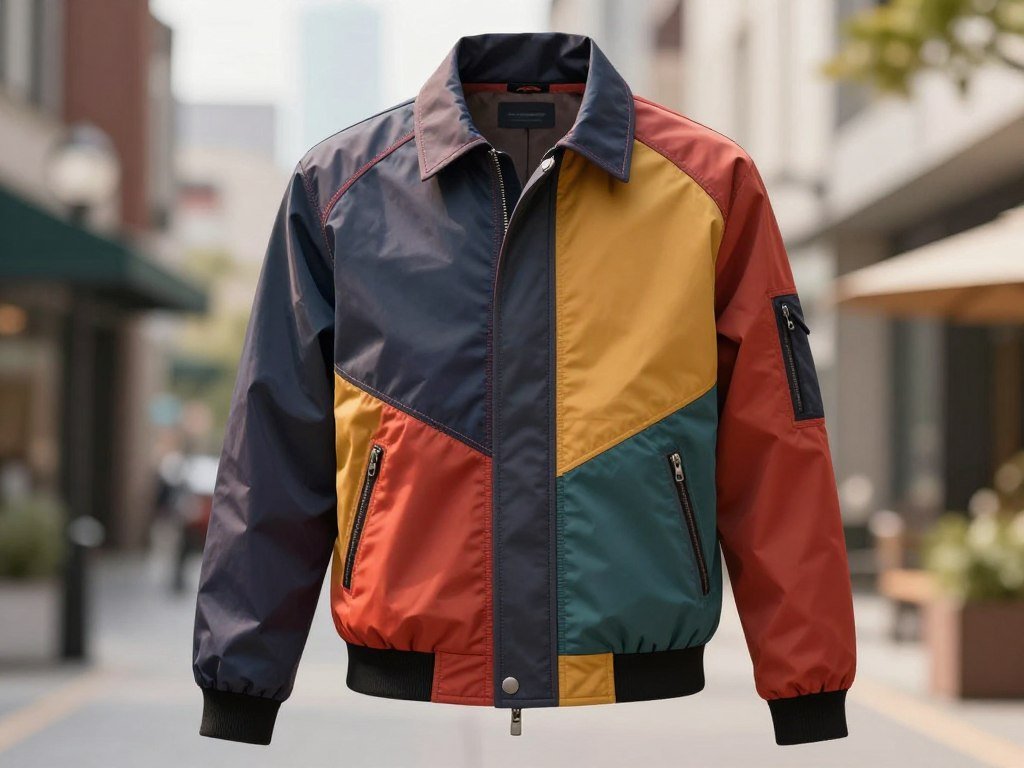
A saved screenshot of a jacket or a quick photo of a lamp can be enough to start identifying an item you cannot name. Visual search uses images to find objects, products, and possible shopping options.
A visual match is an image result that looks like the item you photographed, but may not be the same brand, model, size, or version. That distinction matters when a picture comes from social media or shows an item among other objects.
Results may include the exact product, a close lookalike, or several similar items. A clear photo can point you toward a name or store, even when you do not know what words to type.
For example, you might spot a lamp in a room photo and want to find its shape or maker. A shopping search can also help when a jacket in a post catches your eye, but its caption gives no product name.
Photo search gives you a useful starting point, not a guarantee that a listing shows the same item. Treat the first promising result as a lead to check, not proof that two listings are the same product.
Key Takeaways
- Use a photo, screenshot, or camera view to start visual search.
- Google Lens can find products and similar images.
- Refine broad results with a short word, such as a color.
- Compare product details before you buy.
- Check the seller’s listing for current price and stock.
How to Search for Products Using a Photo on Your Phone
If the item is already in your camera roll, you can start with that photo rather than trying to name the product. Google Lens is a free visual-search tool for objects and shopping, and U.S. shopping results can show a maker, price, and retailer.
Lens can find visually similar clothing, furniture, and home decor. In 2026, Google Lens shopping results are available in the United States, and some results include a place to buy the item.
On iPhone and iPad
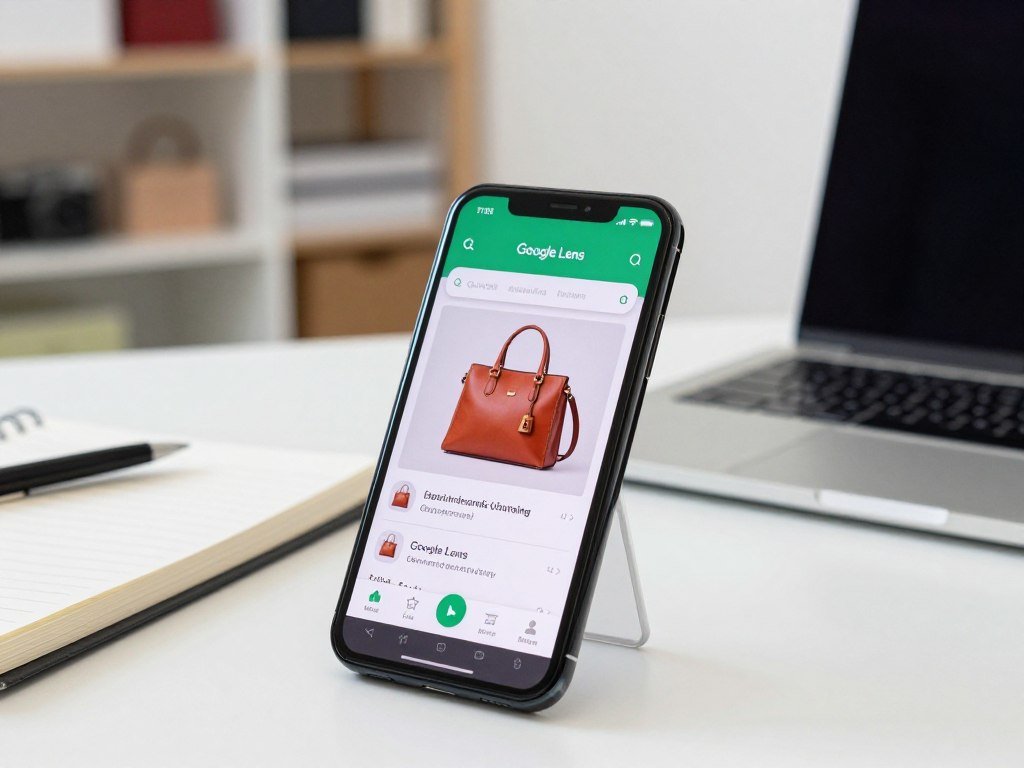
To search for products using a photo on iPhone, open the Google Photos app and select a saved image. Tap Lens to search the photo, or tap the lens icon in the Google Search app to start a new search.
Google Lens is available through the Google app on iPhone and Android, and Google Photos can search pictures already saved on your device. These options work with an existing image, so you do not need to take another picture.
If you are looking for the Google Lens app, you can use Lens through the Google app or Google Photos. The image search tool can also work with a camera view, so you can point your phone at an item.
On Android
To search for products using a photo on Android, open the Google app and tap the Lens icon in the search bar. Take a photo with the camera or select an image already saved on your phone.
After the image loads, use these steps to focus on the item and inspect shopping options:
- Choose the area that shows the product you want.
- Review the visual matches and note useful details.
- Add a descriptive word if the results are too broad.
- Open a promising shopping result and inspect its listing.
Use a word refinement only after you see what the first image search returned.
Google Lens can also identify text, landmarks, plants, and animals, so it is useful beyond shopping. For product discovery, the search may show similar items rather than one exact listing.
You can refine results with words for patterns, colors, or sizes. A word such as “green” or “smaller” can help narrow the visual results when the first set is too broad.
Search a Webpage or Screenshot in Chrome
A product visible in a browser does not need to be saved first if you can search the image directly in Chrome. Chrome Lens lets you search webpage content, while Android users can also choose an image or screenshot from their device.
Chrome webpage Lens search stays in the current tab, so you can look up a product without leaving the page. Google Lens is a free visual-search tool, though some features need an internet connection.
On Android
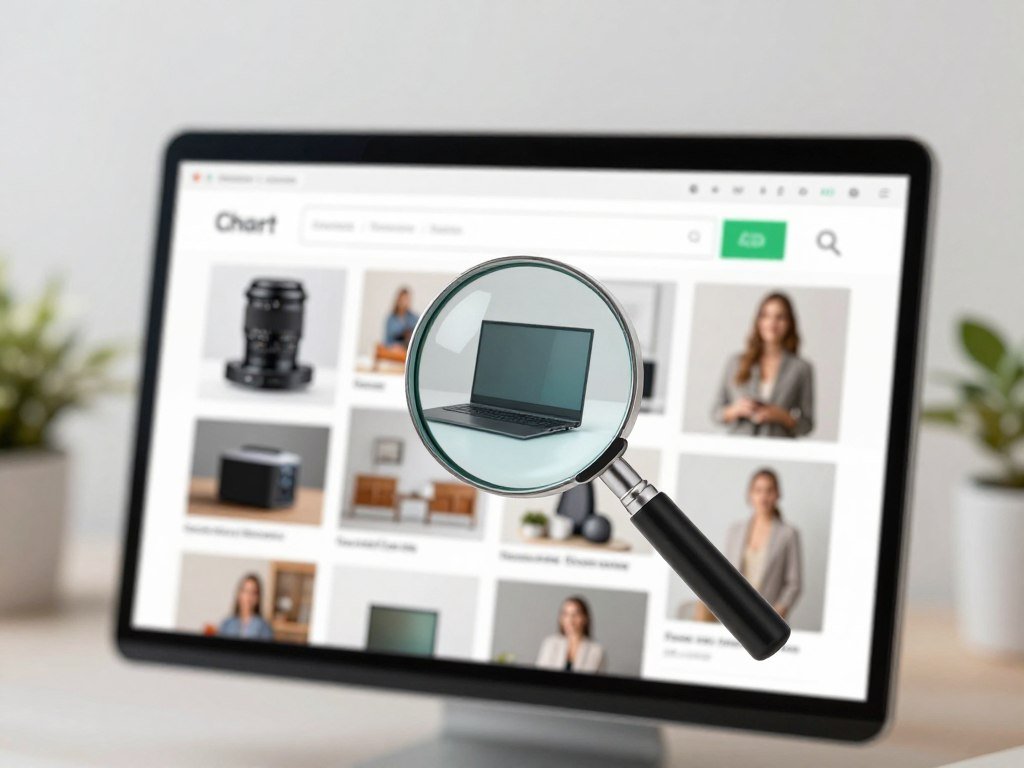
To search for products using a photo online, start a new Chrome tab and tap Google Lens in the search bar. Choose an image or screenshot from your device to begin the search.
You can search an image that appears on a webpage, too. Touch and hold the image, then select “Search image with Google Lens” from the menu.
This route works well for a jacket in a shop page or a chair in a room image. The search reads the selected image, so you can find similar products without saving a separate copy.
On Chrome for iPhone or iPad, website-image Lens search works only when Google is the default search engine. Check that setting if Lens search does not appear for an image.
On Desktop
On desktop, use Google Lens in Chrome to select part of a webpage and search it. Lens shows results without opening a new tab, which helps when you want to keep the product page nearby.
You can select an image or another visible area of the screen. This browser-based Google Lens search can help identify an item in a photo, a store page, or another part of a webpage.
Chrome webpage searches send a screenshot and page data to Google for query processing. Google says it stores that data temporarily and does not use the page or image for training as a result.
The selected area can include more than a product photo, so check what is inside the search selection. On iPhone or iPad, check that Google is the default search engine before trying to search an image from a webpage.
Get Better Matches and Check the Product Details
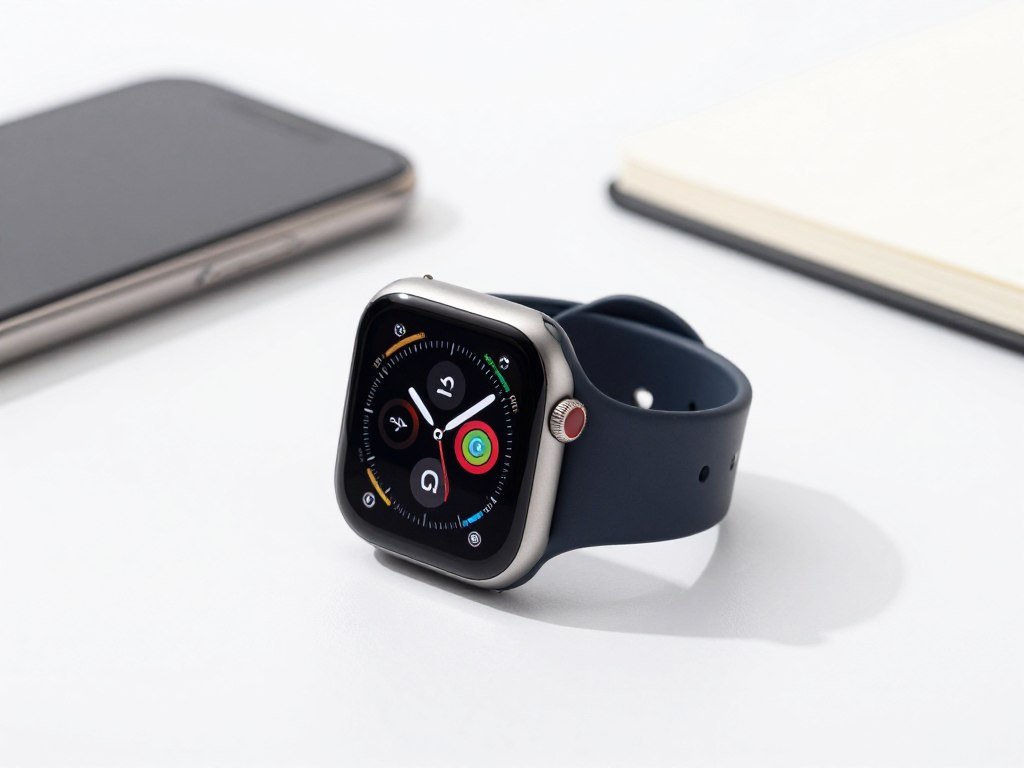
A clear image of the item itself usually gives a more useful result than a wide shot crowded with unrelated objects. A smaller selection can help visual search focus on the product instead of nearby details.
Good image details can make product matching easier, but appearance alone cannot confirm the exact model. Clear photos give the search tool a better view of the item’s shape, color, and features.
Improve the photo before searching
Use this checklist before you search or adjust a photo:
- Use a sharp, well-lit image.
- Show the full item against a simple background.
- Crop out objects that are not part of the product.
- Avoid blur, heavy filters, captions, or stickers covering details.
In the Google app, drag the corners of the selection box to isolate the product. A smaller image area can make results more specific, and you can add words for a color, material, or style.
Image searches may return broad results because captions, tags, and other text can help describe an image. The Sacramento State Library’s visual research tips explain how those details can support image searches.
Verify a match before buying
Compare brand or model markings, size, color, materials, condition, and included parts. Read the listing details, since a product photo may show an accessory or feature that the seller does not include.
For example, a lamp result may look right but use a different shade size or finish. A visually similar generic, handmade, vintage, or unbranded item may not produce an exact match.
Before you buy, confirm the current price, stock, shipping cost, and return terms on the retailer’s page. If an image was generated, inspect the logo and label closely; AI image prompt guidance notes that generated images can alter fine product details.
For an exact replacement, confirm a model number or label instead of relying on appearance alone.
Which Photo Search Tool Fits Your Shopping Goal?
Choose Google Lens for broad product discovery, Amazon visual search for Amazon listings, and Apple Visual Intelligence for visual matches from a supported iPhone. Google Lens is the best fit for broad web discovery and shopping details.
Amazon visual search suits shoppers who want to check Amazon listings using a photo, live camera view, or barcode. Apple Visual Intelligence can find visually similar images online from a supported iPhone camera view.

Compare the tools by where you found the item and what you want to do next:
| Tool | Where it works | What you can search | Shopping use |
|---|---|---|---|
| Google Lens | Google app, Google Photos, and Chrome | Photos, screenshots, camera views, and webpage content | Product results, prices, and retailer details |
| Amazon visual search | Amazon Shopping app | Camera-roll photos, live camera views, and barcodes | Similar or matching Amazon listings, with text refinement |
| Apple Visual Intelligence | Eligible iPhones running iOS 27 or later | Objects viewed with the iPhone camera | Online visual matches, not retailer price comparisons |
Google Lens can scan QR codes and barcodes, too. Some features need an internet connection, and feature availability varies by language and region.
For beauty products, toys, and electronics, Lens may show store information, reviews, competitor prices, and similar items in stock. These in-store product details depend on retailer inventory data and your shared location data.
Some Google Lens features need internet access, and feature availability can vary by language and region.
Apple Visual Intelligence requires an Apple Intelligence-enabled iPhone 15 Pro, iPhone 15 Pro Max, or iPhone 16 model or later running iOS 27 or later in 2026. You can open it with Camera Control on supported models, or add it to Control Center, the Lock Screen, or the Action button.
Amazon Lens supports camera-roll photos, live camera searches, text refinement, and barcode scans. Before relying on an in-store result, check whether the retailer’s inventory and location-sharing conditions are met.
Conclusion
A photo can get you from “I recognize that look” to a product name or a shortlist of likely matches. Start with the clearest image you have, then treat every result as a lead until its listing details line up.
Choose a photo or screenshot and run it through Google Lens. Compare the most promising result’s model or other identifying details before buying.
Try one clear image first, then confirm the exact version on the seller’s listing before you place an order.
FAQ
Can I search for an item using an image?
Yes, you can select or upload a photo in Google Lens to find visually similar images and shopping results. Choose a saved picture or use a camera view, then inspect the results for a matching product. Results can show lookalikes, so compare the item’s details with the seller’s listing before you buy.
Can I take a picture of something and then find out what it is?
Yes, Google Lens can identify visible objects and products from a camera view or photo. Open Lens and take a picture of the item, or select an image you already have. Lens may return a product name, related images, or shopping options, depending on what it can recognize.
Can Google identify a product from a picture?
Yes, Google Lens can identify products and show maker, price, and retailer details in available U.S. shopping results. It may also return similar items when the exact product is hard to identify. Compare the brand, model, size, and listing description because a similar result may not be the same version.
Can I find a product from a picture on my iPhone?
Yes, use the Google app’s Lens icon or open the picture in Google Photos and select Lens. You can search an image saved on your iPhone without naming the product first. The results may include similar images and shopping options, but the seller’s listing has the final product details.
How do I turn on photo lookup on my iPhone?
Open Google Photos and select Lens on a saved image, or tap the Lens icon in the Google Search app. This starts a search for visible objects or products in the picture. You can also use Lens from a camera view when you want to search something in front of you.
Can I take a picture of something and find out where to buy it?
Yes, Google Lens can show where to buy an identified product when shopping results are available. Search with a camera view or a saved photo, then open a retailer result to see its offer. Check the listing for the current price, stock, shipping, and return terms before ordering.
Is Google Lens still free?
Yes, Google Lens is a free visual-search tool for identifying objects and products. You can use it through the Google app and Google Photos, and some Lens features work in Chrome. Some features need an internet connection, so a search may not work offline.
Is there a free app to identify objects?
Yes, the Google app offers free Google Lens searches for objects and products from a photo or camera view. Lens can also identify text, landmarks, plants, and animals. Results depend on what appears in the image, so a clear view of the object can help Lens find useful matches.



