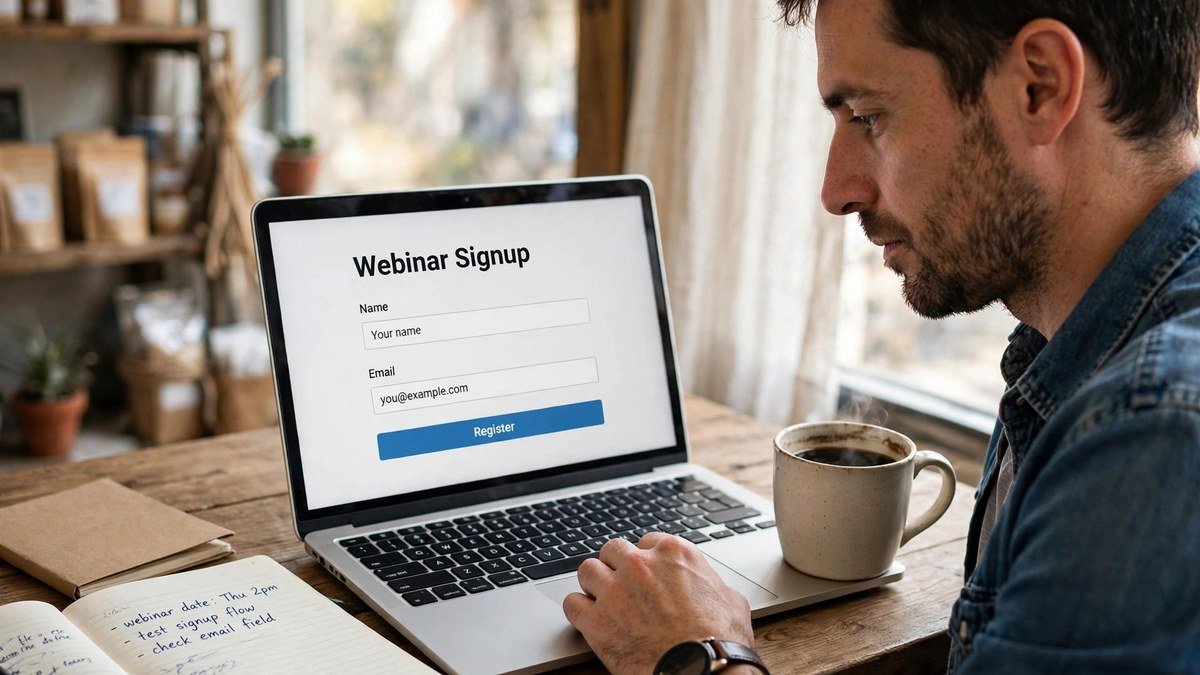
A business website webinar page is one page on a company website that does four jobs at once. It explains what the live session will cover, it collects registrations, it sends people to the live room at the right time, and it keeps working after the session ends by offering a replay. When the page does all four jobs well, a small business can run a professional online event without a separate event platform and without a developer on call.
Most small businesses already have the pieces they need. The website holds the page, the email tool holds the list, and a video tool holds the live room. The work is in joining those pieces in the right order, so a visitor sees the topic, the date, the time, the speaker, and the registration form within a few seconds.
This guide walks through the setup in the order a visitor experiences it. It covers the page structure, the registration form, the reminder sequence, the live room and chat, the replay, and the checks to run before the page goes live. Every step can be tested with a second device before real visitors arrive.
Key takeaways
- Build the page around one action, registration, and keep the topic, date, time, and speaker visible without scrolling far.
- Ask for name and email only at first, because every extra field lowers the number of people who finish the form.
- Send three reminders, one day before, one hour before, and ten minutes before, with the join link in each one.
- Test the full path as a visitor, from the page to the form to the confirmation email to the live room, before the page goes live.
- Publish the replay on the same page within a day, so the page keeps collecting registrations after the live session ends.
What a webinar page has to do
A webinar page is not a homepage and it is not a blog post. A homepage serves many visitors with many goals, and a blog post serves a reader who wants information. A webinar page serves one visitor with one goal, which is to join a live session at a set time. That narrow job shapes every choice on the page. If a section does not help a visitor decide to register or help a registered visitor join the session, it does not belong on the page.
The top of the page carries the essentials. The headline states the topic in plain words, and a short line under it states what an attendee will be able to do after the session. The date and time appear in the same view, with the time zone written out in full. A short speaker line adds trust, with the name, the role, and one line about the work behind the session.
Below the essentials, the page answers the three questions every visitor asks. The first is what the session will cover, answered with four or five short bullet points that name real outcomes instead of vague promises. The second is who the session is for, answered in one or two lines that name the type of business or the type of problem. The third is what happens after registration, answered with a line that says a confirmation email with the join link is on the way.
How to build the page, step by step
Start by choosing where the page will live. A page on the main business website is the best home, because it uses the trust the site has already built. Create a new page with a short address that names the topic, and use a clean template with no sidebar, so the form and the content get the full width.
Next, write the page content before opening any tool settings. Write the headline, the short promise under it, the bullet points about the content, the speaker line, and the line about the confirmation email. Write the registration thank you message at the same time. A visitor who registers should see a message that repeats the date and time and tells them to watch for the confirmation email.
Now connect the registration form to the email list. Most small businesses use a form tool or a page builder with a form block, and most webinar tools also offer a built in form. Either route works, as long as every registration lands in one list with the name and the email address. Connect the form to a confirmation email that sends at once, with the join link, the date and time, and a calendar file.
Registration, reminders, and the live room
Registration is the moment a visitor becomes an attendee, and the form is the only barrier between the two. Keep the form to name and email for a free public session, because that is all the reminder system needs. A company name can be useful for a sales team, but it costs registrations, so add an extra field only when someone on the team has a clear plan to use the answer within a week.
Reminders do most of the work of turning registrations into attendees. A useful sequence has three messages. The first goes out one day before, with the topic, the speaker, and the join link. The second goes out one hour before, with the join link and a note that the room opens early. The third goes out ten minutes before, with the join link alone.
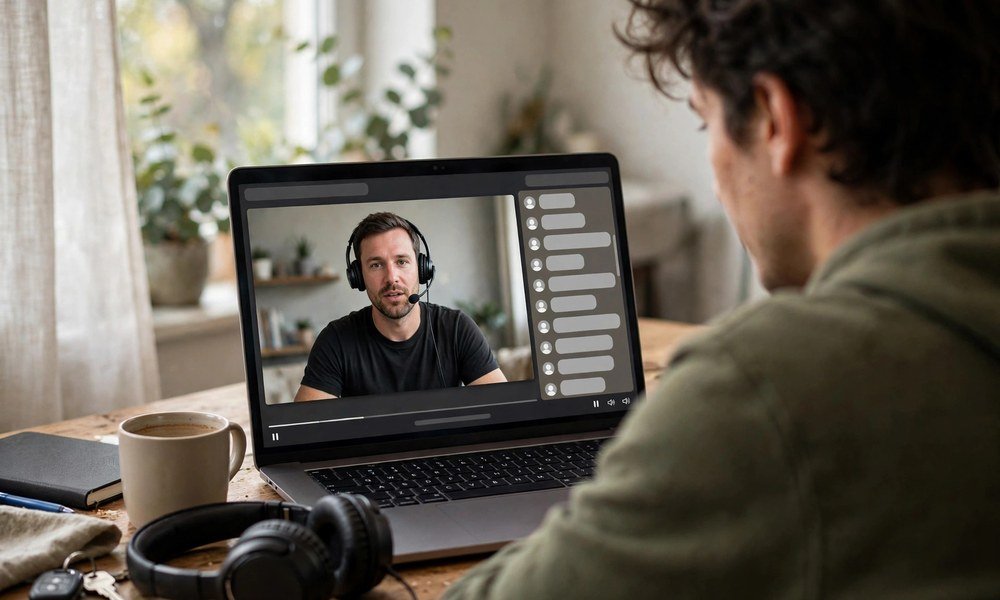
The live room needs a host and a speaker, and those two roles should stay separate when the team allows it. The speaker presents and answers questions, while the host watches the chat, posts links, and handles technical problems. Before the session, the host should join from a second device as an attendee, to see the room exactly as the audience sees it. For a closer look at the tools that run the room, read our guide to the best webinar software for small business, which compares the main options on ease of use, recording, and price.
The caveats that matter
A webinar page can look finished and still fail on the day, usually for a small reason nobody tested. The most common failure is a join link that points to the wrong room, which happens when a session is rescheduled and the page still holds the old link. The second most common failure is a time zone error, when the page says one time zone and the email says another. Each failure is cheap to prevent and expensive to fix while an audience waits.
Capacity is a third caveat. Many webinar plans limit the number of live attendees, and a page that keeps accepting registrations after the room is full will create angry visitors. Check the limit on the plan before promoting the page. Track the full path, from page visits to registrations to live attendees to replay viewers, and look for the step where the largest drop happens. The page builder matters here too, and our guide to the best landing page builders for small business compares the tools that make a clean, fast registration page without a developer.
| Detail | What is known |
|---|---|
| Page home | A page on the main business website, with a short address and no sidebar. |
| Top of page | Headline, promise, date and time with time zone, speaker line, and form. |
| Form fields | Name and email only for a free session, with a clear error message. |
| Confirmation | Sent within a minute, with join link, date and time, and calendar file. |
| Reminders | One day before, one hour before, and ten minutes before, each with the join link. |
| Live room | Host and speaker as separate roles, with a second device test as an attendee. |
| Replay | Published on the same page within a day, with the form kept in place. |
| Biggest risk | Wrong join link or wrong time zone, so test both before the page goes live. |
Checklist: testing the page before it goes live
Run this checklist with a second device and a fresh email address, so the test matches what a real visitor will see. Each item takes a few minutes, and the full pass takes less than an hour.
- Open the page on a phone and on a laptop, and confirm the headline, date, time, and form are visible without scrolling far.
- Register with a fresh email address, and confirm the confirmation email arrives within a minute with the correct join link.
- Click the join link from the email and from the page, and confirm both routes reach the same live room.
- Send a test reminder, and confirm the date, time, time zone, and join link match the page exactly.
- Join the room as an attendee from a second device, and confirm the slides, chat, and sound work from that side.
- Record a short test, publish it as a replay, and confirm the form still works beside the recording.
Frequently asked questions
How long does it take to set up a webinar page?
A simple page takes about half a day for a small team, including writing and testing. The writing takes longer than the tool setup, because the headline and the bullet points decide whether anyone registers.
Do I need a separate webinar platform, or can I use a video meeting tool?
A video meeting tool works for a small session with a known audience, such as a client training call with twenty people. A webinar platform fits a larger public session better, because it handles registration, reminders, polls, and attendance reports in one place.
What should the registration form ask for?
For a free public session, name and email are enough. A company name or a job title can help the sales team, but each extra field lowers the number of finished registrations. Add a field only when someone on the team will use the answer within a week.
How many reminders should I send?
Three reminders work well, at one day before, one hour before, and ten minutes before. Fewer reminders leave too many registrants forgetting the session, while more start to feel like spam.
What happens if the live session has a technical problem?
Stay calm and tell the audience what is happening in the chat, because silence makes a small problem feel much larger. Keep a backup plan ready, such as a second device logged in as host. If the session cannot continue, end it clearly and send the replay or a new date to every registrant within a day. For the video side of the room, our guide on how to use Zoom walks through joining, hosting, screen sharing, and recording step by step.
Should the replay sit on the same page?
Yes, in most cases. The same page already holds the form and the search traffic, so a replay there keeps collecting registrations without extra work. Add the date of the live session, and keep the form in place.
The bottom line
A business website webinar page works when it stays simple. One topic, one audience, one form, and one clear path from the page to the live room will do more than a busy page with every feature switched on. The order is easy to test: visit the page as a stranger, register with a fresh address, follow the emails, join the room, and watch the replay.
Start with the writing, then connect the form, then test the whole path twice, and only then share the page. Publish the replay fast, read the chat log, and let the questions from the first session shape the topic of the second.
Note: prices, limits, and features of webinar and page builder tools change often, so check the current plan on the tool site before buying, and test the registration path again after any plugin or theme update.