

How to Set Up a Local AI Server for a Small Business
Setting up a local AI server for a small business means running an AI model on a computer you own, inside your own office, instead of sending every question to a cloud service. The model answers from your own hardware, your files stay on your own network, and you pay for the machine once rather than paying a fee every time someone asks it something.
A local AI server does not have to be a noisy rack in a back room. In 2027, a capable setup can be a single compact desktop or a refurbished workstation tucked under a desk, running a free open model that drafts emails, summarises documents, searches your own files, and answers routine staff questions. It will not match the largest cloud models on every hard question, but for everyday work it is often close enough, and it keeps working when the internet is slow.
This guide walks through the job in order: deciding what the server is for, picking hardware that fits the budget, choosing a model, installing the software, connecting it to your documents, locking it down, and keeping it running. No step assumes a large IT team. If you can install an app and plug in a cable, you can do this with a careful afternoon and a modest budget.
Key takeaways
- A local AI server keeps business data on your own network and removes per-message cloud fees.
- Start with one clear job, such as drafting replies or searching internal documents, before adding more.
- Memory matters more than raw speed: 16GB of video memory handles most small-business models well.
- Pick a small, well-tested open model first, and move to a larger one only when the small one falls short.
- Backups, updates, and a simple access password matter as much as the hardware you buy.
At a glance: what a small-business local AI server looks like in 2027.
| Part of the setup | A sensible starting point | Why it matters |
|---|---|---|
| Computer | Desktop or workstation with a modern graphics card | The graphics card does most of the AI work |
| Video memory | 16GB to start, 24GB for larger models | More memory means bigger, smarter models |
| Storage | 1TB fast solid-state drive | Models and documents load quickly |
| Software | A local model runner with a simple web page | Staff use it from a browser, with no coding |
| Network | Wired connection, office network only | Keeps the server off the public internet |
Step 1: Decide exactly what the server will do
Write down one or two jobs before you buy anything. Common starting jobs are drafting customer replies, summarising long documents, turning meeting notes into task lists, and answering questions from a small set of internal files such as price lists, manuals, and policies. A narrow job makes every later choice easier, because you can test the server against real examples and know at once whether it is good enough.
Also decide what the server will not do. A local model is a poor fit for live customer chat on your public website, for anything that needs the very latest news, and for work that must be perfect on the first try. Naming those limits early stops disappointment later. Many small businesses keep a cloud tool for the outside world and use the local server for private work.
Step 2: Choose hardware that fits the budget
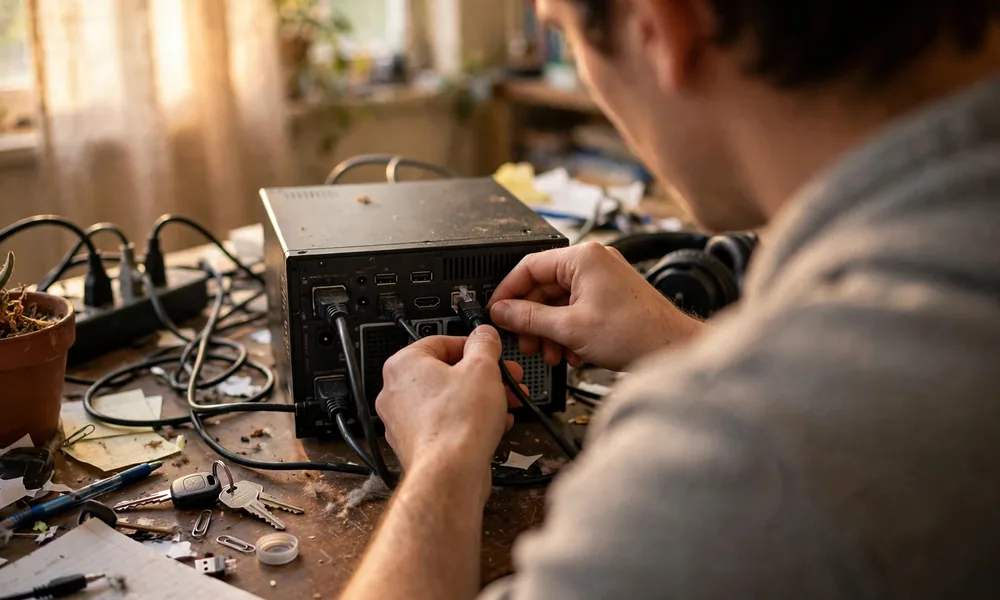
The graphics card is the heart of a local AI server, because it runs the model. Look for a card with at least 16GB of video memory for a capable general-purpose model, and 24GB if you plan to run a larger one or serve several people at once. The rest of the computer matters less: a mid-range processor, 32GB of system memory, and a 1TB solid-state drive are a solid base for most small teams.
A refurbished workstation with a good graphics card added can cost far less than a new machine. Check that the power supply can handle the card and that the case has room and airflow. If you already use compact machines, a guide to mini PCs for a home office is a useful check on size, noise, and power use before you settle on a form factor.
Step 3: Pick a model that suits a small team
Start small. A model in the 7 to 14 billion parameter range, in a compressed form that fits your video memory, will handle drafting, summarising, and question answering for most small businesses. Larger models are smarter on hard questions, but they are slower, need more memory, and cost more to run. You can always move up later, and starting small means you learn the system on a model that responds quickly.
Choose a model with a clear licence for business use and a good track record. Look for one that other small teams already run, with recent updates and plain documentation. A popular model is easier to fix, because someone else has usually hit the same problem. Download it from a reputable source and note its exact name and version.
Step 4: Install the model runner and open it in a browser
A local model runner is the app that loads the model and gives staff a simple chat page in a browser. Pick one with a clean interface, a way to upload documents, and a setting to keep everything on the local network. Install it on the server machine, point it at the model file you downloaded, and open its web page from another computer on the same network to check that it works.
Set the model to load when the machine starts, so a restart does not leave the team waiting. Write the startup steps down, with the server address and who to call if it stops. Check for updates once a month on a quiet day.
Step 5: Connect it to your own documents
A local AI server becomes far more useful when it can search your own files. Gather a small, clean set first: the price list, the returns policy, the product manual, the staff handbook, and the ten most-asked customer questions with their approved answers. Remove old drafts, duplicates, and anything out of date, because the model will treat whatever you give it as true.
Upload that set through the model runner, then test it with questions a customer or a new starter would actually ask. When you find a weak answer, fix the source document first, not the model. This kind of internal search pairs well with using AI for local SEO, where accurate, current business details matter just as much.
Step 6: Lock the server down before staff start using it
Keep the server on the office network only, and do not open it to the public internet unless you have a clear reason and a professional helping you. A strong password on the chat page, a separate password for the server itself, and accounts for each staff member are the basics. Turn off any guest or anonymous access, and check that the login page is the first thing anyone sees.
Back up the server. Copy the model files, the settings, and the document collection to an external drive or a second machine once a week, and test that you can restore from the copy. The same questions of support, security, and cost covered in choosing an AI vendor apply here too, and the answers you give for a local server should match what you would expect from any supplier.
Step 7: Train the team and set simple rules
Show the team the server in a short session, using their own real tasks. Let them see a good draft, a weak answer, and how to fix a weak answer by asking a clearer question or pointing at the right document. People trust a tool they have seen work on their own tasks.
Set three simple rules on one page near the login screen. First, check every AI draft before it goes to a customer. Second, never paste passwords, bank details, or private customer data into the chat unless the business has agreed the server may hold it. Third, tell the person who looks after the server when an answer is wrong, so the document or model can be fixed. Ask for feedback after two weeks.
Troubleshooting a local AI server
Slow answers usually mean the model is too large for the graphics card, or too many people are using it at once. Try a smaller model first, then check whether the machine is running other heavy work. Closing extra apps and giving the model the full card often restores normal speed in minutes.
Wrong or invented answers usually point at the documents, not the model. Check that the right file is uploaded, that it is current, and that it does not contradict another file on the same topic. If the chat page will not open, check that the server is switched on and the cable is plugged in. Keep a short log of each fix.
Checklist: before you call the server ready
- The server runs one clear job well, tested on ten real tasks from your own work.
- The graphics card has enough video memory for the model you chose, with room to spare.
- Staff can open the chat page from their own computers on the office network.
- Your document set is current, with no duplicates and no out-of-date prices or policies.
- A strong password protects the chat page, and the server is not open to the public internet.
- A weekly backup exists, and someone has tested restoring from it.
Frequently asked questions
How much does a local AI server cost a small business?
A practical setup in 2027 usually costs about the same as a single good laptop, with no monthly AI fee after that. Ongoing costs are electricity, occasional parts, and time spent keeping documents current.
Do I need a fast internet connection to run it?
No. Once the model is downloaded, the server works on your local network without the internet. You need internet only to download models and updates.
Can a local AI server handle private customer data?
It can keep that data on your own network, which is its main advantage over a cloud service. You still need sensible rules: limit who can see sensitive documents, use strong passwords, and follow the data rules that apply to your business.
How many people can use one server at the same time?
Most small setups serve three to ten people comfortably, depending on the model size and the graphics card. If answers slow down, a smaller model or a card with more video memory usually fixes it.
What happens if the model gives a wrong answer to a customer?
That risk is why every draft should be checked by a person before it is sent. Treat the server as a fast first draft, not a final authority. When a wrong answer appears, fix the source document and test again.
Is a local AI server better than a cloud AI service?
It is better for privacy, predictable costs, and working without the internet. A cloud service is better for the hardest questions and the latest information. Many small businesses use both: local for private work, and cloud for public-facing tasks.
The bottom line
A local AI server is a practical project for a small business in 2027, not a research experiment. Start with one job, buy hardware with enough video memory, pick a small proven model, connect a clean set of documents, lock the server to your office network, and train the team to check every draft.
The best time to start is with a single afternoon of testing, not a large purchase. Reuse a machine if you can, try a small model on real tasks, and let the results decide the budget.


