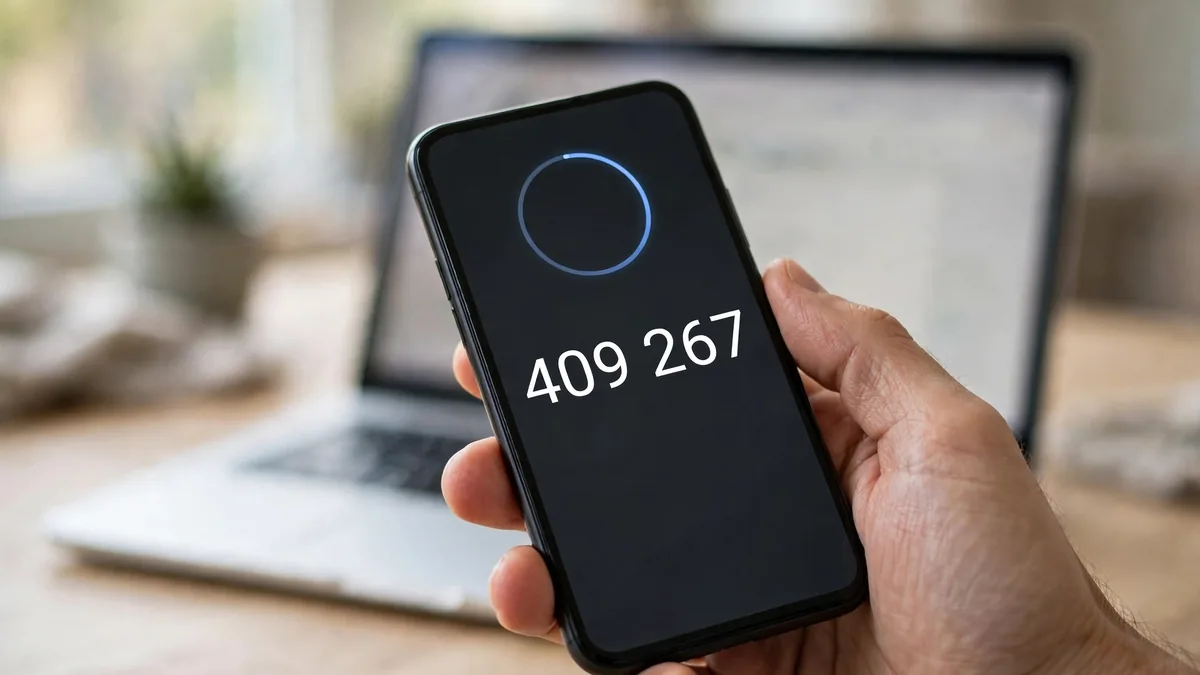
Setting up two-factor authentication is the most effective step you can take to protect your accounts. A password alone can be stolen in a data breach, guessed, or fished out of you in one convincing message, and two-factor authentication, or 2FA, adds a second check a thief cannot pass with the password alone.
The idea is simple: after your password, you prove it is you with something only you have, usually a code from an app on your phone or a tap on a security key. Even if someone steals your password, they hit a wall there.
This guide covers the three main methods, shows how to set up two-factor authentication on Google, Apple, Microsoft, and other major accounts, and explains backup codes and a lost phone. Most accounts take under five minutes, so start with email and banking.
Key takeaways
- Turn on two-factor authentication first on your email, bank, and password manager, since those accounts unlock everything else.
- Authenticator apps are safer than text-message codes, which can be intercepted or redirected by SIM swapping.
- Security keys are the strongest option and the best choice for email and other high-value accounts.
- Save your backup codes somewhere safe the moment you set up 2FA, or a lost phone can lock you out.
- Never share a verification code with anyone, including someone claiming to be from support.
At a glance: two-factor authentication methods
| Method | How it works | Security | Best for |
|---|---|---|---|
| Authenticator app | 6-digit code, refreshes every 30 seconds | Strong | Most accounts |
| Security key | Tap a USB or NFC key | Strongest | Email, banking, work |
| Passkey | Face, fingerprint, or device PIN | Strongest | Google, Apple, Microsoft |
| Push approval | Approve a prompt on your phone | Strong | Microsoft, Google |
| Text message (SMS) | Code sent to your phone number | Basic | Only when nothing else is offered |
| Email code | Code sent to your inbox | Basic | Low-value accounts |
Step 1: Install an authenticator app
An authenticator app generates a six-digit code that changes every 30 seconds, and it works even without a mobile signal. Google Authenticator, Microsoft Authenticator, and Authy are the most widely used free options, and most password managers, including 1Password and Bitwarden, can store codes too. Pick one.
Install the app from your phone’s official store. Some apps offer encrypted cloud backup, worth switching on, because it makes moving to a new phone far less painful. Authy and Microsoft Authenticator offer this, and Google Authenticator added cloud sync in 2023.
Keep the app on the phone you carry every day, not a tablet left at home. The second factor only works if it is with you, and a code you cannot reach becomes a lockout rather than protection.
Step 2: Turn on 2FA for your email account first
Your email account is the key to everything else, because password resets for almost every service land in your inbox. Protect it first. For Google, open your Google Account settings, go to Security, then 2-Step Verification, and follow the setup. Google will first ask for a phone prompt or security key, then let you add an authenticator app.
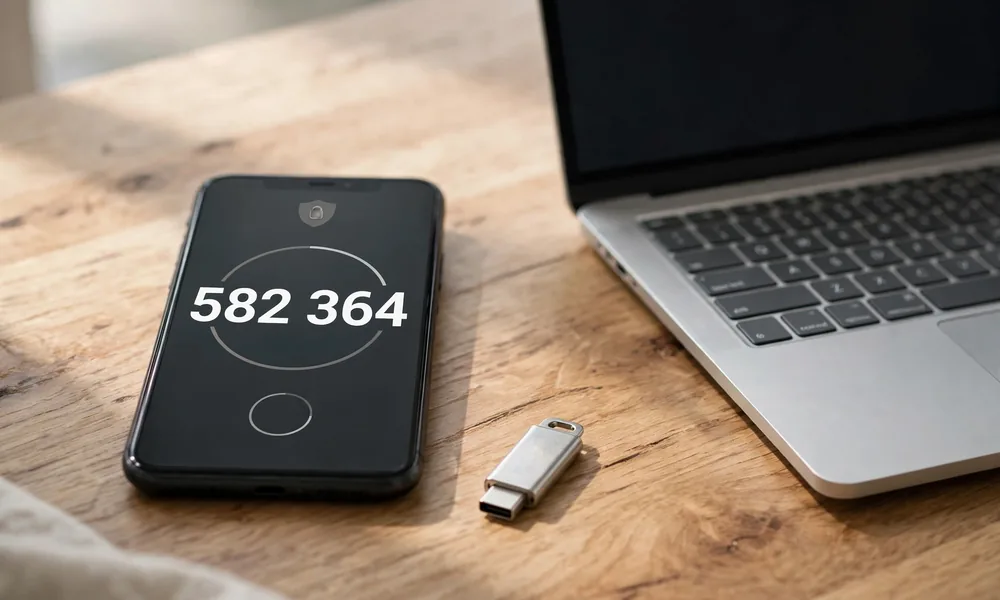
For an Apple ID, open Settings on your iPhone, tap your name, then Sign-In and Security, and switch on two-factor authentication. Apple sends a code to your trusted devices on each new sign-in. For Microsoft, go to account.microsoft.com, open Security, then Advanced security options, and switch on two-step verification.
During setup the service shows a QR code. Open your authenticator app, tap add, and scan it. The app starts showing six-digit codes for that account right away. Enter the current code on the setup page to confirm, and the account is protected.
Step 3: Save your backup and recovery codes
Every service that offers 2FA also offers a way back in if you lose your phone, usually one-time backup codes. Save these the moment setup finishes, before moving on. Print them and keep them somewhere secure at home, or store them in your password manager under a note attached to the account.
Do not store backup codes as a screenshot in your photo gallery, which syncs to the cloud. A password manager is a far better home, and our Dashlane vs 1Password comparison covers which managers handle codes and secure notes best.
Some services also let you register a second phone number or a spare security key as a recovery method. Add one if offered, especially for email. Recovery options are the difference between a five-minute fix and a week of identity checks.
Step 4: Add a security key to your most important accounts
A security key is a small USB or NFC device, such as a YubiKey, that you tap or plug in to approve a sign-in. It is the strongest form of two-factor authentication because it cannot be phished: the key only works on the real site. Google, Microsoft, Apple, GitHub, and most banks now support them.
Buy two keys from a reputable brand, keep one on your keyring and one safe at home, and register both with each account. Registration takes about a minute per service: open the security settings, choose to add a security key, then plug it in or tap it to your phone when prompted.
Security keys cost roughly $25 to $50 each, so start with one for email and add a second as a backup. For accounts that support passkeys, the same idea works through your phone’s fingerprint or face recognition, and Google, Apple, and Microsoft all let you create a passkey instead of a password.
Step 5: Work through your other accounts in priority order
After email, protect your bank and payment accounts, then your password manager, cloud storage, social media, and shopping. Banks usually offer 2FA in their app, and many require it for transfers. Your password manager holds every other password, so give it the strongest method.
Social accounts are worth protecting even if they feel low-stakes, because a hijacked account is used to scam your contacts. Instagram, Facebook, X, and TikTok support authenticator apps, and WhatsApp offers a six-digit PIN under Settings, Account, then Two-step verification.
Storing codes in a password manager keeps everything in one place, and our guide to the best password manager for iPhone in 2027 covers the options that generate codes alongside passwords. Work through the list a few accounts a day.
Step 6: Replace text-message codes where you can
Text-message codes beat no second factor, but they are the weakest method. Attackers can redirect your number to their own SIM, a scam known as SIM swapping, and receive your codes. If a service offers an authenticator app or security key, switch to it and remove the phone number as a fallback.
To reduce the SIM swapping risk, ask your mobile carrier to add a PIN or port-out protection. Most carriers offer this free, and it stops someone moving your number to a new SIM without the PIN.
Keep SMS 2FA only where no better option exists, which is still the case for some banks and older services. Even there, it blocks most attacks, which rely on a stolen password alone, so never switch 2FA off just because text message is the only method.
Step 7: Test your setup and plan for a lost phone
Once 2FA is on, test it. Sign out and sign back in, and confirm the code or key prompt appears and works. Do email first, since it is the one you will rely on to recover the others. A setup that has never been tested is one you cannot trust.
Then plan for a lost phone. Know where your backup codes are, confirm your authenticator app’s cloud backup is on, and check that your spare security key is registered. If your phone is stolen, sign in to your Google or Apple account from another device, mark the phone as lost, and use a backup code or spare key to get in.
Review your accounts every few months. Remove old devices from the trusted list, revoke app passwords you no longer use, and check recent sign-in activity. A login from a place you have never been is the earliest warning a password has leaked, and with 2FA on, that warning is all it will ever be.
Troubleshooting common two-factor authentication problems
If your authenticator code is rejected, the most common cause is a wrong clock. Codes depend on the time, so check that your phone is set to automatic date and time. A phone even a minute out generates codes the server refuses, and fixing the clock fixes the codes instantly.
If you lose access to your authenticator app, use a backup code to sign in, then remove the old 2FA setup and set it up again on your new phone. If you have no backup codes, use the service’s account recovery process, which involves confirming your identity and can take several days. This is why backup codes matter.
If a site keeps asking for a code on every sign-in on your own devices, look for a “trust this device” or “remember this browser” option and tick it. Browsers clear this with cookies, so the prompt returns after a cookie clear. That is normal, not a fault.
Checklist: set up two-factor authentication
- Authenticator app installed, with encrypted cloud backup switched on
- 2FA enabled on your email account first, then bank and password manager
- Backup codes saved in your password manager or printed and stored safely
- Security key registered on your email account, with a spare key at home
- SMS codes replaced with app codes wherever the service allows it
- Carrier PIN or port-out protection added to your mobile account
Frequently asked questions
Is two-factor authentication really necessary?
Yes. Passwords leak in data breaches every week, and many people reuse the same password across sites. Two-factor authentication blocks the attacker even when the password is known — the biggest improvement you can make to account security.
What is the safest type of two-factor authentication?
Security keys and passkeys are the safest, because they cannot be phished and do not rely on a code you could be tricked into sharing. Authenticator apps are next, the best balance of security and convenience. Text messages are the weakest, but still far better than nothing.
What happens if I lose my phone?
Use a backup code to sign in, or your spare security key. Then remove the old 2FA setup and set it up again on your replacement phone. If you saved no backup codes, you will need the service’s account recovery process, which takes days.
Can I use the same authenticator app for all my accounts?
Yes. One app holding all your accounts is easier to back up and move to a new phone. Google Authenticator, Microsoft Authenticator, Authy, and most password managers support any account that uses standard time-based codes.
Are passkeys replacing two-factor authentication?
Passkeys replace the password and the second factor with a single step, using your device’s fingerprint or face recognition. Google, Apple, and Microsoft support them. Until every service does, 2FA remains essential.
Should I use two-factor authentication on every account?
Prioritise email, banking, your password manager, and cloud storage, then add social media and shopping. Accounts with no personal or financial data can wait, but the ones that unlock everything else should never run on a password alone. Pairing 2FA with a VPN for privacy on public WiFi rounds out the basics.
The bottom line
Two-factor authentication turns a stolen password from a break-in into a dead end. Install an authenticator app, protect your email first, save your backup codes, and add a security key to the accounts that matter. Setup takes under an hour across your main accounts.
Do email and banking today, then work through the rest in priority order. Once it is on, you will barely notice it, and the accounts holding your money, messages, and photos will be protected by something a thief cannot fake.