Knowing how to speed up your Android phone can make a two-year-old device feel new again. Most Android phones do not slow down because their hardware fails — they slow down because of accumulated background apps, outdated software, full storage, heavy animations and a cluttered launcher. Each of those has a fix that takes minutes.
The steps in this guide are ordered by impact. Restarting and updating the phone come first because they solve the most problems with the least effort, followed by the settings that free up memory and processor time. Nothing here requires root access, a paid app or a factory reset.
These steps work on Samsung, Google Pixel, OnePlus, Xiaomi, Motorola and most other Android phones running Android 13 or newer. Menu names vary slightly between brands, so each step notes the common alternatives where they differ.
Key takeaways
- Restart your phone weekly and install system and app updates — most slowdowns start with stale software.
- Background apps and widgets are the biggest drain on memory and battery; limit what runs when you are not using it.
- Turn off or shorten animations in Developer options for an instantly snappier feel.
- Free up storage and clear heavy app caches when the phone is nearly full.
- A factory reset is the last resort, not the first step — try everything else before wiping the phone.
At a glance: what slows your phone down
| Cause | Symptom | Fastest fix |
|---|---|---|
| Too many background apps | Apps reload, battery drains fast | Restrict background use per app |
| Outdated software | Stutters, crashes, security gaps | Install system and app updates |
| Full storage | Camera errors, apps will not update | Free 10 percent of storage |
| Heavy animations | Phone feels sluggish opening apps | Reduce animation scale to 0.5x |
| Cluttered home screen | Launcher lags when swiping | Remove widgets and live wallpapers |
| Old battery | Throttling, sudden shutdowns | Check battery health, replace if needed |
| Too many notifications | Constant wake-ups, slow unlock | Silence non-essential app notifications |
Step 1: Restart your phone and install every update
Start with the simplest fix. Press and hold the power button, then tap Restart. A restart clears temporary memory, stops runaway background processes and fixes the small glitches that build up over weeks of continuous use. Do this at least once a week.
Next, check for updates. Go to Settings, then System, then Software update, and install anything pending. Manufacturers ship performance fixes and security patches every month, and a phone that is three updates behind is often a phone that lags. On Samsung phones the same screen is under Settings, then Software update, then Download and install.
Update your apps too. Open the Play Store, tap your profile icon, then Manage apps and device, then Update all. Outdated apps can misbehave on newer Android versions, and developers regularly fix the memory leaks that make a phone feel slow. If you are thinking about upgrading instead, our Pixel vs iPhone comparison for 2027 covers the current flagships on both sides.
Step 2: Stop apps running in the background
Apps that constantly refresh in the background steal processor time and battery. Go to Settings, then Battery, then Battery usage to see which apps used the most power in the last 24 hours. Any app near the top that you barely use is a candidate for restriction.
Tap the app, then App info, then Battery, and choose Restricted or Optimised. Restricted stops the app running in the background almost entirely; Optimised lets Android decide. Use Restricted for shopping, news and social apps you open manually, and leave messaging, email and banking apps on Optimised so notifications still arrive on time. On Samsung phones, Background usage limits can also put unused apps to sleep automatically.
Step 3: Reduce animations and switch to a lighter launcher
Animations make a phone feel slow even when it is not. Enable Developer options by going to Settings, then About phone, and tapping Build number seven times. Then open Settings, then System, then Developer options, and set Window animation scale, Transition animation scale and Animator duration scale to 0.5x — or Off if you want the fastest possible feel.
This one change makes opening apps, switching tasks and returning home feel dramatically quicker, because the phone spends half as much time playing transition effects. It is fully reversible: set the three scales back to 1x any time. Also remove widgets you never look at and switch from a live wallpaper to a static image — a heavy launcher with animated widgets adds lag to every swipe.
Step 4: Clear storage and heavy app caches
A nearly full phone is a slow phone. Android needs free space for temporary files and updates, and performance drops sharply below 10 percent free. Go to Settings, then Storage, and check the number. If you have less than 10 GB free, delete old downloads, remove unused apps and back up photos to the cloud before deleting the local copies.
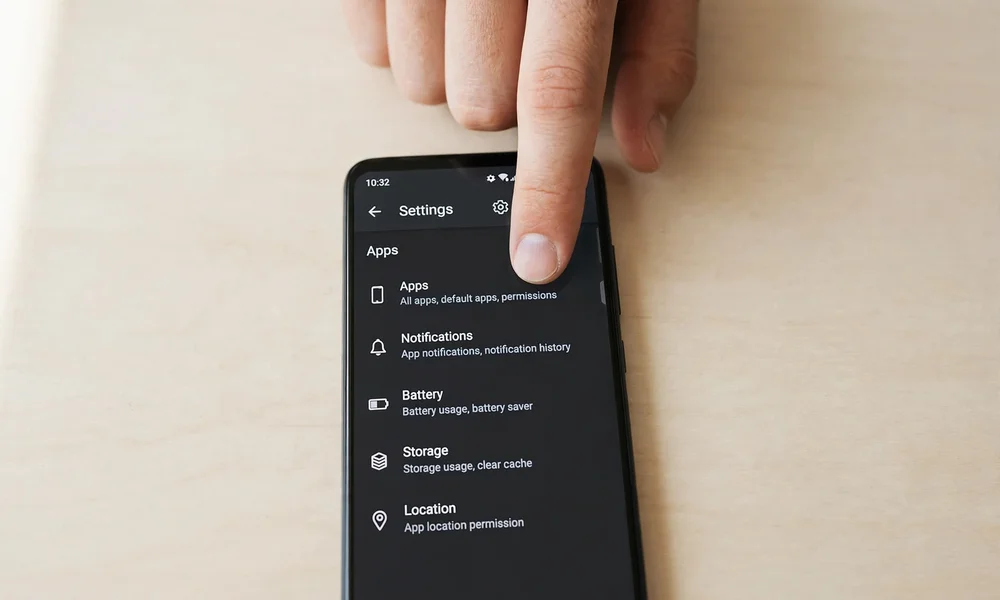
Clear the cache of your heaviest apps next. Go to Settings, then Apps, then See all apps, sort by size, and tap the biggest offenders — usually browsers, social apps and video apps. Tap Storage and cache, then Clear cache. This removes temporary files without logging you out, and often recovers several gigabytes. Do not tap Clear storage, which erases the app’s saved data. In Chrome, the same job is under Settings, then Privacy and security, then Delete browsing data.
Step 5: Turn off features you do not use
Every always-on feature costs processor time. If you do not use them, turn off Nearby Share, NFC, Bluetooth scanning and location history. Open Settings, then Location, and change any app with location access set to Always that does not need it to While using the app.
Auto-sync is another quiet drain. Go to Settings, then Accounts, and review which accounts sync constantly. An old email account or a rarely used social app syncing every few minutes wakes the phone all day — turn off sync for accounts you no longer use.
Check your notification load too. Every notification wakes the screen and runs a background task. Go to Settings, then Notifications, then App notifications, and switch off notifications for games, shopping apps and news apps you check on your own schedule anyway.
Step 6: Check battery health and manage power modes
A worn battery can make a phone slower. When a battery can no longer deliver peak voltage, Android throttles the processor to prevent sudden shutdowns — the phone feels sluggish, especially when opening the camera or a game. On Pixel phones, Settings, then Battery, then Battery health shows capacity and status; on Samsung phones, the Samsung Members app includes a battery diagnostic under Support.
If battery health is below 80 percent and the phone is more than two years old, a battery replacement — usually far cheaper than a new phone — can restore full speed. A degraded battery is a hardware problem, and no software setting fixes it.
Use power modes wisely. Battery Saver restricts background activity and can make the phone feel slower, so do not leave it on all day. Adaptive Battery, on the other hand, learns which apps you use and limits the rest — leave that on. The comparison also matters across devices: our MacBook vs Windows laptop comparison for 2027 shows how battery and performance trade-offs work on larger devices too.
Step 7: Reset network settings and consider a factory reset
If the phone is slow mainly online — pages load slowly, videos buffer, calls drop — the problem may be network settings rather than the phone itself. Go to Settings, then System, then Reset options, then Reset Wi-Fi, mobile and Bluetooth. This clears saved networks and Bluetooth pairings, so reconnect to your Wi-Fi afterwards.
As a final step, consider a factory reset. Back up everything first: Google account backup in Settings, then System, then Backup, plus photos in Google Photos. Then go to Settings, then System, then Reset options, then Erase all data. Set the phone up fresh and install only the apps you actually use.
Do not reset the phone on a whim. If the first six steps did not help, check whether a specific app is the culprit by restarting in safe mode: press and hold the power button, then long-press Power off and tap Safe mode. If the phone is fast in safe mode, a third-party app is the problem — uninstall recent apps one by one until speed returns. For account safety while setting up again, a good password manager makes signing back in after a reset far less painful.
Troubleshooting: still slow after all seven steps
If the phone is still slow, identify whether one app is responsible. Open Settings, then Battery, then Battery usage, and look for an app with abnormally high background use. Uninstall it and reinstall it fresh, or find a lighter alternative — a single misbehaving app can drag the whole phone down.
Check for overheating. A phone that is hot to the touch throttles its processor to protect itself. Remove the case, close heavy apps and let it cool for ten minutes. If the phone overheats during normal use with no case, the battery or another component may be failing and needs professional diagnosis.
Finally, be honest about the hardware. A budget phone from 2021 with 3 GB of RAM will never run 2026 apps as smoothly as a current mid-range phone. If the phone is more than four years old and still slow after a factory reset, an upgrade is the practical answer.
Checklist: speed up your Android phone
- Restart the phone weekly and install system and app updates.
- Restrict background use for apps you rarely open.
- Set animation scales to 0.5x in Developer options.
- Free up storage to at least 10 percent and clear heavy app caches.
- Remove unused widgets, live wallpapers and non-essential notifications.
- Check battery health, and replace the battery if it is below 80 percent.
Frequently asked questions
Does restarting my Android phone actually make it faster?
Yes, temporarily. A restart clears temporary memory and stops background processes that have been running for days or weeks. It is not a permanent fix for a full phone or a worn battery, but a weekly restart keeps day-to-day performance better.
Should I use a RAM cleaner or phone booster app?
No. Android manages memory itself, and cleaner apps mostly show ads and run constantly in the background, which makes the phone slower. The built-in battery and storage settings do the same job safely.
Will a factory reset make my old phone fast again?
Usually yes, if the slowdown is caused by accumulated apps, settings and clutter. A reset removes all of it at once. Back up first, and install only the apps you actually use afterwards.
Does turning off animations damage my phone?
No. Animation scale is a display preference, not a hardware setting. Setting it to 0.5x or Off only changes how transitions look, and you can restore 1x any time.
Why is my phone slow only when it is hot?
Android throttles the processor when the phone overheats to prevent damage. Remove the case, close heavy apps, avoid charging while gaming, and keep the phone out of direct sunlight. Persistent overheating during light use can mean a failing battery.
How often should I clear app caches?
Once a month is enough, or whenever an app feels sluggish or takes up several gigabytes. Clearing caches daily is counterproductive, since apps just rebuild them.
The bottom line
Speeding up an Android phone is mostly a matter of maintenance, not money. Restart regularly, keep software updated, restrict background apps, shorten animations and keep storage above 10 percent free. Those five habits fix the large majority of slowdowns, and each takes only a few minutes.
If the phone is still slow after all seven steps, the cause is probably hardware: a battery below 80 percent health or a processor that is simply too old for current apps. A battery replacement is cheap and often transformative; anything else is a sign that it is time to plan an upgrade.