Pinterest is a visual discovery app where people save images and videos, called Pins, into themed collections known as boards. Unlike a social feed built around friends, Pinterest works more like a search engine for ideas: you look for home decor, recipes, outfits, travel plans or craft projects, and the app shows you images that match. Every Pin links back to its source, so you can go from an idea to a recipe, a shop or a tutorial in one tap.
This guide explains how to use Pinterest from scratch. It covers creating an account, setting up your profile, finding and saving Pins, building boards, searching properly, and using Pinterest for a small business or blog. Every step works on iPhone, Android and the Pinterest website in the current 2026 version.
By the end you will be able to build a feed that matches your interests, organise your saves so you can find them again, and avoid the common mistakes that leave new accounts full of random images. Setup takes about ten minutes.
Key takeaways
- Pinterest is a visual search engine for ideas, not a friends feed, and every Pin links to its source.
- Boards are themed collections, and clear board names make your saves easy to find later.
- You can save Pins from Pinterest search, from websites, or by uploading your own photos.
- Following topics and boards shapes your home feed far more than following people does.
- A free business account adds analytics and shopping features without changing how you save Pins.
Pinterest at a glance
| Feature | What it does | Where to find it |
|---|---|---|
| Home feed | Shows Pins based on your interests | Home icon at the bottom |
| Search | Finds Pins, boards and people by keyword | Magnifying glass at the bottom |
| Pin | A saved image or video with a link | Tap any image in your feed |
| Board | A themed collection of saved Pins | Profile tab, under Saved |
| Board sections | Sub-groups inside a large board | Open a board, tap the plus icon |
| Shopping | Finds products and prices in Pins | Shop tab on a Pin or in search |
| Analytics | Shows views and saves for your Pins | Business account, Analytics tab |
Step 1: Create your Pinterest account
Download Pinterest from the App Store or Google Play, or open pinterest.com in a browser. Tap Sign up and continue with your email address, or use a Google or Facebook account. If you sign up with email, Pinterest sends a confirmation message, so use an address you can access. Then pick your age and choose at least five topics you like, such as home decor, recipes or travel. These first picks shape your home feed, so choose honestly rather than tapping through at random.
Next, pick a username and a display name. Your username appears in your profile address, so keep it short and easy to spell. If you plan to use Pinterest for a blog or shop, create a business account instead: it is free, it gives you analytics and the option to run ads, and you can convert a personal account later from Settings. If you use a VPN, check the best VPN services for Pinterest first, since some shared VPN addresses can trigger extra verification when you sign up.
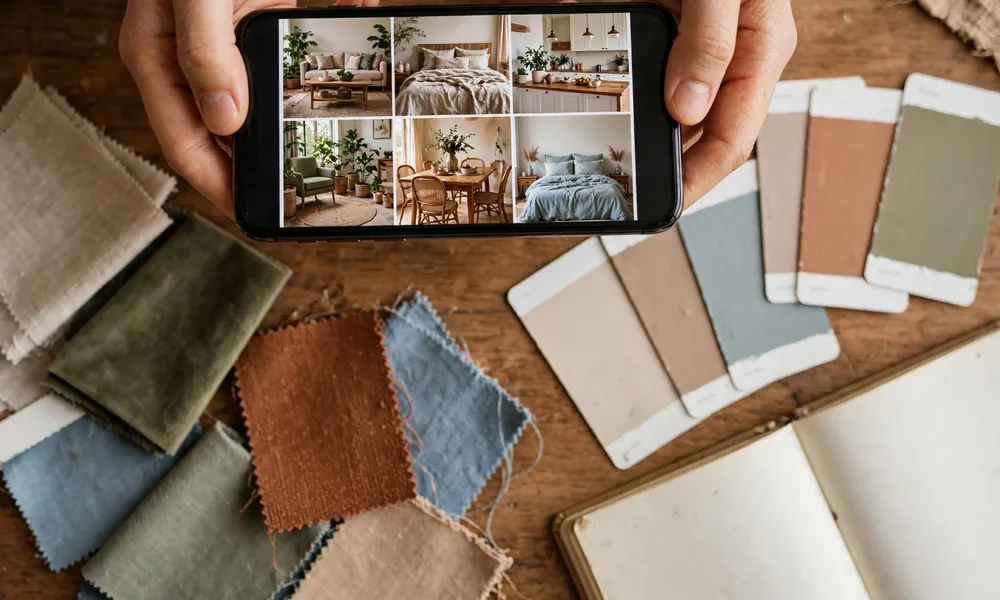
Step 2: Set up your profile and pick your interests
Tap your profile picture at the bottom right to open your profile. Tap Edit profile and add a clear photo of yourself or your logo, a short bio saying what you save, and a link to your website or shop if you have one. A bio of one or two sentences is enough, for example “Saving budget kitchen ideas and weeknight dinners.”
Then refine your interests. Open Settings, tap Interests, and follow or unfollow topics. Pinterest watches what you save and search for, so your feed improves quickly once you start using it. Try a few searches for things you actually care about, saving the best results.
Step 3: Search Pinterest properly
Good searching is the skill that makes Pinterest useful. Tap the magnifying glass and type a specific phrase rather than a single word: “small kitchen storage ideas” works far better than “kitchen”. Pinterest suggests extra words under the search bar, and tapping one narrows the results. You can also filter by Pins, boards, people or products using the tabs above the results.
Two search tools are worth learning. Visual search lets you tap the camera icon in the search bar, point your phone at an object, and find similar Pins. The related-search chips under the bar suggest narrower terms, such as “for small spaces”, which save you from scrolling through hundreds of unrelated images.
Step 4: Save Pins to boards
Saving is the heart of Pinterest. When you find a Pin you like, tap it, then tap Save. Pinterest asks which board to save it to, and you can pick an existing board or create a new one on the spot. Give boards clear, specific names: “Kitchen Renovation 2026” is far more useful than “Stuff I Like”, because you will actually be able to find the Pin again in six months.
You can also save from outside Pinterest. In your phone browser, use the Share button and choose Pinterest, or install the Pinterest browser extension on a computer and click Save on any image. To upload your own photo, tap the plus icon on your profile, choose Create Pin, add the image, a title, a description and a link, and pick a board.
Step 5: Organise boards with sections and covers
Once a board grows past fifty Pins, it needs structure. Open the board, tap the plus icon or the Organise button, and add sections. A board called “Home Ideas” might have sections for “Living Room”, “Bedroom” and “Garden”, so you can jump straight to the right group.
Set a cover for each board by opening the board, tapping the three dots, choosing Edit board, and picking a cover Pin. A clear cover photo makes your profile look tidy and helps you recognise boards at a glance. You can also reorder boards on your profile by dragging them, putting your most-used boards first.
Step 6: Follow boards and build a better home feed
Your home feed is built from what you save, search for and follow, so curate it deliberately. When you find a board full of Pins you like, tap Follow on the board itself rather than following the whole account. That way your feed fills with that one topic instead of everything the person saves.
If your feed drifts off topic, use the three dots on any Pin and choose Hide Pin or “Show me less like this”. Pinterest learns from these signals quickly. A feed that matches your taste takes about two weeks of steady use, and it is worth the effort: a well-tuned feed turns Pinterest from a random image scroll into a genuinely useful ideas tool.
Step 7: Use Pinterest for a blog, shop or small business
A free business account unlocks the tools that matter for creators. Convert your account in Settings, or create one from scratch, then claim your website and turn on analytics. Analytics shows which of your Pins get views, saves and clicks, and which boards drive the most traffic. Check it weekly and save more of whatever is already working.
When you create Pins for your own content, use a tall image, a clear title with the words people actually search for, and a description that says what the reader will find. Add your link, save the Pin to your most relevant board, and share it to one or two related boards as well. Fresh Pins perform better than the same image saved again and again, so make a new image when you want to promote an old post. Creators who plan content around Pinterest often pair it with social media management tools for startups to schedule Pins alongside posts on other platforms, and retailers use content marketing software for retailers to plan which products to feature each season.
Troubleshooting common Pinterest problems
If Pins will not save, check your internet connection first, then update the Pinterest app, since an old version is the most common cause. If a Pin shows a broken image, the source website may have removed it, and saving a different version of the same image usually works.
If you cannot log in, use the password reset link on the login screen and check that the reset email has not landed in spam. Accounts are sometimes locked after too many failed logins, in which case waiting an hour and trying again usually clears it. If your own Pins get very few views, check that they have a title, a description and a working link, and that you are saving them to boards with clear names.
Checklist: your first week on Pinterest
- Create your account and confirm your email address.
- Set up your profile with a photo, a short bio and a website link.
- Create five boards with clear, specific names for your main interests.
- Save at least 20 Pins and practise searching with specific phrases.
- Follow five boards you love and hide Pins that do not match your taste.
- Turn on a business account if you want analytics for a blog or shop.
Frequently asked questions
Is Pinterest free?
Yes, Pinterest is free for personal and business accounts. You can save Pins, create boards and use search without paying. Pinterest earns money from ads and shopping features, and there is an optional paid ads service for businesses, but none of it is needed to use the app.
What is the difference between a Pin and a board?
A Pin is a single saved image or video with a link to its source. A board is a themed collection of Pins, like a folder. You save Pins into boards so you can find them again later, and other people can follow a single board without following your whole account.
Do I need a business account to use Pinterest?
No, a personal account is enough for saving ideas and browsing. A business account is free and adds analytics, the ability to run ads, and shopping features such as product tagging. You can convert a personal account to a business account at any time from Settings.
Can people see what I save on Pinterest?
By default your boards are public, and anyone can see your Pins and your profile. You can make a board secret when you create it or later from its settings, and secret boards are only visible to you and anyone you invite. Your home feed and searches stay private.
How do I delete a Pin or a board?
Open the Pin and tap the three dots, then choose Delete Pin. To delete a board, open it, tap the three dots, choose Edit board, and tap Delete board at the bottom. Pinterest asks you to confirm before anything is removed.
Why is my Pinterest feed full of things I do not like?
Your feed is built from your early topic picks, searches and saves, and a few random taps can skew it. Hide Pins you do not want with the three-dot menu, unfollow topics and boards that no longer fit, and save more of what you do like. The feed usually improves within a week.
The bottom line
Pinterest rewards specific searching and tidy boards. Pick clear board names, save deliberately, and curate your feed with follows and hides, and the app becomes a reliable place to plan projects, find recipes and gather ideas you can actually return to later.
Start with five boards and twenty saved Pins, then refine as you go. If you run a blog or shop, switch to a business account, check your analytics weekly, and create fresh Pins with clear titles for your best content.