
A few built-in protections and cautious habits can reduce the chance that harmful software steals information or disrupts your devices. Malware can steal personal information, disrupt services, or damage networks. Phishing means deceptive messages or websites designed to trick people into revealing information or taking an unsafe action. Layers of protection work best when tools and everyday choices support each other.
For device users, online safety includes more than avoiding email scams. You also need current software, careful choices about links and downloads, and a plan for important files. This guide offers practical steps to lower risk without making daily device use difficult.
Protective tools can catch threats, while cautious habits can prevent risky actions before they happen. Planning for recovery matters, too. Treat prevention and recovery planning as complementary ways to limit the damage a successful attack can cause.
Key Takeaways
- Keep your device’s built-in security tools enabled and updated.
- Install software from trusted sites and stores.
- Pause before opening links or attachments you did not expect.
- Use unique passwords and stronger sign-in checks.
- Keep important backups offline and test them.
Malware Protection: How to Protect Your Devices on Windows, Mac, and Android
For most people, the right first move is to keep the security tools already built into their device enabled and current. Start there, then add other safeguards that fit your needs. Built-in protection can scan files or apps, block threats, or help stop malware from running.
Microsoft Defender Antivirus is built into Windows 10 and Windows 11, so it can protect a Windows computer without a separate antivirus purchase. In active mode, it scans files and responds to detected threats. Passive mode scans and reports threats without removing them, and it works only on devices onboarded to Microsoft Defender for Endpoint.
Keep your device’s built-in protection enabled and updated, then layer other safeguards around it.
Built-in protection on Windows and macOS
Microsoft recommends against disabling or uninstalling Microsoft Defender Antivirus. On macOS, the App Store, Gatekeeper, notarization, and XProtect help block malware, prevent it from launching, and remove some threats that run.
These tools cover different parts of the risk. Your computer’s operating system and built-in software set the starting point, while your choices still affect what reaches the device.
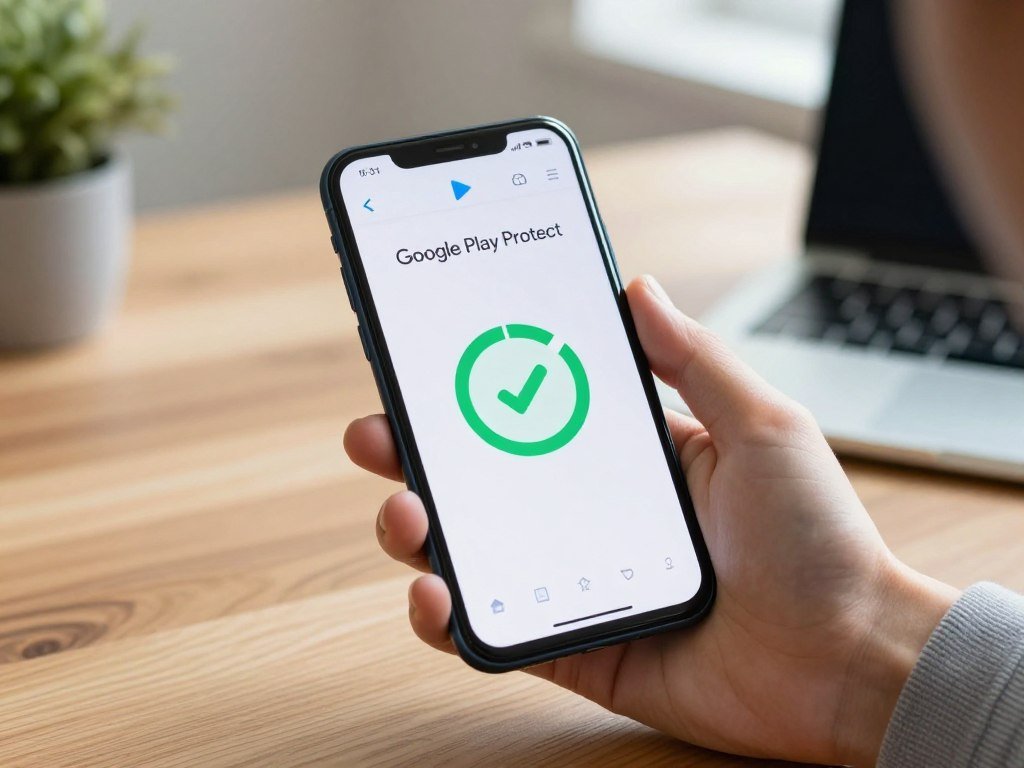
Google Play Protect on Android
Google Play Protect is on by default, and Google recommends leaving it on. It checks apps at installation and scans the device from time to time, including apps installed outside Google Play. It can warn about, disable, or remove harmful apps.
Play Protect runs daily scans and on-demand scans that can check every app on the device. To review its controls, open Google Play Store app > profile icon > Play Protect > Settings > Scan apps with Play Protect. Android users should keep app scanning on, even when they install apps from other sources.
What antivirus test scores can tell you
Antivirus test results can help compare protection, performance, and usability, but scores reflect one test setup. In AV-TEST’s July and August 2026 evaluation, 15 home-user security products used default settings. Each could earn up to 6 points in each category.
| Device | Built-in tool or protections | How they help | Key scope |
|---|---|---|---|
| Windows 10/11 | Microsoft Defender Antivirus | Scans files and responds to threats in active mode | Active mode is primary protection |
| macOS | App Store, Gatekeeper, notarization, XProtect | Help block, prevent, and remove malware | Several built-in protections |
| Android | Google Play Protect | Scans apps and may disable or remove harmful ones | Includes apps outside Google Play |
| Antivirus product | Protection | Performance | Usability |
|---|---|---|---|
| Microsoft Defender Antivirus | 6/6 | 5.5/6 | 6/6 |
| Avast Free Antivirus | 6/6 | 6/6 | 6/6 |
| AVG Antivirus Free | 6/6 | 6/6 | 6/6 |
| Bitdefender Total Security | 6/6 | 6/6 | 6/6 |
Microsoft Defender Antivirus earned 6 out of 6 for protection, 5.5 for performance, and 6 for usability. The AV-TEST Windows 11 evaluation lists those results alongside other products.
If you want free laptop protection, Microsoft Defender Antivirus comes with Windows 10 and 11. You can also compare free antivirus software and apps before choosing another product. A high test score describes performance in that evaluation, not a promise that any product can stop every threat.
What are the signs of malware on a device?
A sudden slowdown, persistent pop-ups, or account activity you did not initiate is a reason to investigate, not proof by itself of an infection. Look for a pattern, because one odd event can have another cause. Check for several changes that began around the same time, rather than treating one glitch as a diagnosis.
Symptoms on computers and phones
Different types malware behave in different ways. A virus copies itself, while a worm can send copies to other computers over a network. Spyware collects information without your knowledge, and adware displays or downloads ads.
A Trojan may look like a useful app while hiding harmful code. These types can affect a computer or phone in different ways, so watch for changes you cannot explain.
On a computer or phone, warning signs can include pop-ups that keep returning, slow performance, browser redirects, or settings that changed without your action. An unfamiliar Chrome extension or messages sent from your account can also point to a problem.
These clues do not prove malware is present. A full storage drive, a faulty app, or a service issue can cause similar trouble. Compare the timing of the signs with recent changes before assuming the cause.
How to check an Android phone
To check an Android phone, look for unfamiliar apps, unwanted browser changes, or settings you do not remember changing. Check whether an account sent messages you did not write. These clues can help you spot malware on your phone, but a single clue still needs context.

Spyware may collect information quietly, while adware may make its presence obvious through repeated ads. Keep the clues distinct: a phone’s odd behavior can come from malware or from a non-malware problem.
Compare any new warning sign with the device’s recent app and settings changes before deciding what to remove.
Which everyday habits help prevent infections?
Malware commonly reaches personal devices through downloads, deceptive messages, infected sites, and fake pop-ups. Small pauses can stop many risky actions before they begin. Malware can use software and websites to gain unauthorized access to systems, steal information, or cause damage.
Malware can gain unauthorized access to IT systems to steal data, disrupt services, or damage networks. Common entry routes include bundled downloads, infected websites, fake alerts, and email attachments. Phishing can pair a deceptive message with a harmful link or download.

Ten ways to protect a computer from viruses
These ten actions help prevent viruses on your computer and reduce the chance of malware attacks. Use them as everyday habits, not as a reason to ignore a warning from your device.
- Download software only from trusted sites.
- Check unfamiliar download sites before installing anything.
- Avoid links in unexpected emails or messages.
- Do not open attachments from people you do not recognize.
- Close suspicious pop-ups without clicking inside them.
- Keep your operating system and apps updated.
- Restart when an update requires it.
- Keep reputable anti-malware software updated.
- Heed Microsoft Edge SmartScreen warnings about unsafe sites or downloads.
- Use Edge’s pop-up blocker and limit file sharing.
Common routes malware uses to get onto devices
Free software may include bundled programs, and some download pages disguise ads as download buttons. An infected website or fake pop-up can also lead you to unsafe content. Email scams may push you to act before you check who sent a message.
Microsoft Edge SmartScreen can warn about unsafe sites and downloads, while its pop-up blocker is on by default. Windows security updates can close software weaknesses, but some updates need a restart to finish installing.
If an update asks for a restart, complete it so the security fixes can take effect.
How can you strengthen account and system security?
Strong account credentials and limited software permissions make it harder for one mistake to expose everything on a device. Use separate safeguards for your sign-ins and your system. A standard account can limit what software may install compared with an administrator account.

Protect accounts from takeover
These five account steps can make it harder for criminals to take over your accounts. Unique passwords matter because a stolen password should not open more than one account.
- Use a different password for every account.
- Store long passwords in a password manager.
- Turn on multi-factor authentication for important accounts.
- Check login requests before entering a code or approving a sign-in.
- Limit personal details you share in public profiles.
A password manager can help you keep passwords distinct without memorizing each one. Multi-factor authentication adds another verification step, such as a one-time code, beyond your password.
Limit what software can change
Use these five device steps to reduce what a harmful program can change. Windows User Account Control, or UAC, asks before changes need administrator-level permission.
- Use a standard account for everyday work.
- Review UAC prompts instead of approving every request.
- Keep Tamper Protection enabled on Windows 10 and 11.
- Use a firewall to block unapproved network communications.
- Remove apps and permissions you no longer need.
UAC is a prompt to review, not a signal to approve every change. A firewall can block communications to and from sources you have not permitted.
An administrator account may still be needed for a legitimate installation or system change. Approve an administrator-level change only when you recognize the app and expected the request.
What should you do if malware is suspected?
If you suspect active malware, limit its chance to spread or reach more data before trying to restore normal use. Contain the risk first, especially if ransomware or spreading malware may be active. Disconnect the device from networks when an active threat may be spreading, then plan the next steps.
Contain and clean the device
Update the security tool already installed and run a full scan. Follow its quarantine or removal guidance, and avoid opening files the tool flags as unsafe.
Ransomware is malware that encrypts files and demands payment. It can make files and the systems that rely on them unusable. Some attackers also steal data and threaten to release it, a tactic called double extortion.
There is no single hardest virus to remove. Recovery depends on how long malware persists, how much damage it causes, and whether you have clean backups. Accessible backups may also be targeted, deleted, or encrypted.
On Android, remove untrusted apps and install available updates. Check the security of accounts used on the device. If symptoms continue, reset the device or contact its maker for support.
Restore data and report serious incidents
Keep critical backups offline and encrypted, then test them on a regular basis. CISA recommends tested offline backups so you can check their availability and integrity during a disaster-recovery test.
Do not rely on a backup until you have tested that it is clean and usable.
For a serious incident, report it quickly to CISA. Fast reporting can help the agency provide assistance and warn others about attacks. Keep useful details, such as when the device was affected and which files or services stopped working.
Test a clean backup before relying on it to rebuild a device or recover critical files.
Conclusion
Reliable protection comes from keeping safeguards active and preparing for the possibility that one may fail. Current built-in tools can reduce infection risk, while tested backups can make recovery less difficult.
Your next step can take only a few minutes: check that protection is enabled on the device you use most. Then confirm that your important files have a tested backup. Check the security status of your primary device today and confirm that your important files have a tested backup.
FAQ
How can I check if my device has malware?
Look for persistent pop-ups, unexplained slowdowns, changed settings, unfamiliar apps, or account activity you did not start. One sign alone does not prove malware is present. Compare the timing of several changes with recent app installs or system updates. A full scan with your device’s security tool can help check suspicious activity more closely.
How do I turn on malware protection?
On Windows, check Microsoft Defender Antivirus in Windows Security. On Android, open Google Play Store > profile icon > Play Protect > Settings > Scan apps with Play Protect. Keep Android scanning on so it can check apps from Google Play and other sources. Menu labels can vary slightly across Android versions and devices.
What is the most protection against malware?
The strongest approach uses several safeguards together: updated built-in security, current software, careful handling of links and downloads, strong account authentication, and tested backups. Each layer addresses a different risk. A scanner may catch harmful software, while cautious choices and account checks can reduce the chance that a threat reaches your files or sign-ins.
What are five ways to protect myself from malware?
Five useful steps are updating software, using reputable anti-malware protection, downloading from trusted sites, avoiding suspicious links and attachments, and keeping tested backups. These actions cover both prevention and recovery. Make sure updates finish installing, and test backups so you know they contain usable files before an emergency.
How do I clear my malware?
Update your security tool, run a full scan, and follow its quarantine or removal instructions. On Android, remove apps you do not trust and install available updates. If symptoms continue, contact the device maker or reset the device. Before a reset, make sure you can restore clean files without bringing the malware back.
Do I still need antivirus in 2026?
Yes, antivirus remains useful in 2026, and Microsoft Defender Antivirus is built into Windows 10 and Windows 11. Keep it enabled and current if it is your primary antivirus app. Antivirus cannot replace software updates or cautious handling of links, downloads, and attachments, so use those safeguards alongside it.
Which antivirus is 100% free?
No antivirus can guarantee 100% protection. Microsoft Defender Antivirus comes with Windows 10 and Windows 11, while free products may differ in features and terms. Read what a product includes before installing it, and avoid running several real-time antivirus tools at once unless their makers say they work together.
Do all laptops have built-in antivirus?
No, built-in antivirus depends on the laptop’s operating system. Windows 10 and Windows 11 include Microsoft Defender Antivirus. macOS uses several built-in malware protections, including Gatekeeper and XProtect. Check the security features for your system, and keep them enabled rather than assuming every laptop uses the same tool.



