Windows 11 includes Microsoft Defender Antivirus, so you can start checking your PC without downloading another antivirus app. Security intelligence is the threat information Microsoft Defender Antivirus uses to identify current malware during scans. If your device acts strangely, malware is one possible cause, but not the only one. A slow browser, for example, can also point to an app or settings issue. These steps focus on built-in Windows tools and safe follow-up, so you can check your files without rushing to install more software.
Suspicious behavior is a clue, not proof of a virus. Windows Security can help you check for threats and review the result. Save open work before starting any scan that may restart the PC.
Key Takeaways
- Microsoft Defender Antivirus is built into Windows 11.
- Windows Security offers quick, full, custom, and Offline scans.
- A symptom can suggest malware, but it cannot confirm infection.
- Review scan results in Windows Security before taking action.
- Save open work before a scan that restarts your PC.
How to Check for Viruses on a Windows PC
Open Windows Security from the Start menu to use Microsoft Defender Antivirus without installing a separate scanner. Windows 11 includes antivirus protection and real-time, always-on security in 2026. This built-in scan is free, and Windows 10 users can also start a scan from its Virus & threat protection page.
Microsoft Defender uses security intelligence updates to identify current threats. Check for those updates in Protection updates if the scan results seem out of date.
Run a quick scan from Windows Security
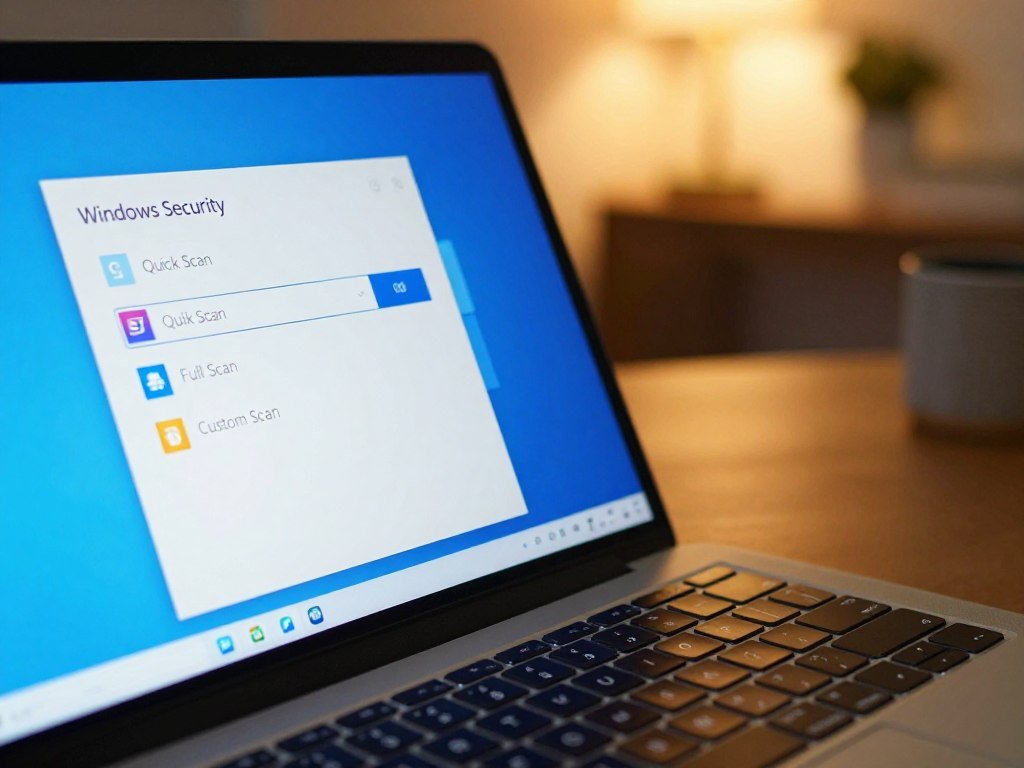
A quick scan checks common places where viruses may hide. Use these steps for an initial check on a Windows 10 or Windows 11 device:
- Open Windows Security from Start.
- Select Virus & threat protection.
- Select Quick scan.
To check whether your computer has a virus on Windows 11, start with this scan and review its result. It checks common scan targets, rather than every file and program on the device.
A clean quick scan does not mean every file and program received a full check.
Start a full scan or check one file
Choose Scan options, select Full scan, then select Scan now for broader coverage. Windows 10 users can open Virus & threat protection and choose Scan options, too. A full scan checks every file and program, so its run time depends on the number of files and your PC.
For a targeted check, right-click a file or folder in File Explorer and choose Scan with Microsoft Defender. On Windows 11, select Show more options first if that command is hidden.
Current threats shows scan status and recent scan details. Check the completed scan’s result in Current threats before deciding whether further action is needed.
Which Windows Security Scan Should You Choose?
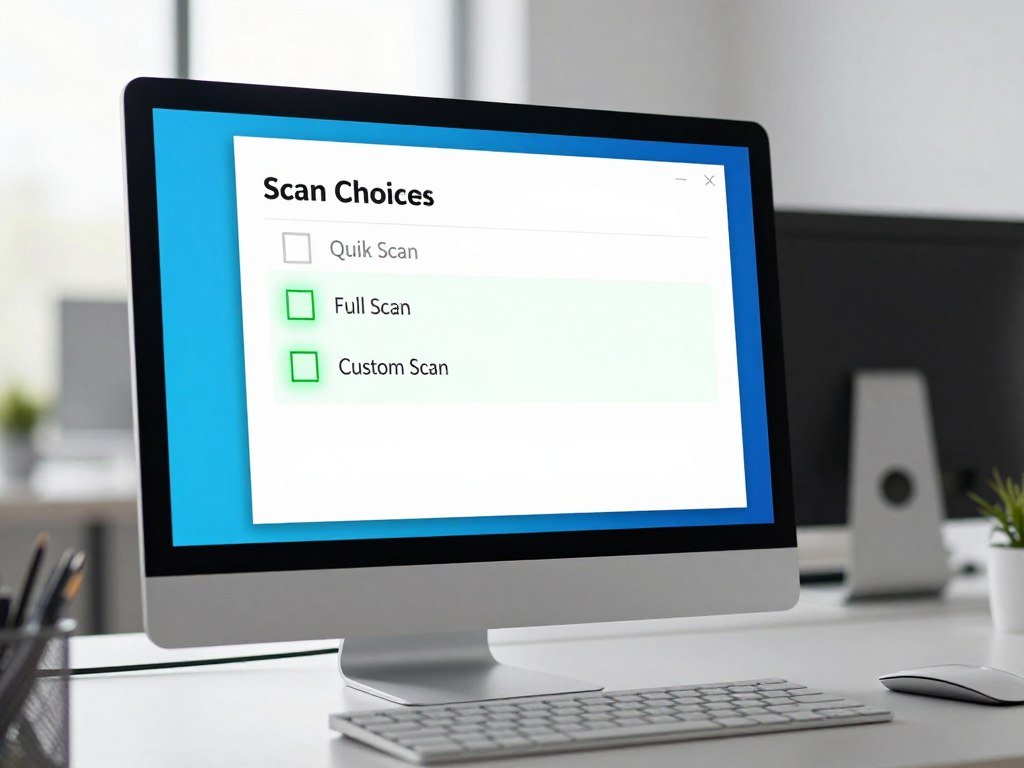
Choose a quick scan for an initial check, a full scan for broader coverage, a custom scan for selected items, or an Offline scan when persistent malware is a concern. Use Microsoft Defender Offline when malware may be hard to find inside Windows. The right scan depends on the concern, the files involved, and how much time you can give it.
Match the scan to the concern
Each scan checks a different set of files or runs in a different way. Use this comparison to match the scan to your concern:
| Scan type | What it checks | Does it restart Windows | Useful when |
|---|---|---|---|
| Quick | Common scan targets | No | An initial check |
| Full | Every file and program | No | A more thorough check |
| Custom | Selected files or folders | No | A targeted check |
| Microsoft Defender Offline | Malware outside the usual Windows environment | Yes | Persistent or hidden malware concerns |
A custom scan is useful when one downloaded file or folder raises concern. A full scan checks more items, while an Offline scan runs after a restart.
Use an Offline scan for persistent malware
To start one, open Virus & threat protection, select Scan options, choose Microsoft Defender Offline scan, then select Scan now. The scan takes about 15 minutes, restarts the PC, and returns to normal Windows.
It scans outside the usual Windows environment for malware such as rootkits, which may try to bypass Windows or infect the master boot record. Save files and close programs first. Results appear in Protection history.
Windows Recovery Environment must be enabled. Check its status with reagentc /info; if the result says Disabled, enable it with reagentc /enable.
On a protected system drive, suspend BitLocker before scanning to avoid a recovery-key prompt at restart. Offline scan supports x64 Windows 11 and x64 or x86 Windows 10, but not ARM versions of either system. Microsoft Defender Antivirus must be the primary antivirus, not in passive mode, to receive Offline scan updates.
Treat symptoms as clues, not proof
Pop-ups, ads, browser redirects, unusually slow performance, reduced battery life, or a sudden rise in data use can justify a scan. None proves that viruses infected your PC. Other software or device issues can cause similar signs.
If an Offline scan is unavailable, check Windows Recovery Environment status before trying again.
How to Run a Virus Scan from the Command Line
For a full Microsoft Defender Antivirus scan from Command Prompt, run MpCmdRun.exe -Scan -ScanType 2. Use an elevated Command Prompt only if you are comfortable running commands with administrator access. Windows 10 users can run the same Defender scan command when Microsoft Defender is active.
Run a Defender scan with MpCmdRun.exe
MpCmdRun.exe is Microsoft Defender’s command-line tool. The scan type number sets the process, so choose the value that fits your check.
- Scan type 0 uses the device’s configured default.
- Scan type 1 runs a quick scan.
- Scan type 2 runs a full scan.
- Scan type 3 runs a custom scan.
The full scan command is MpCmdRun.exe -Scan -ScanType 2. A full scan has a default timeout of seven days, which you can set as high as 30 days.
Command-line scans can suit users who prefer direct control over antivirus software. They do not replace Windows Security’s scan status and settings. Run the command from an elevated Command Prompt to give the process the access it needs.
Read the result and use PowerShell for Offline scan
The command-line scan returns code 0 when it finds no malware or successfully remediates it. Code 2 means malware was not remediated, user action is needed, or a scanning error occurred.
Code 2 does not prove that a specific infection exists. The result covers several possible outcomes, so check the scan status in Windows Security before deciding what happened.
PowerShell has a separate command for an Offline scan: Start-MpWDOScan. Running it reboots the device into an isolated scan environment. This gives Microsoft Defender a way to check outside the usual Windows session.
Code 0 is a useful result, but code 2 needs review. Treat code 2 as a prompt to review the scan status and follow Windows Security’s instructions, not as a clean result.
What to Do If a Scan Finds a Threat
If Windows Security finds a threat, review its details and use the action it offers to quarantine or remove it. Do not manually delete an unfamiliar file just because its name looks suspicious. Windows Security can take action on the detected item without guessing which files belong to the system.
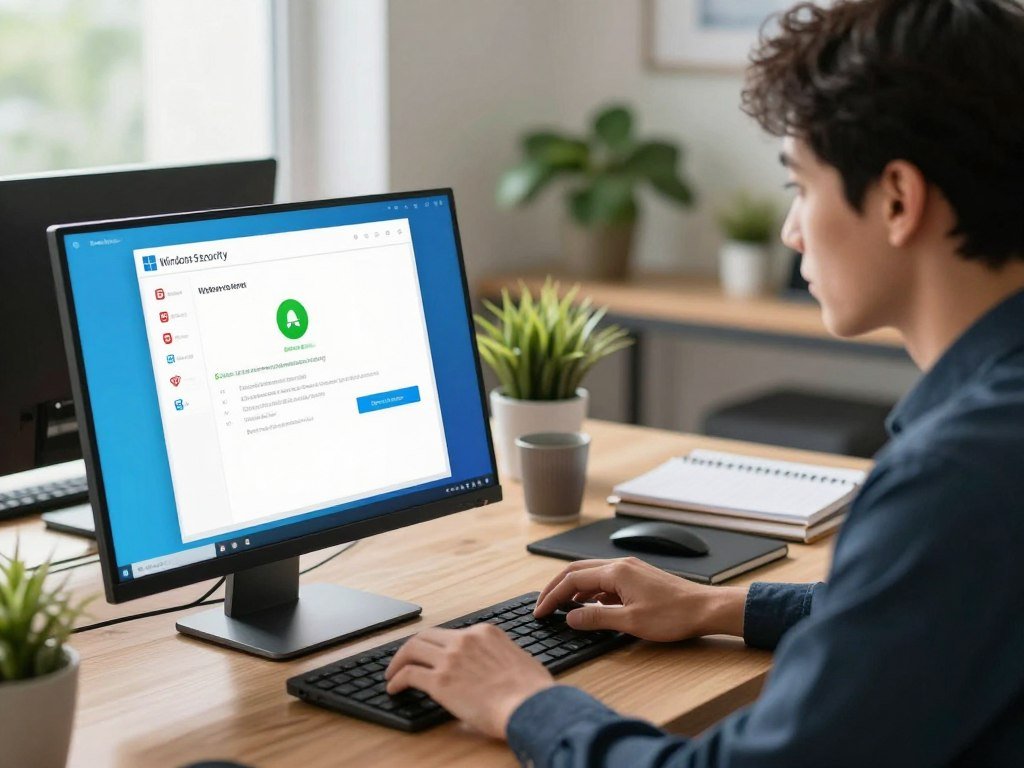
Review and act on the detection
Open the detection details in Windows Security and follow the offered quarantine or removal action. Quarantine keeps the item from running while you decide what to do. If the threat remains, use Windows Security’s next steps instead of trying to repair files by hand.
Allowed threats lists items you previously permitted. If an item should not be allowed, select Don’t allow to restore Microsoft Defender’s response to it.
Use Windows Security’s offered action for a detection, rather than deleting unfamiliar files yourself.
A detection can affect files, software, or other data, so avoid opening the item while you review it. Microsoft’s Malicious Software Removal Tool is another Windows malware-removal utility.
Check further if symptoms continue
If the PC still shows unusual behavior after a clean scan, check for apps you do not recognize. Review processes in Task Manager, but do not end one only because its name is unfamiliar.
A reputable second-opinion scanner can add another check. For help comparing no-cost tools, see this guide to free antivirus software. Keep Microsoft Defender’s role clear when you add another scanner.
Real-time protection can be turned off temporarily in Windows Security, but it turns back on after a system restart. Opened or downloaded files may not be scanned while protection is off, so leave it on unless you have a specific reason to pause it.
Reduce the chance of another infection
Small habits can lower the chance that malware reaches your device again. Use this checklist when you handle files, links, and new software:
- Install software only from trusted sources.
- Avoid suspicious email attachments and links.
- Do not connect unknown USB drives.
- Keep Windows and apps updated.
- Maintain and test offline, encrypted backups.
CISA recommends keeping critical data in offline, encrypted backups and testing their availability and integrity regularly. Keep a tested offline backup of critical files so a ransomware incident does not leave recovery dependent on the affected PC.
Conclusion
A Windows Security scan is a practical first check when your PC behaves unexpectedly. Start with the built-in protection, then take a detected threat seriously without panicking. Review the result and follow the action Windows Security offers.
Keep a backup of important files, especially one you can reach if the PC stops working. Run a scan now if you have a specific concern, then follow the result shown in Windows Security.
FAQ
How do I disable Microsoft Defender?
You can turn off real-time protection temporarily in Windows Security, but it turns back on after a system restart. While protection is off, opened or downloaded files may not be scanned. This can leave your PC more exposed to malware. Turn it off only for a specific need, then restore protection as soon as you can.
How can I detect computer viruses?
Run a Windows Security scan to check for viruses, since symptoms alone cannot confirm infection. Pop-ups, browser redirects, slow performance, and sudden data use can be clues. Other apps or device issues can cause similar behavior. Check the scan result in Current threats, then use Windows Security’s offered action if it detects malware.
How do I scan for viruses using the command prompt in Windows 10?
Run MpCmdRun.exe -Scan -ScanType 2 from an elevated Command Prompt for a full scan. Microsoft Defender must be active for the command to run its Defender scan. The same scan type numbers identify quick, default, and custom scans. Check Windows Security afterward for the scan status and any action it requests.
How to run a full virus check?
Open Windows Security, select Virus & threat protection, then Scan options. Choose Full scan and select Scan now. A full scan checks every file and program on the device. Its duration depends on how many files the PC has and how quickly the device can process them, so keep the PC available while it runs.
How do I clean my PC from viruses?
Review the detection in Windows Security and use its quarantine or removal action. Do not delete unfamiliar files by hand, since they may belong to Windows or another app. If the threat remains or your PC still behaves unusually, seek expert help. A clean scan does not explain every performance or browser issue.
How can I scan my computer for viruses?
Windows Security provides a built-in scan through Microsoft Defender Antivirus. A quick scan checks common scan targets, while a full scan checks every file and program. Use the quick option for an initial check, then review the result in Current threats. You can also target a selected file or folder from File Explorer.
Does Windows 11 have a built-in virus scanner?
Yes, Microsoft Defender Antivirus is built into Windows 11 and provides real-time protection. You can start scans in Windows Security without downloading a separate scanner. The app shows scan status and recent results in Current threats. If it finds malware, review the detection and use the action Windows Security offers.



