

Quick Answer: What are the most common problems with mobile hotspot and how do i fix them?
The most common mobile hotspot problems are “connected but no internet,” hotspots that refuse to turn on, slow speeds, frequent disconnects, and battery drain or overheating. Most of these trace back to a handful of causes: carrier tethering limits, weak cellular signal, congested Wi-Fi bands, too many connected devices, or outdated APN settings. Fixes usually start with confirming the phone’s own cellular data works, then toggling the hotspot off and on, restarting the device, and adjusting the band or password.
Alternatives exist when the built-in hotspot keeps failing. A dedicated mobile hotspot device or USB tethering can sidestep Wi-Fi radio issues entirely, though each has trade-offs in cost and convenience. Before troubleshooting further, check your carrier plan’s tethering allowance, the phone’s own data connection, the number of connected devices, the Wi-Fi band in use, and the hotspot password and security type.
Anyone who has ever tried to work from a parked car, a hotel with terrible Wi-Fi, or a train crawling through the countryside knows the feeling: the laptop says “connected,” the browser spins, and nothing loads. Mobile hotspots are one of the most useful features on a modern phone and one of the most reliably frustrating when they misbehave. The good news is that the failure modes are surprisingly predictable, and most of them have straightforward fixes that take less than five minutes.
Why Hotspots Fail More Often Than People Expect
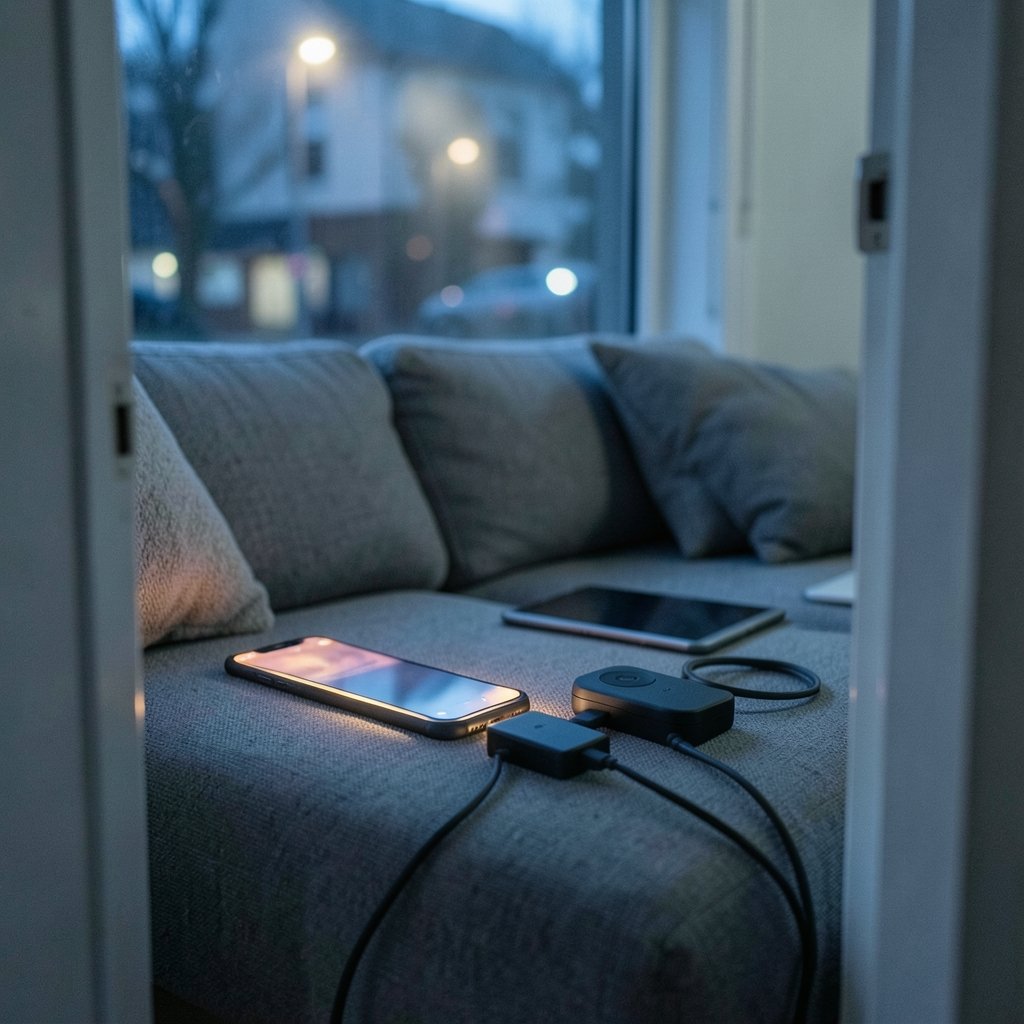
A mobile hotspot is doing something genuinely demanding. It runs the cellular radio and the Wi-Fi radio at the same time, translating traffic between two very different networks while managing power, heat, and security. That dual-radio workload explains why hotspots drain batteries fast and why small configuration errors snowball into total failure.
Carrier policy adds another layer. Many plans include hotspot data but cap it separately from regular phone data, and some block tethering outright on certain tiers. According to the FCC’s consumer guide on mobile hotspots, tethering rules and data allowances vary widely by plan, which is why a hotspot can work perfectly one month and fail the next after a plan change.
The fixes below are ordered roughly by how often they solve the problem. Start at the top and work down.
Problem 1: The Hotspot Turns On but Devices Get No Internet
This is the single most common complaint, and it is almost always an upstream problem rather than a hotspot problem. If the phone itself cannot load a webpage over cellular data, the hotspot has nothing to share.
Fix: Turn off Wi-Fi on the phone so it is forced onto cellular, then open a browser and load a page. If that fails, the issue is the phone’s data connection, not the hotspot. Toggle airplane mode for ten seconds, check that mobile data is enabled, and confirm the SIM is seated properly. Apple’s Personal Hotspot troubleshooting guide recommends restarting the device and checking carrier settings updates as the next steps.
A subtle variant: the phone has data, but the hotspot hands out IP addresses without passing traffic. Toggling the hotspot off and on again forces a fresh DHCP lease and clears this state in most cases. It sounds like a cliché, but it genuinely works more often than any advanced fix.
Problem 2: The Hotspot Option Is Missing or Won’t Enable
When the Personal Hotspot toggle is greyed out or absent entirely, the cause is usually carrier provisioning. Some carriers require a specific plan add-on before the feature appears, and a new SIM or a plan migration can silently remove it.
Fix: Check the carrier account for a tethering add-on, then restart the phone. On iPhone, resetting network settings (Settings > General > Transfer or Reset iPhone > Reset > Reset Network Settings) restores the carrier bundle and often brings the toggle back. Be aware this wipes saved Wi-Fi passwords, so have them handy. On Android, the equivalent lives under Settings > System > Reset options > Reset Wi-Fi, mobile and Bluetooth.
One mistake people make constantly: they reset the entire phone to factory settings before trying the network-only reset. That is a nuclear option for a problem a two-minute network reset usually solves.
Problem 3: Speeds Are Painfully Slow
Slow hotspot speeds come from three places: weak cellular signal, Wi-Fi interference between the phone and the connected device, or too many devices competing for a limited pipe.
Fix: Move the phone toward a window or outdoors. Then check which Wi-Fi band the hotspot is broadcasting on. The 2.4 GHz band reaches farther but is crowded with neighbors’ routers, microwaves, and Bluetooth devices; the 5 GHz band is faster but has a shorter range. If the connected laptop sits close to the phone, switch the hotspot to 5 GHz. If it sits across a room, 2.4 GHz often wins despite the congestion.
| Symptom | Likely Cause | First Fix |
|---|---|---|
| Fast on phone, slow on laptop | Wi-Fi band congestion | Switch to 5 GHz |
| Slow everywhere | Weak cellular signal | Reposition near window |
| Speeds drop over time | Too many devices or background updates | Disconnect idle devices |
| Fast then throttled | Carrier data cap reached | Check plan usage |
Problem 4: Devices Keep Disconnecting
Random disconnects usually point to power-saving behavior. Many phones aggressively shut down the hotspot radio when the screen is off or when the battery drops below a threshold. Some Android skins also kill hotspot processes to save power.
Fix: Plug the phone into a charger, disable battery saver, and set the screen timeout longer during critical sessions. On Android, check that the hotspot is not set to turn off automatically after a period of inactivity; that setting is buried in the hotspot configuration menu and surprises people constantly. On iPhone, enable “Maximize Compatibility” only if older devices cannot see the network, since it forces the slower band.
Problem 5: Battery Drain and Overheating
Running two radios at once generates real heat. A phone in direct sun on a car dashboard while hosting three devices will throttle, dim the screen, and eventually shut the hotspot down. This is not a bug; it is thermal protection doing its job.
Fix: Keep the phone out of sunlight, remove the case during long sessions, and plug it in. Reduce the number of connected devices. If the phone still overheats, drop to 2.4 GHz, which draws slightly less power in some implementations, and stop streaming video through the hotspot while charging. Battery health also matters: an older phone with a degraded battery will struggle more, which is one reason a dedicated hotspot device makes sense for heavy users.
Problem 6: Device Limits and Unauthorized Users
Phones typically allow somewhere between five and ten simultaneous connections, depending on the model, and connections beyond that limit simply fail with no useful error message. If a new laptop cannot join while four other devices are connected, count the devices before assuming the hotspot is broken.
Fix: Disconnect unused devices and check the connected-devices list in the hotspot settings. While there, change the password if the network has been shared casually. A weak or widely known password invites neighbors onto your data plan, and their traffic competes with yours. The Wi-Fi Alliance’s security guidance recommends WPA3 where available and WPA2 at minimum; both are far better than an open network.
Problem 7: APN and Carrier Settings Problems
Sometimes normal data works but hotspot traffic does not, which points to an APN misconfiguration. This shows up after switching carriers, inserting a new SIM, or installing a carrier update that half-applied.
Fix: Compare the APN settings against the carrier’s published values, or reset them to default. On iPhone, updating carrier settings (Settings > General > About) often resolves it. On Android, the APN menu lives under Settings > Network & internet > Mobile network > Access point names. If the hotspot APN field is blank when the carrier requires a specific value, that alone can break tethering.
Problem 8: Security and Interference From Nearby Networks
In apartment buildings and hotels, dozens of networks fight for the same channels. The hotspot may broadcast fine but deliver choppy performance because every packet is competing for airtime.
Fix: Switch bands as described above, and if the phone allows channel selection, pick a channel far from the busiest ones. A quick scan with a free Wi-Fi analyzer app reveals which channels are crowded. Also confirm the hotspot uses WPA2 or WPA3 rather than the legacy open mode, which some phones default to after a reset.
What Actually Works in Practice
After working through hundreds of these cases, a few patterns stand out. The restart-and-reconnect sequence resolves the majority of “connected but no internet” reports, and people skip it because it feels too simple. Carrier plan limits cause more “broken hotspot” complaints than any hardware fault, so checking the plan first saves time. And heat is the silent killer: a phone that works fine indoors fails reliably on a hot dashboard.
For readers who also wrestle with background processes eating system resources, the same patience-first approach applies to fixing antimalware service executable high CPU usage and to getting Decky loader working again on a Steam Deck after an update. The lesson transfers: identify the layer that failed before changing settings at random. (Broadband Speed Guide)
Patience beats brute force when troubleshooting networks. And documenting what changed before a fix attempt saves enormous time when the fix makes things worse.
When to Stop Troubleshooting and Switch Tools
If the hotspot fails repeatedly despite clean settings, the phone’s Wi-Fi radio may be failing, or the carrier may be throttling tethering aggressively. At that point, alternatives deserve a look. USB tethering is faster and more stable than Wi-Fi but ties the phone to one laptop with a cable. Bluetooth tethering is slow but sips battery. A dedicated mobile hotspot device costs money upfront but keeps the phone free and runs cooler. (Tethering)
Travelers who rely on connectivity should also prepare offline fallbacks. Loading a few best offline mobile games onto a phone means a dead hotspot does not mean a dead evening, and knowing how to verify images before sharing them matters when a public hotspot is the only connection available.
Conclusion
Mobile hotspot problems feel random but follow clear patterns. “Connected but no internet” is nearly always the phone’s own data connection. A missing toggle is nearly always carrier provisioning. Slow speeds come down to signal, band choice, and device count. Disconnects and overheating trace back to power management and heat. Work through the list in order, change one thing at a time, and most hotspots come back to life without a trip to the carrier store. The feature is worth the effort: a working hotspot turns any parking lot into an office, and that is hard to beat.
Frequently Asked Questions
Why does my hotspot show connected but pages won’t load?
The phone’s cellular data is almost certainly down or blocked. Turn off Wi-Fi on the phone, test a webpage over cellular, and if that fails, toggle airplane mode and restart the device. If the phone has data but the laptop still cannot load pages, toggle the hotspot off and on to force a fresh connection.
Can my carrier block my hotspot even though I pay for data?
Yes. Many plans separate phone data from tethering data, and some block tethering on lower tiers entirely. Check the plan details or call the carrier before assuming the phone is faulty, especially if the hotspot worked previously and stopped after a plan change.
Is 5 GHz always better than 2.4 GHz for a hotspot?
No. The 5 GHz band is faster but has a shorter range and struggles through walls. The 2.4 GHz band reaches farther but is more crowded. Use 5 GHz when devices sit close to the phone and 2.4 GHz when they are across a room or in another room.
How many devices can connect to a phone hotspot at once?
It varies by model, typically somewhere between five and ten. Connections beyond the limit fail without a clear message, so count the connected devices in the hotspot settings before troubleshooting anything else.
Why does my hotspot drain the battery so fast?
The phone is running the cellular radio and the Wi-Fi radio simultaneously, which is one of the most power-hungry things a phone can do. Plug in during long sessions, reduce connected devices, and expect heat as a normal side effect rather than a fault.
Should I use a dedicated hotspot device instead of my phone?
It depends on usage. Occasional tethering is fine on a phone, but frequent, long sessions wear on the battery and generate heat. A dedicated device runs cooler, lasts longer per charge, and keeps the phone free, at the cost of an extra device and often a separate plan.



