
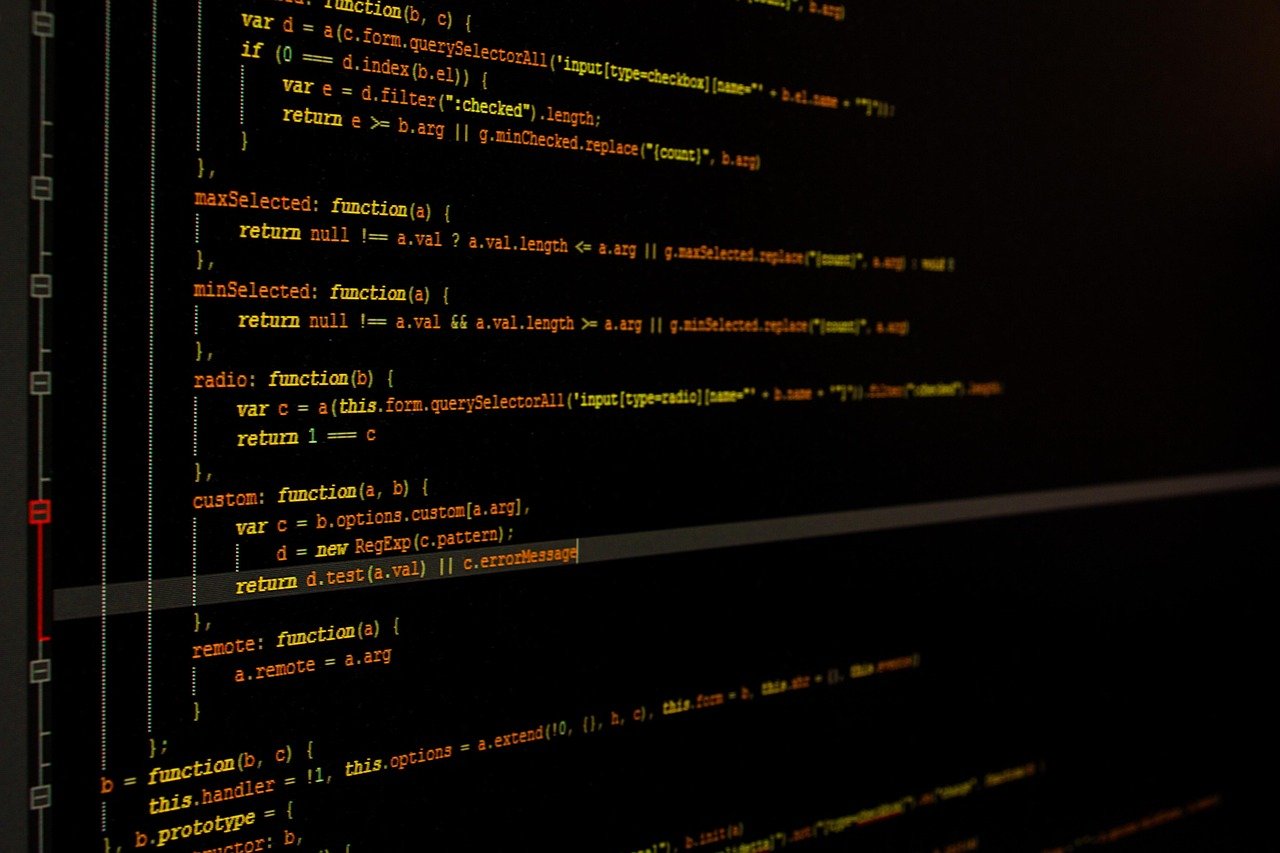
Have you ever tilted your head sideways to read a long function, or scrolled endlessly through a log file that seemed to run off the bottom of your screen forever? That nagging feeling that your wide monitor is wasting valuable space is exactly why some developers flip their displays into portrait mode. Rotating a screen 90 degrees turns a wide, letterbox-shaped canvas into a tall column that shows far more lines of code at once. It sounds like a small change. In practice, it reshapes how you read, review, and organize your work. (Computer monitor)
Portrait mode for coding has real benefits and real costs: it helps in some tasks, hurts in others, and setup should avoid neck strain and workflow disruption. The honest answer is that portrait orientation is a preference, not a settled ergonomic standard. Most integrated development environments (IDEs) and editors are built around wide layouts with side-by-side panels and long lines. Portrait setups appeal to people who want more vertical context. Whether that trade-off is worth it depends entirely on what you do all day. (Ai portrait generator create realistic portraits)
What Monitor Portrait Mode Actually Changes
Rotating a display swaps its width and height. A typical 27-inch panel that runs at 2560 by 1440 pixels in horizontal orientation becomes 1440 by 2560 in portrait. You lose horizontal room and gain a tall stack of vertical space. For a coder, that single swap creates a clear trade-off: line length versus vertical context.
In horizontal orientation, long lines of code sit comfortably on one row. In portrait, those same lines may wrap or force horizontal scrolling. At the same time, portrait mode lets you see dozens more lines at once, which matters when you are reading a long function, scanning a stack trace, or working through a diff. The question is never “which is better” in the abstract. It is “which shape matches the task in front of you.”
The Real Trade-Off: Width vs. Vertical Context
Most code is written in relatively narrow columns, and many style guides cap line length well below the width of a modern monitor. That leaves a lot of empty space on either side in horizontal orientation. Portrait mode reclaims that space and stacks it vertically. Developers who like it often describe the same benefit: fewer scrolls, more context, less head-turning.
The cost shows up with wide layouts. Side-by-side editors, a file tree on the left, and a terminal panel on the right all compete for horizontal room. Squeeze those into a portrait column and things get cramped fast. Table-driven code, long import statements, and minified files are especially painful. So the practical rule most people land on is simple: portrait suits reading and reviewing, horizontal orientation suits building and arranging.
| Factor | Horizontal | Portrait |
|---|---|---|
| Visible lines of code | Fewer | Many more |
| Long lines | Comfortable | Wrap or scroll |
| Side-by-side panels | Natural fit | Cramped |
| Reading logs and diffs | Awkward | Excellent |
| Documentation and chat | Wastes side space | Fits well |
| Multi-window layouts | Easy | Tight |
Where Portrait Mode Genuinely Shines
Portrait orientation earns its keep in a handful of tasks that are more vertical than horizontal. These are the situations where the extra height pays off immediately.
Reading long files and functions
When a single function runs past a hundred lines, horizontal orientation forces repeated scrolling. A tall screen keeps more of that logic in view, which helps you follow the flow without losing your place. The same logic applies to reading configuration files, migration scripts, and anything with deep nesting.
Code review and diffs
Reviewing a pull request means scanning additions and removals line by line. A portrait display shows more of a diff at once, so you spend less time scrolling and more time actually reading. Many reviewers treat this as the single strongest argument for a vertical screen.
Logs, terminals, and stack traces
Terminal output, build logs, and error traces all run top to bottom. They are naturally vertical content, and portrait mode fits them almost perfectly. Watching a long log scroll by on a tall screen feels far less claustrophobic than on a wide one.
Documentation, chat, and reference material
Docs, chat threads, and reference pages are mostly text in narrow columns. A portrait screen displays them without wasting the sides. If you keep a second display for reference material, portrait is a natural choice there even if your main coding screen stays horizontal.
If you are still deciding which tools deserve that screen space, it helps to think about how you use AI helpers alongside your editor. Picking the best AI coding assistants for developers often comes down to how much chat and suggestion text you want visible at once, and a tall screen makes those panels far easier to read.
Where Portrait Mode Falls Short
It would be dishonest to pretend portrait mode is a free upgrade. It has real downsides, and they show up for certain kinds of work.
- Wide multi-panel layouts break down. A file tree, editor, and terminal side by side need horizontal room that portrait simply does not have.
- Long lines wrap or scroll. Minified files, wide tables, and long imports become harder to read.
- Some apps assume horizontal orientation. Tools with fixed toolbars or docked panels can feel awkward when rotated.
- Not every stand pivots. Rotation depends on hardware, which affects setup.
For developers who live inside a complex IDE with many open panels, portrait can feel like wearing a shoe on the wrong foot. The layout fights the screen shape instead of fitting it.
Hardware and Setup: What You Actually Need
Rotation is a hardware and software question, not a coding one. Before you commit, check three things.
- A stand that pivots. Many monitors ship with stands that rotate 90 degrees. Others do not. If yours does not, a VESA mount arm is the usual fix.
- A rotation setting in your OS or GPU driver. Windows, macOS, and Linux all offer display rotation controls. Set the orientation once and the system handles the rest.
- Cable and port clearance. Rotating a monitor can strain cables if they are short or routed tightly. Give them slack before you turn the screen.
The setup itself takes minutes. The bigger decision is whether your daily work matches the shape. If you spend most of your day reading and reviewing, portrait is worth a real trial. If you spend it arranging windows and jumping between panels, horizontal orientation likely wins.
How to Try Portrait Mode Without Regret
The smart approach is to test before you commit. A few practical habits separate a smooth switch from a frustrating one.
- Start with a second monitor. Keep your main screen horizontal and rotate a secondary one. That way you get the vertical reading space without losing your primary layout.
- Use portrait for reference, not building. Put docs, logs, chat, and diffs on the tall screen and keep your editor wide.
- Adjust your font size and line length. Portrait changes how much text fits per row, so tune your editor settings to match.
- Give it a full week. A single afternoon is not enough to judge. Muscle memory needs time to adjust.
A common mistake is flipping the only screen and expecting everything to feel better instantly. It rarely does. The developers who love portrait mode usually pair it with a horizontal screen, splitting tasks by shape rather than forcing one orientation to do everything.
Portrait vs. Horizontal Orientation: A Practical Comparison
The table below summarizes how each orientation tends to perform across common coding tasks. Treat it as a starting point, not a rulebook.
| Task | Better orientation | Why |
|---|---|---|
| Writing new code | Horizontal | Wide lines, side panels |
| Reviewing diffs | Portrait | More lines visible |
| Reading logs | Portrait | Natural vertical flow |
| Debugging with panels | Horizontal | Horizontal room |
| Reading documentation | Portrait | Narrow text columns |
| Managing many windows | Horizontal | More horizontal space |
The pattern is consistent: creation favors width, consumption favors height. Once you notice that split, choosing an orientation for each screen becomes intuitive.
Does Portrait Mode Actually Make You More Productive?
Here is where honesty matters. There is no strong primary evidence that portrait orientation improves coding productivity. Most claims come from developer blogs, forum threads, and vendor opinion rather than controlled studies. Ergonomic guidance from occupational safety bodies generally emphasizes monitor height, distance, and viewing angle rather than orientation itself, so you should not expect an official recommendation either way.
That does not make portrait mode useless. It means the benefit is personal and task-specific. Some developers genuinely read faster with more vertical context. Others find wrapped lines distracting. The only reliable test is your own workflow. If you want to compare how different tools fit your setup, resources like this guide to the best AI models for coding and software development can help you think about which panels and assistants deserve screen space in the first place.
It also helps to remember that screen orientation is one small part of a comfortable setup. Chair height, monitor distance, and viewing angle matter more for long-term comfort than whether the screen is tall or wide. Get those right first, then experiment with orientation.
Common Mistakes People Make
A few missteps trip up almost everyone who tries portrait mode for the first time.
- Rotating the only monitor and forcing every task onto it. The result is cramped layouts and constant window shuffling.
- Ignoring line length. Long lines wrap awkwardly in portrait, so adjust your editor’s word wrap and ruler settings.
- Skipping the stand check. Buying a monitor without pivot support and discovering it too late is a common regret.
- Judging too quickly. One frustrating afternoon does not mean portrait mode is wrong for you.
- Neglecting cable strain. Rotating a screen with tight cables can damage ports over time.
Avoid those traps and the experiment becomes cheap and reversible. That is the whole point: try it, measure how it feels, and keep what works.
Conclusion
Monitor portrait mode for coding is neither a miracle fix nor a gimmick. It is a shape change with clear strengths and clear costs. The tall canvas gives you more vertical context, which is genuinely useful for reading long functions, reviewing diffs, and watching logs scroll by. The narrow width makes wide layouts and long lines harder to manage, which is why most happy portrait users keep a horizontal screen nearby.
The practical path is straightforward. Check that your hardware pivots, set the rotation in your operating system, and test portrait on a secondary display before committing your main one. Match the orientation to the task: width for building, height for reading. Skip the hype about productivity gains, because the evidence is thin and the benefit is personal. If you approach it as an experiment rather than a rule, you will quickly learn whether a vertical screen fits the way you actually work.
Frequently Asked Questions
Is portrait mode good for coding?
It depends on the task. Portrait mode is good for reading long files, reviewing diffs, and watching logs because it shows more vertical lines at once. It is less good for writing code in wide multi-panel layouts, where horizontal orientation usually fits better. Most developers who like it use portrait as a secondary screen rather than their only one.
Do I need a special monitor for portrait mode?
You need a stand that can rotate 90 degrees, which many monitors include. If yours does not pivot, a VESA mount arm solves the problem. You also need a rotation setting in your operating system or graphics driver, which Windows, macOS, and Linux all provide.
Does rotating a monitor hurt performance?
No. Rotating a display is a software setting that changes how the image is drawn, not how fast your computer runs. Frame rates and rendering speed are unaffected by orientation. The only practical concerns are cable strain and whether your stand supports pivoting. (Computer Workstations)
Can I use portrait mode with a single monitor?
Yes, but expect trade-offs. A single portrait screen works well for reading, reviewing, and terminal work. It gets cramped for side-by-side panels, file trees, and wide layouts. Many people try it on a secondary display first and only switch their main screen if the workflow clearly benefits.
Is portrait mode better for reading code?
Many developers find it better for reading because more lines stay visible without scrolling. That said, long lines wrap or force horizontal scrolling in portrait, which can hurt readability for wide code. Adjusting font size and word wrap settings makes the experience much smoother.
Does monitor orientation affect ergonomics?
Orientation is a minor factor compared with monitor height, viewing distance, and viewing angle. Ergonomic guidance generally focuses on positioning the top of the screen near eye level and keeping a comfortable distance. Get those basics right first, then experiment with portrait or horizontal orientation based on the tasks you do most.



