

Quick Answer: What are the most common problems with playstation 5 and how do i fix them?
The most common PlayStation 5 problems are overheating and loud fans, Rest Mode glitches, external drive failures, software update errors, and DualSense controller faults. Most of them can be fixed at home with simple steps: cleaning vents, rebuilding the database in Safe Mode, reformatting USB storage, and resetting the controller.
Some issues are firmware-dependent and disappear after an update, while others point to genuine hardware faults that need Sony’s repair service. It helps to separate the two before you spend money on parts.
Before acting, check your console’s ventilation, firmware version, storage health, controller pairing, and warranty status. That short checklist covers almost every case you will run into.
Gaming hardware has never been more capable, and it has rarely been more finicky. The PS5 packs a custom SSD, a liquid-metal-cooled APU, and a wireless controller full of sensors into a tight shell, so small faults can feel like big ones. The good news: most reported problems have documented fixes that take minutes, not hours.
Overheating and fan noise: the number one complaint
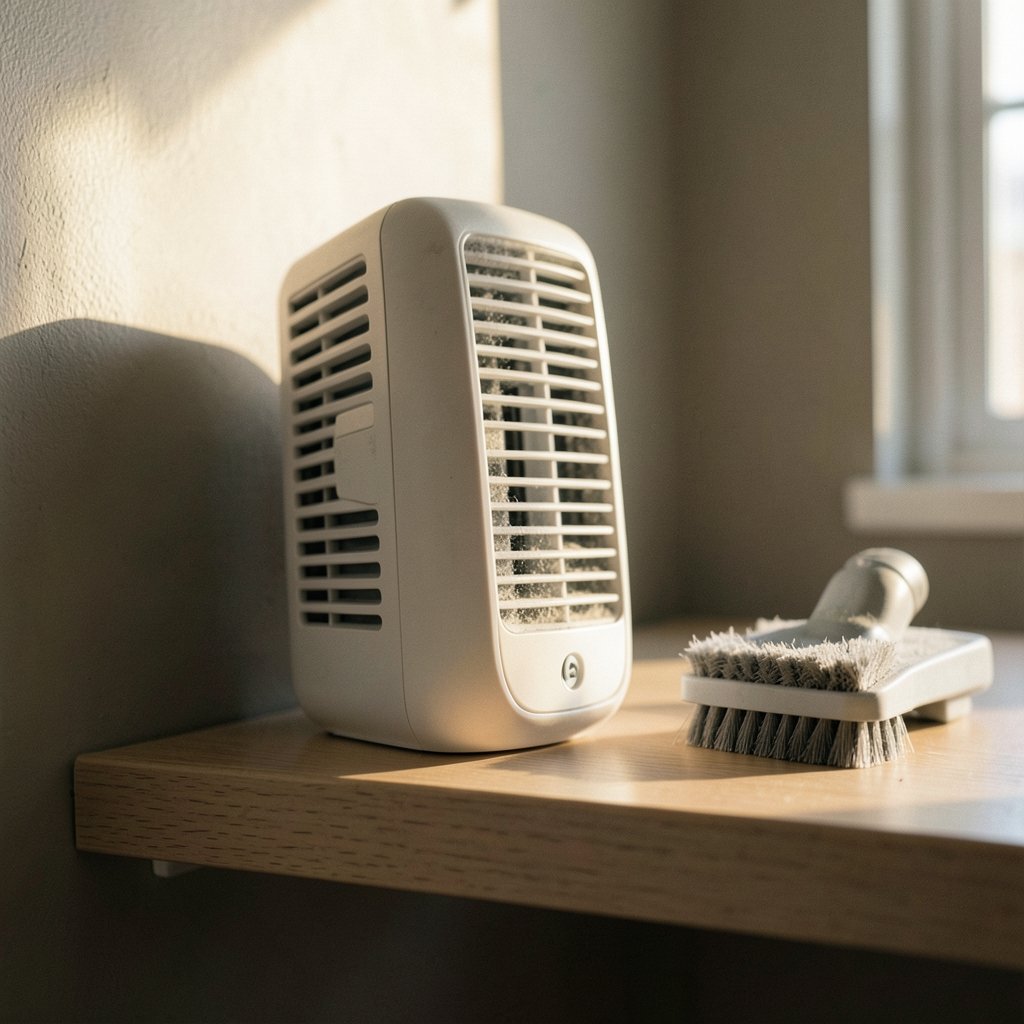
If the console sounds like a hair dryer during demanding games, heat is usually the culprit. The PS5 pulls air in through the side vents and pushes it out the back, and blocking either end traps warm air inside. Practical fixes that actually work:
- Give the console at least 10 cm of clearance on all sides, and never tuck it into a closed cabinet.
- Stand it upright or lay it flat, but keep the vents unobstructed either way.
- Vacuum the vents gently with a soft brush attachment every few months.
- Avoid carpet and soft surfaces that swallow the intake airflow.
A common mistake is spraying compressed air directly into the fan at full blast, which can spin the bearings too fast and push dust deeper. Short, angled bursts are safer. If the fan still roars after cleaning, the internal heatsinks may be clogged, and that is a job for a professional or Sony’s service team.
Rest Mode problems: downloads that stall and consoles that won’t wake
Rest Mode is supposed to be a convenience, but it is one of the most frequently discussed trouble spots. Typical symptoms: the console won’t wake from Rest Mode, downloads pause overnight, or an external drive disconnects after waking.
Start with the settings menu. Under power-saving options, enable Features Available in Rest Mode and make sure Stay Connected to the Internet and Enable Turning On PS5 from Network are both active. If downloads still stall, the cause is often a router that drops idle connections. A wired connection or a reserved IP address usually cures it.
If the console refuses to wake at all, hold the power button for about 15 seconds until it beeps twice, then restart. Persistent Rest Mode crashes often point to a corrupted system database, which the next section covers.
External USB drive errors: not recognized, disconnecting, or refusing to format
Extended storage is where a lot of frustration lives. The PS5 only accepts USB drives formatted for its own file system, and drives that worked on a PS4 sometimes need reformatting before the console will use them.
| Symptom | Likely cause | Fix |
|---|---|---|
| Drive not recognized | Wrong file system or dead port | Reformat via Settings > Storage; try the rear USB ports |
| Random disconnects | Insufficient power or loose cable | Use a powered hub or shorter cable |
| Games won’t launch | Drive disconnected mid-session | Reconnect, then repair the library |
| Format fails repeatedly | Failing drive hardware | Test the drive on a PC; replace if errors appear |
One detail people miss: the PS5 has both SuperSpeed USB ports on the back and a slower port on the front. Plugging an SSD into the front port can cause slowdowns and occasional dropouts. Use the rear ports for extended storage and keep the front for charging.
If storage is the broader headache, it is worth knowing how much room modern games demand. Titles regularly exceed 100 GB, and that pressure pushes many owners toward playstation 5 price increase discussions about whether a bigger console bundle is cheaper than adding drives later. (PlayStation Support)
Software update failures and network errors
A failed system update usually comes down to network instability or insufficient free space. Before retrying, check that the console has at least a few gigabytes free and that the router is not blocking the update servers.
Safe Mode offers a direct route: power off completely, hold the power button until the second beep, connect a USB cable to the controller, and choose Update System Software. Downloading the update to a USB stick from another computer and installing it manually is the most reliable fallback.
For general connection errors, switch from Wi-Fi to Ethernet if possible, restart the router, and set the DNS manually to a public resolver. If only one game lags while everything else runs fine, the problem is the game’s servers, not your console.
DualSense controller issues: drift, disconnects, and charging
Stick drift is the classic controller complaint: the camera creeps even when you are not touching the stick. Dust and wear inside the analog module cause it. Quick fixes include blowing air around the stick base and recalibrating through the console settings. If drift persists, the module needs replacement, and Sony’s warranty covers it within the coverage period.
Connection drops have simpler causes. Make sure the controller is paired to the right profile, keep the console line of sight clear, and reset the controller with the small pinhole button on the back. Charging problems are often cable-related, since the DualSense needs a data-capable USB cable, not a charge-only one.
Worth noting: controller and subscription costs add up over a console’s life. Many buyers compare the xbox vs playstation price picture before committing, and services like playstation plus premium price plans factor into the long-term budget just as much as hardware. (PlayStation 5)
Disc drive noise and read errors
Disc-edition consoles occasionally sound like they are chewing gravel, especially during installs. Some whirring is normal, but grinding or repeated read errors suggest a dirty or misaligned disc. Check the disc for smudges and scratches, insert it label-side up, and try a different disc to isolate the problem.
If every disc fails, the drive’s laser may be failing. That is a hardware repair, not a settings tweak. Do not attempt to open the drive yourself unless you are comfortable voiding the warranty.
HDMI and display problems: black screens, no signal, and VRR confusion
A black screen after boot is usually an HDMI handshake issue. Reseat both ends of the cable, try a different port on the TV, and swap in a certified high-speed cable. Features like 120Hz output and variable refresh rate can cause flicker on TVs that only partially support them, so toggle them off in the video output settings and test again.
A frequent mistake is enabling HDR on a TV that handles it poorly, which makes games look washed out. Adjust HDR in the console’s display settings and follow the on-screen calibration screens rather than guessing.
System errors, crashes, and the Safe Mode database rebuild
When the console freezes, crashes to the home screen, or throws error codes, Sony’s documented troubleshooting step is Safe Mode. Here is the sequence that resolves most software-level faults:
- Turn the console off completely.
- Hold the power button until you hear a second beep (about seven seconds).
- Connect a controller by USB and press the PS button.
- Choose Clear Cache and Rebuild Database, then Rebuild Database.
This scans the drive and rebuilds the system index without deleting games or saves. It takes a few minutes and fixes a surprising share of performance stutter. If it fails, Reset PS5 restores factory settings, and Reset PS5 (Reinstall System Software) is the nuclear option that wipes everything.
Storage full and install errors
Modern installs fail quietly when space runs low. Keep at least 10 to 15 percent of the SSD free so the system has room for updates and caching. Delete unused games, move older titles to extended storage, and check for duplicate installs of the same game on both drives.
If an install fails repeatedly on one game, delete the partial download and reinstall. Persistent failures across multiple games can indicate a failing SSD, which requires service.
When to stop troubleshooting and contact Sony
Home fixes cover software and airflow problems. They do not cover failing hardware. Contact Sony’s repair service if the console overheats after cleaning, shuts down randomly, shows persistent error codes after a database rebuild, or refuses to power on at all. Check the warranty first; repairs on covered consoles are typically free, while out-of-warranty work carries a fixed fee.
Keep your proof of purchase and note the serial number before you start a claim. It speeds up the process considerably.
Conclusion
Most PS5 problems are not disasters. They are airflow issues, stale databases, fussy USB drives, and controllers that need a reset. Work through the simple fixes first, in order: ventilation, Rest Mode settings, storage format, Safe Mode rebuild, then hardware service. That sequence resolves the large majority of complaints without a single trip to a repair center. The console is a capable machine, and a little maintenance keeps it that way.
Frequently Asked Questions
How often should I clean my PS5?
Every three to six months in a normal home, and more often if you have pets or live in a dusty area. A gentle vacuum of the vents takes a minute and prevents most overheating complaints.
Can rebuilding the database delete my game saves?
No. Rebuilding the database only restores the system’s file index. Your games, saves, and captures stay intact. A full factory reset is the step that wipes data, so back up saves to the cloud first.
Why does my PS5 turn off by itself during games?
Sudden shutdowns usually mean overheating or a power supply fault. Check ventilation and clean the vents first. If it keeps happening after cleaning, contact Sony’s repair service rather than continuing to play.
Is stick drift covered by warranty?
Yes, in most regions a drifting DualSense is covered within the standard warranty period. Sony will repair or replace it. Outside warranty, replacement analog modules are inexpensive if you are comfortable with a small repair.
Do I need an Ethernet cable to fix download problems?
Not strictly, but it helps. Wired connections avoid the idle dropouts that stall downloads in Rest Mode. If you must use Wi-Fi, reserve a fixed IP address for the console on your router.
How much storage should I keep free on the PS5?
Aim to keep at least 10 to 15 percent of the SSD empty. That headroom lets the system cache data and install updates without errors, and it keeps load times consistent.
One last habit worth adopting: keep the console’s software and the DualSense firmware current, since Sony quietly ships stability fixes that address many of the glitches described above. Updates install fastest in Rest Mode overnight, so enable automatic downloads and let the console handle it while you sleep. Pair that with a surge protector, a stable shelf, and a soft brush for the vents, and most of these problems simply never surface. None of the fixes here require special tools or technical confidence, just a little patience and the willingness to try the simple steps before assuming the worst.



