A controller can run Pokémon Pinball: Ruby & Sapphire without restoring its rumble feedback. Getting vibration to work on a desktop takes more than loading the game and mapping buttons. The game needs the right emulator setting, its own Rumble option, and a controller that can vibrate.
This walkthrough covers desktop mGBA, where controller rumble is easier to set up than on mobile. Game Boy Player mode recreates accessory-specific functions for compatible Game Boy Advance games. You also need a game file you are entitled to use, and your controller must expose vibration to your computer.
The steps use the stable mGBA version identified for this setup. A rumble patch is another option, but it changes the game file and needs extra care. Start with the stable mGBA setup and keep a backup of the game save.
Key Takeaways
- Game Boy Player mode and the game’s Rumble option work together.
- Use a rumble-capable controller recognized by your operating system.
- Reload the game after changing the emulator’s accessory setting.
- Keep a clean copy of the ROM before applying a patch.
- Back up your save before testing a different game file.
Why does this game need Game Boy Player rumble emulation?
The original GBA setup has no console rumble motor, while this game’s rumble depends on the Game Boy Player path. The accessory let you play Game Boy Advance games through a GameCube, and this game’s rumble used that route. A regular Game Boy Advance alone cannot provide the same rumble path.
The Game Boy Player connects to a GameCube and plays Game Boy Game Paks on a television. You can read the Nintendo Game Boy Player instruction booklet for its original hardware setup. Pokémon Pinball: Ruby & Sapphire supports rumble with the Game Boy Player and a GameCube controller.
| Setup | Rumble path | What the reader needs |
|---|---|---|
| Game Boy Advance by itself | No console rumble motor | GBA system and game |
| Game Boy Player with GameCube controller | Original accessory path | GameCube, Game Boy Player, controller |
| mGBA with Game Boy Player mode and a rumble-capable controller | Emulated accessory output | Computer, mGBA, compatible controller |
The emulator recreates the accessory behavior, but the physical vibration still comes from your controller. A gamepad with no vibration motor cannot produce rumble, even when the game sends a signal. mGBA supports Game Boy Advance rumble and Game Boy Player functions, though controller support can vary by setup.
Emulating the Game Boy Player path does not add a vibration motor to your computer or controller.
Choose a rumble-capable controller that your computer can address. That hardware is still needed when mGBA emulates the Game Boy Player behavior on a PC.
What do you need before setting up mGBA?
A desktop computer and a controller whose vibration works outside the emulator are the simplest starting point. mGBA has builds for Windows, macOS, Linux, Android, and iOS. For a first setup, use a desktop system and a rumble-capable controller.
Desktop controller and operating system
Install a supported desktop build of mGBA, then connect a USB or Bluetooth controller with a vibration motor. Your operating system must recognize and pass the controller’s rumble signal. A controller that works for ordinary buttons may still lack rumble support in its driver or connection mode.
Check the controller outside mGBA first, using its system test or another game that can vibrate. On a Steam Deck, desktop mode runs Linux applications, though game and controller compatibility can differ. The Steam Deck’s desktop mode can provide a handheld PC route, but it does not remove the need for system-level vibration support.
Handheld and mobile setup limits
mGBA mobile builds exist, but controller vibration can take more work to configure there. Your phone or handheld must pass vibration from the external controller to the app. Desktop setups usually make it easier to test that path and find the right controller settings.
A mobile device’s built-in vibration does not mean a connected gamepad can rumble. Check the gamepad itself and its connection settings. If the operating system does not detect controller vibration, changing mGBA settings will not fix that gap.
- Desktop operating system that supports your mGBA build
- Rumble-capable controller recognized by the system
- A game file you are entitled to use
mGBA supports Game Boy through Game Boy Advance games, and emulator choices by system can help you compare desktop and mobile options. Verify that the operating system recognizes controller vibration before configuring mGBA.
Which mGBA version should you install in 2026?
Use mGBA 0.10.5 for the main steps because it is the stable release identified for this setup. It was released March 9, 2025, and remained the latest tagged stable release as of September 30, 2026. Choose the stable build for the main walkthrough.
| Build | Status and date | Setup choice |
|---|---|---|
| mGBA 0.10.5 | Stable, released March 9, 2025 | Main setup choice |
| October 23, 2026 nightly | Development build, dated October 23, 2026 | Use for testing, not the default |
| mGBA 0.10.5 on older listed systems | May be the last release for Windows 7-8.1 and macOS 10.9-10.12 | Keep a working compatible install |
A stable release has a tagged version intended for regular use. A nightly build is a development version that may include new changes before they reach a stable release. Those changes can also introduce issues, so a newer date alone does not make a nightly the better choice for your game.
mGBA 0.10.5 may be the last release that supports Windows 7-8.1 and macOS 10.9-10.12. On those systems, an update could remove a version that still runs. Keep a copy of your current setup when testing another build.
If you use another emulator, the program and game file remain separate parts of the setup. The compatibility checks for emulator setups also apply when you troubleshoot a game file. Readers on the listed older operating systems should check compatibility before replacing a working installation.
How do you prepare a legitimate, matching game file?
Start with a clean game file from the region you plan to use for the entire setup. Pokémon Pinball: Ruby & Sapphire is a one-player Game Boy Advance game developed by Jupiter Corporation and published by Nintendo. Its North American release was August 25, 2003.
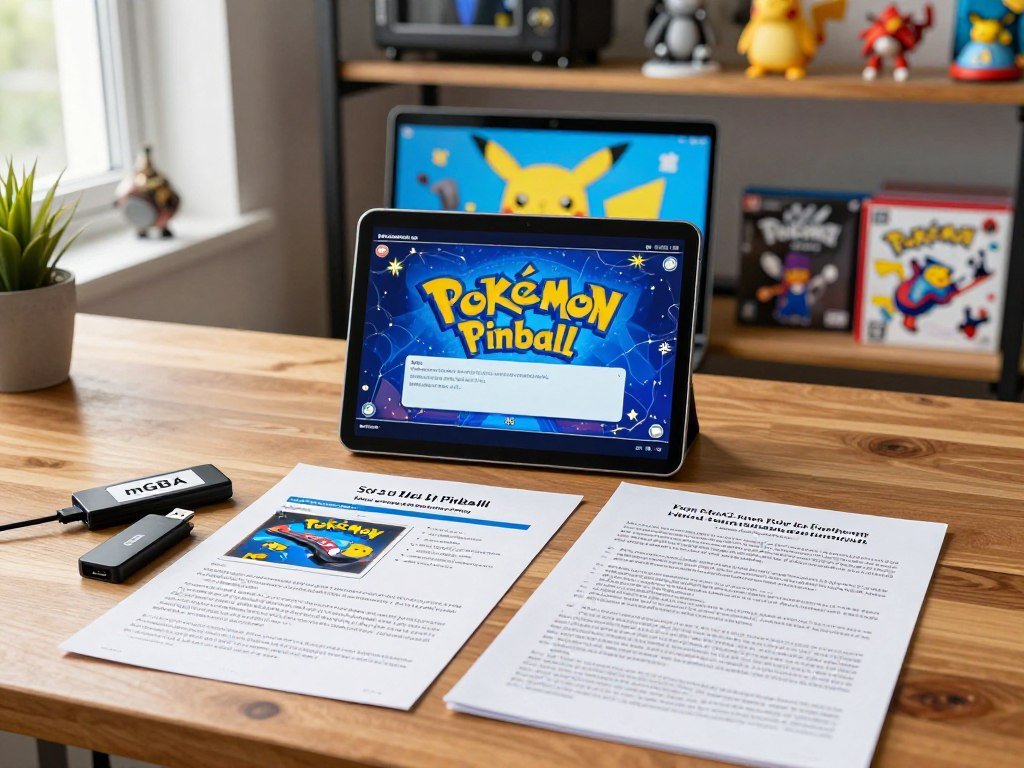
Use a personal dump from a cartridge you own, and follow the rules that apply where you live. This guide does not provide ROM download links. North American, European, and Japanese ROM versions exist, so note your file’s region before pairing it with a patch or save.
Keep the ROM, save, and any patch tied to the same regional version. A patch made for one region may not work on another region’s ROM. A save should stay with the ROM version it was created for, rather than being moved between regional copies without checking.
- Identify the ROM region before you set up other files.
- Preserve a clean original copy of the ROM.
- Use a consistent filename for the ROM and its save.
- Keep the ROM, save, and patch together in one folder.
A clear folder makes it easier to tell the original file from a patched version. Give each file a name that shows its role and region, while keeping the ROM and save names consistent. Avoid editing the only copy you have.
The game has a North American release date of August 25, 2003, but that date does not identify every regional revision. Keep an untouched copy of the original game file before applying any patch.
Do you need a GBA BIOS before launching?
You can launch this game in mGBA without adding a BIOS file. mGBA does not require a BIOS for most games, including Pokémon Pinball: Ruby & Sapphire. Leave BIOS setup alone unless you already have a legitimate BIOS file to use.
A BIOS is system software, separate from the game ROM. It is not needed for the basic launch described here, so a missing BIOS file should not stop you from trying the game. Do not mistake the game file for a BIOS file.
If you have a legitimate GBA BIOS file, open Tools > Settings > BIOS in mGBA. Select your gba_bios.bin file in the GBA BIOS field, then apply the setting. The file must be available at the location you select.
mGBA can use gba_bios.bin through its BIOS settings, but that option does not change the rumble path. You can keep your setup simpler by leaving the field unset. The game can still run without a BIOS file.
Do not add a BIOS file just because a game uses the Game Boy Advance system. That is a separate setting from controller input and accessory emulation. If mGBA opens the game normally, leave the optional BIOS configuration alone.
How should you map a controller for pinball?
Map L and R to distinct buttons because the flippers depend on both inputs registering reliably. mGBA lets you map individual Game Boy Advance inputs in its controller settings. Test simultaneous L and R before starting a game.
Open mGBA’s controller settings and choose the connected controller for the Game Boy Advance player. Click each input, then press the controller button you want to assign. Keep the two shoulder inputs separate rather than placing both on one button.
- Map the D-pad to the game’s directions.
- Map A and B to two easy-to-reach primary buttons.
- Map L and R to separate shoulder buttons.
- Map Start and Select to convenient menu buttons.
- Press L and R together to test both flippers.
Pinball often asks for fast, repeated input, so choose buttons that feel comfortable during a long session. You can use a controller’s face buttons for A and B, then assign Start and Select to nearby buttons. Keep menu inputs easy to reach without confusing them with the flippers.
The title screen gives you a quick place to test the basic map before play begins. Confirm that directions, menu controls, and both shoulder inputs respond as expected. Test each mapping on the title screen before starting a game.
How to Set Up Pokemon Pinball Ruby Sapphire mGBA Rumble Setup 2026
Enable Game Boy Player features in mGBA’s emulation settings before opening the game again. The setting turns on the accessory-emulation path the game uses for rumble. Close and reopen the game after changing the setting.
In standalone mGBA, open Tools > Settings > Emulation. Find and enable the Game Boy Player features option, then apply the change. Menu labels can differ by version, so confirm you are changing the accessory feature, not an unrelated display setting.
Close the running game and reopen it from the ROM. Do not assume that a mid-session toggle has taken effect; the game needs to start again under the new accessory setting. Keep the game file and its save in the same setup while you test.
mGBA’s official FAQ on supported peripherals describes support for Game Boy Advance rumble and Game Boy Player functions. The standalone emulator and its libretro core are separate versions, so settings can differ between them. Use the menu for the program you actually run.
If the game remains open in a paused or saved state, close it fully before relaunching. That gives the game a fresh start with the updated setting. Confirm that the game has restarted under the new setting before checking its own options.
Where do you turn rumble on inside the game?
After the game restarts in Game Boy Player mode, open its Options menu and turn Rumble on. The game has its own toggle, separate from mGBA’s accessory setting. Both settings must be active for this route.
Use the mapped controls to reach the game’s Options menu. Find the Rumble entry and switch it on, then return to play. The exact screen layout can depend on where you are in the game, but the option belongs to the game’s own menu.
Enabling the emulator feature does not automatically turn on the in-game option. The game controls whether it sends rumble during play, while mGBA recreates the accessory path. Check the menu setting after the game has restarted.
The Rumble entry becomes available after Game Boy Player features are enabled. If you cannot select it, the game may not have restarted under that setting. If the game’s Rumble option is unavailable, recheck the emulator setting and reload the game.
How can you confirm rumble is working?
A short pulse during a capture or multiball is a practical sign that the signal is reaching the controller. Bumper events can also trigger rumble during play. Test a real in-game event instead of relying on the settings screen.
mGBA can pass rumble output to a connected compatible controller. If you feel no response, first separate a controller problem from a game setup problem. Use these checks before changing the ROM or applying another patch.
- Confirm system-level vibration is enabled for the controller.
- Test the controller in another rumble-capable game.
- Trigger a capture, multiball, or bumper event in this game.
The first check confirms the operating system allows vibration. The second shows whether the same controller can vibrate in another game. The final check tests this game’s signal during an event that can produce rumble.
A controller that vibrates in another game can still have a different result in mGBA. Standalone settings and development builds may affect the signal path. If the controller vibrates elsewhere but not here, check the selected mGBA build before changing the game file.
The mGBA rumble setup options also describe testing the signal with a table nudge. Use an in-game action that you can repeat, then note whether the controller responds each time.
Should you use mGBA’s Game Boy Player mode or a rumble patch?
Use mGBA’s built-in Game Boy Player mode first if you want to follow the game’s original rumble path. An IPS rumble patch is an alternative that can add rumble without accessory emulation. Neither route is needed for basic play.
| Route | Requires | Rumble behavior | Tradeoff |
|---|---|---|---|
| Game Boy Player mode | mGBA feature and rumble controller | Follows accessory behavior | Needs the emulator setting and game option |
| IPS rumble patch | Matching patch and ROM | Can trigger rumble more broadly | Uses a changed game file |
| Neither method | Game and mapped controller | No added rumble route | Basic play remains available |
Game Boy Player mode recreates the accessory behavior used by the game. The IPS patch changes the ROM so it can trigger rumble without that emulation setting. A patch may cause vibration more often than the original hardware path.
Keep the original file separate if you choose the patch route. That makes it easier to return to the unmodified game and compare results. A patch can also add another variable when you are trying to find a controller issue.
If the built-in route works as you expect, there is no need to change the ROM. The patch is useful when you prefer not to use accessory emulation or the built-in route proves unreliable. Choose the patch only if the built-in route is unreliable or you prefer not to use accessory emulation.
How do you apply the optional IPS rumble patch?
Apply the IPS file to a clean, matching-region ROM and save the result under a new filename. An IPS patch is a separate file that changes a game file when applied. Keep the original ROM untouched.
Put the clean ROM and the IPS file in one folder so you can identify both. The patch must match the ROM’s region, and the output should be a separate file. Do not overwrite the original while testing.
Use a compatible patcher, such as flips, which supports IPS and BPS patches across platforms. Open the patcher, choose its patch option, then select the IPS file and the clean ROM when prompted. Save the result with a name that marks it as patched.
Check the patcher’s prompts before confirming the output path. The patched file should be easy to distinguish from your clean ROM, even if both sit in the same folder. Keep a clear filename so you open the intended version in mGBA.
Open the new patched game file in mGBA after the patcher finishes. If the game fails to start, close it and return to the clean ROM rather than repeatedly patching the same file. Keep the original ROM untouched so you can return to the unpatched setup.
Can you set up rumble through RetroArch’s mGBA core?
RetroArch users need to enable both controller vibration and the mGBA core’s Game Boy Player feature. Those are separate configuration points, and one does not switch on the other. Restart the game after changing the core option.
| Setup | Where to enable vibration | Where to enable Game Boy Player support | Reload step |
|---|---|---|---|
| Standalone mGBA | Controller and operating system | mGBA emulation settings | Close and reopen game |
| RetroArch desktop with mGBA core | RetroArch input or device settings | mGBA core options | Restart game after changing core options |
| RetroArch handheld or mobile | Device and RetroArch controller settings | mGBA core options | Restart game after changing core options |
First, make sure RetroArch can send vibration to your controller. Then open the mGBA core options and enable its Game Boy Player feature. Save a core or game override if you want the setting to carry forward.
Return to the game only after the core setting is in place. Restart it so the game detects the updated accessory environment. A running game may not respond to a core option changed mid-session.
RetroArch uses system-specific emulator cores, while standalone mGBA has its own menus. On a handheld or phone, controller vibration also depends on the device and its connection settings. Restart the game after changing core options so the game detects the updated accessory environment.
What should you check when rumble or startup fails?
Check the controller and the selected mGBA build before assuming the ROM is at fault. A no-rumble problem and a startup failure need different checks. Change one setting at a time so you can identify the cause.
The game launches but the controller does not rumble
Check system vibration, the game’s Rumble option, and the Game Boy Player setting. Then note whether you are using a stable or development build. A development build can contain a specific regression without every controller or game being affected.
An mGBA 0.11 development snapshot issue reported failed rumble for Pokémon Pinball GBA and Drill Dozer with a Switch Pro Controller. WarioWare GBA and Pokémon Pinball GBC still rumbled in that report. The issue was labeled a regression and release blocker, but it does not prove every setup has the same failure.
The ROM fails to launch or shows a black screen
Check that the ROM is complete and unmodified. If you applied a patch, return to your clean ROM and try that file instead. A bad patch or a region mismatch can make it harder to tell whether the emulator itself is at fault.
- System vibration is enabled for the controller.
- The selected mGBA build is the one you intended.
- Game Boy Player features are enabled.
- The in-game Rumble option is on.
- The ROM is clean, or the patch matches its region.
For other emulator and game-file problems, compatibility troubleshooting steps can help you narrow down a failed launch. Re-test after changing one setting at a time so the cause stays clear.
How do you protect the save while testing?
Make a separate copy of the save before experimenting with patches or changing the ROM you play. mGBA looks for a save beside the ROM by default. Keep the save beside its matching game file.
Keep the save beside its matching game file
Keep the ROM and save filenames consistent so mGBA can find the right file. A patched ROM and an original ROM should not be treated as interchangeable save targets without checking the result. Store a backup outside the folder you use for active play.
Before testing a different file, confirm which save the emulator opened. Save handling can change when you switch between original and patched ROMs. A backup lets you restore the prior progress if the wrong file gets used.
For a save editor, PKHeX save file tips also stress keeping an untouched backup. Use a duplicate for experiments, then reopen the save you plan to keep. Avoid moving one save between game files until you know which file created it.
Avoid accidental erase inputs
A reported precaution warns that pressing Left plus L and R three times may erase game data. Treat that combination as a precaution, not a guaranteed behavior across all versions. Avoid creating an accidental simultaneous mapping for those inputs.
During play, keep shoulder controls separate and avoid holding the erase combination by mistake. Check your button assignments if the controller sends more than one input at once. Confirm that the current save appears beside the game file you intend to reopen.
What should you expect from Ruby Field and Sapphire Field?
Ruby Field and Sapphire Field are the two distinct tables included in this one-player pinball game. They are not separate mainline Pokémon Ruby and Sapphire versions. Each table has different gameplay and Pokémon available.
The game uses its table themes to shape play and the Pokémon you can encounter. Its Pokédex includes 205 Pokémon: all Hoenn Pokédex Pokémon except Deoxys, plus Chikorita, Cyndaquil, Totodile, and Aerodactyl. That count gives you a sense of the collection, not a full capture guide.
The two fields belong to the same game and save. You choose between them as tables, rather than selecting a separate Ruby or Sapphire adventure. The different table play also changes which Pokémon become available during a session.
For more spin-off ideas, this guide to different Pokémon games and play styles puts pinball alongside other kinds of Pokémon games. It is a very different pace from a mainline role-playing game, with each ball and table event shaping a run.
Groudon has a specific requirement tied to its bonus stage. You must complete that bonus twice during one game, rather than across separate sessions. For Groudon, complete the bonus stage twice during the same game.
Conclusion
A reliable setup depends on matching the emulator’s accessory mode with the game’s own Rumble option. Start with mGBA’s built-in Game Boy Player route, then consider a patch only as an alternative. The controller must still be able to vibrate through your computer.
Keep the clean ROM and a save backup available while you test. If rumble fails, return to the build and settings that worked before changing files. This makes it easier to spot which change affected the signal.
Start a brief session, confirm a rumble event, then verify that your save remains intact.
FAQ
How to catch Groudon in pinball?
Complete Groudon’s bonus stage twice in one game. You need both completions during the same session, so finishing the bonus once in one game and once in another does not meet the requirement. Keep playing the same run after the first completion, then complete the bonus again to catch Groudon.
Can you play Pokemon Pinball on GBA?
Yes, Pokémon Pinball: Ruby & Sapphire is a one-player Game Boy Advance game. You can play it on a Game Boy Advance system or use a compatible emulator with a game file you are entitled to use. The original GBA setup does not provide this game’s Game Boy Player rumble path by itself.
What’s the difference between Ruby and Sapphire?
Ruby Field and Sapphire Field are separate tables in Pokémon Pinball: Ruby & Sapphire. Each table has different gameplay and Pokémon available, but they are not separate mainline games. You can play both fields within the same pinball title, with the table you choose shaping the action and encounters.
Does mGBA need a BIOS to run Pokémon Pinball: Ruby & Sapphire?
No, mGBA can run Pokémon Pinball: Ruby & Sapphire without a BIOS file. BIOS setup is optional for this game, so you can leave the BIOS field empty if the ROM launches normally. A BIOS file is separate from the game ROM and does not replace the emulator’s rumble settings.
Can I use RetroArch for Pokémon Pinball rumble?
Yes, RetroArch can run the mGBA core and pass rumble to a compatible controller. Enable controller vibration in RetroArch, then turn on the mGBA core’s Game Boy Player feature. Restart the game after changing the core setting, then check the game’s own Rumble option.
Does a rumble patch replace Game Boy Player mode?
Yes, an IPS patch can provide a rumble route without enabling Game Boy Player emulation. The patch changes a matching ROM, so keep a clean, unpatched copy and save the patched result under a new name. Use the built-in mode first if you want to follow the game’s accessory path.



