
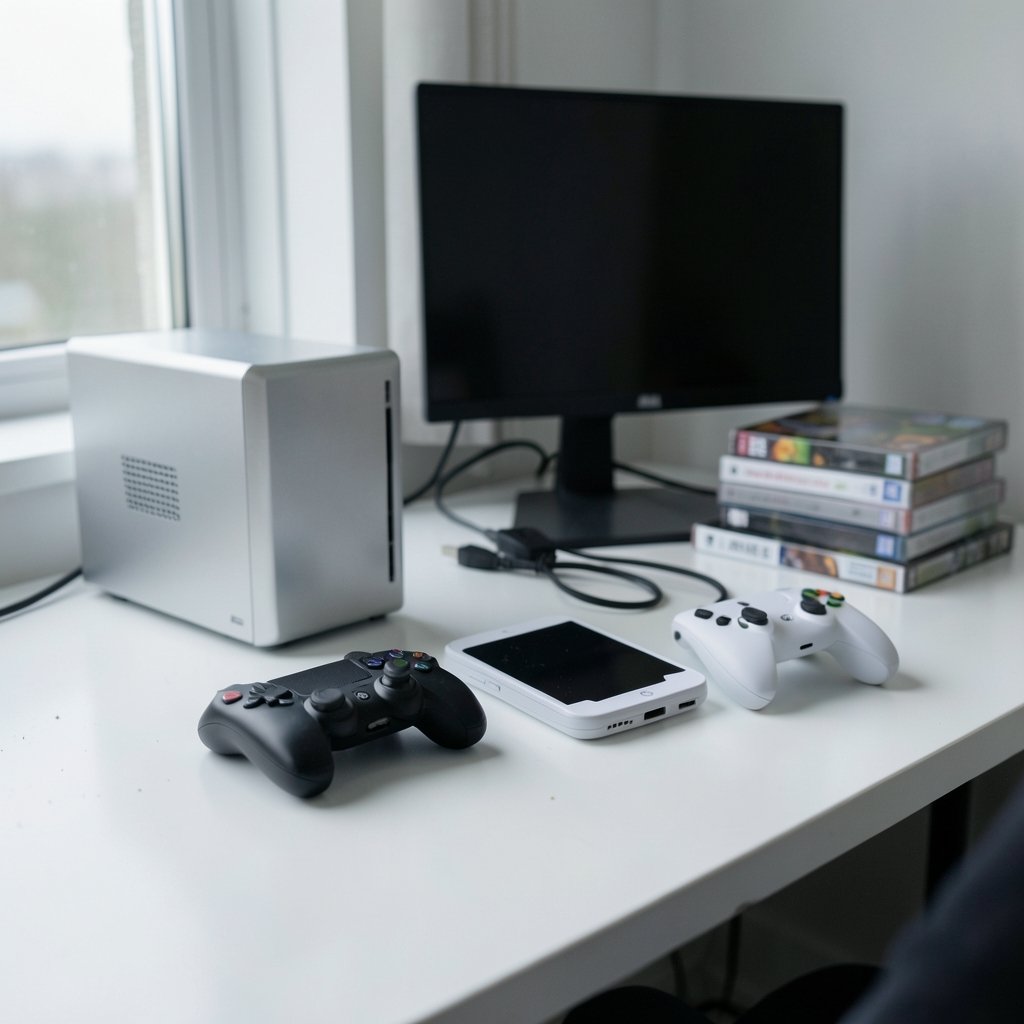
What actually decides whether a PlayStation 3, Wii U, or Xbox 360 game feels playable on a PC in 2027: the emulator’s compatibility list, the controller setup, or where the save file lives? The honest answer is all three, and each one trips up a different kind of player. Someone gets a game booting and then discovers the GamePad screen is blank. Someone else plays for twenty hours and then wipes a save folder during a version update. This guide walks through the three big console emulators, RPCS3, Cemu, and Xenia, and explains what each one emulates, how compatibility is tracked, how controls work, and how save files are stored and moved. It is written for readers who want to understand the moving parts, not for anyone hunting a shortcut around buying games. (Rpcs3 vs cemu vs xenia 2026 performance games setup compared)
What each emulator actually emulates
Before comparing anything, get the targets straight, because mixing them up is the most common beginner mistake. These are three different consoles with three different architectures, and no emulator is a substitute for another.
| Emulator | Console | Typical game library | Project style |
|---|---|---|---|
| RPCS3 | Sony PlayStation 3 | Uncharted, Demon’s Souls, Metal Gear Solid 4 | Open source, community-run |
| Cemu | Nintendo Wii U | Mario Kart 8, Breath of the Wild (Wii U version), Splatoon | Open source since 2022 |
| Xenia | Microsoft Xbox 360 | Halo 3, Red Dead Redemption, Gears of War | Open source, community-run |
The general concept behind all three is the same: software on a PC imitates the hardware of a console so that the console’s own games can run. A plain-language explanation of video game emulation covers why that is technically hard and where the legal lines sit. In short, emulators are generally treated as lawful in several jurisdictions when they ship no copyrighted firmware or games, and users are expected to supply their own dumps and system files.
That last point matters for everything below. Compatibility, controls, and saves all assume the user has legitimate game files and, where required, the console’s system software.
Compatibility: three lists, three different meanings of “playable”
Every one of these projects tracks compatibility publicly, and every one of those lists is community-maintained. That means the numbers move constantly and any percentage quoted in an article has a shelf life measured in weeks.
RPCS3 runs a public compatibility database with per-game status categories such as Playable, Ingame, Intro, Loadable, and Nothing. The distinction between “Ingame” and “Playable” is where most disappointment lives: a game can boot, render menus, and even start a level while still crashing at a specific cutscene or running at half speed. The RPCS3 compatibility list is the place to check a specific title before installing anything.
Cemu’s compatibility information lives on its community wiki, with per-game notes on graphics glitches, audio problems, and crashes. Because the Wii U library is smaller than the PS3’s, the list is easier to read end to end, and the notes tend to be more specific about which graphics backend a game prefers.
Xenia keeps compatibility notes on its GitHub wiki, including which titles boot, which render correctly, and which are considered playable. The Xbox 360 is the hardest of the three consoles to emulate because of its unusual multi-core CPU design, so expect the widest gap between “boots” and “plays well” here.
A few practical rules that hold across all three:
- Check the list for the exact game and region rather than the title alone.
- Read the notes along with the status label. A “Playable” tag with a note about a late-game crash is still a warning.
- Treat a status as a snapshot. An update can fix one game and regress another.
- Never assume a game marked Playable will run well on your hardware. Compatibility and performance are separate questions.
That separation is worth dwelling on. Compatibility asks whether the emulator translates the game correctly. Performance asks whether your CPU and GPU can keep up with that translation. A title can be perfectly compatible and still run at 20 frames per second on a modest laptop. If smoothness is the goal, techniques like frame generation, where the GPU or a dedicated model creates intermediate frames, are increasingly discussed as a way to lift perceived smoothness, though they do not fix an emulator that is CPU-bound. (Emulator)
Controls: gamepads, motion, and the second screen
Controller support is where the three projects diverge most in daily use, and it is also where setup guides earn their keep.
All three accept common PC gamepads through standard input APIs, including Xbox-style and DualShock/DualSense controllers, and all three let you save per-game input profiles. That per-game profile feature is underused. A platformer and a racing game rarely want the same dead zones, and keeping separate profiles prevents the constant re-tuning that makes people give up.
RPCS3 documents DualShock 3 and DualShock 4 handling in its quickstart material, including motion and gyro support. That matters because a number of PS3 games use six-axis tilting for puzzles or aiming, and a controller without motion sensors simply cannot complete those sections. If a game seems stuck at a prompt, check whether it is waiting for a tilt.
Cemu has the most unusual control problem of the three: the Wii U GamePad had a screen in the middle of the controller. Cemu emulates that second screen, and games use it in wildly different ways. Some put a map there, some put inventory, and some require you to tap it to progress. In practice, players either map the GamePad view to a second monitor, to a tablet-style device, or to a keyboard shortcut that swaps the main view. Motion controls also appear in Cemu titles, so a controller with gyro is a real advantage. (Service mesh architecture explained control plane data plane)
Xenia maps Xbox 360 controller layouts, and because the 360 pad became the template for modern PC gamepads, this is usually the least fiddly of the three. The friction tends to come from games that expect specific trigger sensitivity or rumble behavior rather than from exotic hardware features.
A pattern worth knowing: the hardest control problems are almost never about button mapping. They are about hardware features the original controller had that a standard PC pad lacks, such as motion sensing or a second screen. Before buying a controller for emulation, check whether your target games use those features.
Save files: where they live and why they get lost
Save data is the least glamorous topic in emulation and the one that causes the most genuine grief. Each emulator stores saves inside its own virtual console filesystem, which means the paths look nothing like a normal PC game’s save folder.
RPCS3 keeps save data inside its emulated PS3 filesystem, under the virtual hard drive directory. Cemu stores saves inside its emulated Wii U filesystem tree, commonly referred to as the mlc01 folder. Xenia keeps saves within its content and profile directories. The exact folder names and layouts are documented in each project’s own documentation and can shift between versions, so always confirm against the current docs rather than an old forum post.
Here is the practical advice that saves people from disaster:
- Back up the entire emulator data directory before updating the emulator rather than the save subfolder alone. Profiles, installed updates, and DLC often live alongside saves.
- Keep one archive per game, labeled with the emulator version that created it. If a newer build misreads a save, you can roll back.
- Never move a save between emulators. A PS3 save cannot be read by Cemu or Xenia, and there is no conversion path between them.
- Treat cloud sync tools with care. Syncing a folder while the emulator is writing to it can produce corrupted saves.
Moving saves to or from real hardware is possible but fiddly, and it is not guaranteed. It generally requires matching region and title IDs, and in some cases decryption or conversion tools. This is a known friction point across all three projects rather than a flaw in any one of them. If a save transfer matters to you, test it with a throwaway save first.
Performance and setup habits that actually help
Compatibility lists tell you whether a game can run. They do not tell you whether it will run well, and that gap is where most setup time disappears.
The single biggest factor for all three emulators is CPU single-thread performance, because emulation is largely a translation job done on the fly. A fast GPU helps, but it rarely rescues a CPU that cannot keep up with the translation. Beyond hardware, a few habits pay off:
- Follow the official quickstart documentation for your emulator before touching advanced settings.
- Change one setting at a time and note what changed. Batch tweaking makes problems impossible to diagnose.
- Use per-game configuration so a fix for one title does not break another.
- Keep a known-good emulator build archived before updating.
For readers who also run emulators alongside other demanding software, it helps to understand where the bottlenecks sit. The same principle appears in networking, where router hardware offloading explained shows how moving work off the main CPU frees it for everything else. Emulation has no such offload switch, which is exactly why the CPU matters so much.
On the network side, some emulators and their online features interact with firewalls and proxies, and a web application firewall explained for beginners is a useful primer on why certain connections get blocked. For anyone running a home lab or self-hosted setup around their gaming PC, the way infrastructure tools separate control and data planes, as covered in this explanation of service mesh architecture, is a helpful mental model for how emulator frontends talk to backends. And if you enjoy the tinkering side of this hobby as much as the games, the story of how GitOps explained shows Git becoming a control plane is a good companion read on configuration-as-code thinking.
Common mistakes and how to avoid them
A short list of the errors that show up again and again:
- Judging an emulator by a single game. One bad title says nothing about the project.
- Ignoring region. A compatibility entry for a European copy may not describe the North American release.
- Skipping the required system files. Many “game won’t boot” reports trace back to missing firmware the user was supposed to supply.
- Updating mid-playthrough without a backup.
- Assuming a compatibility percentage is stable. It is a moving target maintained by volunteers.
There is also a broader habit worth adopting: read the notes attached to a compatibility entry before installing a 30-hour game. Five minutes of reading beats discovering a game-breaking bug in hour twenty-five.
Conclusion
RPCS3, Cemu, and Xenia solve the same basic problem for three very different consoles, and each one asks something slightly different of its users. RPCS3 offers the largest library and the most detailed compatibility tracking, but also the widest range of game states to interpret. Cemu has the most distinctive control challenge thanks to the Wii U GamePad’s second screen, and a smaller library that is easier to research thoroughly. Xenia faces the toughest hardware to emulate and rewards patience with careful setup.
The habits that carry across all three are unglamorous and reliable: check the compatibility list for your exact game and region, read the notes rather than the label, set up per-game controller profiles, and back up the whole emulator data directory before every update. Do those four things and most of the frustration people associate with console emulation simply does not happen.
FAQ
Which of the three emulators is most compatible?
There is no blanket answer, because compatibility is title-dependent and changes with every update. Each project maintains its own public list, and the right move is to check the specific game and region you care about on the relevant list rather than trusting a general ranking.
Can I use the same controller for RPCS3, Cemu, and Xenia?
Usually yes. All three support common PC gamepads through standard input APIs and allow per-game profiles. The exceptions involve hardware features rather than buttons, such as motion sensing for some PS3 and Wii U titles, or the Wii U GamePad’s second screen.
Where are emulator save files stored?
Each emulator keeps saves inside its own virtual console filesystem. RPCS3 uses its emulated PS3 filesystem, Cemu uses its emulated Wii U filesystem tree, and Xenia uses its content and profile directories. Exact paths change between versions, so confirm against current documentation.
Can I transfer a save from a real console to an emulator?
Sometimes, but it is not guaranteed. Transfers generally require matching region and title IDs and may need decryption or conversion tools. Test with a disposable save before relying on it for a long playthrough.
Why does a game marked Playable still run slowly?
Compatibility and performance are separate. A game can be translated correctly and still be limited by your CPU, since emulation is largely a real-time translation job that depends heavily on single-thread performance. A fast GPU rarely compensates for a slow CPU.
Do I need the console’s system files?
Often yes. Many titles require system firmware that users are expected to supply themselves, and missing files are a frequent cause of games that refuse to boot. Check the official setup documentation for your emulator before troubleshooting anything else.



