
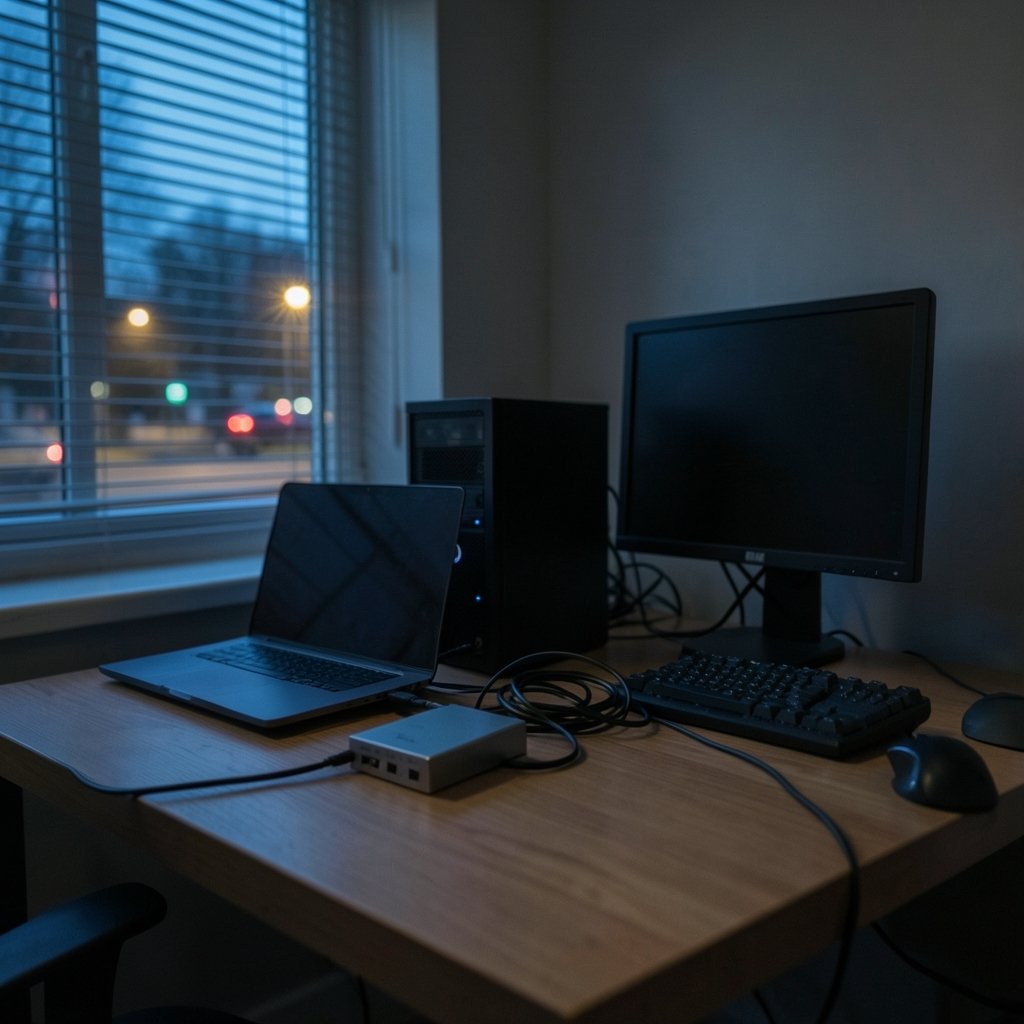
Ever found yourself juggling two keyboards, two mice, and constantly stabbing at the input button on your monitor just to check something on a second PC? It is one of the most common frustrations in home offices and hybrid work setups. A KVM switch (keyboard, video, mouse) promises to end that dance by letting one monitor, one keyboard, and one mouse control two computers with a tap or a hotkey.
But the setup is where people get stuck. The cables look simple enough, yet a surprising number of users plug everything in, flip the switch, and get a black screen, a frozen mouse, or a monitor that suddenly drops to a blurry low resolution. This guide walks through a practical, reliable setup for two computers on one monitor, flags the mistakes that trip people up, and explains what actually works in the real world.
What a KVM Switch Actually Does
A KVM switch sits between your peripherals and your computers. Your monitor, keyboard, and mouse plug into the switch. Each computer plugs into its own input on the switch. When you toggle the switch, those peripherals move from one computer to the other as if you had physically unplugged and replugged them. (Nintendo switch 2 lite samsung 8lpu plus chip rumor 2026)
That is the whole idea. The complications come from three areas: video standards, USB behavior, and how the switch handles a computer that is not currently active. Get those right and the setup is genuinely plug-and-play. Get them wrong and you will spend an evening troubleshooting.
The Three Connections That Matter
Every KVM setup involves the same three signal paths, and each one can fail independently:
| Connection | What it carries | Common failure |
|---|---|---|
| Video | Display signal from each PC to the monitor | Black screen, wrong resolution, flicker |
| USB data | Keyboard, mouse, and other peripherals | Frozen input, dropped devices |
| Power | Electricity for the switch itself | Unstable switching, random disconnects |
Understanding that these are separate paths is the first step. A switch can pass video perfectly while its USB side misbehaves, or vice versa. That is why troubleshooting means testing one path at a time.
Before You Buy: Match the Switch to Your Hardware
The single biggest cause of a bad KVM experience is buying a switch that does not match the monitor and computers you already own. Before ordering anything, write down four things.
First, the video ports on your monitor and both computers. Are they HDMI, DisplayPort, USB-C, or a mix? A switch with two HDMI inputs cannot accept a DisplayPort cable without an adapter, and adapters add their own failure points.
Second, the resolution and refresh rate your monitor runs at. A switch rated for 4K at 30Hz will feel sluggish for everyday desktop work and is unusable for gaming. Look for a switch that explicitly supports your exact resolution and refresh rate on both inputs. (Upcoming switch 2 games)
Third, the USB devices you want to share. A basic keyboard and mouse are easy. A gaming keyboard polling at a high rate, an external drive, or a webcam with a microphone can overwhelm a cheap switch.
Fourth, whether you need audio switching or extra USB ports for a printer or headset. These are conveniences that are painful to add later.
Practical tip: if your two computers use different video standards, buy a switch that natively supports both rather than relying on adapters. It costs a little more and saves hours of grief.
Step-by-Step Setup for Two Computers
Here is the order that works reliably. Doing these steps out of sequence is a common mistake because computers can fail to detect a monitor that appears mid-boot.
- Power everything off. Shut down both computers and unplug the monitor from the wall. This prevents the operating systems from caching a display configuration you are about to change.
- Connect the monitor to the switch output. Use a cable rated for your target resolution. The monitor’s video cable goes into the switch’s single output port.
- Connect each computer to its own input. Computer A goes to input 1, computer B to input 2. Keep the cables labeled or color-coded; you will thank yourself later.
- Plug the keyboard and mouse into the switch’s USB ports. Use the ports designated for peripherals, not the ones meant for connecting to the computers.
- Connect the USB link cables from the switch to each computer. This is the step people forget. Without it, video switches but the keyboard and mouse stay locked to one machine.
- Power on the switch first, then the monitor, then the computers. Powering the switch first lets it present a stable display signal during boot.
- Let each computer detect the display. On first boot, each PC should recognize the monitor through the switch. If a computer shows no signal, switch to that input and wait a few seconds before assuming failure.
After setup, test each computer in turn. Type something, move the mouse, and confirm the monitor keeps its resolution. Then switch back and confirm the first computer still works. If both pass, you are done.
The EDID Problem Nobody Warns You About
Here is a subtle issue that catches even experienced users. When a computer is not the active input, some switches stop passing the monitor’s identity information, known as EDID, back to that computer. The inactive PC then thinks no monitor is attached.
The result is chaos. Windows may rearrange your desktop icons, drop to a low resolution, or refuse to wake properly. You switch back and find your carefully arranged windows scrambled.
The fix is a switch that supports EDID emulation, which means it keeps telling every connected computer that a monitor is present, even when that computer is not on screen. Not every switch does this, and it is rarely advertised in big letters. Check the manual or spec sheet before buying, especially if you run a multi-monitor or window-heavy workflow. (Switch 2 vs steam deck)
Common Mistakes and How to Avoid Them
Most KVM problems trace back to a handful of avoidable errors. Here are the ones that show up again and again.
Using the wrong cables. A cheap cable that works fine at 1080p may fail at 4K. Longer runs are especially fragile. Use certified cables rated for your resolution and keep them as short as practical.
Ignoring hotkey conflicts. Most switches change inputs with a keyboard shortcut, often a double-tap of Scroll Lock or Ctrl. These can clash with operating system or application shortcuts. Check the manual for how to change the hotkey sequence, and pick something you never use.
Forgetting the USB link. As noted above, video and USB are separate paths. If the keyboard does not follow the video, the USB link cable is usually the culprit.
Assuming automatic switching. Some switches switch automatically when they detect a video signal; many do not. Do not expect behavior the manual does not promise.
Skimping on power. Bus-powered switches draw electricity from USB and can behave erratically under load. A switch with its own power adapter is more stable, particularly with multiple peripherals attached.
Mixing high-polling peripherals with budget switches. Gaming mice and keyboards can overwhelm entry-level switches, causing lag or dropped input. If you game, look for a switch explicitly rated for high polling rates.
KVM vs. Software and Remote Alternatives
A hardware KVM is not the only way to control two computers. Software tools can share a keyboard and mouse across machines over a network, and remote desktop lets you view one computer’s screen inside a window on another. Each approach has tradeoffs.
| Approach | Best for | Main limitation |
|---|---|---|
| Hardware KVM | Full-speed video, gaming, isolated networks | Requires compatible cables and ports |
| Software keyboard/mouse sharing | Desk clutter reduction on a network | No video switching; needs both PCs running |
| Remote desktop | Accessing a headless or distant PC | Latency; not ideal for gaming or video work |
For anyone who wants a single monitor showing either computer at full quality, a hardware KVM remains the most direct choice. It also has a security advantage: a hardware switch physically disconnects peripherals from the inactive machine, which matters in environments where two computers sit on separate networks.
Choosing Between a Monitor With a Built-In KVM and a Standalone Box
Some modern monitors include a built-in KVM, usually paired with USB-C inputs. These are convenient because they eliminate a separate box and its cable clutter. The catch is that the built-in switch’s capabilities are fixed to the monitor, and they are often basic.
A standalone KVM box gives you more flexibility. You can keep your existing monitor, upgrade the switch independently, and choose a model with the exact port mix and features you need. If you are weighing a new display against a separate switch, it helps to compare the full cost of each path, including cables and adapters.
If you are also considering a console upgrade alongside your desk setup, it is worth checking how much a Nintendo Switch 2 costs before committing your budget to peripherals, since desk and living-room hardware often compete for the same money.
Troubleshooting Checklist
When something goes wrong, work through these checks in order. They isolate the failing path quickly.
- Confirm the monitor works when connected directly to one computer, bypassing the switch.
- Test each computer on the switch’s other input to rule out a dead port.
- Swap the video cable for a known-good, certified one.
- Check that the USB link cable is firmly seated at both ends.
- Verify the switch’s rated resolution matches your monitor settings.
- Try a different USB port on the computer, preferably a rear port on a desktop.
- Power-cycle the switch, then the monitor, then the computers, in that order.
If a computer still shows no signal, check its display settings. Sometimes the operating system has latched onto an old configuration and needs to re-detect the display.
Conclusion
A monitor KVM switch setup for two computers is one of the highest-value upgrades you can make to a shared desk. It removes clutter, saves space, and turns two machines into one seamless workstation. The secret is not the switch itself but the preparation: matching ports, resolutions, and USB needs before you buy, then following a sensible connection order and testing each path.
Get those fundamentals right and the setup takes twenty minutes. Skip them and you will be the person searching forums at midnight wondering why the mouse will not follow the video. Check the specs, use good cables, confirm EDID support, and the switch will quietly do its job for years.
Frequently Asked Questions
Can I use a KVM switch with two computers that have different video ports?
Yes, but choose carefully. The simplest choice is a switch that natively supports both standards, such as one HDMI input and one DisplayPort input. Adapters can work, but they add failure points and may not pass high refresh rates reliably. Check the switch’s spec sheet for the exact port mix before buying.
Why does my second computer show a black screen when I switch to it?
The most common causes are a cable that cannot carry your resolution, a computer that has gone to sleep, or a switch that does not pass the monitor’s identity information to inactive machines. Try waking the computer first, then swap in a certified cable. If the problem persists, look for a switch with EDID emulation.
Do I need a powered KVM switch or is a bus-powered one enough?
A bus-powered switch draws electricity from USB and is fine for a basic keyboard and mouse at moderate resolutions. For multiple peripherals, high refresh rates, or 4K displays, a switch with its own power adapter is noticeably more stable. Unstable switching and random disconnects often trace back to insufficient power.
Can a KVM switch handle gaming keyboards and mice?
It depends on the switch. High-polling-rate gaming peripherals can overwhelm budget switches, causing lag or dropped input. Look for a model explicitly rated for high polling rates, and prefer switches with dedicated USB ports rather than shared ones. Entry-level switches are usually fine for office peripherals but not for competitive gaming gear.
How do I stop my desktop icons from rearranging when I switch computers?
This is almost always an EDID issue. When the inactive computer loses sight of the monitor, it may reset its display layout. A switch with EDID emulation keeps the monitor visible to every connected computer, which prevents the rearrangement. Check the manual for EDID support before purchasing.
Is a KVM switch secure enough for two computers on separate networks?
A hardware KVM physically disconnects peripherals from the inactive computer, which is why some organizations use them to keep networks isolated. However, security depends on the specific device and how it is configured. For high-assurance environments, verify the switch’s design and follow your organization’s guidance rather than relying on general claims.



