
Quick Answer: How do i set up printer for the best performance?
Getting a printer to perform at its best comes down to four things: a stable physical spot, a wired connection where possible, current firmware and drivers, and settings matched to what you actually print. Most slow or flaky printers are not broken; they are badly placed or badly configured.
The biggest gains usually come from connecting over Ethernet or USB instead of Wi-Fi, and from assigning the printer a fixed network address so it stops going “offline.” After that, firmware updates and the right quality preset do the rest.
Before changing anything, check the surface the printer sits on, the connection type, the driver version, the default quality mode, the paper settings, and the sleep or eco mode.
A laser printer can spit out a page in under six seconds, yet plenty of office machines take half a minute to wake up and start. That gap is rarely about hardware. It is almost always about setup. The good news is that a handful of deliberate choices, made once, can shave seconds off every job and years off the machine’s life.
This guide walks through what actually moves the needle, in the order that matters. It also covers the mistakes people make most often, because knowing what not to do saves just as much time as knowing what to do.
Start With Placement, Not Settings
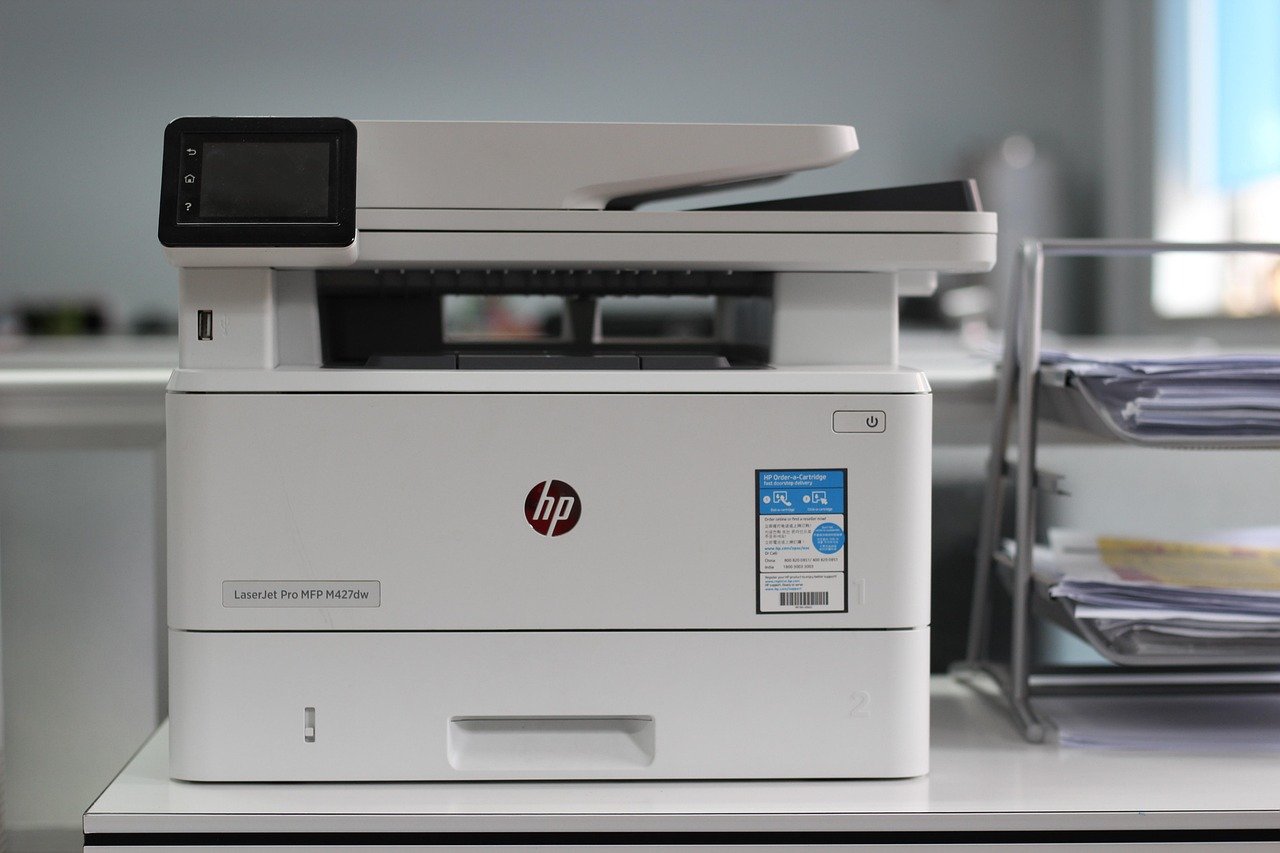
It is tempting to dive straight into menus. Resist that urge. Where a printer sits shapes how often it jams, how hot it runs, and how much dust it inhales.
Put the machine on a hard, level surface that can carry its weight plus a full paper tray. A wobbling desk causes skewed feeds and misaligned stacks. Keep it out of direct sunlight, away from radiators and vents, and off the floor where dust and pet hair collect fastest. Laser printers also need breathing room around their vents, since they generate real heat during fusing.
Ventilation matters for another reason: toner and ink both behave differently in humid air. A room that swings from damp to dry will produce smeared toner and clogged nozzles far more often than a stable one.
One more practical point. Leave clearance at the front and back for paper trays and output. Printers crammed into a shelf look tidy and jam constantly.
Choose the Connection That Fits Your Workload
Connection type is the single biggest lever on reliability. Here is how the main options compare in practice.
| Connection | Best for | Main trade-off |
|---|---|---|
| USB | Single computer, occasional printing | Tied to one machine; no sharing |
| Ethernet | Offices, shared printers, big files | Needs a cable run to the router |
| Wi-Fi | Homes, phones, tablets | More dropouts and “offline” errors |
| Wi-Fi Direct | Guests, quick phone prints | No network features, slower |
Wired Ethernet or USB is generally the steadier choice for high-volume printing or large files such as photo work and PDFs with heavy graphics. Wi-Fi is convenient and fine for light home use, but it is more prone to queue stalls and driver hiccups, especially on crowded networks.
Whichever route you take, give the printer a fixed address. A DHCP reservation on the router, or a static IP set on the device, stops the classic “printer offline” problem where the router hands the printer a new address and every computer loses track of it. This one step prevents more support calls than any other.
Update Firmware and Drivers Before You Print Anything
Out of the box, a printer runs whatever firmware shipped at the factory. That build may be months or years old. Manufacturers routinely release updates that fix connectivity bugs, improve print speed, and patch security holes.
Check the vendor’s official support page for your exact model and install the latest firmware. Do this over a wired connection if you can, and never power off mid-update.
Drivers deserve equal attention. There are usually two paths: the manufacturer’s full-featured driver, which exposes every setting and utility, and a generic driver supplied by the operating system, which installs in seconds but may hide features. For everyday document printing, the generic driver is often adequate. For color work, booklet printing, or scanning suites, the full driver is worth installing.
The honest answer is that “best” depends on your operating system version and your model. Test one, and switch if something you need is missing.
Tune the Settings That Actually Change Output
Once the machine is placed, connected, and updated, the remaining gains come from configuration. These are the settings worth adjusting first.
- Set the default quality mode to Normal or Draft. Photo and “best” modes look lovely and print slowly. Reserve them for images.
- Match the paper type and weight setting to what is loaded. A mismatch is a leading cause of jams, smearing, and reprints.
- Turn on grayscale for text documents if you print a lot of black-and-white pages on a color machine. It saves color ink and often speeds things up.
- Enable duplex (double-sided) printing by default to halve paper use and cut the number of jobs you run.
- Adjust sleep and eco settings deliberately. Aggressive sleep saves energy but adds a warm-up delay to the first page. There is a real trade-off here between responsiveness and power draw, so pick based on whether you print in bursts or all day.
- Set the correct default paper size so the machine stops prompting you mid-job.
Small choices compound. A printer set to draft, grayscale, and duplex will finish a week’s worth of documents in a fraction of the time and cost of one left on factory defaults.
Keep It Running: Maintenance That Pays Off
Setup is not a one-time event. A few habits keep performance from drifting.
Run the built-in cleaning cycle on inkjet models when streaks appear, but do not overdo it; each cycle burns ink. Laser users should check toner levels and give the machine a gentle shake when output fades, which often buys extra pages. Keep the paper sealed until loading, since damp sheets curl and jam.
It also helps to think about the wider setup of your workspace. If you are building a small home studio or gaming corner alongside your office gear, the same principles apply: stable surfaces, tidy cabling, and gear matched to its purpose. Guides like this one on the best keyboard stand for stage performance follow the same logic of matching equipment to the job. Families setting up a shared hobby space can apply identical thinking, whether they are picking up a horse racing board game set for game night or choosing a 3D printer for kids that will sit on the same sturdy desk.
Common Mistakes That Undermine Performance
Most underperforming printers are victims of a short list of avoidable errors.
Leaving Wi-Fi on a crowded band. If everything in the house shares one congested channel, print jobs queue behind video streams. Move the printer to a less busy band or go wired.
Skipping firmware updates for years. Old firmware is a leading cause of mysterious connectivity faults and slow wake-from-sleep behavior.
Using the wrong paper setting. Loading cardstock while the driver thinks it is plain paper invites jams and poor fusing.
Ignoring the software suite. Many printers ship with utilities for alignment, nozzle checks, and supply monitoring. They are worth installing once.
Overfilling the tray. Paper needs room to feed. A tray packed to the brim feeds two sheets at once.
Never restarting anything. Clearing the print queue and power-cycling the router fixes a surprising share of “broken printer” complaints.
There is a parallel in almost every hobby. People buy a capable machine and then handicap it with a rushed setup. Anyone who has followed a backgammon setup guide knows the game only flows once the board is arranged correctly. Printers are no different. (FTC Business Guidance)
Matching the Printer to the Job
Sometimes the setup is fine and the hardware is simply wrong for the workload. A cheap inkjet is a poor choice for a home office printing 200 text pages a week; a mono laser handles that at a fraction of the cost per page. Conversely, a laser is a clumsy choice for occasional photo printing, where an inkjet with dedicated photo inks wins clearly.
Before buying or replacing a machine, be honest about volume, color needs, and media types. Someone shopping for a budget 3D printer faces the same trade-off between upfront price and running costs, and the same is true for anyone comparing a beginner-friendly 3D printer against a more capable model. The lesson transfers directly: the cheapest device is rarely the cheapest to run. (Printer (computing)))
If you also handle software setup on the same desk, the discipline of following a clear configuration sequence applies to emulators and drivers alike. A walkthrough such as this guide on how to set up PPSSPP shows how much performance comes from getting the settings right rather than from better hardware.
A Quick Setup Checklist
Working through these in order covers nearly everything that matters:
- Place the printer on a hard, level, ventilated surface away from heat and sun.
- Connect by Ethernet or USB if reliability matters; otherwise secure the Wi-Fi.
- Reserve a fixed IP address on the router.
- Install the latest firmware from the manufacturer’s support page.
- Install the full driver, or confirm the generic one covers your needs.
- Set defaults: Normal quality, matching paper type, duplex on, grayscale for text.
- Choose sleep and eco settings that suit your printing rhythm.
- Run alignment or nozzle checks, then clean the queue and restart once.
- Label supplies and set a reminder to check levels monthly.
Conclusion
Setting up a printer for the best performance is less about secret settings and more about sequence. Get the physical placement right, pick the steadier connection, keep firmware and drivers current, and match the quality and paper settings to what you actually print. None of these steps takes long, and together they eliminate the vast majority of slow jobs, jams, and “offline” errors.
The trade-offs are real, though. Wired beats wireless for reliability but costs convenience. Eco modes save power but add warm-up time. Full drivers expose more features but take longer to install. The right answer depends on whether speed, quality, reliability, or running cost matters most to you. Decide that first, and every other choice becomes obvious.
FAQ
Why does my printer keep showing as offline?
The usual culprit is a changing network address. When the router reassigns the printer’s IP, computers keep looking at the old one. A DHCP reservation or static IP fixes it. A stuck print queue or a sleeping printer on Wi-Fi can cause the same message, so clear the queue and power-cycle before assuming hardware failure.
Is Ethernet really better than Wi-Fi for printing?
For reliability and large files, generally yes. A cable removes interference, dropouts, and the stalls that come with congested wireless bands. Wi-Fi remains perfectly workable for light home printing, especially when the printer sits close to the router and the network is not crowded.
How often should I update printer firmware?
Check every few months, and always after moving to a new router or operating system. Manufacturers release updates to fix connectivity, speed, and security issues, but they do not announce them loudly. A quick visit to the support page for your model twice a year is enough for most households.
Does draft mode really save ink?
It uses less ink per page and prints faster, at the cost of lighter text and rougher images. For internal documents and drafts, it is a sensible default. For anything you will hand to a client or archive, switch back to normal quality.
Why is my printer so slow to start the first page?
Sleep and eco modes are the usual reason. The machine powers down parts of its mechanism to save energy, then needs time to warm up. Reducing sleep aggressiveness improves responsiveness at some energy cost, so choose based on whether you print in constant bursts or occasional single jobs.
Should I use the manufacturer’s driver or the one my computer suggests?
The manufacturer’s full driver provides the complete feature set, including color controls, booklet layouts, and maintenance utilities. The operating system’s generic driver installs faster and often handles basic printing fine. Start with whichever is simpler, and switch if a feature you need is missing.



