

What happens when your team’s favorite kanban board suddenly feels like a straitjacket? Maybe the free plan caps are biting, maybe you need self-hosting for compliance, or maybe you just want a board that does more than drag-and-drop cards. Whatever the reason, the good news is that setting up a Trello alternative is far less painful than most people fear—if you approach it in the right order. This guide walks through the practical steps: choosing the right tool category, exporting your data cleanly, migrating without breaking your workflow, and avoiding the mistakes that turn a two-hour project into a two-week ordeal. (Trello)
Why Teams Leave Trello in the First Place
Trello’s appeal has always been its simplicity. Atlassian acquired Trello in January 2017, and the platform has since been folded into a broader suite of work-management products. That integration brings benefits, but it also means the free tier has tightened over time—board limits, automation quotas, and power-up restrictions have all shifted, and those changes push heavier users toward paid plans or toward competitors. (Trello)
The three most common reasons teams migrate are cost at scale, data control, and workflow complexity. A five-person team brainstorming marketing campaigns rarely outgrows Trello. A fifty-person engineering org that needs sprint reporting, dependencies, and SSO usually does. Knowing which bucket you’re in determines everything that follows.
Step 1: Define What “Alternative” Actually Means for You
Before you open a single signup page, write down your non-negotiables. This is the step almost everyone skips, and it’s the one that causes the most regret later. Ask yourself:
- Hosting model — Do you need cloud SaaS, self-hosted, or on-premises? Regulated industries often can’t touch multi-tenant SaaS at all.
- Board fidelity — Do you want another kanban tool, or a full work-management platform with timelines, docs, and dashboards?
- Migration path — Does the tool import Trello’s JSON export natively, or will you be mapping CSV columns by hand?
- Identity management — SSO, LDAP, and SCIM support matter enormously once you pass a few dozen users.
- Budget ceiling — Per-seat pricing adds up fast; a tool that looks cheap at ten users can cost more than Trello at a hundred.
A useful sanity check: if your list has more than seven items, you’re probably over-specifying. Pick the top three and let the rest go.
Step 2: Pick the Right Category of Tool
Trello alternatives fall into three rough buckets, and each has a different setup burden.
| Category | Examples | Setup Effort | Best For |
|---|---|---|---|
| Cloud kanban/work management | Jira, Asana, ClickUp, Monday.com, Notion | Low (signup and invite) | Teams that want zero maintenance |
| Open-source self-hosted | Wekan, Focalboard, Vikunja, Taiga | Medium to high (server, database, backups) | Teams with compliance or data-residency needs |
| Lightweight self-hosted | Planka, Kanboard | Medium (single container, simple database) | Small teams wanting a Trello-like board they control |
If you’re weighing broader software swaps at the same time—say, replacing several subscription tools in one budget cycle—it helps to think in bundles. The same logic that applies to picking Steam Deck out of stock alternatives in 2026 applies here: match the substitute to your actual usage pattern, not to hype. A casual user and a power user need very different replacements.
For teams that mainly want a familiar, low-friction board, a cloud kanban tool is the path of least resistance. For teams that want control, self-hosting is worth the extra afternoon of setup.
Step 3: Export Your Trello Data Properly
Trello’s board menu includes an export option that produces a JSON file containing lists, cards, checklists, comments, attachments metadata, and labels. This JSON is the lingua franca of migration—most serious alternatives accept it directly or via a converter.
Practical tips that save hours:
- Export each board individually. Bulk exports get messy and are harder to map.
- Download attachments separately. JSON export references attachments but doesn’t always bundle the files themselves; grab them from the board’s attachment view before you close it out.
- Archive, don’t delete. Keep the original boards intact for at least a month after migration. You will need to check something.
- Test with one board first. Migrate your smallest, least critical board, inspect the result, then repeat with the real ones.
A common mistake is exporting everything at once and then discovering that card descriptions with markdown, nested checklists, or custom fields came through garbled. One board at a time makes those problems visible while they’re still fixable.
Step 4: Set Up a Self-Hosted Option (If That’s Your Path)
Self-hosting is where most of the setup effort lives, so here’s the realistic sequence for a typical open-source kanban tool like Wekan, Focalboard, or Planka. The specifics differ per project, but the shape is nearly always the same.
- Provision a server. A small VPS with 2 GB of RAM handles most small-team instances comfortably. Pick a region that matches your data-residency requirements.
- Install Docker and Docker Compose. Nearly every modern open-source board ships an official container image, which is by far the easiest deployment route.
- Set up the database. Most tools support PostgreSQL, MySQL, or SQLite. Use PostgreSQL for anything beyond a handful of users; SQLite is fine for evaluation only.
- Configure environment variables. This is where you set the public URL, database credentials, secret keys, and registration policy. Lock down open registration unless you want strangers on your board.
- Put it behind a reverse proxy with TLS. Nginx or Caddy in front of the container, with a real certificate, is non-negotiable if the board leaves your local network.
- Wire up authentication. If your team uses a directory service, connect LDAP or OIDC now rather than later—retrofitting SSO after people have local passwords is annoying.
- Schedule backups. A nightly database dump plus a copy of uploaded files, stored somewhere other than the same server. Test a restore once. An untested backup is a wish, not a backup.
- Import your Trello JSON through the tool’s import interface and spot-check a few boards.
The container-based approach mirrors what you’d do when learning how to set up PPSSPP in 2026 for emulation: grab the official build, follow the documented configuration, and resist the urge to tinker with every setting before the basic install works.
Step 5: Configure Workflows and Boards
Here’s where migrated teams stumble. A Trello board is a set of lists and cards. A more capable tool is a set of workflows—statuses, transitions, assignees, and rules. If you simply recreate your old lists as columns and stop there, you’ve paid for a new tool and kept the old limitations.
Spend an hour on three things:
- Statuses versus lists. Decide which of your old lists were genuine workflow stages and which were just parking lots. The parking lots usually become labels or custom fields.
- Automation rules. Most alternatives offer rule builders—”when a card moves to Done, set the completion date and notify the channel.” Set up two or three of these in week one; they’re the fastest way to feel the upgrade.
- Views. Add a calendar or timeline view for anything with deadlines. Kanban hides time; timelines expose it.
For teams that also run non-digital team activities, the same principle of matching the tool to the ritual applies—the rules for the Backgammon board game are fixed and simple, and nobody benefits from inventing house rules mid-game. Workflow configuration should be equally deliberate.
Step 6: Migrate the Team and the Data
The technical migration is usually the easy half. The human half is where projects die. A few things that work in practice:
- Run both tools in parallel for two weeks. Keep Trello read-only as an archive while the new tool becomes the source of truth.
- Write a one-page cheat sheet. Where the old “labels” button was, where the new “custom fields” panel lives. Pin it in your team chat.
- Nominate one owner. A single person responsible for answering “how do I do X now?” prevents the slow drift back to the old tool.
- Collect complaints in week one, fix in week two. Early friction is normal; unaddressed friction becomes quiet rebellion.
Common Mistakes and How to Avoid Them
Migrating everything. Old boards accumulate cruft. Migrate active boards only; archive the rest as exports.
Choosing by feature list. The tool with the longest feature list is rarely the one your team will actually use. Weight usability heavily.
Skipping the backup test. Self-hosted setups fail silently. Verify restores before you trust them.
Ignoring the free-tier ceiling. Check current plan limits on the vendor’s pricing page on the day you decide—these terms change frequently, and a comparison written six months ago may already be wrong.
Forgetting mobile and integrations. If half your team lives on phones or your CI pipeline posts to the board, test those paths during the trial, not after.
How Long Does the Whole Thing Take?
For a cloud tool with a handful of boards: an afternoon. For a self-hosted deployment with SSO and a dozen boards: a focused day or two, plus a week of parallel running. The variable isn’t the software—it’s how much workflow design you decide to do up front. Budget generously for that, and the rest tends to fall into place.
Conclusion
Setting up a Trello alternative is mostly a sequencing problem. Define your requirements, pick the right category, export cleanly, configure workflows rather than just columns, and migrate the team as carefully as you migrate the data. Do those five things in order and the switch becomes a routine project instead of a cautionary tale. Start with one board, one afternoon, and one owner—momentum does the rest.
Frequently Asked Questions
Can I import my Trello boards directly into another tool?
Most established alternatives accept Trello’s JSON export, either natively or through a built-in importer. Smaller or newer tools may only support CSV, which requires manual column mapping. Always test with a single board before committing to a full migration.
Is self-hosting a Trello alternative difficult?
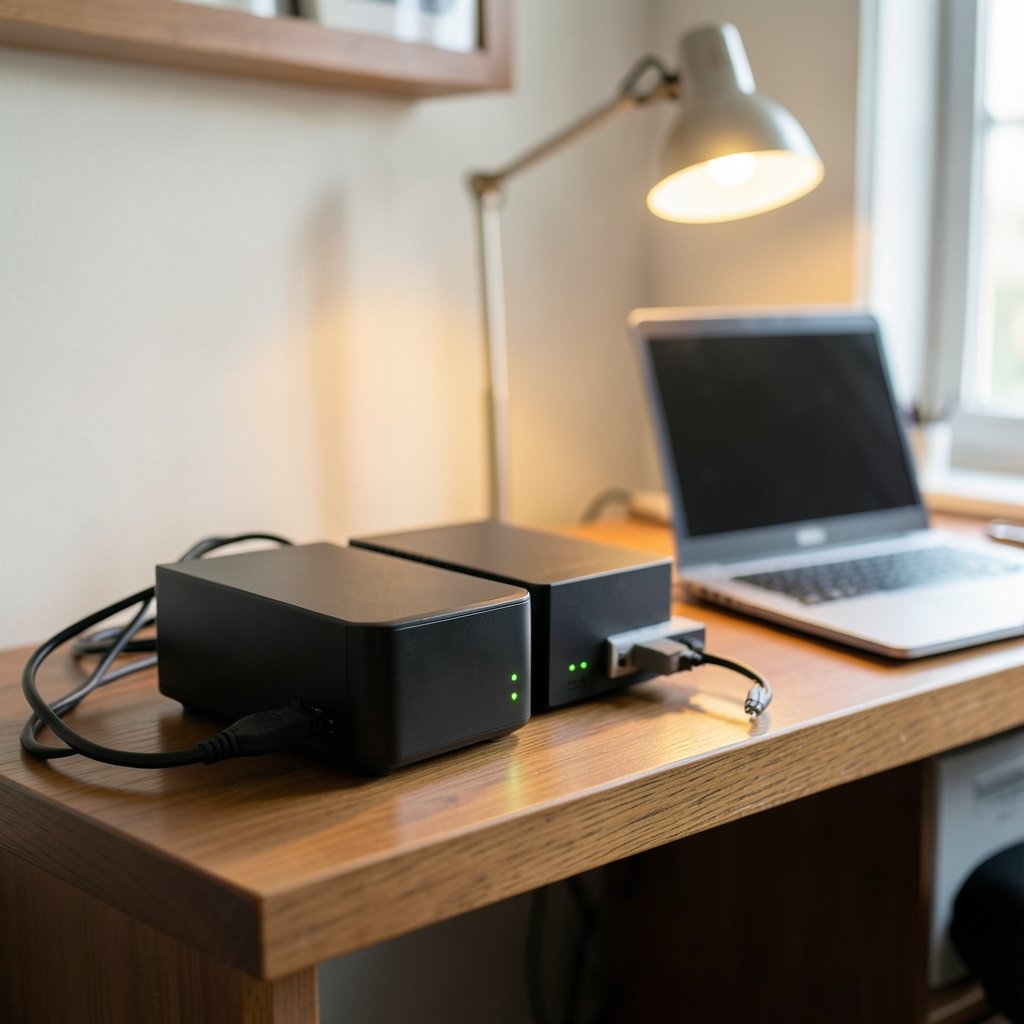
It’s moderate, not hard, for anyone comfortable with a command line. A Docker-based deployment on a small VPS typically takes one to two hours, including a database and TLS certificate. The ongoing work is backups and updates, which is why scheduling them on day one matters.
Which is better: a cloud tool or a self-hosted board?
Cloud tools win on zero maintenance and mobile experience. Self-hosted boards win on data control, compliance, and long-run cost for larger teams. If you have no regulatory constraint and a small team, cloud is usually the pragmatic choice.
Will my Trello attachments survive the migration?
Usually, but not automatically. The JSON export references attachments rather than always bundling the files, so download them from the board before you close it out. Check a sample of attachments after import to confirm they resolved correctly.
How much should I budget for a Trello replacement?
It depends entirely on seat count and tier. Per-user pricing means costs scale linearly, so model your bill at your current headcount and at double it. Self-hosted options trade subscription fees for server costs and staff time, which is often the better deal past a few dozen users.
What’s the biggest mistake teams make when switching?
Migrating everything and configuring nothing. Teams that dump every old board into the new tool, recreate the same columns, and skip automation end up with an expensive clone of what they left. Migrate active work only, and spend the saved time on workflow rules and views.



