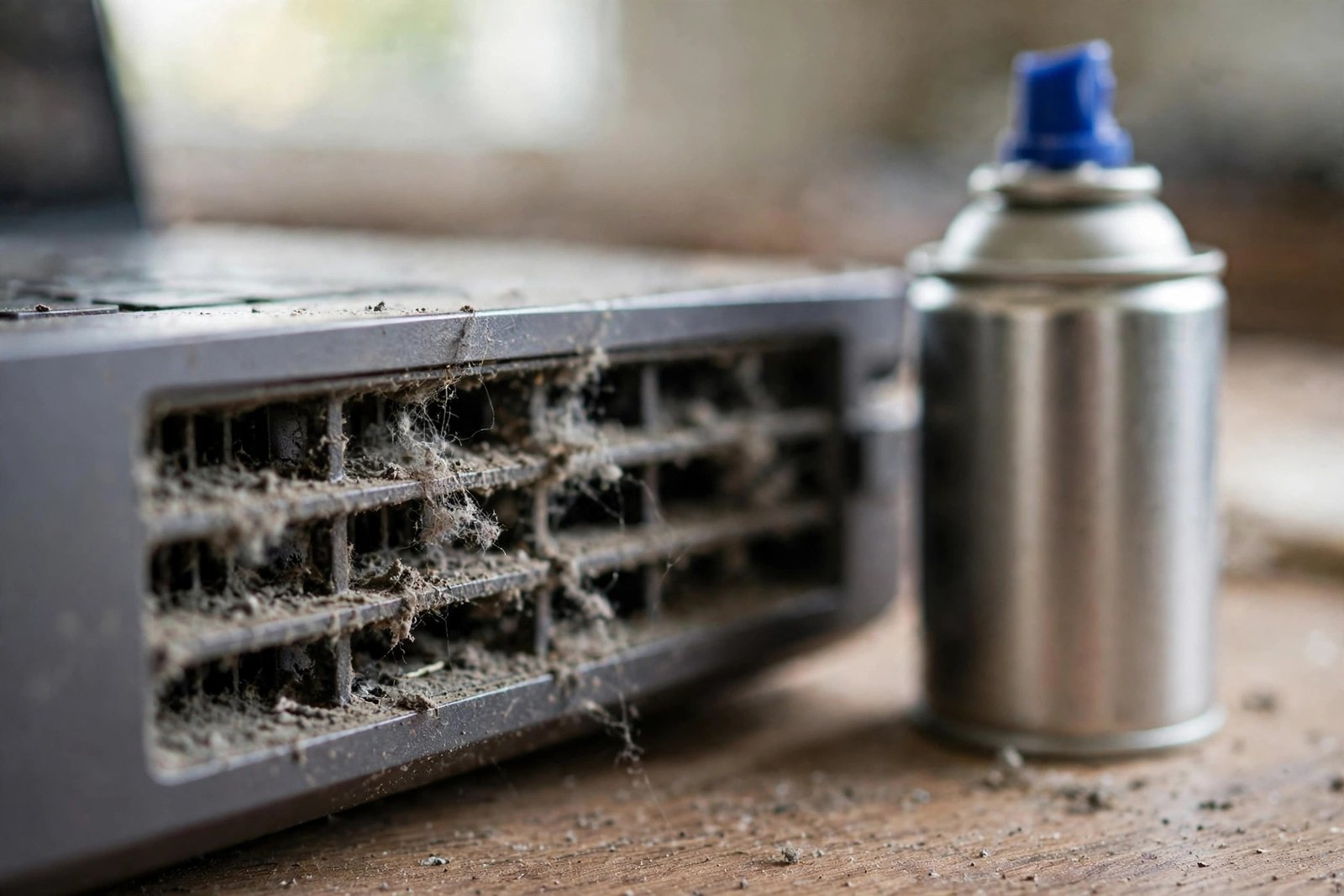
Learning how to stop laptop fan noise starts with one observation: the fan is not the problem, it is the messenger. It spins up because something inside is getting hot, and it is doing what it was built to do — moving heat out before it damages the machine. The short answer is to find what is making the processor work hard, give the vents clear air, and clean out the dust that traps heat inside.
That sounds simple, and usually it is. The fixes below work in that order — diagnose first, then clear the air, then clean.
Key takeaways
- A loud fan almost always means heat — from a busy processor, blocked vents or dust.
- Check Activity Monitor (Mac) or Task Manager (Windows) first: sort by CPU use and watch for 30 seconds.
- Use the laptop on a hard, flat surface. Soft surfaces block the air intakes underneath.
- Clean exterior vents with short bursts of compressed air, holding the can upright.
- Fan noise during a video export, a game or a video call is normal. A constant roar at idle, or a grinding sound, is not.
Why your laptop fan gets loud
The processor and graphics chip generate heat whenever they work, and the faster they work, the more heat they produce. Temperature sensors watch that heat, and when it rises past a threshold, the fans spin faster. Apple describes exactly this behaviour in its guidance on Mac fans: sensors respond to temperature changes, and intensive work makes the fans run faster.
That explains the normal cases: compressing video, playing a graphics-heavy game, a video call with screen sharing, or Spotlight indexing after a migration. The noise should rise with the work and fall again when it finishes.
When the fan stays loud for no obvious reason, four causes cover most cases: unseen software load, such as background processes, a runaway browser tab or malware; dust clogging vents and heatsinks; poor ventilation, such as a laptop on a bed blocking the intakes underneath; and, on older machines, thermal paste drying out and transferring heat less efficiently.
One distinction matters first. Apple silicon MacBook Air models have no fan at all; they are silent by design and slow down instead when they get hot. Our comparison of the MacBook Air M4 vs MacBook Pro M4 explains which models have fans and which do not.
Find the culprit in five minutes
Do this while the fan is still loud — a quiet laptop tells you nothing.
On a Mac: Activity Monitor
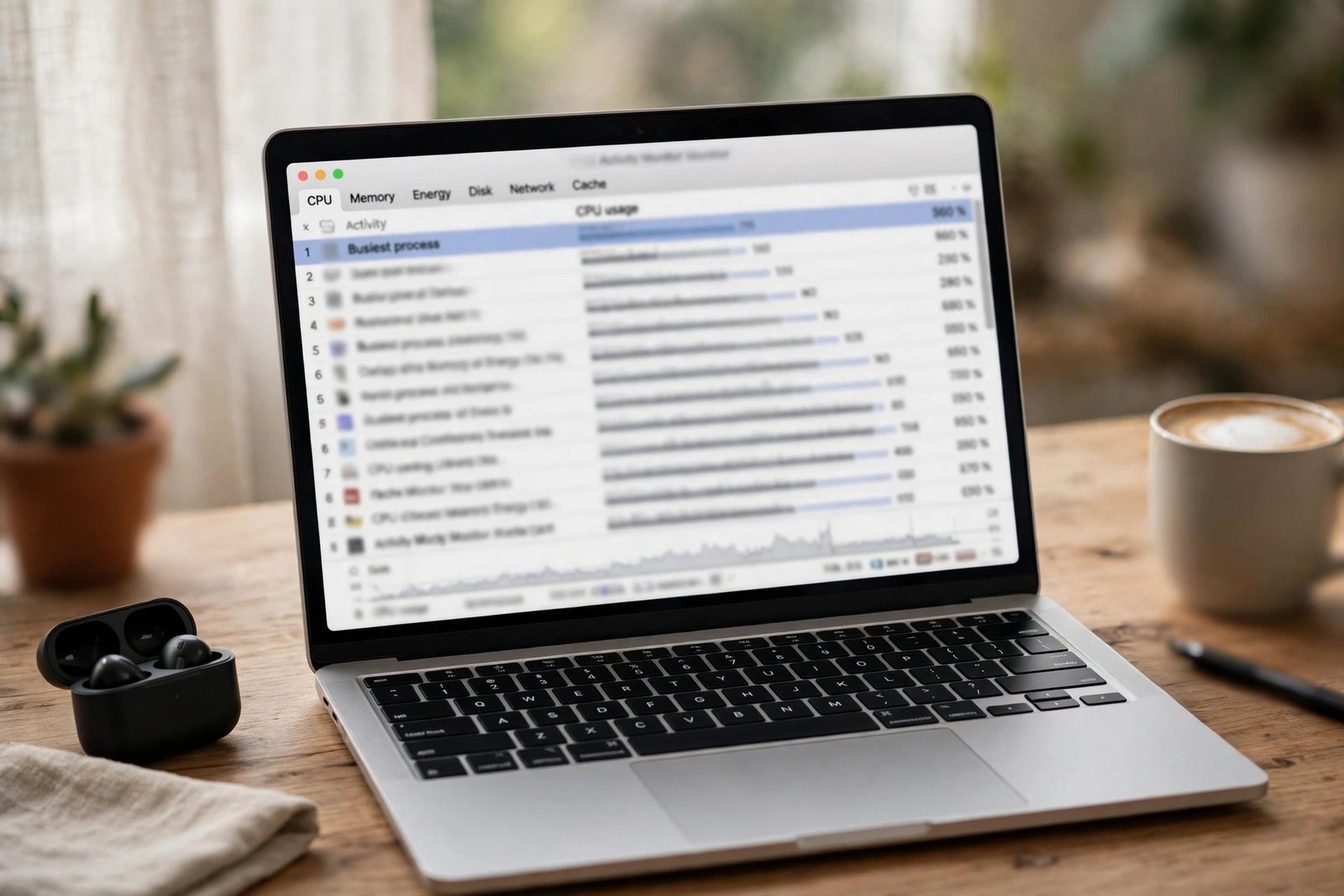
Open Activity Monitor from Applications, then Utilities, or press Command and Space and type its name. Click the CPU tab, then click the % CPU column heading until the busiest processes sit at the top. Do not trust a single glance: processor use jumps around, so watch for about 30 seconds and note which names keep coming back. A single process sitting near or above 100% for minutes is your likely cause — on a multi-core Mac, one process can show more than 100% because it is using more than one core.
Then click the Energy tab and sort by Energy Impact, Apple’s relative measure of each app’s current energy use; lower is better. This catches work that heats the chip without showing up as one large CPU number. If the culprit is an app you opened, quit it normally first. If it will not quit, select it in Activity Monitor, click the Stop button and choose Quit, saving your work first.
Also check the Disk tab: a backup or a Spotlight reindex can keep the machine busy for an hour or so after an update, then stop on its own.
On Windows: Task Manager
Press Ctrl, Shift and Escape to open Task Manager, then sort the Processes tab by CPU. Watch for 30 seconds, look for a process holding high CPU use without a good reason, and close it from the app itself where you can. Check the Disk column too — a background sync or update can keep the whole machine warm.
If the top process is your browser, look closer: modern browsers run each tab and extension as a separate process, so one heavy tab can hide among a dozen small ones. Close tabs you are not using and disable forgotten extensions. Heavy web apps add to this load too; our guide to using AI in Google Docs and Sheets covers how those tools behave when several are open at once.
Quick fixes that work tonight
Start with the free, zero-risk steps. Move the laptop onto a hard, flat surface, such as a desk or a table — this alone fixes more cases than any software tweak, because the intake vents on most laptops sit underneath. Elevate the rear edge slightly with a stand, or even a book, so air can flow beneath the machine.
Close what you are not using: unused browser tabs and extensions, apps left open from yesterday, and the video call left running in the background. Each open tab consumes memory and processing power. If the fan calms down after you close a particular app, you have found your answer, and the fix is a habit rather than a repair.
Update the operating system, drivers and firmware — updates often include thermal and power-management improvements. Then change the power plan: on Windows, switch from High Performance to Balanced or Power Saver; on a Mac, use Low Power Mode in System Settings, under Battery. For writing, browsing and calls, the speed difference is rarely noticeable, and the fan difference often is.

Clean the vents without breaking anything
If the software checks come back clean and the fan is still loud, dust is the leading suspect. Power the laptop off and unplug it, then hold a can of compressed air upright and use short bursts to blow dust out of the side and bottom vents. Holding the can at an angle or spraying continuously can release moisture, and a long blast can spin the fan faster than it is designed to go. Do not use a vacuum cleaner on the vents.
Shine a torch into the vents before and after; visible lint means cleaning was overdue. Repeat every six to twelve months, more often in a dusty room or with pets nearby.
Opening the machine to clean inside is a different decision: it can help an older laptop, but it risks damaging cables or screws. If you are not confident, ask a repair shop for an internal clean and a thermal-paste check — a routine job that costs far less than a new fan or laptop. A grinding, clicking or rattling fan needs replacing, not cleaning.
What is normal, and what is a warning?
| Situation | What you will notice | What it means |
|---|---|---|
| Exporting video, gaming, compiling code | Fans audible, chassis warm | Normal — the fan is doing its job |
| Video call with screen sharing | Fans rise, then fall when the call ends | Normal — heavy, temporary work |
| Spotlight indexing or a backup after an update | Fans loud for an hour, then quiet | Normal — let it finish |
| Fans loud for a long time with nothing running | Constant roar at idle | Not normal — investigate the process list |
| Grinding, clicking or rattling | Mechanical sound, not rushing air | Not normal — the fan may be failing |
| Laptop shuts down or feels too hot to touch | Sudden shutdowns, heat warnings | Not normal — stop and get it checked |
Caption: Match the sound and the situation before you act. Noise during heavy work is expected; noise at idle, or a mechanical sound, needs attention.
The idle row is the one that matters most. A fan that runs hard at idle, even after a restart, points to a stuck process or a hardware fault such as a failing sensor or dried thermal paste. Book a repair rather than living with it. A slow laptop and a loud laptop often share a cause, so if yours is both, our guide to speeding up a slow MacBook covers the cleanup steps that help both at once.
Your seven-day quiet-laptop plan
Use this as a checklist, not a one-off fix.
- Today: run the five-minute Activity Monitor or Task Manager check while the fan is loud, and note the top process.
- Today: move the laptop to a hard, flat surface and close unused tabs, apps and extensions.
- Today: restart the laptop and install any pending operating system and driver updates.
- This week: clean the exterior vents with short bursts of compressed air, holding the can upright.
- This week: switch to Balanced power, or Low Power Mode on a Mac, for everyday work.
- This week: check Login Items in System Settings, or Startup Apps on Windows, and remove anything that launches itself without a reason.
- Ongoing: repeat the vent clean every six to twelve months, and re-check Activity Monitor whenever the fan stays loud for more than a few minutes at idle.
Frequently asked questions
Why is my laptop fan so loud all of a sudden?
Usually something new is working the processor hard: an update, a backup, Spotlight indexing, a heavy browser tab, or a new startup app. Open Activity Monitor or Task Manager, sort by CPU and watch for 30 seconds. Quit a process you recognise at the top; if indexing is the cause, let it finish.
How do I stop my laptop fan from running constantly?
Work in order: quit the busy process, move the laptop onto a hard flat surface, close unused tabs and apps, update the system, and clean the exterior vents. If the fan still runs constantly at idle after a restart, the cause is more likely internal dust, dried thermal paste or a failing fan — ask a repair shop.
Is it safe to use compressed air on a laptop fan?
Yes, for the exterior vents, if you hold the can upright and use short bursts. Do not spray continuously, tilt the can, or use a vacuum cleaner. Power the laptop off and unplug it first.
Should I use a cooling pad?
A cooling pad can help an older laptop by lifting it and improving airflow underneath, but it will not fix a runaway process, blocked vents or a dust-clogged heatsink. A simple stand often achieves most of the same benefit.
Why does my laptop fan run when I am doing nothing?
Usually something in the background is: cloud sync, backups, photo analysis, indexing after an update, or apps set to launch at startup. Check Activity Monitor’s CPU and Energy tabs, or Task Manager’s CPU and Disk columns, and check Login Items or Startup Apps.
When should I take a noisy laptop to a repair shop?
Take it in if the fan grinds, clicks or rattles; if the laptop shuts down from heat; if the fan runs hard at idle after a restart and a vent clean; or if the machine is several years old and never been cleaned inside. Those point to a failing fan, a sensor fault or dried thermal paste.
The bottom line
A noisy fan is your laptop asking for help in the only language it has. Most of the time the answer is unglamorous: a process that needs quitting, a vent that needs air, or dust that needs clearing. Fix the cause rather than the sound, and keep the simple habits — a hard surface, fewer open tabs, a vent clean twice a year.
Start tonight with the five-minute check: open Activity Monitor or Task Manager while the fan is loud, sort by CPU, and watch for 30 seconds. Whatever stays at the top is your answer.