
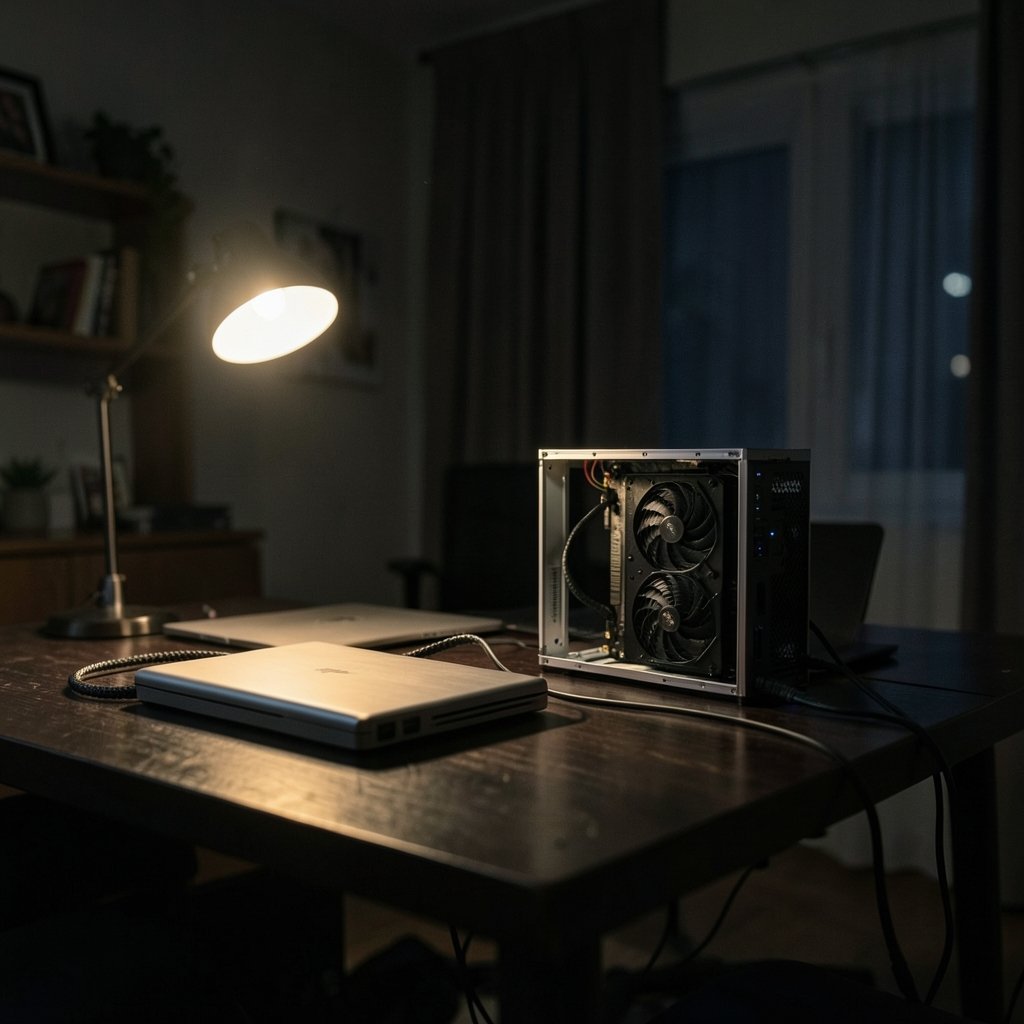
What if the biggest bottleneck in your next laptop upgrade isn’t the CPU, the RAM, or even the price, but the tiny port on the side of the machine? For anyone planning to bolt an external graphics card onto a laptop, that port decides everything. Thunderbolt 5 and OCuLink are the two paths people argue about most, and they are not interchangeable. One is a polished, hot-swappable tunnel that carries PCIe, USB, and video over a single cable. The other is closer to running a PCIe slot through a wire. Picking wrong in 2027 means either paying for bandwidth you can’t use or buying a dock your laptop physically cannot talk to.
This guide walks through what each standard actually delivers, where the marketing numbers mislead, and the checks worth doing before money changes hands.
What Each Standard Actually Is
Thunderbolt 5 is Intel’s branding for a connection built on top of the USB4 Version 2.0 specification. It uses USB-C connectors, advertises 80 Gbps in both directions, and can push up to 120 Gbps one way when a workload is display-heavy. The USB Implementers Forum maintains the underlying USB4 specification, and the USB4 standard documentation is the place to read how tunneling, backward compatibility, and alternate modes are defined. Thunderbolt 5 is backward compatible with Thunderbolt 4, Thunderbolt 3, and plain USB4 devices, but full speed requires a Thunderbolt 5 host paired with a Thunderbolt 5 dock.
OCuLink is a different animal entirely. It comes from the SFF connector family, specifically SFF-8611 and SFF-8612, and it is essentially a passive PCIe cable. The SNIA SFF standards page documents the connector specifications behind it. There is no protocol translation, no display tunneling, and no power delivery negotiation. It just moves PCIe lanes from point A to point B. That directness is both its charm and its headache.
| Feature | Thunderbolt 5 | OCuLink |
|---|---|---|
| Underlying tech | USB4 v2.0 tunnel | Raw PCIe over cable |
| Typical lane provision | Tunnels PCIe (often x4) | PCIe x4 (Gen3 or Gen4) |
| Hot-plug | Yes, designed for it | Unreliable, dock-dependent |
| Power over cable | Yes, limited | No |
| Display output | Tunneled or rendered back | Usually direct from GPU |
| Consumer availability | Growing | Niche, often DIY |
| Cable length | Longer, more forgiving | Short, sensitive |
The table hides a lot of nuance, so treat it as a starting map, not the destination.
Why the Headline Bandwidth Numbers Mislead

Thunderbolt 5’s “80 Gbps” and “120 Gbps” figures are theoretical link rates. Real application throughput is lower once encoding overhead and protocol tunneling take their cut. OCuLink’s PCIe x4 Gen4 link runs at roughly 64 Gbps raw, and Gen3 at roughly 32 Gbps raw, but those are also raw figures, not guaranteed frame rates.
Here is the practical trap. A Thunderbolt 5 dock with a monstrous headline number can still feel slower than a humble OCuLink Gen4 dock in some games, because the Thunderbolt path tunnels PCIe and may route rendered frames back to the laptop’s internal display. That round trip adds overhead. OCuLink, driving a monitor directly from the card in the dock, skips that step. Anyone comparing spec sheets alone will draw the wrong conclusion. Compare real workloads, not numbers on a box.
Check 1: What Port Does Your Laptop Really Have?
This is where most upgrade plans die. A laptop with a USB-C port is not necessarily a Thunderbolt laptop. It might be plain USB 3.2, or USB4 without Thunderbolt certification. Confirm the exact port type and version in the manufacturer’s spec sheet, not on the sticker.
OCuLink is trickier still. Few mainstream laptops ship with an OCuLink port. Most people access it through an M.2 adapter that replaces or shares the internal SSD slot. That is a hardware modification, it voids warranties, and it can conflict with storage. If you are weighing a laptop purchase for a 2027 upgrade, the same discipline applies as when you check whether a PC supports Windows 11 before upgrading: verify the hardware requirement at the source before committing.
Practical tip: photograph the port label or pull the exact model number and search the vendor’s technical documentation. “It has USB-C” is not a compatibility answer.
Check 2: PCIe Lanes and Generation
OCuLink docks typically provide PCIe x4. Whether that link runs at Gen3 or Gen4 depends on the host slot and the dock. This caps GPU bandwidth, and the cap matters more for some cards than others. A mid-range GPU may lose very little at Gen4 x4. A flagship card pushing high frame rates at 4K can feel the squeeze.
The PCI-SIG overview of PCIe generations explains how lane counts and generation speeds combine, which helps you estimate the ceiling before you buy. Check three things: the generation of your host slot, the number of lanes it exposes, and the generation the dock supports. A Gen4 dock on a Gen3 host runs at Gen3 speed. Nobody will warn you at checkout. (PCI Express)
Check 3: Operating System and Driver Support
eGPU support is not uniform across operating systems. Windows has the broadest support, though it still varies by driver and by whether the GPU vendor officially blesses external use. Linux support depends on kernel version and driver maturity, and results range from seamless to a weekend of troubleshooting. macOS has historically limited eGPU support and has changed it over time, so verify the current status for your specific Mac and GPU rather than trusting older forum posts.
Common mistake: assuming a card that works internally will work externally without fuss. Driver installers sometimes refuse to recognize a GPU behind a tunnel until the dock is connected and powered before boot. Others require a specific order of operations. Budget an evening for setup, not ten minutes.
Check 4: Power Delivery and the PSU Question
Thunderbolt docks can supply limited power over the cable, but an external GPU has its own appetite. OCuLink docks usually need a separate ATX or SFX power supply to feed the card, and that PSU must match the GPU’s thermal design power with headroom to spare. Check the dock’s PSU requirement and the card’s rated draw before assuming a small brick will do.
This is also where noise and heat enter the picture. A dock with its own PSU and an open frame is not a quiet desktop replacement. Plan the desk space.
Check 5: How Displays Connect
With OCuLink, the GPU in the dock usually drives monitors directly through its own outputs. Clean, low latency, no round trip. With Thunderbolt, display signals may be tunneled, or frames may be rendered externally and sent back to the laptop’s internal panel. That internal-display mode is convenient but can add latency and overhead.
If you plan to game on the laptop’s own screen, test that specific mode before buying. If you plan to use an external monitor, the playing field levels considerably.
The 2027 Outlook, Labeled as a Projection
As of late 2026, Thunderbolt 5 hosts and docks remain relatively new and premium-priced, while OCuLink stays a niche and often DIY option. By 2027, expect more Thunderbolt 5 laptops and possibly more USB4 v2.0 devices at lower prices. OCuLink is unlikely to become a mainstream consumer standard, but it will probably persist among enthusiasts who value direct PCIe and don’t mind the setup friction. Treat all of this as informed projection, not fact. Standards bodies publish specifications; they don’t promise retail shelves.
A Step-by-Step Pre-Purchase Checklist
Work through this in order. Stop at the first failure.
- Identify your laptop’s exact port type and version from official documentation.
- Confirm the PCIe generation and lane count available to an external GPU.
- Verify operating system and driver support for your specific GPU model.
- Check the dock’s PSU requirement against your card’s rated power draw.
- Decide whether you need internal-display output or will use an external monitor.
- Read independent reports on hot-plug stability for the exact dock model, and treat community anecdotes as anecdotes.
- Confirm return policy before ordering, because eGPU compatibility surprises are common.
That last point matters more than it sounds. The same caution applies to software switches: before jumping ship from a tool you rely on, it pays to review the alternatives and their limitations before switching, because migration costs are real. Hardware migrations carry the same hidden costs.
Common Mistakes That Waste Money
Buying a Thunderbolt 5 dock for a laptop that only has Thunderbolt 4 is the classic error. It works, but you pay a premium for bandwidth the host cannot deliver. The reverse mistake is buying an OCuLink dock without confirming the host has an accessible M.2 slot or OCuLink port, then discovering the only free slot is buried under the keyboard.
Another frequent stumble: assuming hot-plug works on OCuLink. It often doesn’t, and yanking the cable mid-session can crash the system. Thunderbolt was designed for hot-plug; OCuLink was not. Treat OCuLink like an internal component that happens to live outside the chassis.
Finally, people underestimate cable sensitivity. OCuLink cables are short and fussy. A loose connector produces instability that looks like a driver bug. If you are the type who researches before installing anything, the same instinct that leads people to run a thorough safety check before installing free VPN software should apply here: verify, then install.
Conclusion
The choice between Thunderbolt 5 and OCuLink is not about which standard is better in the abstract. It is about which one your specific laptop can actually use, at the bandwidth your specific GPU needs, under the operating system you actually run. Thunderbolt 5 offers polish, hot-plug, and a single cable, at a premium and with tunneling overhead. OCuLink offers direct PCIe and often better raw performance per dollar, at the cost of setup friction, short cables, and unreliable hot-plug. Check the port, check the lanes, check the drivers, check the power, and check the display path. Do that before 2027 arrives, and the upgrade becomes a decision instead of a gamble.
Frequently Asked Questions
Can I use a Thunderbolt 5 eGPU dock with a Thunderbolt 4 laptop?
Yes, it will work, because Thunderbolt 5 is backward compatible with Thunderbolt 4. However, the link will run at Thunderbolt 4 speeds, so you pay for capability the host cannot deliver. Only buy a Thunderbolt 5 dock if you plan to move to a Thunderbolt 5 host later or already own one. (Thunderbolt Technology FAQ)
Is OCuLink faster than Thunderbolt 5?
Not in raw headline terms. Thunderbolt 5 advertises higher theoretical link rates. But OCuLink can feel faster in practice for some gaming setups because it carries PCIe directly and usually drives displays straight from the GPU, avoiding tunnel overhead. Real-world results depend on the game, the card, and the display path.
Does OCuLink support hot-plugging?
Generally no, or at least not reliably. OCuLink is a passive PCIe cable, not a hot-plug consumer protocol like Thunderbolt. Power down before connecting or disconnecting. Community reports on stability vary widely and should be treated as anecdotal rather than standardized.
Do I need a separate power supply for an OCuLink dock?
Usually yes. Most OCuLink eGPU docks require an external ATX or SFX power supply to feed the graphics card. Check the dock’s stated PSU requirement and compare it with your GPU’s rated power draw, leaving headroom for spikes.
Will an eGPU work on a Mac in 2027?
That depends on the specific Mac, its chip, and the current state of macOS support, which has changed over time. Verify the current status for your exact model and GPU before buying anything. Do not rely on older forum threads, because support policies shift between releases.
What is the single most important compatibility check?
The host port. Confirm the exact port type and version from official documentation, not from a sticker or a sales listing. If the port cannot carry the signal, nothing downstream matters. Everything else is secondary to that one fact.



