What happens if you switch on a brand-new phone and the contact list is empty? For most people, that list is years of work: clients, doctors, old friends, the plumber who actually answers. Losing it feels less like a setup glitch and more like losing an address book you can never rebuild. The good news is that moving contacts is one of the easiest parts of a phone upgrade, as long as you pick the right method before you start wiping or trading in the old device. This guide walks through what works on Android and iPhone, what quietly fails, and the small habits that make every future switch painless.
Why Contacts Get Lost in the First Place
Most lost-contact stories share one root cause: the numbers were saved to the wrong place. A contact can live in three locations, and only one of them travels with you automatically.
| Storage location | Travels to a new phone? | Typical capacity | What it holds |
|---|---|---|---|
| Phone memory (device storage) | No, unless you copy it | Thousands | Full contact details |
| SIM card | Only if you physically move the SIM | A few hundred at most | Often just name and number |
| Cloud account (Google or iCloud) | Yes, automatically on sign-in | Practically unlimited | Full details, photos, labels |
If someone taps “save” and the phone quietly stores the entry on the device itself, that contact exists on exactly one piece of hardware. Trade the phone in, drop it in a lake, or factory reset it, and the entry is gone. The fix is to make the cloud account the default save location, which is a one-time setting on both platforms.
The second cause is a rushed reset. People sign out of accounts, wipe the old phone, and only then notice a handful of contacts were saved locally. The rule of thumb: never reset the old phone until the new one shows the full list.
The Fastest Route: Let the Cloud Do the Work
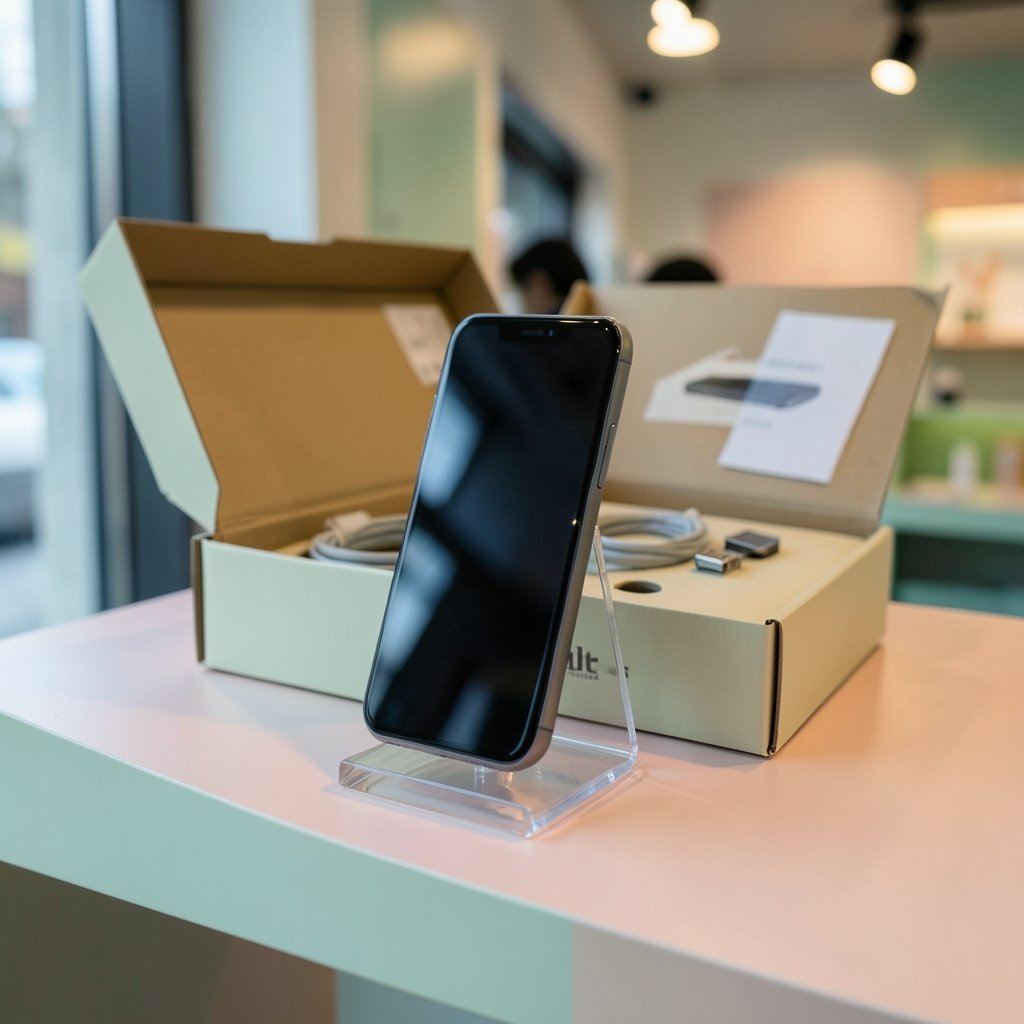
For the majority of upgrades, no cable, app, or shop visit is needed. Contacts tied to a Google Account or an Apple Account sync automatically. Sign in on the new phone and the list appears, usually within a few minutes.
On Android, open Settings, find the accounts section, and confirm that contacts sync is switched on. On a new device, signing into the same Google Account during setup restores the list as part of the normal sign-in flow. On iPhone, contacts stored in iCloud behave the same way: sign in with the same Apple Account and the entries download in the background.
Two practical tips make this smoother. First, do the sign-in on Wi-Fi, because a large contact list with photos can take a while on mobile data. Second, give it ten minutes before panicking. Sync is not instant, and a list that looks half-empty often fills in after a few minutes.
The cloud route also covers the awkward in-between case: a phone that is broken, lost, or already sold. As long as the account credentials are known, the contacts can be pulled onto any new device. That is why account recovery details matter as much as the contacts themselves. If two-factor authentication is in play, sort out access to the authenticator before the old phone disappears; there is a practical walkthrough for transferring an authenticator app without the old phone that covers the common dead ends.
Moving Contacts Between Android and iPhone
Cross-platform moves are where most people get stuck, because the two ecosystems do not talk to each other directly. The reliable bridge is a Google Account, which both sides can read and write.
From iPhone to Android
- On the iPhone, open Settings, tap Contacts, then Contacts Accounts, and confirm the entries are stored in iCloud or on the phone.
- Export the iPhone contacts as a vCard file, or add the Google Account to the iPhone and switch on contacts syncing so the entries upload to Google.
- On the new Android phone, sign in with that same Google Account during setup or afterward in Settings.
- Check the list, then set the Google Account as the default save location for new contacts.
From Android to iPhone
Apple’s Move to iOS app handles this during iPhone setup. It transfers contacts, messages, photos, and more over a direct connection. The catch is timing: the app only works during the initial setup flow, so if the iPhone is already configured, it is easier to erase it and start again or export the Android contacts as a vCard and import them through iCloud on a computer.
The universal fallback: the vCard file
Almost every phone and email service can export and import a vCard file, usually ending in .vcf. It is the standard interchange format for contact data, defined in the vCard specification maintained by the Internet Engineering Task Force, and it works between Android, iPhone, Windows, macOS, and most webmail. Export from the old device, send the file to the new one by email or cloud storage, tap it, and the entries import. It is slightly more manual than cloud sync, but it is the method that never depends on brand compatibility. (vCard: The Electronic Business Card Standard)
SIM Cards and Bluetooth: Useful, but Limited
SIM-based copying still appears in every phone’s contact menu, and it works as a last resort, especially when moving between carriers. But it has real limits. SIM storage holds only a few hundred entries, and many phones save just a name and one number, stripping email addresses, photos, and multiple numbers. Treat it as a rescue tool, not a plan.
Bluetooth transfer works between two phones sitting on a table, but it is slow, fiddly with large lists, and prone to partial transfers that are hard to spot. Manufacturer tools are better: Samsung’s Smart Switch and Google’s setup transfer tool both move contacts along with photos, messages, and apps over a cable or local Wi-Fi. These first-party tools are the most reliable option when both phones are in hand and the cloud route is unavailable.
For anyone moving a whole device rather than just contacts, the same principles apply to photos, messages, and settings. A step-by-step guide to transferring data to a new Android phone without losing anything covers the full checklist, and iPhone users can follow the equivalent process for moving data to a new iPhone without losing anything. (NIST Cybersecurity Framework: Protecting Personal Data)
A Practical Checklist for Transfer Day
The order of operations matters more than the tool. Follow this sequence and almost nothing goes wrong.
- Before anything else, open the old phone’s contact app and check where entries are saved. Look for account labels next to each name, such as Google, iCloud, or Device.
- Move any device-only contacts into the cloud account. Most contact apps have a “move to account” or “default storage” option.
- Export a backup vCard file and email it to yourself. This costs two minutes and covers every scenario, including a failed sync.
- Write down the account username and password, plus recovery codes, on paper. Do not rely on memory during setup.
- Set up the new phone while the old one is still switched on and connected to Wi-Fi.
- Sign into the same account and wait for the list to populate. Compare the count against the old phone.
- Only then wipe or trade in the old device. A factory reset is irreversible.
The most common mistake is skipping step three. A backup file feels redundant right up until a sync fails halfway, a password is mistyped, or the account turns out to be the wrong one. The second most common mistake is resetting the old phone too early, which turns a five-minute fix into a data recovery project.
Fixing a Contact List That Did Not Arrive
When the new phone shows an empty or partial list, work through these checks in order.
First, confirm the account is actually added on the new device and that contacts sync is enabled for it. A common trap is signing in but leaving the contacts toggle off. Second, check whether the contacts are hidden rather than missing: most contact apps have a filter that shows only one account at a time, so the entries may be present but filtered out of view. Third, look at the old phone again. If entries are labeled as device storage, they were never in the cloud and need to be moved or exported manually.
If the old phone is already gone, the vCard backup or the account’s web interface is the rescue route. Both Google Contacts and iCloud Contacts can be opened in a browser, which makes it easy to see exactly what exists in the account and export it if needed. Seeing the list in a browser also settles arguments about whether a contact was ever synced.
Making the Next Switch Effortless
The real lesson from a contacts transfer is that the work happens before the upgrade, not during it. Three habits make every future phone change a non-event.
Set the cloud account as the default save location and check it occasionally. Duplicate entries pile up over the years, and a quick merge in the contacts app keeps the list clean and searchable. Keep the account recovery information current, including a backup method for two-factor codes, since the contacts live behind that login. And export a vCard backup once or twice a year, storing it somewhere that is not the phone itself.
There is a broader pattern here too. Contacts, photos, messages, and even mobile service all follow the same rule: whatever is tied to an account survives, and whatever is tied to a single device does not. The same logic applies to moving an eSIM to a new phone without losing service, where the carrier profile has to be reissued rather than physically moved. People who plan for that handover in advance spend minutes on it; people who do not spend an afternoon on support calls.
Conclusion
Transferring contacts to a new phone is not really about cables or apps. It is about making sure the list lives in an account rather than on a single piece of hardware. For most people, signing into the same Google or Apple Account on the new device does the entire job in minutes. Cross-platform moves take one extra step through a Google Account or a vCard file, and SIM or Bluetooth copying remains a fallback for tight spots. Export a backup before the switch, keep the old phone alive until the new list is verified, and the next upgrade will be the boring, uneventful process it should be.
Frequently Asked Questions
How do I transfer contacts if my old phone is broken or lost?
Sign into the same Google Account or Apple Account on the new phone. If the contacts were synced to the cloud, they will download automatically. If they were saved only on the device, recovery depends on whether a backup file or a linked email account exists. This is exactly why cloud storage as the default save location matters.
Can I transfer contacts between Android and iPhone for free?
Yes. The standard method is a Google Account, which both platforms can sync with, or a vCard export and import. Apple’s Move to iOS app also handles the Android-to-iPhone direction during setup. No paid software is required for any of these routes.
Will my contacts transfer if I move my SIM card to the new phone?
Only the contacts stored on the SIM itself, and those are usually limited to a name and one number. Contacts saved in a Google or Apple account transfer through sign-in, not through the SIM. Copying from the SIM is a useful fallback, not a complete solution.
Why are only some of my contacts showing on the new phone?
The most likely causes are a contacts sync toggle that is switched off, a filter hiding one account’s entries, or contacts that were saved to device storage and never synced. Check the account settings first, then compare the account’s web interface against the phone to see what actually exists.
Does transferring contacts also move photos and email addresses?
Cloud sync and vCard files carry full contact details, including photos, email addresses, birthdays, and multiple numbers. SIM copying typically does not. If detailed contact cards matter, use the account sync or vCard route rather than the SIM.
How long should I wait before wiping the old phone?
Wait until the new phone shows the complete list and you have compared the contact count against the old device. If anything is missing, the old phone is still the source of truth. A factory reset cannot be undone, so a day of overlap is a small price for certainty.